
Your First Linux Login: 6 Commands Every Future Cloud Engineer Must Know

What if the most important file on your Linux server was invisible to a simple ls command?
That's exactly the problem waiting for you in Chapter 1 of ChaiCode's Linux on Call lab.
Imagine this.
A company's application has just moved from a developer's laptop to a production Linux server. The previous administrator has transferred to another office. You're now responsible for the system.
The hosting provider needs the server's name.
The previous admin left a handover note.
But when your colleague checks the directory, the note appears to be missing.
No graphical interface. No file explorer. Just a terminal.
Your first responsibility isn't deploying an application or configuring Kubernetes.
It's knowing where you are, what files exist, and how to retrieve information without damaging anything.
That's where real Linux administration begins.
In this guide, we'll explore six foundational Linux commands, uncover hidden files, understand filesystem paths, and complete four practical tasks inspired by the ChaiCode Linux on Call lab.
Lab: ChaiCode — Linux on Call, Chapter 1: Your First Login
1. Before You Touch a Server, Know Where You Are
One of the most underrated Linux habits is checking your environment before executing commands.
Why?
Because the same command can produce completely different results depending on your current directory and user permissions.
Start with:
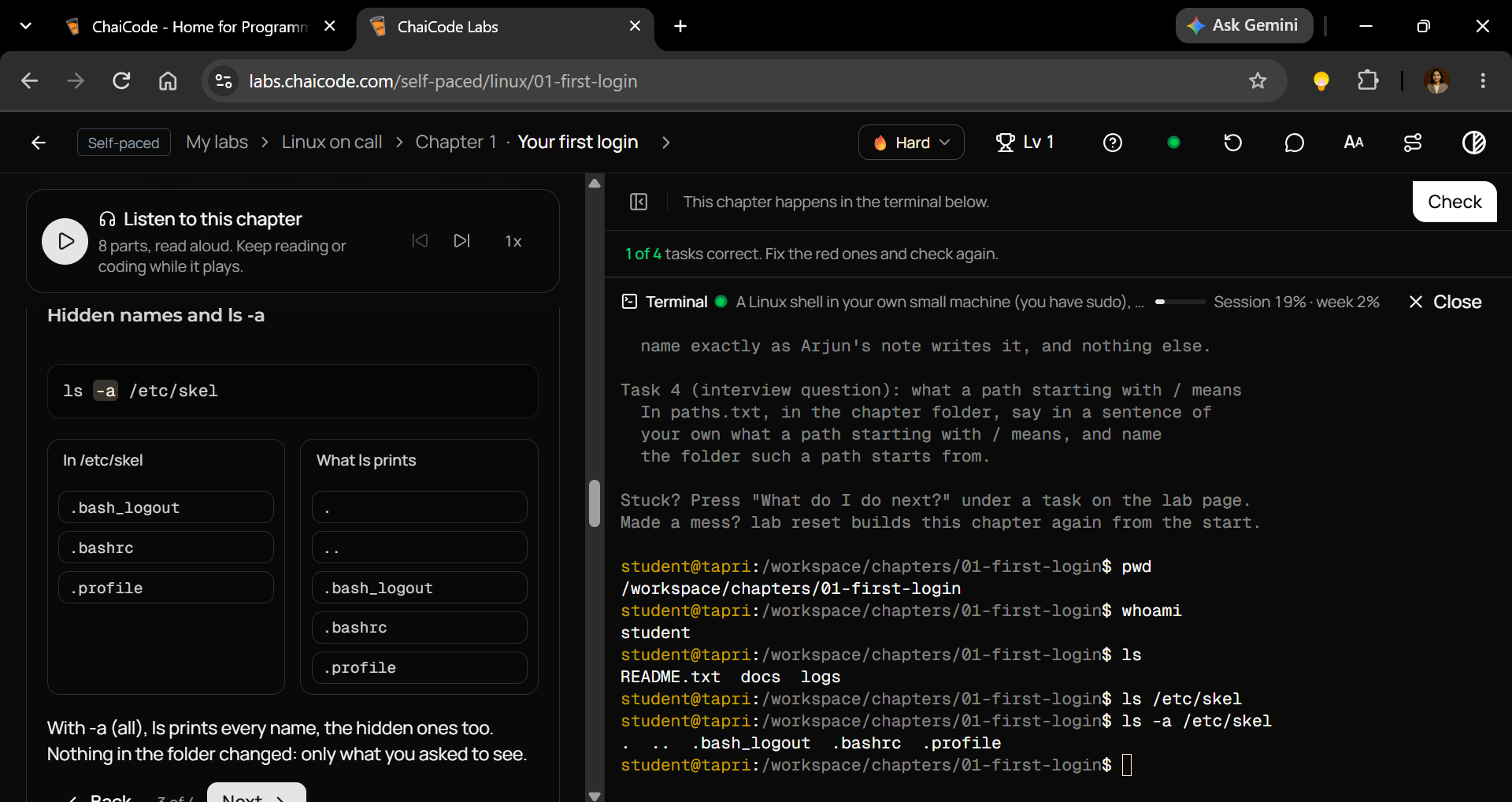
pwd
Example output:
/workspace/chapters/01-first-login
pwd means Print Working Directory.
It tells you exactly where you are inside the Linux filesystem.
Think of it like checking your location on Google Maps before following directions.
Now run:
whoami
Example output:
student
This tells you which user account is executing commands.
In a real Cloud Ops environment, that distinction matters.
Running a command as an ordinary user is not the same as running it with administrator privileges.
A mistaken command executed with elevated privileges can have far greater consequences.
Cloud Ops lesson: Before changing anything on a server, establish your location and identity.
Two commands. A few seconds. A habit worth keeping throughout your career.
2. The File You Can't See: Understanding ls and Hidden Files
Back to the missing handover note.
Your colleague runs:
ls
A few entries appear.
But there's no obvious handover note.
Does that mean the file doesn't exist?
Not necessarily.
By default, ls doesn't display filenames beginning with a period (.).
These are commonly called hidden files or dotfiles.
Linux often uses them for configuration.
But here's where things become interesting.
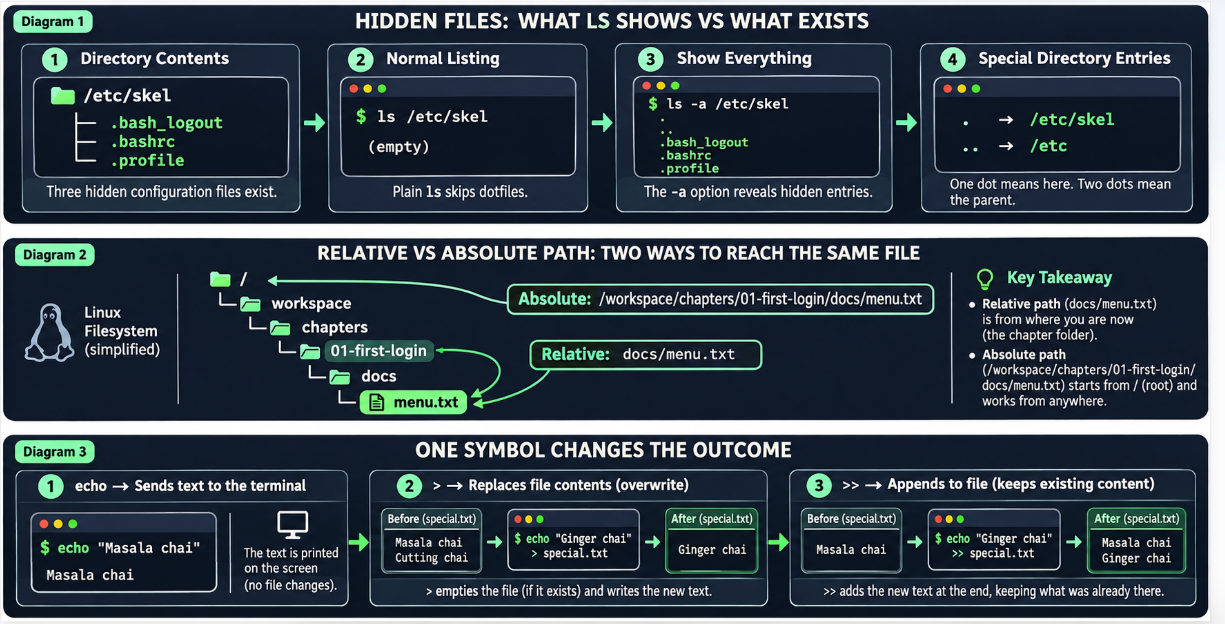
A Real Example: The Hidden Files in /etc/skel
Linux includes a directory called /etc/skel.
This directory typically contains default configuration files used when creating new user home directories.
In the ChaiCode lab environment, it contains three important hidden files:
.bash_logout
.bashrc
.profile
Each filename starts with a dot.
Let's see what happens when Linux lists that directory.
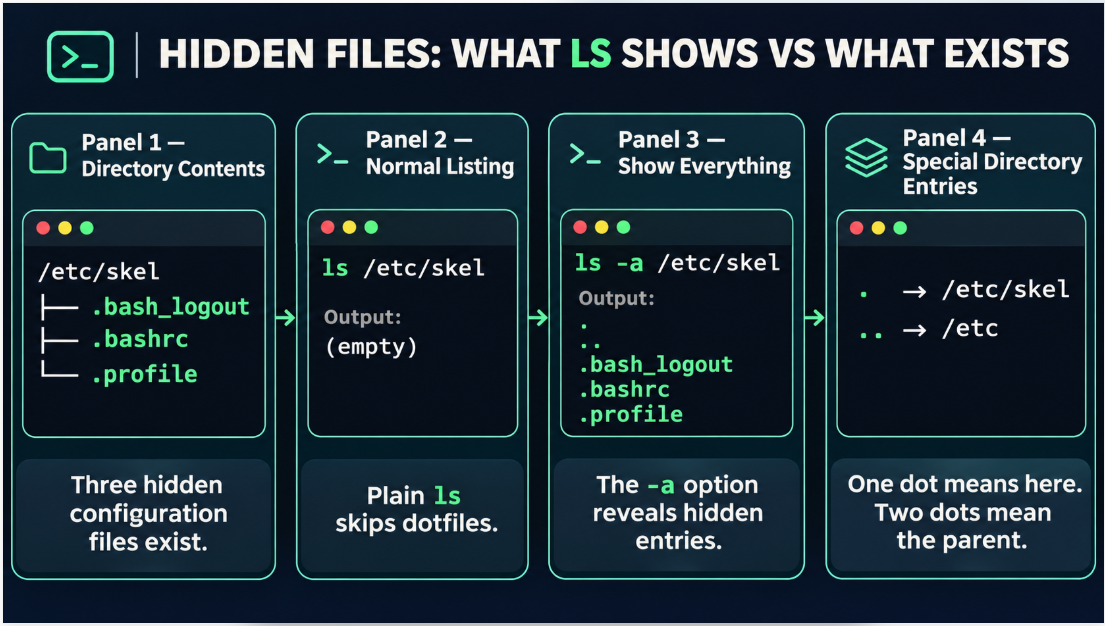
Step 1: List the Directory Normally
Run:
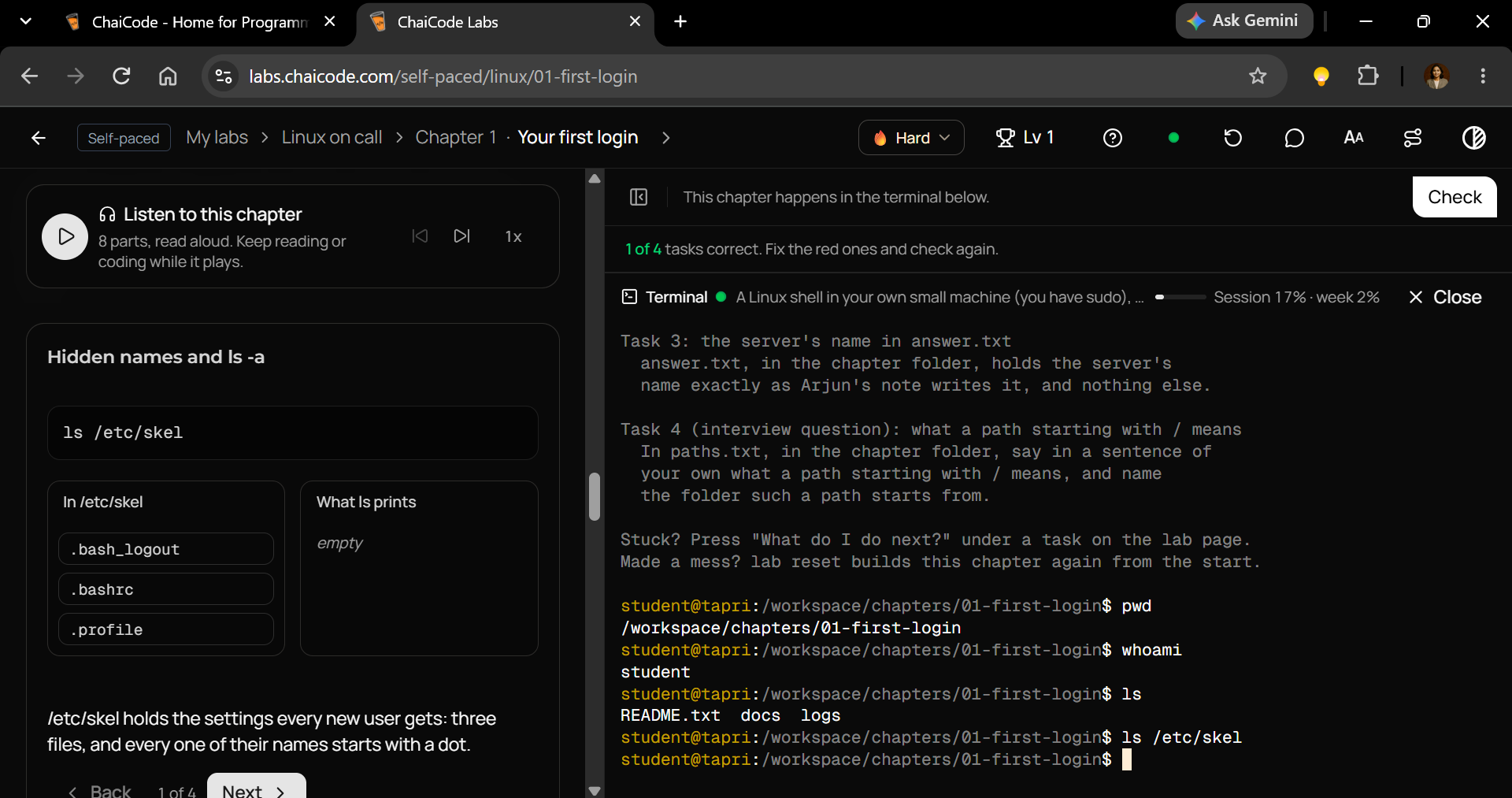
ls /etc/skel
Output:
(empty)
Nothing appears.
But the directory isn't actually empty.
It contains:
.bash_logout
.bashrc
.profile
All three filenames begin with a dot, so a normal ls command skips them.
Important lesson: An empty listing does not necessarily mean an empty directory.
This is why administrators shouldn't assume a file is missing simply because they cannot see it.
Step 2: Understand Why the Files Are Hidden
Let's examine what Linux is doing.
The directory contains:
| Actual filename | Visible with plain ls? |
|---|---|
.bash_logout |
No |
.bashrc |
No |
.profile |
No |
These files are not encrypted, deleted, or inaccessible simply because they're hidden.
Linux is following a naming convention.
A filename beginning with . is excluded from ordinary ls output.
The contents still exist.
You just need to ask the shell to show those entries.
This distinction matters when investigating application configurations, user settings, and hidden project files.
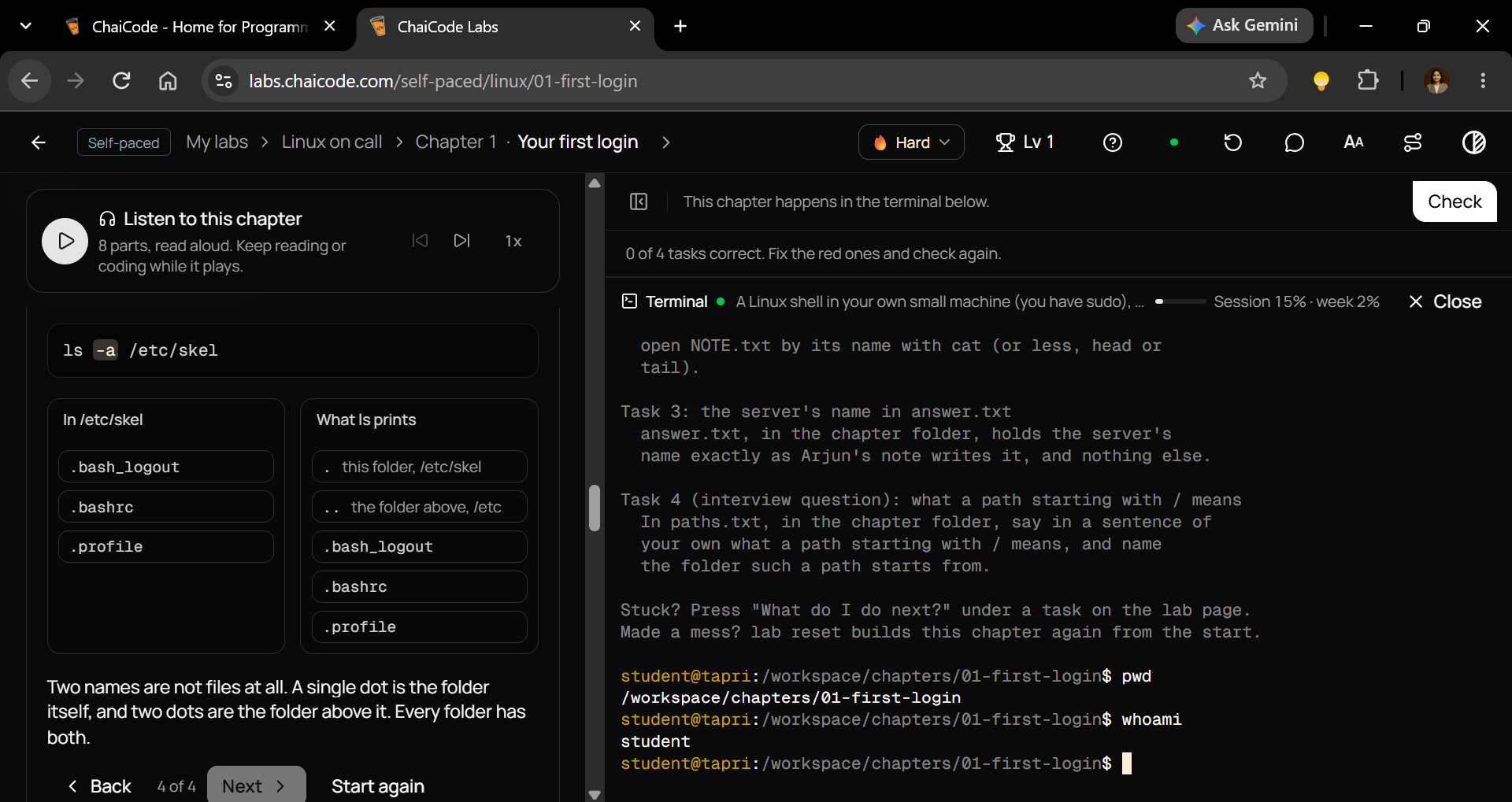
Step 3: Reveal Everything with ls -a
Now add one option to the command:
ls -a /etc/skel
Output in the lab:
.
..
.bash_logout
.bashrc
.profile
Suddenly, five entries appear.
The -a option means all.
It instructs ls to include hidden names.
Notice something important.
Nothing in the directory changed. Only what you asked Linux to display changed.
That's a useful troubleshooting principle.
Sometimes the problem isn't missing information.
It's an incomplete view of the information already available.
Step 4: What Do . and .. Actually Mean?
Look carefully at the first two entries:
.
..
They're different from regular files.
They represent directory locations.
. means the current directory.
In this example:
. = /etc/skel
.. means the parent directory.
Here:
.. = /etc
These special directory references are fundamental to Linux navigation.
For example:
ls .
Lists the current directory.
And:
ls ..
Lists the parent directory.
You can also use them in filesystem paths.
Suppose your current directory is:
/etc/skel
Then:
cd ..
Moves you up to:
/etc
The cd command changes your working directory. It's a useful next step in Linux navigation.
Think of it this way:
.— Here...— One level up./— The filesystem root.
All three are useful, but they represent different locations.
Bonus: Get More Details with ls -la
There's another useful option:
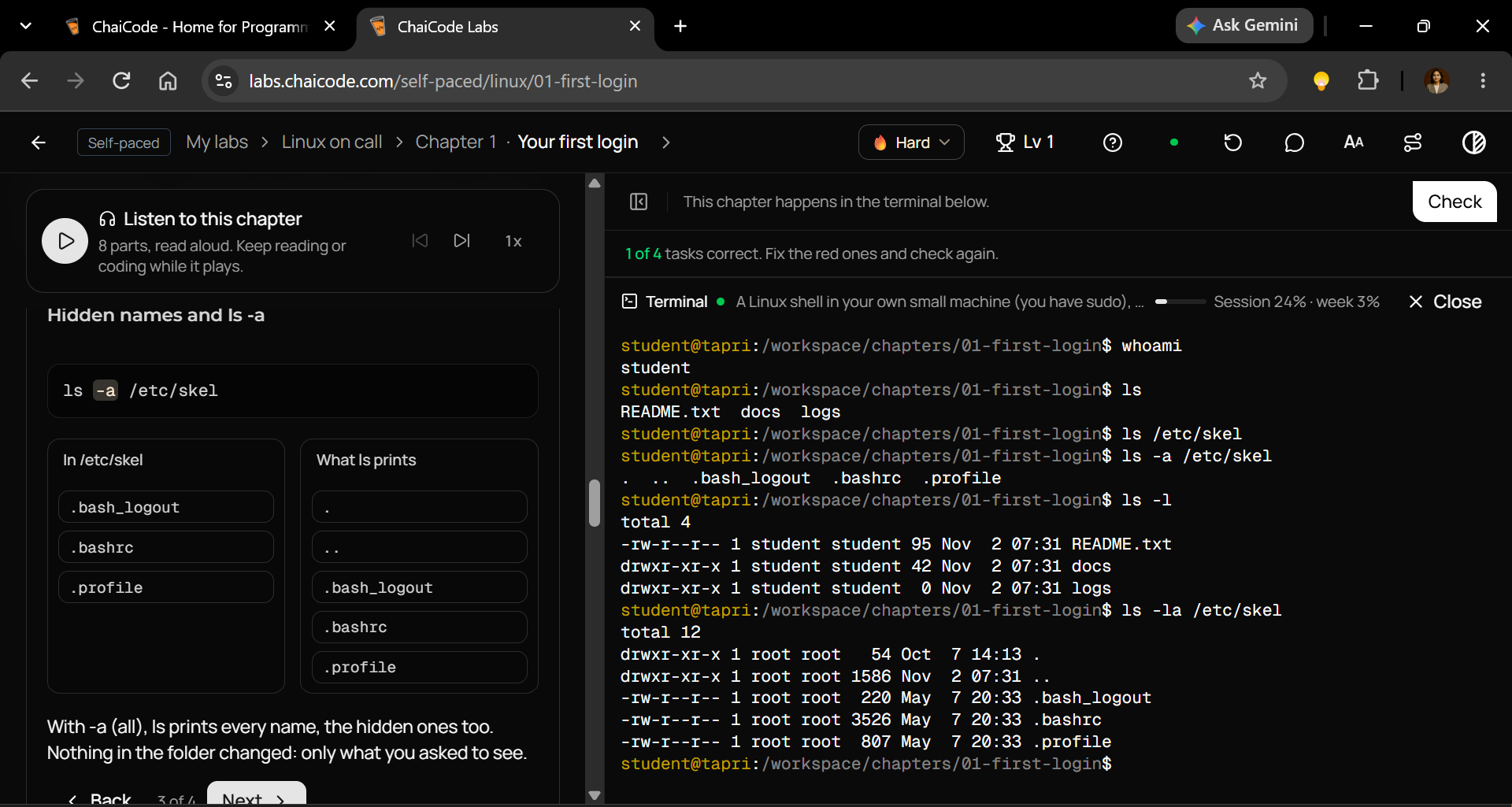
ls -l
The -l option provides a detailed listing that includes permissions, ownership, size, and modification timestamps.
Combine both options:
ls -la /etc/skel
Now you can inspect hidden entries and view their metadata.
This combination is useful when diagnosing file ownership or permission-related problems.
Cloud Ops takeaway:
ls tells you what's normally visible.
ls -a reveals hidden entries.
ls -la shows hidden entries with additional details.
The difference is small.
The troubleshooting value is enormous.
3. Reading Files Without Opening an Editor
Once you find a file, the next challenge is reading its contents.
That's where cat comes in.
Consider a sample file containing Tapri's menu:
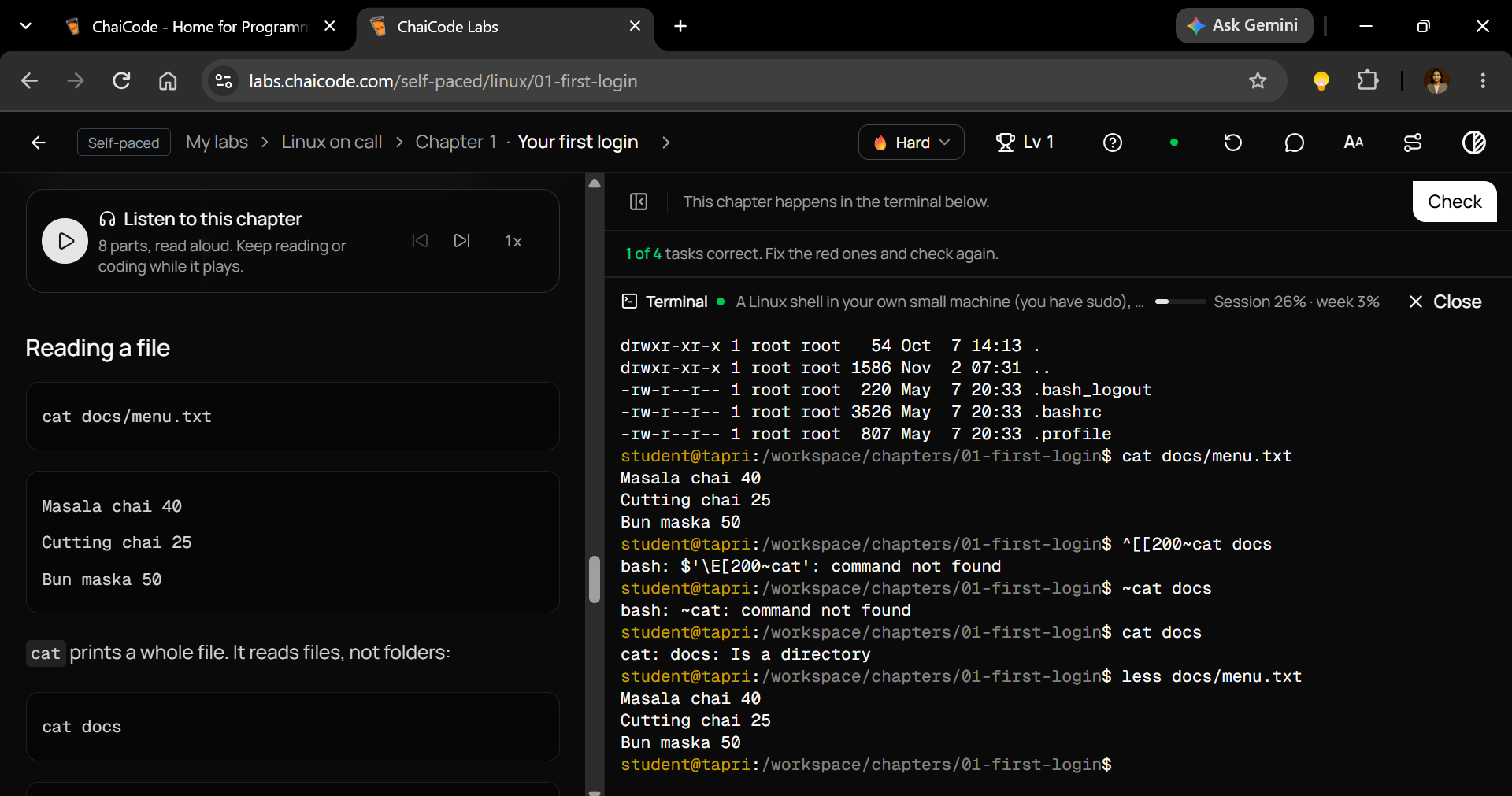
cat docs/menu.txt
Output:
Masala chai 40
Cutting chai 25
Bun maska 50
Simple.
The cat command prints file contents directly to the terminal.
It doesn't require a graphical editor.
You can use it to inspect small configuration files, notes, and other text-based information.
But there's a catch.
Try:
cat docs
You'll receive an error:
cat: docs: Is a directory
Because docs is a directory, not an ordinary text file.
For longer files, use:
less docs/menu.txt
less allows you to move through longer content without dumping everything onto the screen.
Press q to exit.
In production environments, quickly inspecting a configuration file can be the first step toward diagnosing a deployment problem.
Cloud Ops lesson: Learn how to inspect a file before you learn how to modify it.
4. Relative vs Absolute Paths: A Small Difference With Big Consequences
Here's a common beginner mistake.
You run:
cat docs/menu.txt
It works.
Then you move to another directory and run the exact same command.
Suddenly:
cat: docs/menu.txt: No such file or directory
What changed?
Not necessarily the file.
Your location changed.
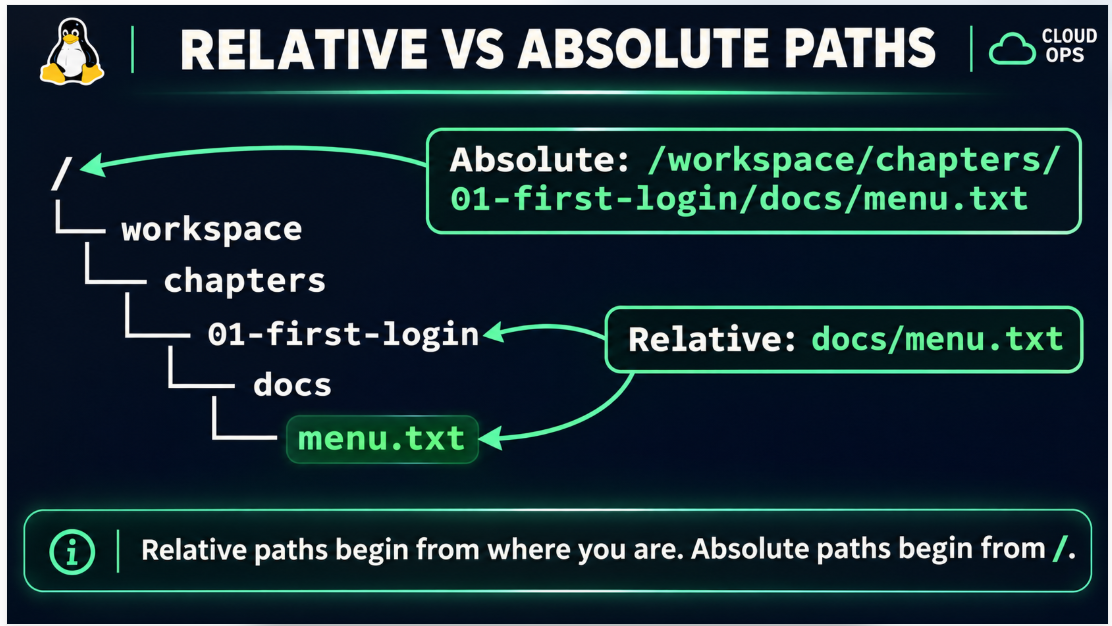
Linux supports two important ways of identifying filesystem locations.
Relative Paths
A relative path is interpreted using your current working directory.
Example:
cat docs/menu.txt
When your current directory is:
/workspace/chapters/01-first-login
Linux looks for:
/workspace/chapters/01-first-login/docs/menu.txt
Move somewhere else, and the relative path points somewhere else.
Absolute Paths
An absolute path begins with /.
Example:
cat /workspace/chapters/01-first-login/docs/menu.txt
This identifies the file starting from the filesystem root.
It does not depend on your current working directory.
Here's a simple way to remember the difference:
Relative path: Directions from where you're standing.
Absolute path: The complete address from the filesystem root.
The root directory is /.
Don't confuse it with /root, which is normally the root user's home directory.
Knowing this difference becomes especially important when creating automation scripts, scheduling jobs, and troubleshooting deployments.
A script that relies on the wrong working directory can fail even when the target file exists.
5. Writing to Files: Why One Symbol Deserves Your Attention
Reading is important.
But eventually, you need to save information.
Let's use:
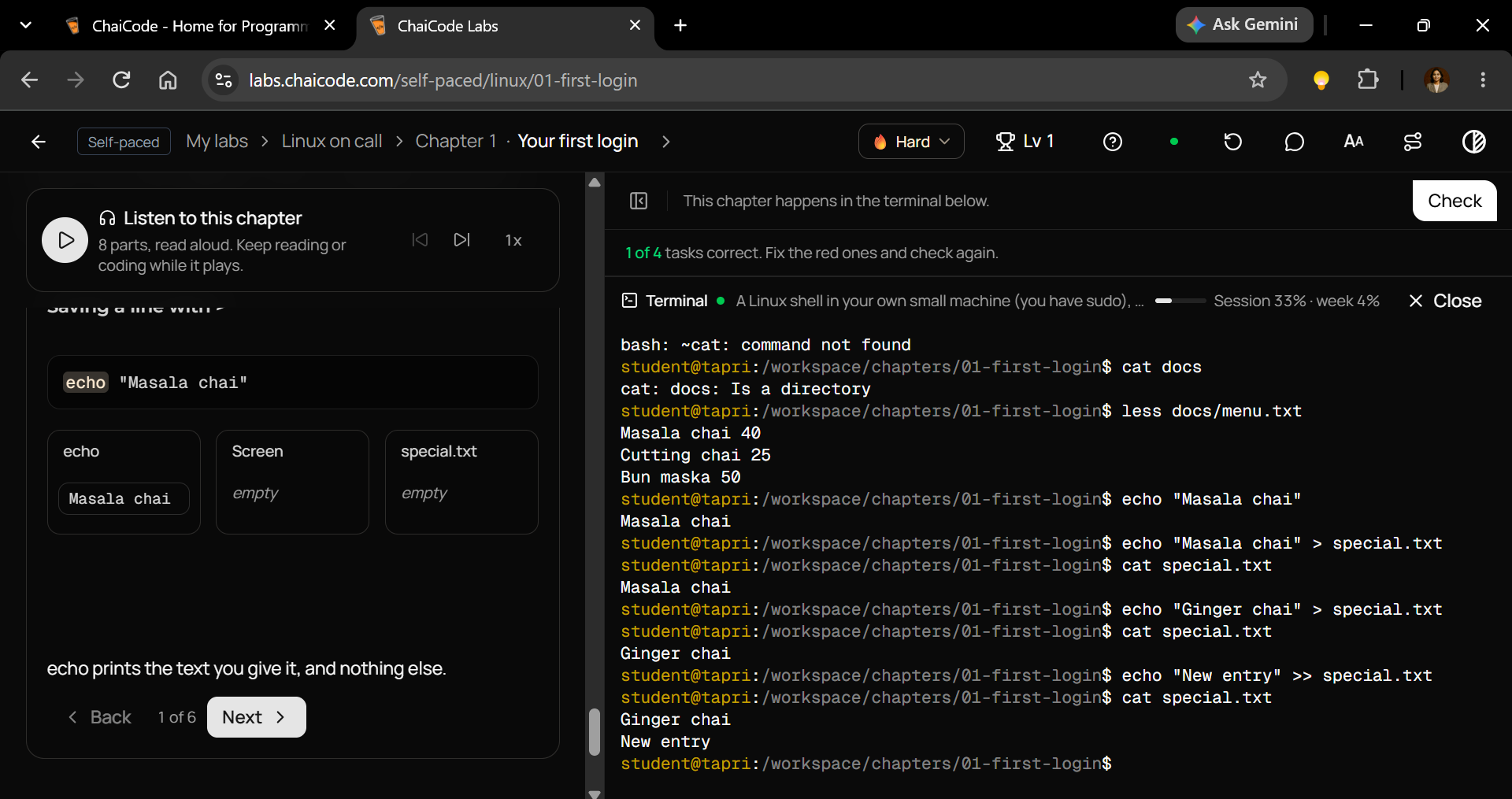
echo "Masala chai"
Output:
Masala chai
echo prints text to standard output, which normally appears in your terminal.
Now add a redirection operator:
echo "Masala chai" > special.txt
The text is written into special.txt.
Verify it:
cat special.txt
Output:
Masala chai
Now comes the critical part.
Run:
echo "Ginger chai" > special.txt
Then:
cat special.txt
Output:
Ginger chai
Where did "Masala chai" go?
It was replaced.
The > operator creates a file if it doesn't exist, but overwrites an existing file's contents.
That behavior makes it useful and potentially dangerous.
For comparison:
echo "New entry" >> special.txt
The >> operator appends to the file instead of replacing its existing contents.
Here's the distinction worth remembering:
> means replace.
>> means append.
In Cloud Ops, understanding redirection helps when writing configuration values, recording command output, and building simple shell scripts.
Be especially careful when redirecting output into production configuration files.
6. The Real Challenge: Recover the Missing Handover Note
Now we can put the commands together.
The ChaiCode lab presents four practical tasks based on a real-world administration scenario.
You're responsible for finding the previous administrator's note, identifying the server name, and saving it correctly.
Here's how to approach each task.
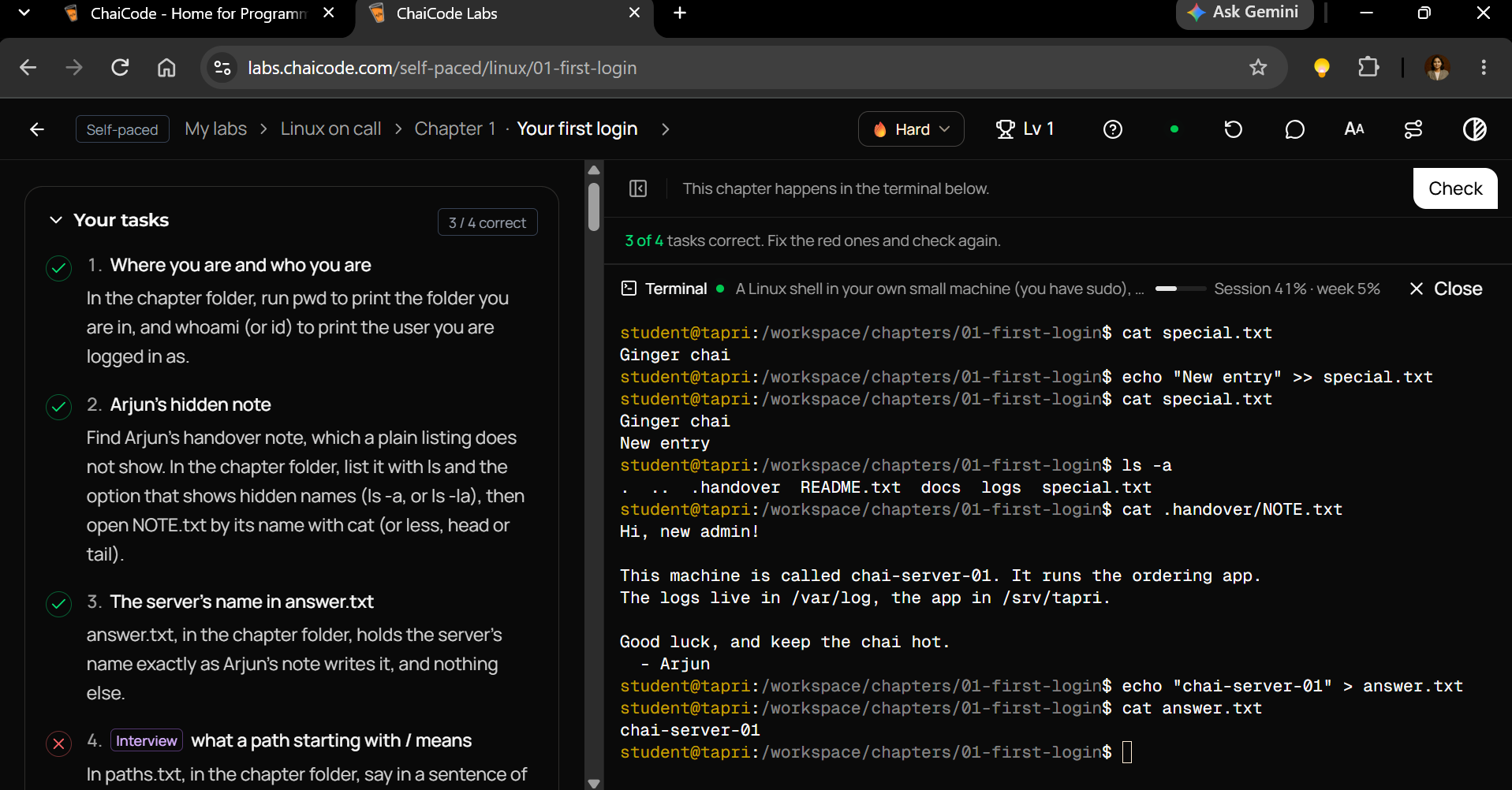
Task 1: Verify Your Location and Identity
Run:
pwd
whoami
This establishes your current working directory and user account.
Task 2: Locate Arjun's Handover Note
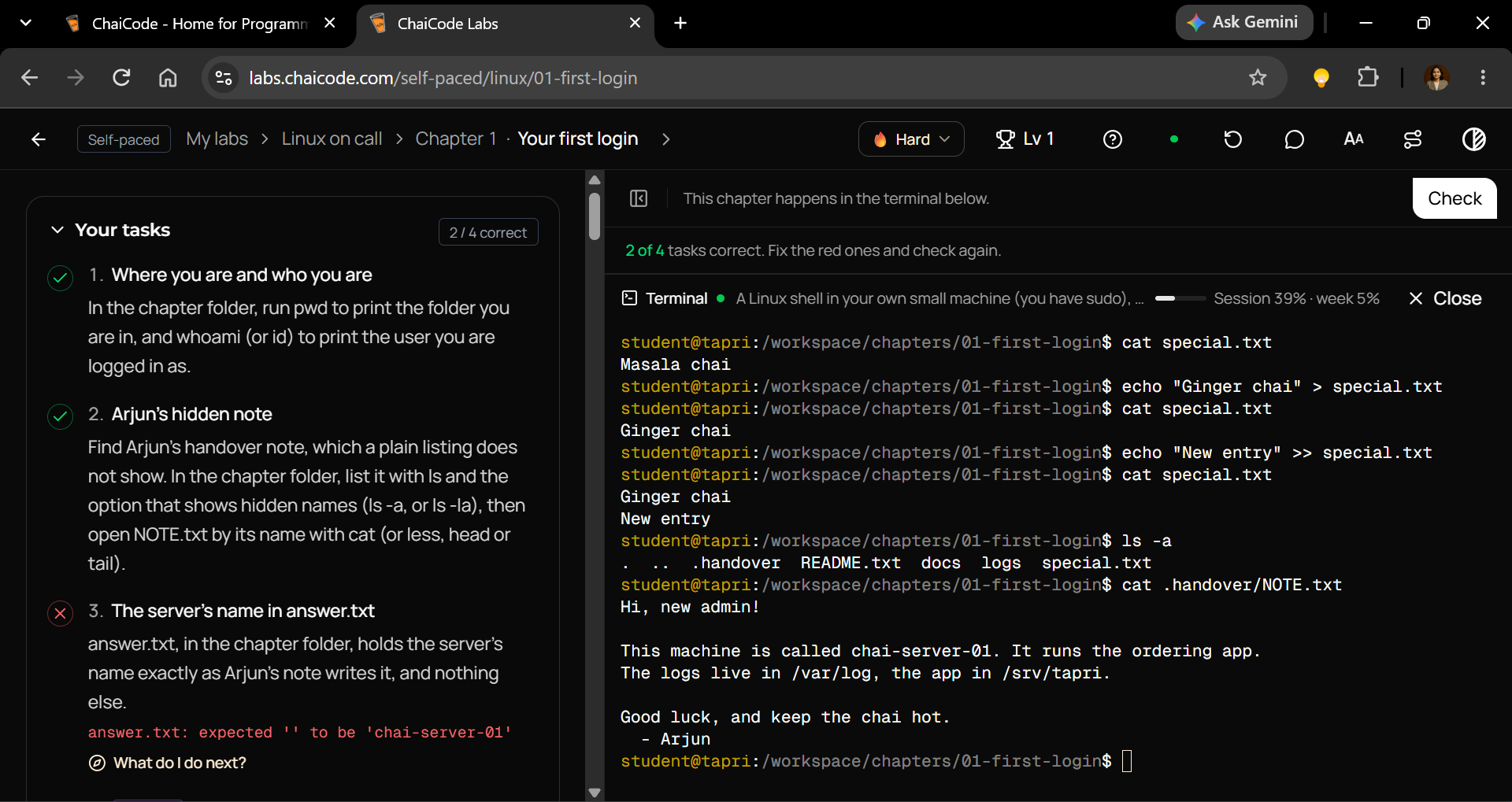
Start by listing everything in the chapter directory:
ls -a
Look for entries that a normal ls did not show.
If the handover note appears as NOTE.txt in the current directory, read it with:
cat .handover/NOTE.txt
If you find that the note is located inside a hidden directory, use its actual path instead:
cat .hidden-directory/NOTE.txt
Replace .hidden-directory with the real directory name found during your investigation.
The important principle is to inspect hidden entries instead of assuming the handover note is missing.
Task 3: Save the Server Name
Read Arjun's note carefully.
Find the exact server name specified in its contents.
Then create answer.txt in the chapter directory:
echo "SERVER_NAME_FROM_NOTE" > answer.txt
chai-server-01
echo "chai-server-01" > answer.txt
Replace SERVER_NAME_FROM_NOTE with the exact server name shown in the note. This is a placeholder, not the lab's actual answer.
Verify your work:
cat answer.txt
The file must contain the required server name, without extra explanatory text.
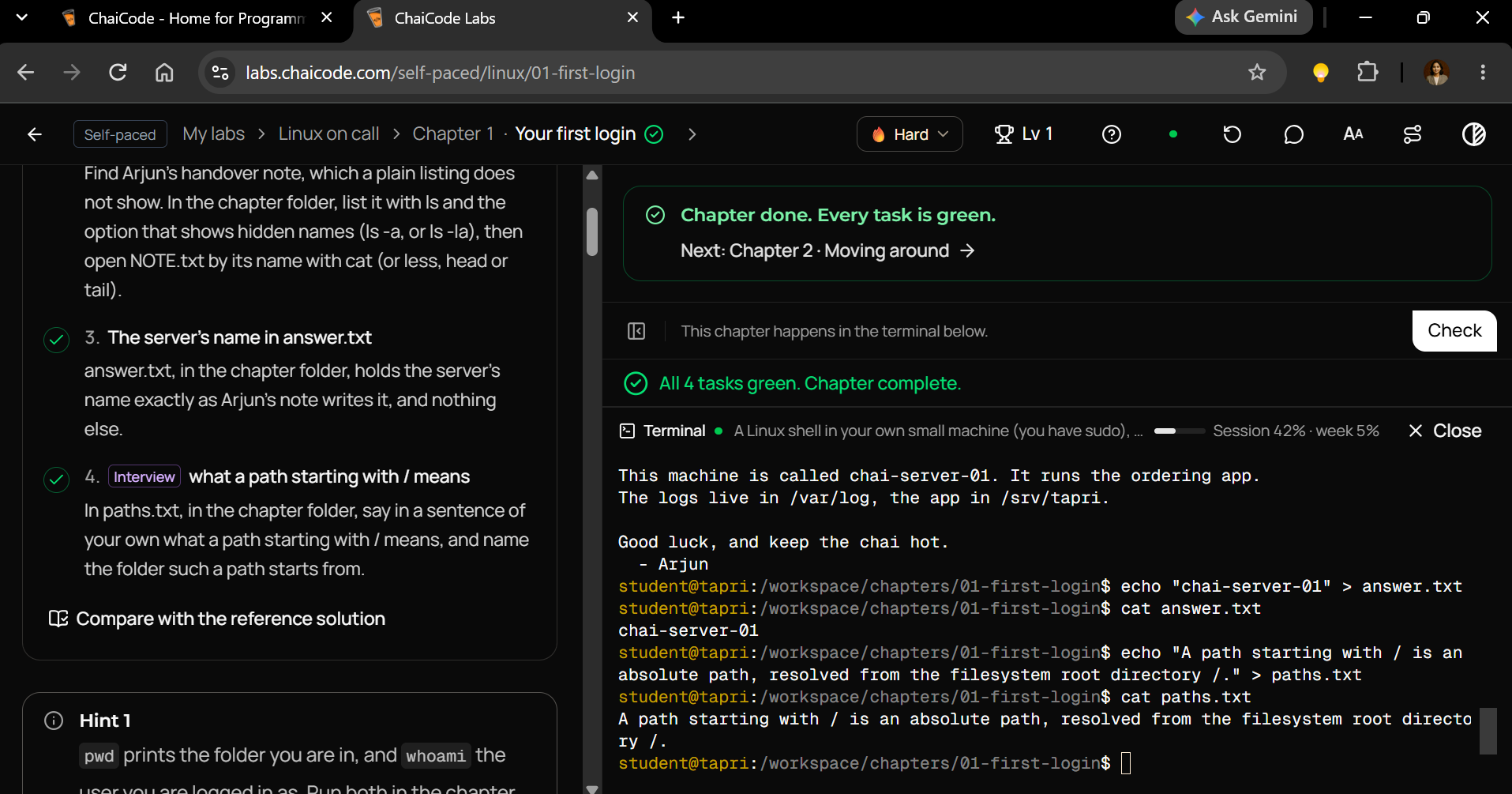
Task 4: Answer the Linux Path Interview Question
The task asks:
What does a path starting with / mean?
An appropriate answer is:
"A path beginning with / is an absolute path. It starts from the Linux filesystem's root directory, /, rather than from the current working directory."
Save your answer:
echo "A path starting with / is an absolute path, resolved from the filesystem root directory /." > paths.txt
Verify:
cat paths.txt
You have now practiced checking your identity, navigating directories, discovering hidden entries, reading files, writing files, and understanding absolute paths.
These aren't isolated commands.
They're the building blocks of real administration workflows.
7. What This Lab Teaches Beyond Linux Commands
The most important takeaway isn't memorizing six commands.
It's learning a reliable way to approach unfamiliar systems.
Consider how the problem unfolds.
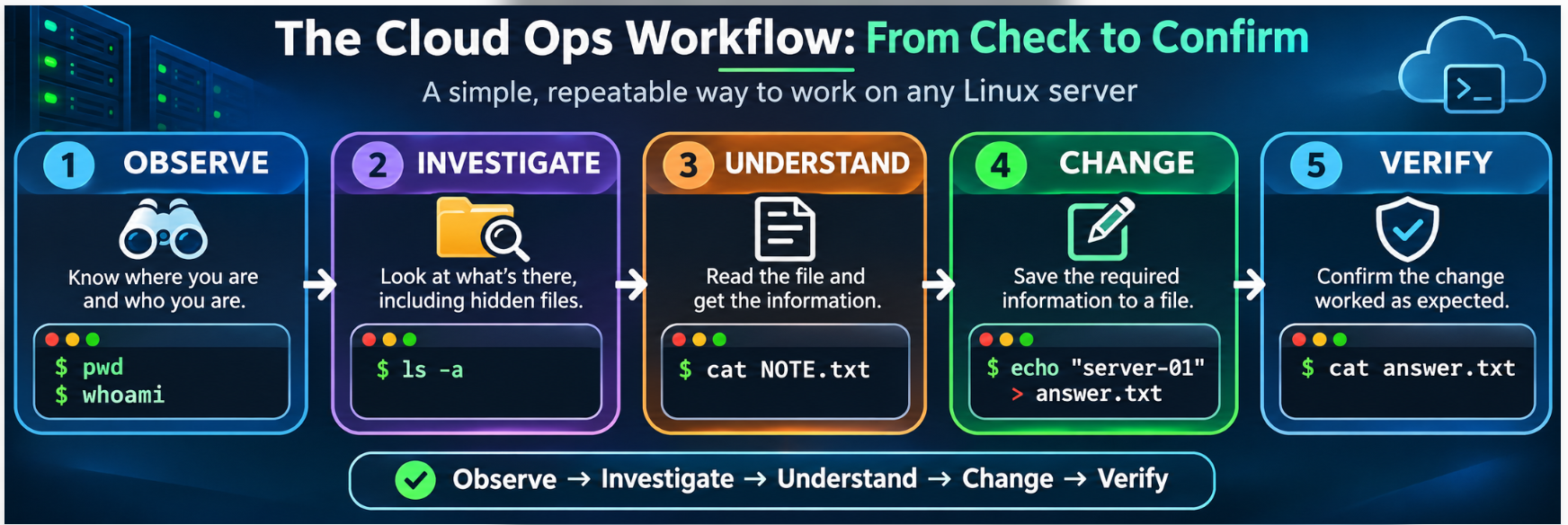
First, you identify your working environment.
Then, you inspect what's available.
When the expected file isn't visible, you investigate rather than assume.
After locating the file, you read it.
Only then do you write the requested information to a new file.
Finally, you verify the result.
That's a simplified version of a workflow used throughout infrastructure operations:
Observe → Investigate → Understand → Change → Verify
Notice what's missing?
Guesswork.
Good operational practice reduces assumptions and favors small, verifiable actions.
This applies to far more than introductory Linux labs.
When a configuration file seems missing, inspect the correct directory and hidden entries.
When a script can't find a file, verify its working directory and paths.
When saving output, check whether redirection will overwrite something important.
When troubleshooting access, verify which user is executing the command.
Reliable infrastructure operations begin with reliable habits.
8. Linux Interview Questions You Can Answer After Chapter 1
What does pwd do?
It prints the absolute path of the current working directory.
What's the difference between whoami and pwd?
whoami identifies the current user. pwd identifies the current working directory.
Why doesn't ls display every file?
By default, ls hides names beginning with a period. Use ls -a to show them.
What does a single dot mean in Linux?
. refers to the current directory.
What do two dots mean in Linux?
.. refers to the parent directory.
What is /etc/skel used for?
It commonly holds default files that are copied into newly created user home directories, depending on the user-creation tools and configuration.
What does cat do?
It reads files and writes their contents to standard output.
What's the difference between relative and absolute paths?
Relative paths are interpreted from the current working directory. Absolute paths start from the filesystem root directory /.
What's the difference between > and >>?
> overwrites the destination file. >> appends data to it.
These questions may look basic, but the concepts support shell scripting, server administration, incident troubleshooting, and cloud infrastructure work.
9. Your First Linux Lab Is Only the Beginning
There's a temptation to skip beginner commands and move straight into Docker, Kubernetes, Terraform, or cloud certifications.
But advanced tools don't eliminate the need for Linux fundamentals.
Containers still have filesystems.
Automation still depends on commands and paths.
Servers still have user accounts, permissions, and configuration files.
And troubleshooting still begins with understanding the environment in front of you.
That's why a practical first-login lab is valuable.
It shifts learning away from memorizing command definitions and toward solving a specific operational problem.
You're not simply practicing ls -a.
You're locating a handover note that another administrator couldn't find.
You're not simply practicing echo.
You're recording information needed for an infrastructure support workflow.
You're not simply memorizing absolute paths.
You're learning why the same command can succeed in one directory and fail in another.
Learn the command. Understand the behavior. Apply it to a real problem. Verify the result.
That's how beginner knowledge becomes operational skill.
Final Takeaway
Six commands form the foundation of this first Linux challenge:
pwd— Find where you are.whoami— Identify who you are.ls— List directory contents.ls -a— Reveal hidden entries.cat— Read file contents.echo— Print or write text using shell redirection.
Also remember:
. = Current directory
.. = Parent directory
/ = Filesystem root
The commands are simple.
The operational habits behind them are what matter.
If you're learning Linux, Cloud Ops, DevOps, or technical support, start by understanding your environment before trying to control it.
A good engineer doesn't need to know everything about a server. They need to know how to find the truth, make a safe change, and verify what happened.
Try the Lab Yourself
Lab: Chapter 1 — Your First Login
Learning track: Linux on Call
Platform: ChaiCode Labs
Open to Cloud Ops Remote and technical writing projects.
Comments
Join the discussionNo comments yet. Be the first to comment.
Linux on Call: From Beginner to Cloud Engineer | ChaiCode Labs
Learn Linux from the ground up through hands-on ChaiCode Labs and real-world Cloud Ops scenarios. This series documents my journey from Linux beginner to cloud engineer, covering essential commands, filesystem navigation, server administration, permissions, troubleshooting, shell scripting, and practical DevOps skills. Each chapter includes step-by-step tutorials, terminal examples, screenshots, visual diagrams, interview questions, and lessons you can apply to real Linux servers. Learn by doing. Troubleshoot with confidence. Build real Cloud Ops skills.