
How to Lock Down Google Cloud in 9 Steps Using Custom IAM Roles (GSP190 Hands-On Guide)
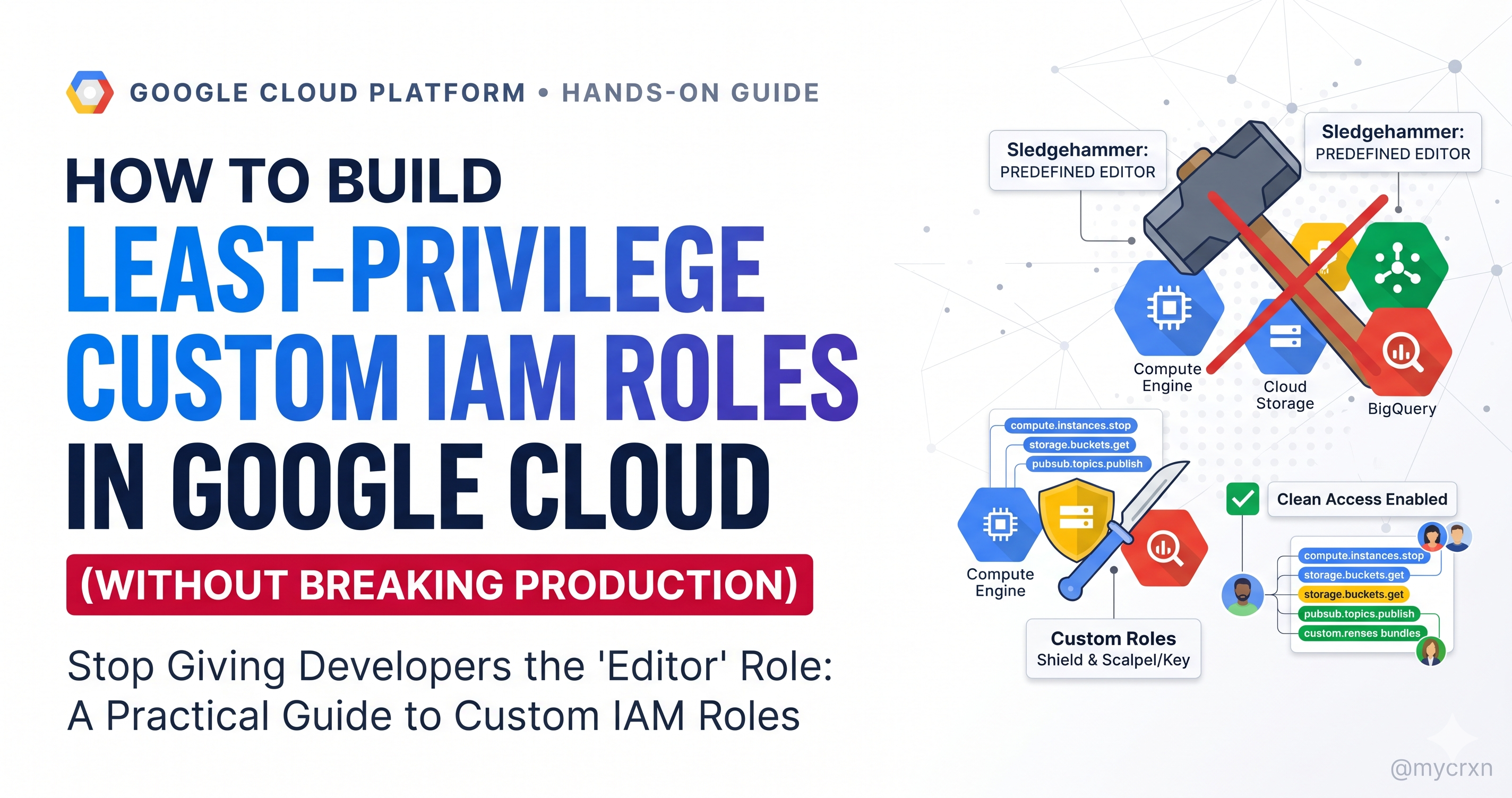
How to Build Least-Privilege Custom IAM Roles in Google Cloud (Without Breaking Production)
- Stop Giving Developers the "Editor" Role: A Practical Guide to Google Cloud Custom IAM Roles
- The Art of the Cloud Scalpel: How to Build, Update, and Recover Custom IAM Roles in Google Cloud
Picture this: It is 4:45 PM on a Friday. A junior developer needs to deploy a new App Engine version. Because nobody wants to spend an hour debugging permission errors before the weekend, an exhausted admin grants them the predefined Editor role.
Problem solved in ten seconds. Right?
Wrong. That developer and any script or credential running on their machine can now accidentally wipe out production Cloud Storage buckets, terminate Compute Engine VMs, or alter infrastructure they were never meant to touch.
"Broad permissions are security debt disguised as speed. In the cloud, convenience compounds into catastrophe; least privilege compounds into peace of mind."
In Google Cloud, you never grant permissions directly to users. Instead, you bundle permissions into roles and assign those roles to users, groups, or service accounts. That way, you map actual job functions to exact access boundaries.
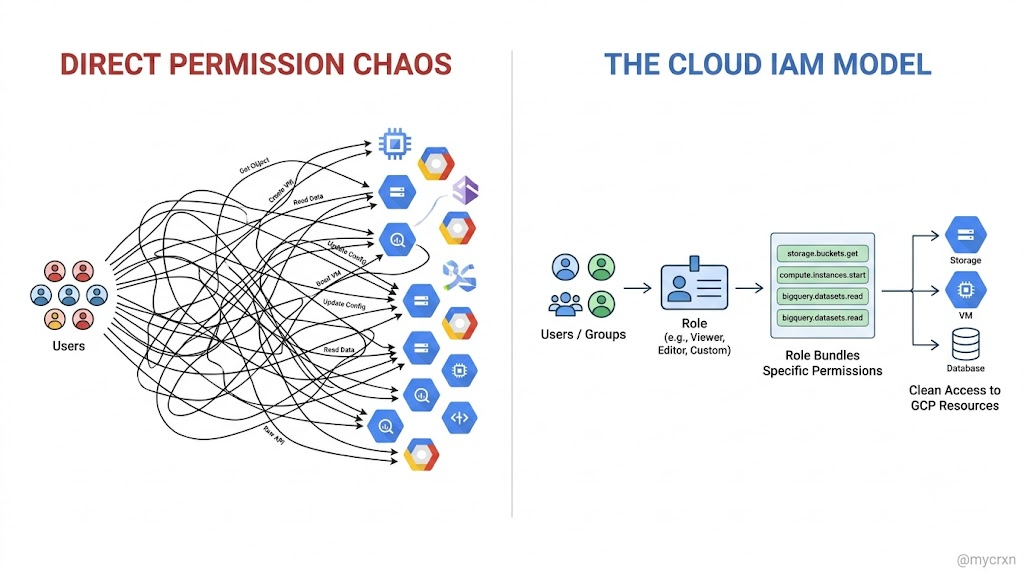
Predefined Roles vs. Custom Roles: Sledgehammer vs. Scalpel
Google Cloud IAM gives you two ways to hand out keys to your kingdom:
- Predefined Roles: Created and maintained by Google. When Google adds new features or services, these roles update automatically. They are convenient, zero-maintenance, and great for broad job descriptions but sometimes they give away too much power.
- Custom Roles: Created and maintained by you. You hand-pick the exact permissions required for a specific task and bundle them together. When Google rolls out new permissions or services, your custom roles do not update automatically which is a feature, not a bug. Nothing changes unless you say it changes.
The Anatomy of a Google Cloud Permission
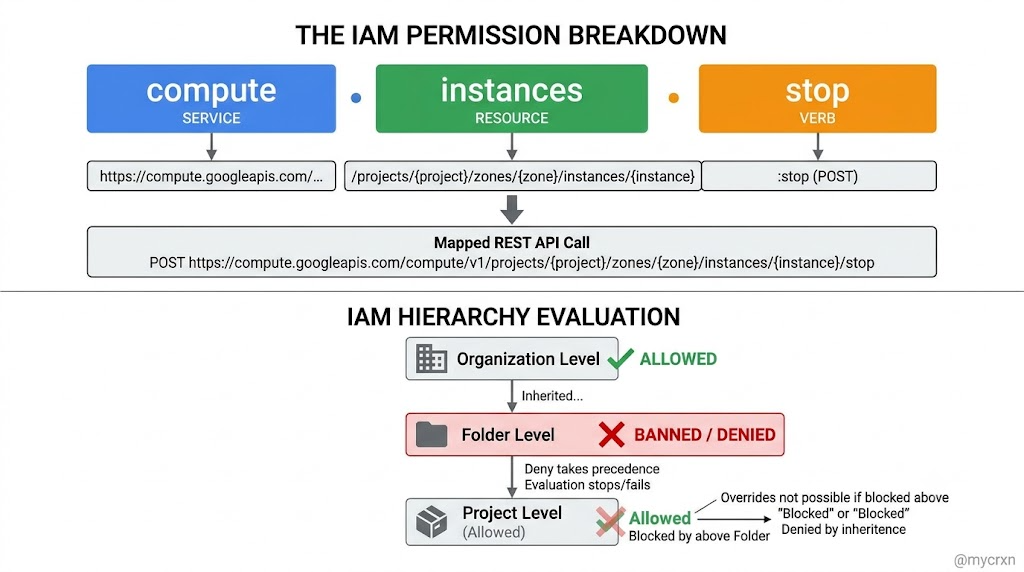
If you want to master Cloud IAM, you only need to memorize one three-part formula. Every permission in Google Cloud is written as:
<service>.<resource>.<verb>
Notice the clarity. There is zero guesswork:
compute.instances.listlets a user list Compute Engine instances.compute.instances.stoplets a user stop a VM.pubsub.topics.publishlets a caller execute thetopic.publish()REST method.
In fact, permissions in Google Cloud correspond almost 1:1 with REST API methods. Every time you run a CLI command or click a button in the console, an API call fires in the background, and IAM checks if your role holds the matching service.resource.verb ticket.
Three Rules Every Cloud Architect Must Know Before Building
- Where Custom Roles Live: You can create a custom role at the Organization level or the Project level. You cannot create custom roles at the Folder level.
- Scope Boundaries: Custom roles can only grant permissions inside the specific project or organization that owns them. You cannot take a custom role from Project A and apply it to a resource owned by Project B.
- Who Holds the Keys to Create Roles: To build a custom role, the caller needs the
iam.roles.createpermission. If you aren't a Project Owner, you must hold either the Organization Role Administrator role (roles/iam.organizationRoleAdmin) or the IAM Role Administrator role (roles/iam.roleAdmin). Need someone to audit roles without touching them? Assign them the IAM Security Reviewer role (roles/iam.securityReviewer).
What We Will Build Today (GSP190 Lab Walkthrough)
By the end of this walkthrough, you will know how to:
- Inspect testable permissions and grantable roles on any Google Cloud resource.
- Build custom IAM roles from scratch using both YAML definitions (for GitOps/automation) and CLI flags (for speed).
- Safely update live custom roles using
etagconcurrency controls so two admins never overwrite each other. - Disable, delete, and resurrect custom IAM roles within Google Cloud's 37-day lifecycle window.
When you delete a custom IAM role in Google Cloud (and as stated in Task 8 of the GSP190 lab), the deletion clock is split into two distinct phases:
- The Undelete (Resurrection) Window: 7 days
- For the first 7 days after deletion, the role is in a soft-deleted state. Existing bindings remain inactive, and you can restore the role using
gcloud iam roles undelete.
- The Permanent Deletion Purge: 30 days
- Once the 7-day window closes, the role cannot be restored and enters a 30-day permanent deletion process.
- Total Deletion Lifecycle:
$$\text{7 days (undelete window)} + \text{30 days (permanent purge)} = \text{37 days total}$$
- Only after 37 days is the Role ID completely freed up to be used again.
The Verdict
37 days is the exact total deletion lifecycle in Google Cloud (\(7 + 30 = 37\)) you can only resurrect (undelete) the role within the first 7 days, not all 37.
"Disable, delete, and restore custom IAM roles inside Google Cloud's 7-day recovery window (and understand the 37-day Role ID cooldown)."
Let's open the terminal and get our hands dirty.
Step 0: Activate Cloud Shell and Configure Your Environment
Cloud Shell is your built-in Linux jump box in the browsera virtual machine pre-loaded with the gcloud CLI and a persistent 5GB home directory.
Click Activate Cloud Shell at the top of the Google Cloud console.
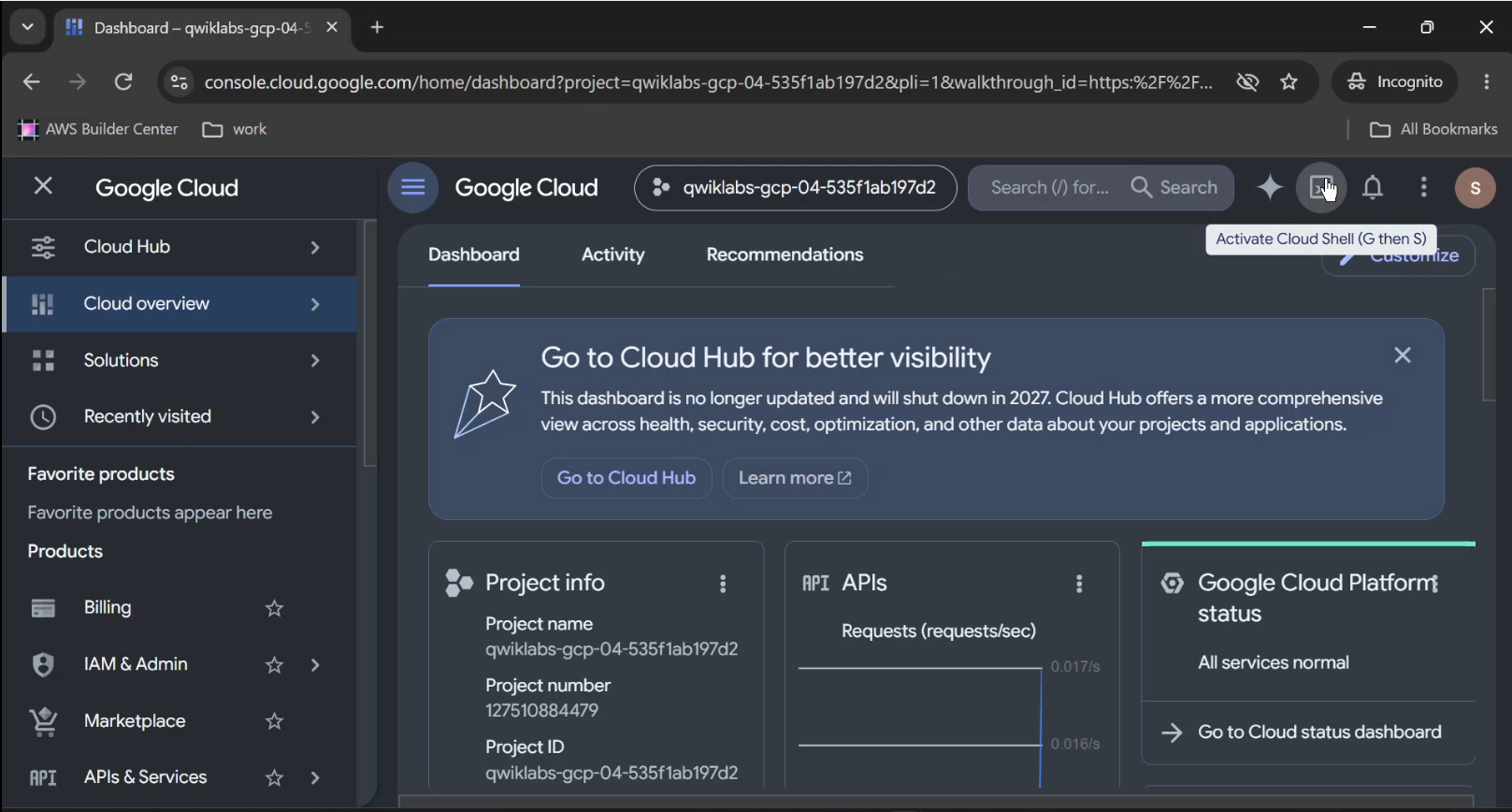
Click through the confirmation prompts:
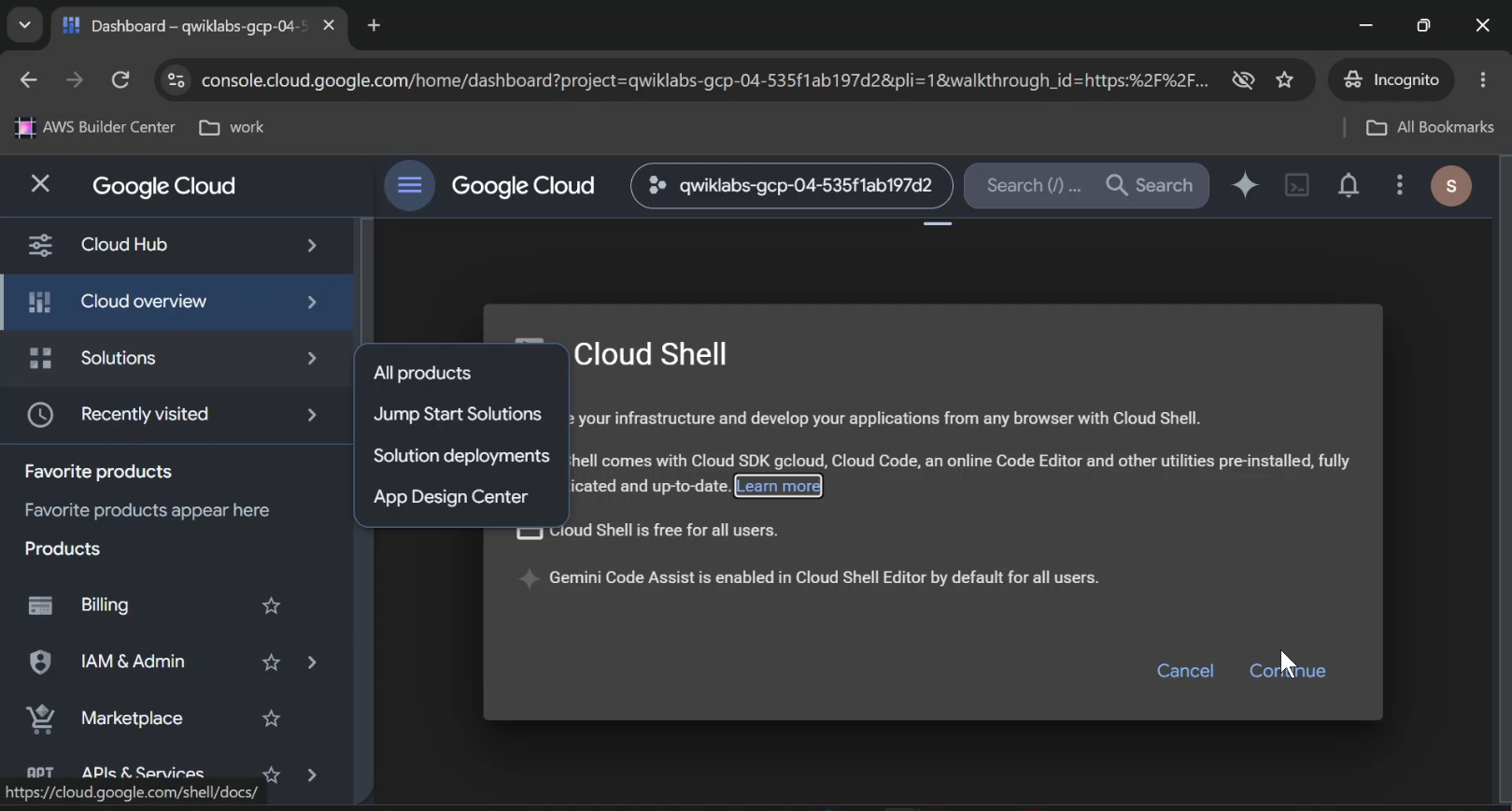
Continue through the Cloud Shell information window.
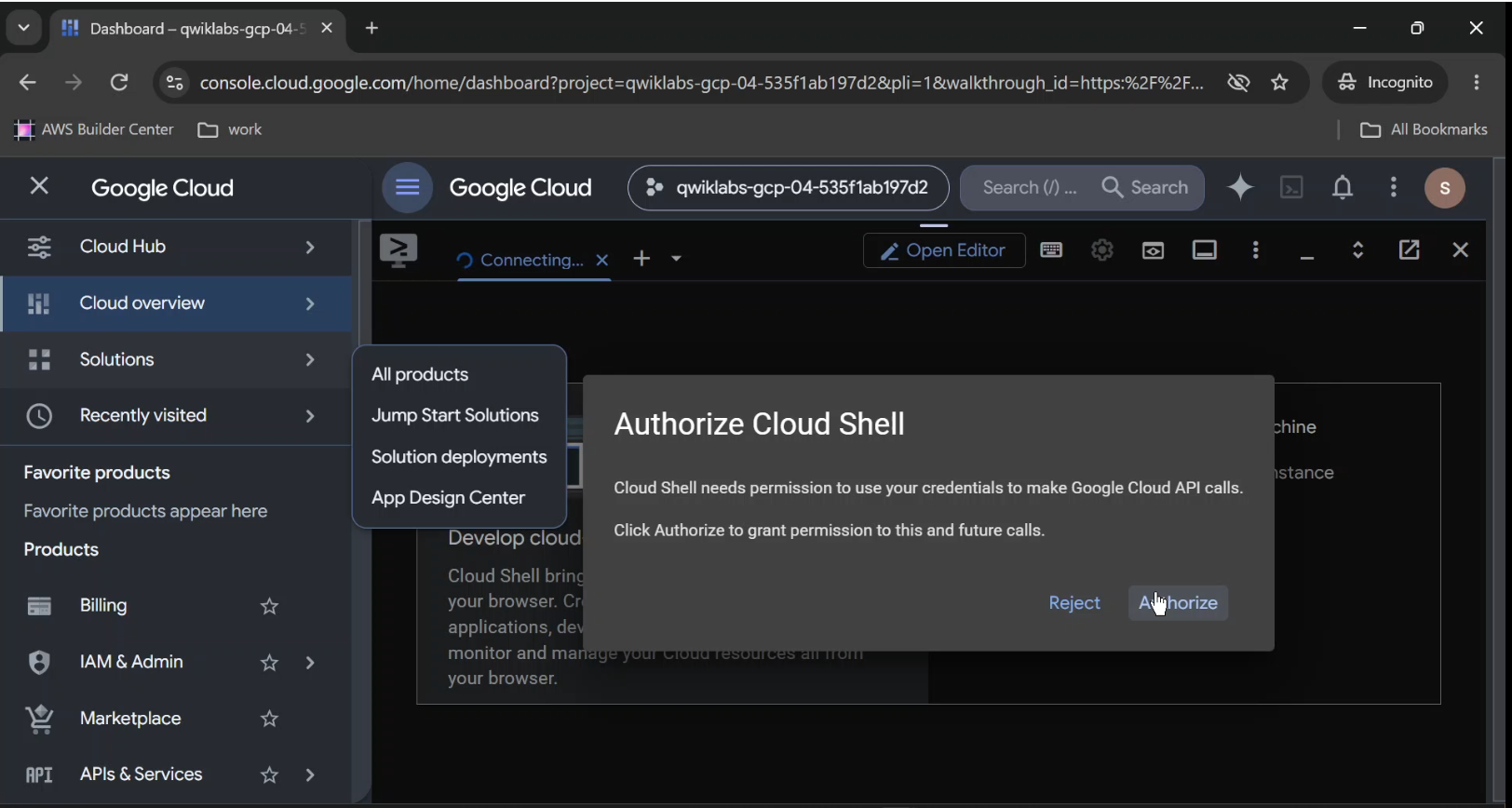
Authorize Cloud Shell to use your credentials to make Google Cloud API calls.
Once connected, you are already authenticated, and your session is locked onto your Project_ID (qwiklabs-gcp-04-535f1ab197d2):
Your Cloud Platform project in this session is set to qwiklabs-gcp-04-535f1ab197d2
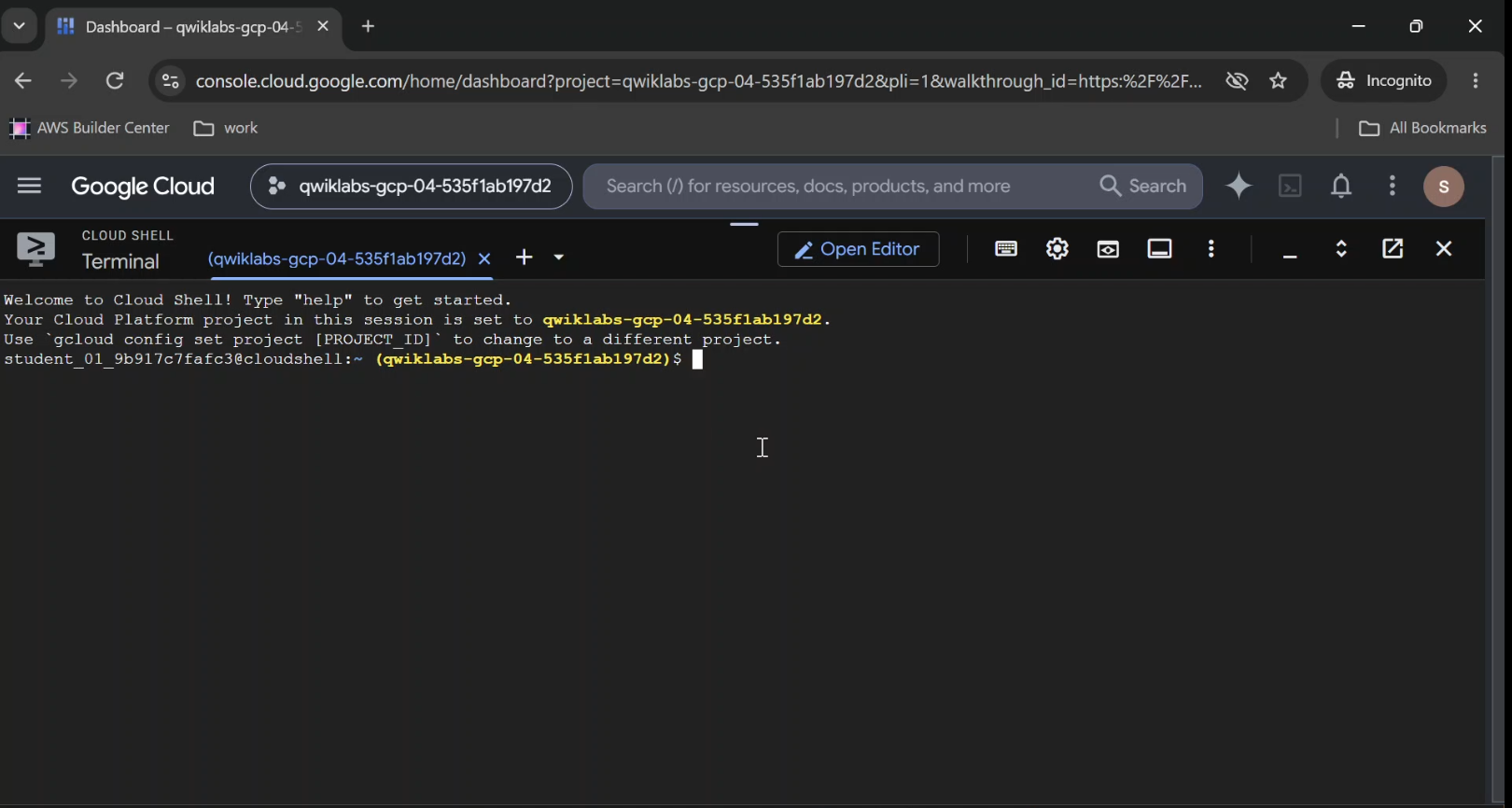
Google Cloud Console top bar highlighting the "Activate Cloud Shell" terminal icon and the active terminal banner showing the initialized Project ID.
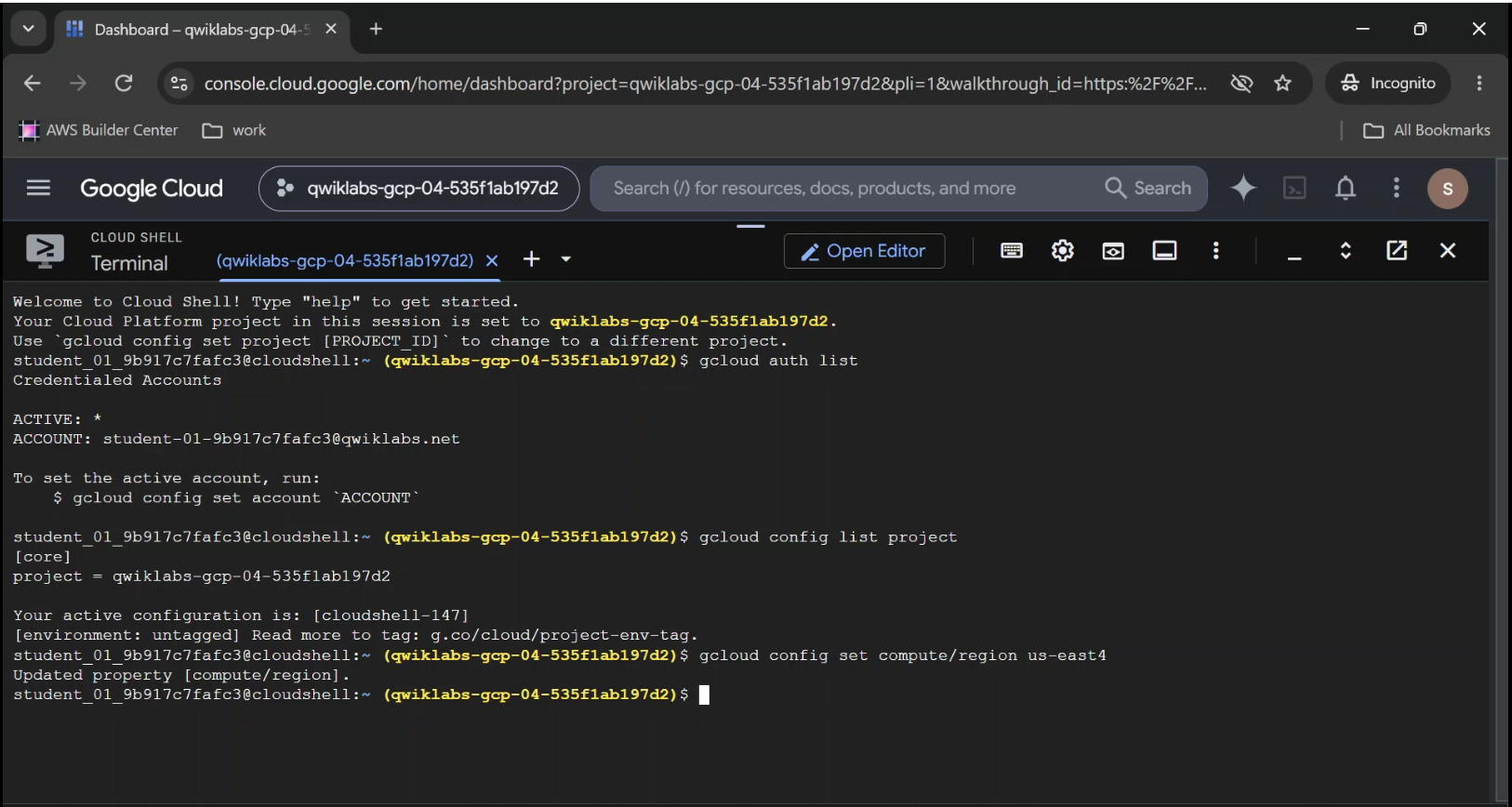
Verify Your Active Account and Project (Optional)
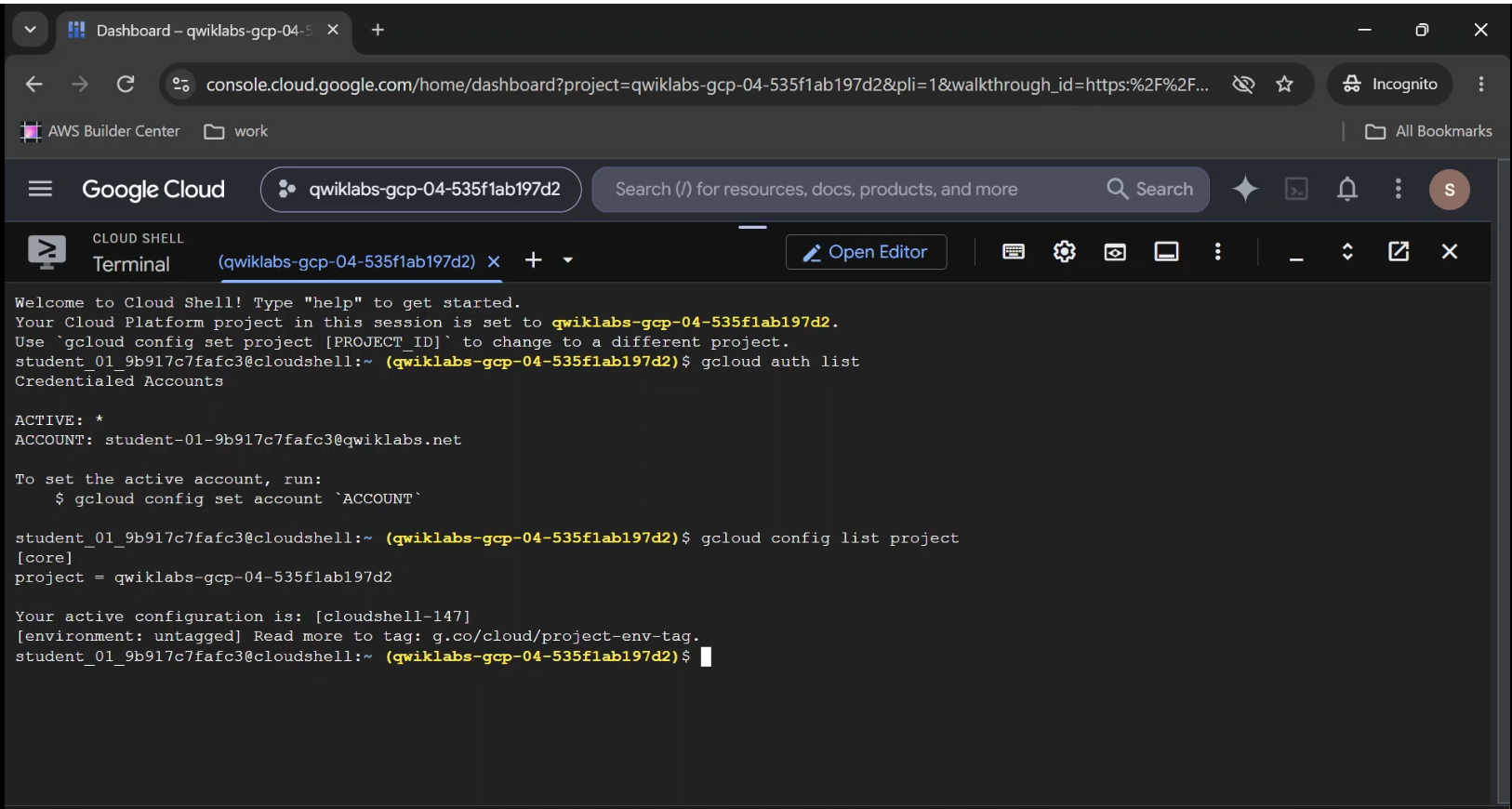
Before changing cloud infrastructure, always verify who you are and where you are. Run the following command to list the active account:
gcloud auth list
Click Authorize if prompted. Your output will confirm your active identity:
ACTIVE: *
ACCOUNT: student-01-9b917c7fafc3@qwiklabs.net
To set the active account, run:
    $ gcloud config set account `ACCOUNT`
Next, verify your project ID with this command:
gcloud config list project
Output:
[core]
project = qwiklabs-gcp-04-535f1ab197d2
Set the Default Compute Region
Lock in your default project region (us-east4) by running:
gcloud config set compute/region us-east4
Reconnaissance First: Look Before You Build
"Measure twice, cut once. In Cloud Ops, inspect the API permissions twice, write the YAML once."
Before you invent a new role, you need to answer three questions:
- What permissions can actually be applied to this resource?
- What roles are grantable on this resource right now?
- What is inside an existing role's metadata?
Task 1. View the Available Permissions for a Resource
You don't have to guess permission names or dig through 40 pages of documentation. You can query Google Cloud directly to list every testable permission available for your project and the resources underneath it.
- Run the following command to pull the list of permissions available for your project:
gcloud iam list-testable-permissions //cloudresourcemanager.googleapis.com/projects/$DEVSHELL_PROJECT_ID
Output:
name: appengine.applications.create
stage: GA
---
name: appengine.applications.get
stage: GA
---
name: appengine.applications.update
stage: GA
---
name: appengine.instances.delete
stage: GA
---
name: appengine.instances.get
stage: GA
---
name: appengine.instances.list
stage: GA
---
customRolesSupportLevel: TESTING
name: appengine.memcache.addKey
stage: BETA
---
customRolesSupportLevel: TESTING
name: appengine.memcache.flush
stage: BETA
---
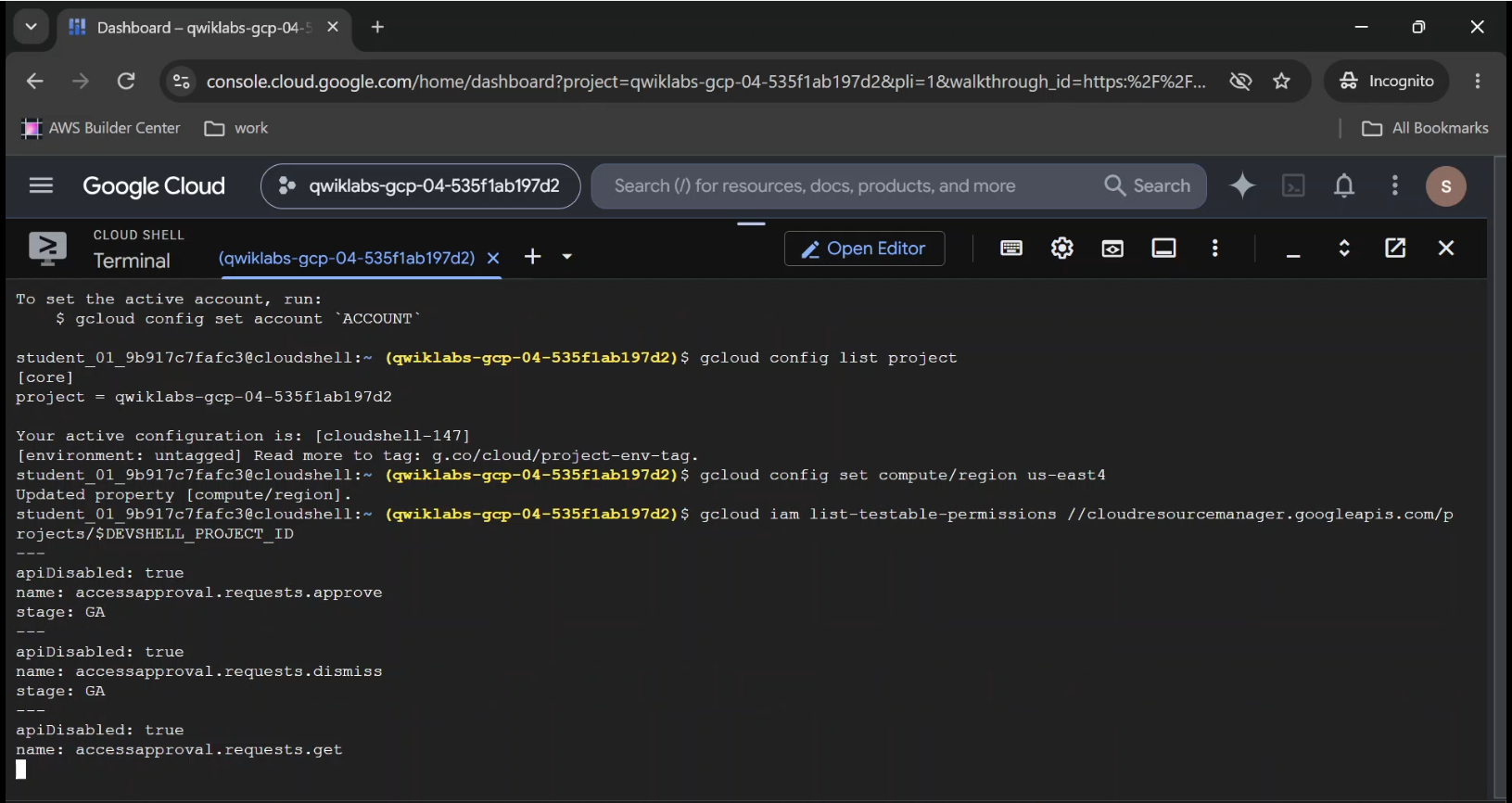
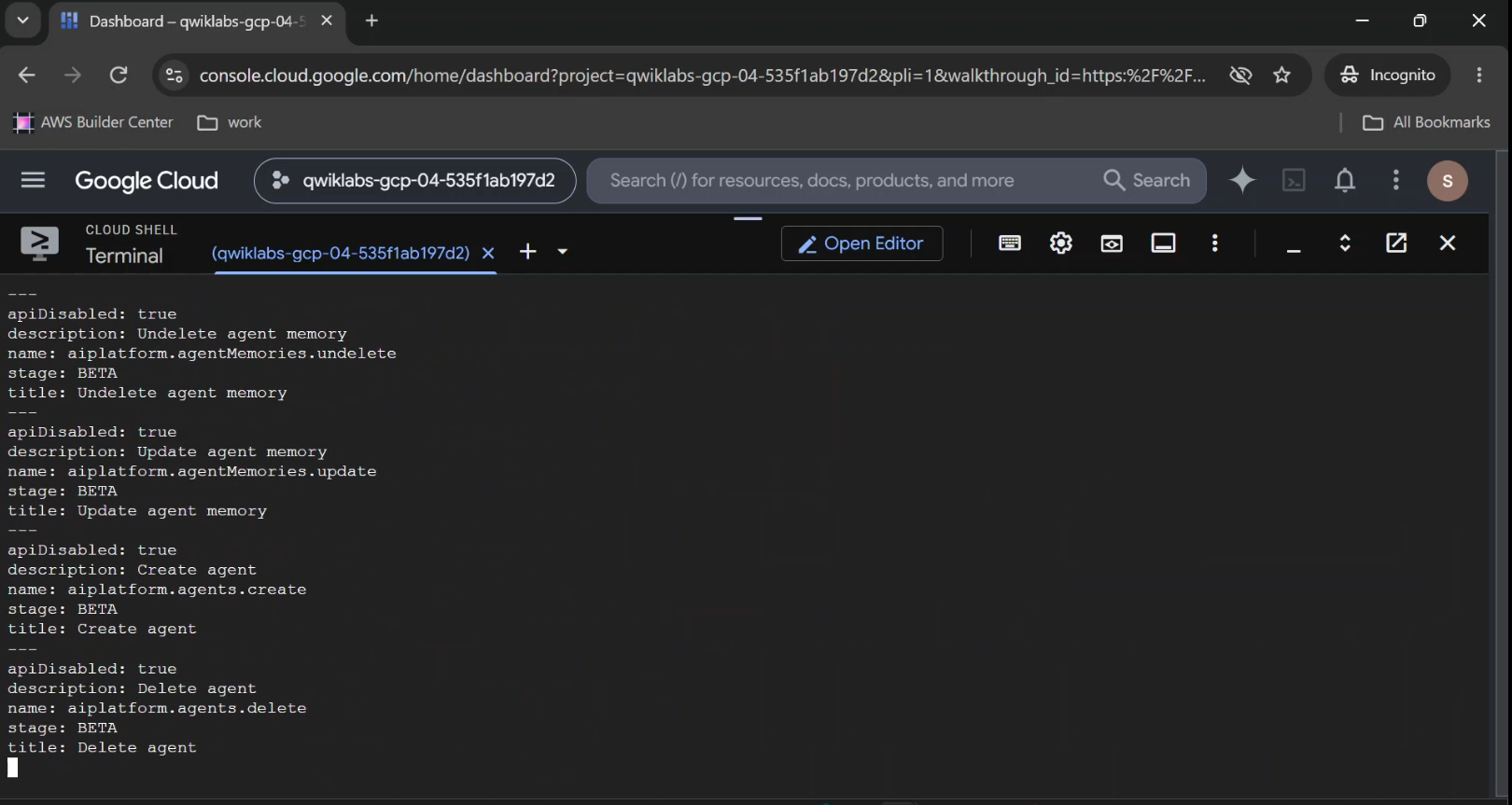
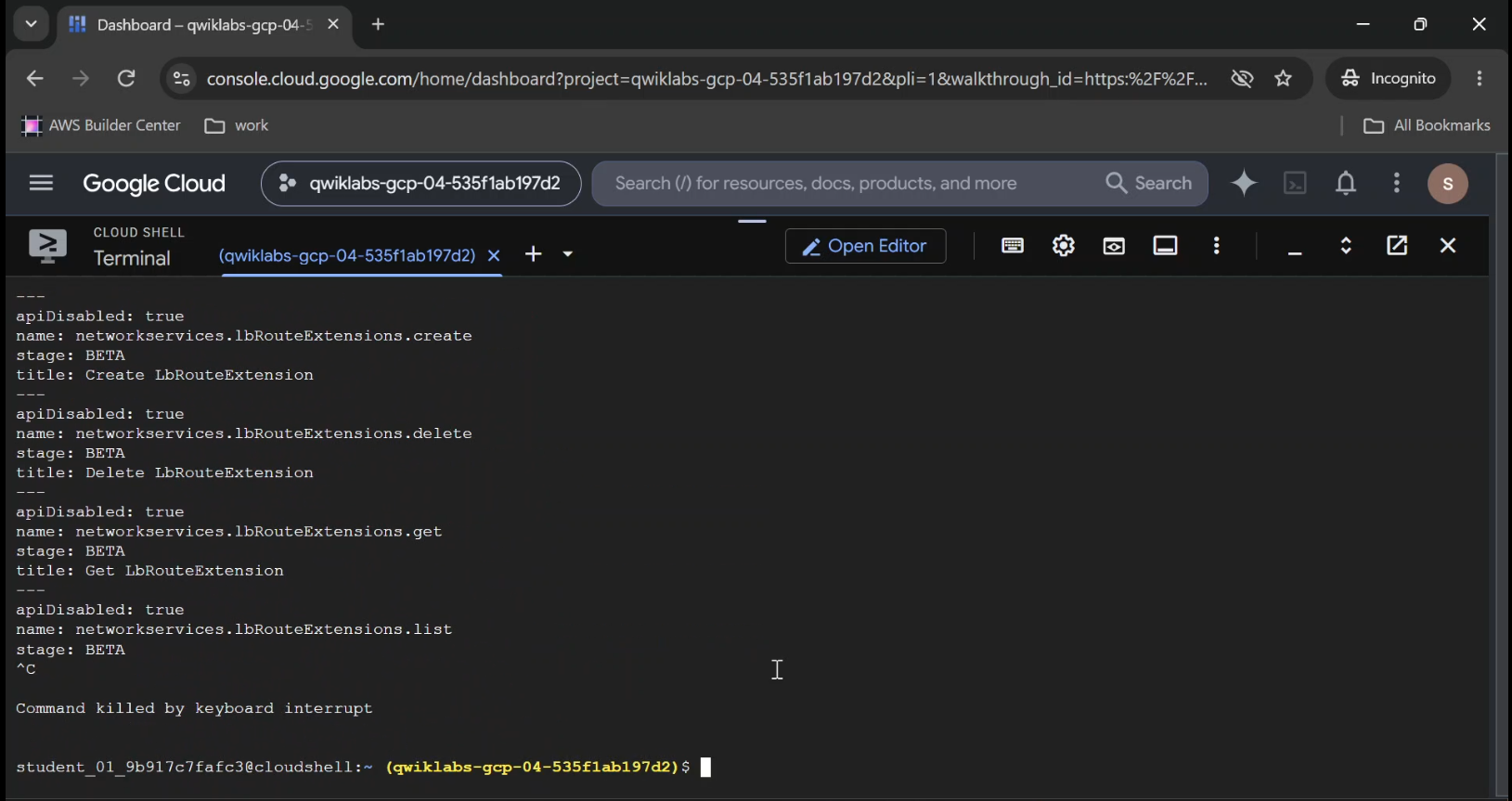
gcloud iam list-testable-permissions running in Cloud Shell, highlighting the stage: GA vs customRolesSupportLevel: TESTING lines - see how Google flags beta permissions.
Task 2. Get the Role Metadata
Why reinvent the wheel if a predefined role already does 90% of what you need? By inspecting an existing role's metadata, you can see its exact role ID, launch stage, and bundled permissions.
- Run the following command, replacing
[ROLE_NAME]with the role you want to inspect (for example,roles/viewerorroles/editor):
gcloud iam roles describe [ROLE_NAME]
Example output (for roles/viewer):
description: Read access to all custom roles in the project.
etag: AA==
includedPermissions:
- iam.roles.get
- iam.roles.list
- resourcemanager.projects.get
- resourcemanager.projects.getIamPolicy
...
...
name: roles/iam.roleViewer
stage: GA
title: Viewer
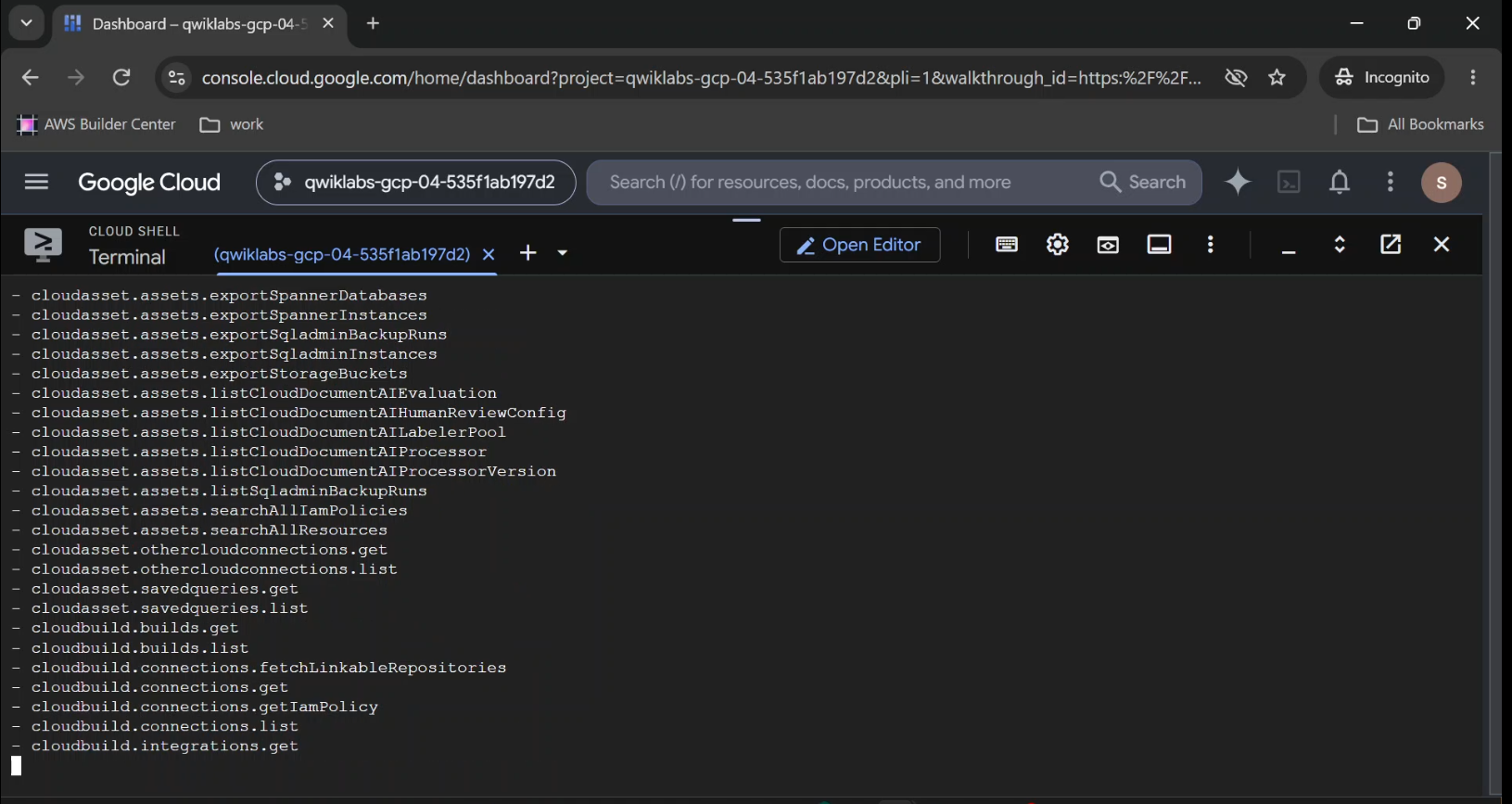
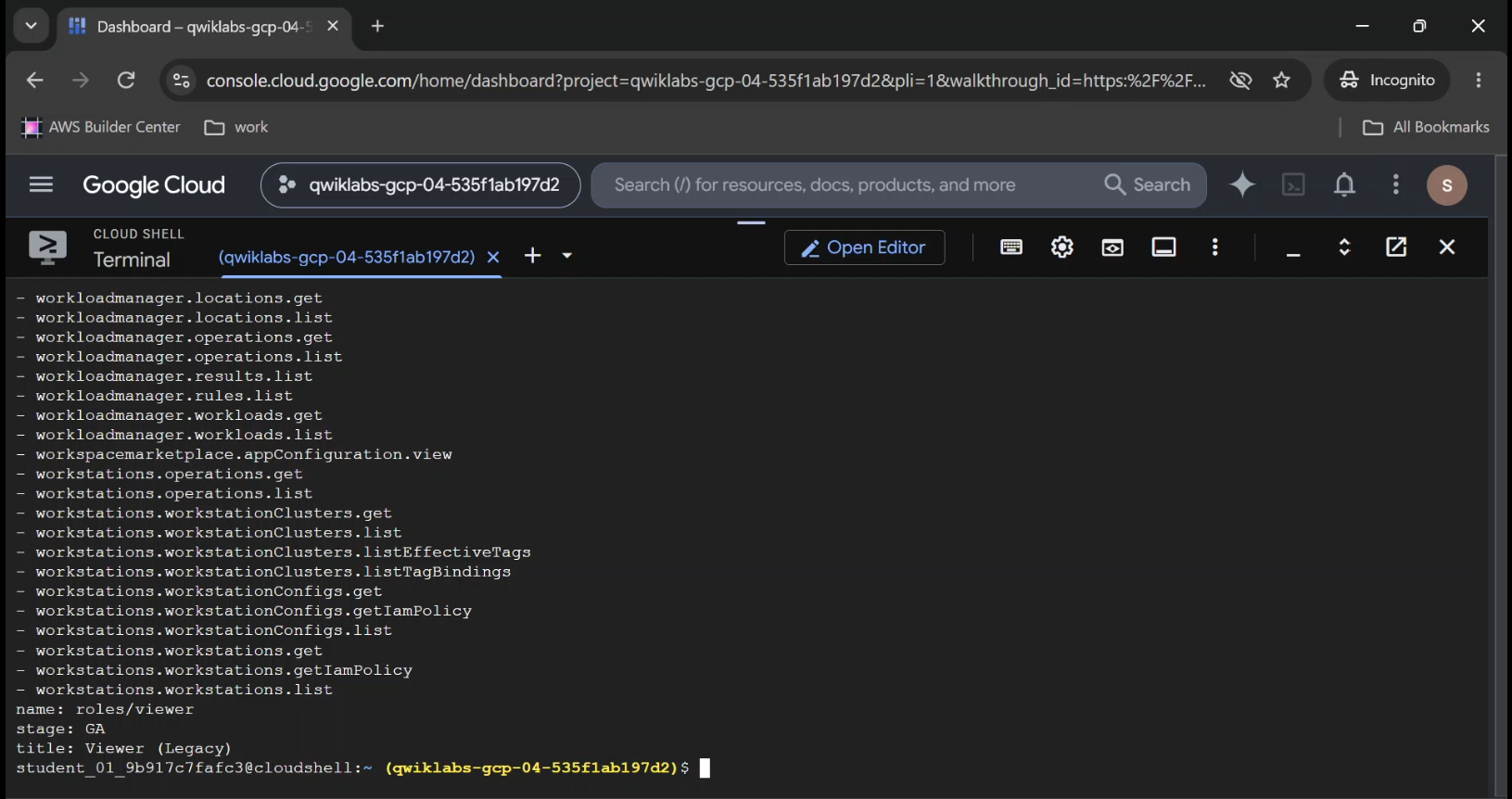
gcloud iam roles describe roles/viewer output in Cloud Shell, highlighter is includedPermissions list and the etag field.
Task 3. View the Grantable Roles on Resources
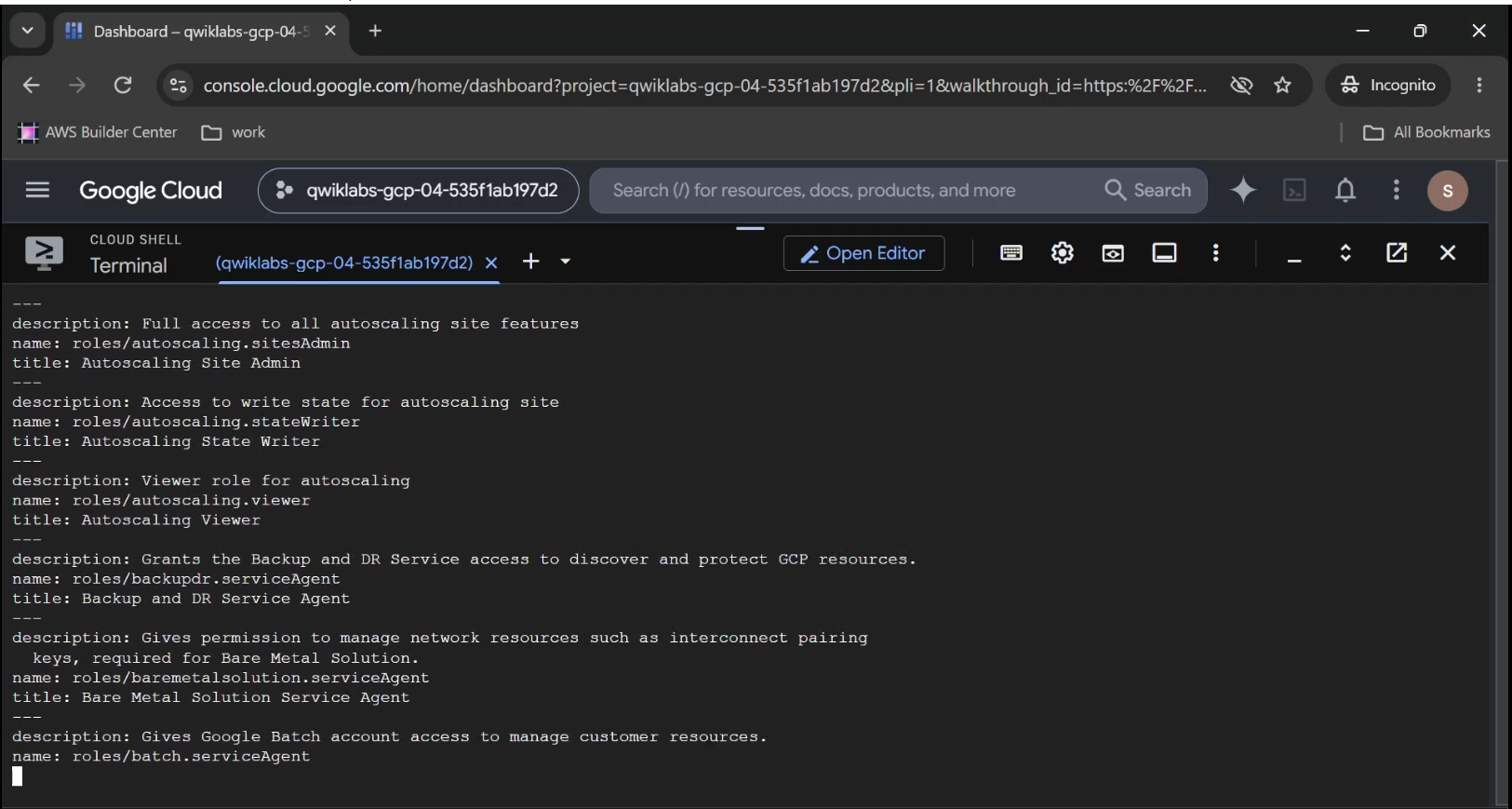
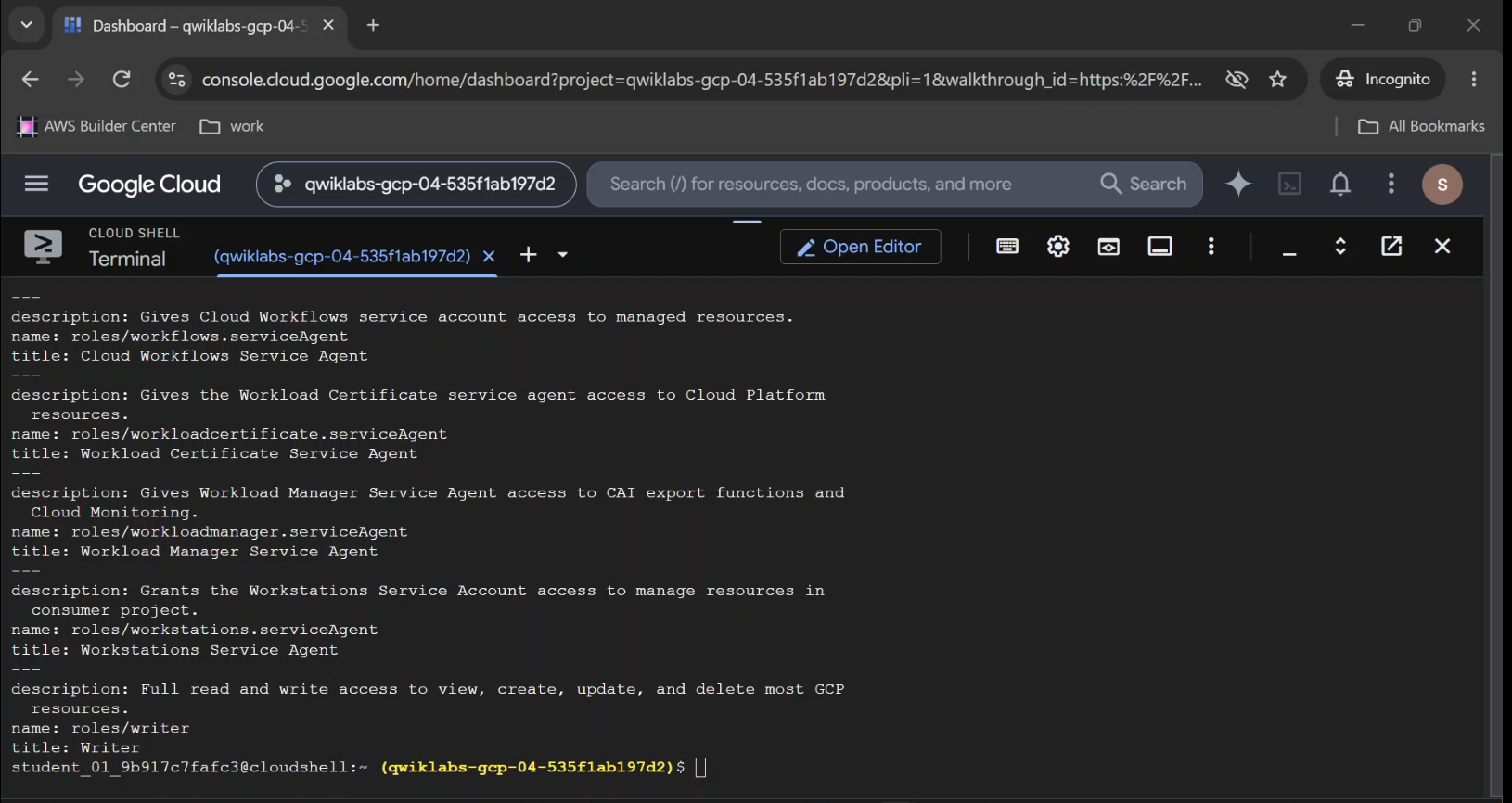
Want to see every role that can legally be attached to your project? Use list-grantable-roles.
- Run the following command to list all grantable roles for your project:
gcloud iam list-grantable-roles //cloudresourcemanager.googleapis.com/projects/$DEVSHELL_PROJECT_ID
Your output will look something like this:
---
description: Full management of App Engine apps (but not storage).
name: roles/appengine.appAdmin
title: App Engine Admin
---
description: Ability to view App Engine app status.
name: roles/appengine.appViewer
title: App Engine Viewer
---
description: Ability to view App Engine app status and deployed source code.
name: roles/appengine.codeViewer
title: App Engine Code Viewer
---
...
...
Task 4. Create a Custom Role (Two Ways: Declarative YAML vs. Imperative Flags)
"Declarative files build repeatable systems. CLI flags solve immediate problems. Master both."
Remember: To create a custom role, you need the iam.roles.create permission (held by Project Owners, roles/iam.roleAdmin, or roles/iam.organizationRoleAdmin). You also must declare whether your role lives at the organization level (--organization [ORGANIZATION_ID]) or project level (--project [PROJECT_ID]).
Let's create two project-level custom roles using both methods.
Method A: Create a Custom Role Using a YAML File
Using a YAML file is the gold standard for Infrastructure-as-Code workflows because you can commit the file directly into Git. Every custom role YAML file follows this structure:
title: [ROLE_TITLE]
description: [ROLE_DESCRIPTION]
stage: [LAUNCH_STAGE]
includedPermissions:
- [PERMISSION_1]
- [PERMISSION_2]
Here is what each field does:
[ROLE_TITLE]: A human-friendly name for the role (likeRole Viewer).[ROLE_DESCRIPTION]: A crisp sentence explaining why this role exists.[LAUNCH_STAGE]: The lifecycle stage of your role (ALPHA,BETA, orGA).includedPermissions: The exact list of permissions bundled into this role.
Let's build a custom editor role scoped strictly to creating and deleting App Engine versions:
- Create your role definition YAML file by running:
nano role-definition.yaml
- Add this custom role definition to the YAML file:
title: "Role Editor"
description: "Edit access for App Versions"
stage: "ALPHA"
includedPermissions:
- appengine.versions.create
- appengine.versions.delete
- Save and close the file by pressing CTRL+X, Y, and then ENTER.
- Run the following command to create the custom role at the project level:
gcloud iam roles create editor --project $DEVSHELL_PROJECT_ID --file role-definition.yaml
If the role was created successfully, the following response is returned:
Created role [editor].
description: Edit access for App Versions
etag: BwVs4O4E3e4=
includedPermissions:
- appengine.versions.create
- appengine.versions.delete
name: projects/qwiklabs-gcp-04-535f1ab197d2/roles/editor
stage: ALPHA
title: Role Editor
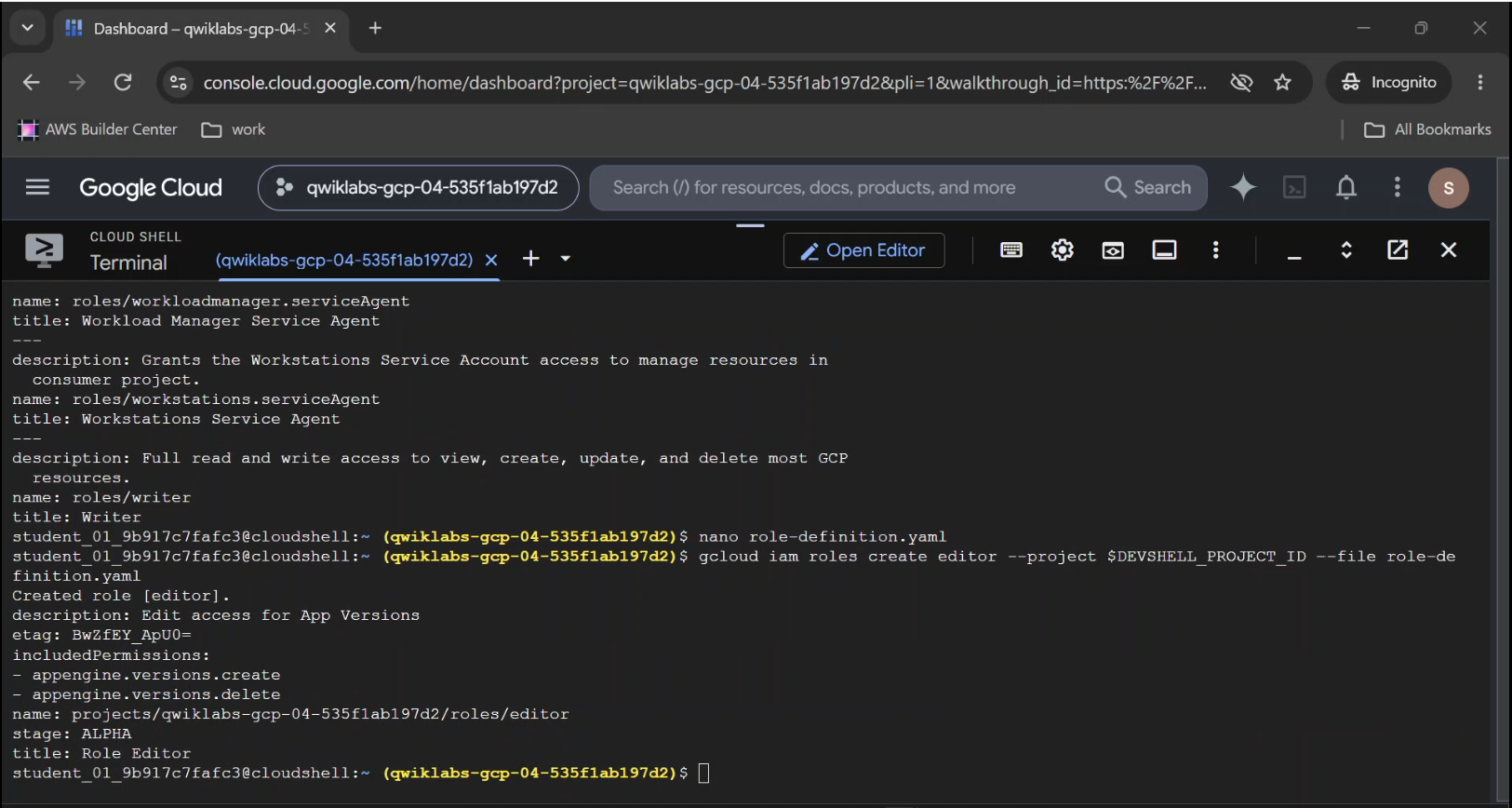
Created role [editor] terminal confirmation.
Method B: Create a Custom Role Using Flags
When you are writing a quick bash script or don't want to manage local files, you can pass the exact same structure inline using CLI flags.
- Run the following command to create a new
viewerrole using flags:
gcloud iam roles create viewer --project $DEVSHELL_PROJECT_ID \
--title "Role Viewer" --description "Custom role description." \
--permissions compute.instances.get,compute.instances.list --stage ALPHA
Example output:
Created role [viewer].
description: Custom role description.
etag: BwVs4PYHqYI=
includedPermissions:
- compute.instances.get
- compute.instances.list
name: projects/qwiklabs-gcp-04-535f1ab197d2/roles/viewer
stage: ALPHA
title: Role Viewer
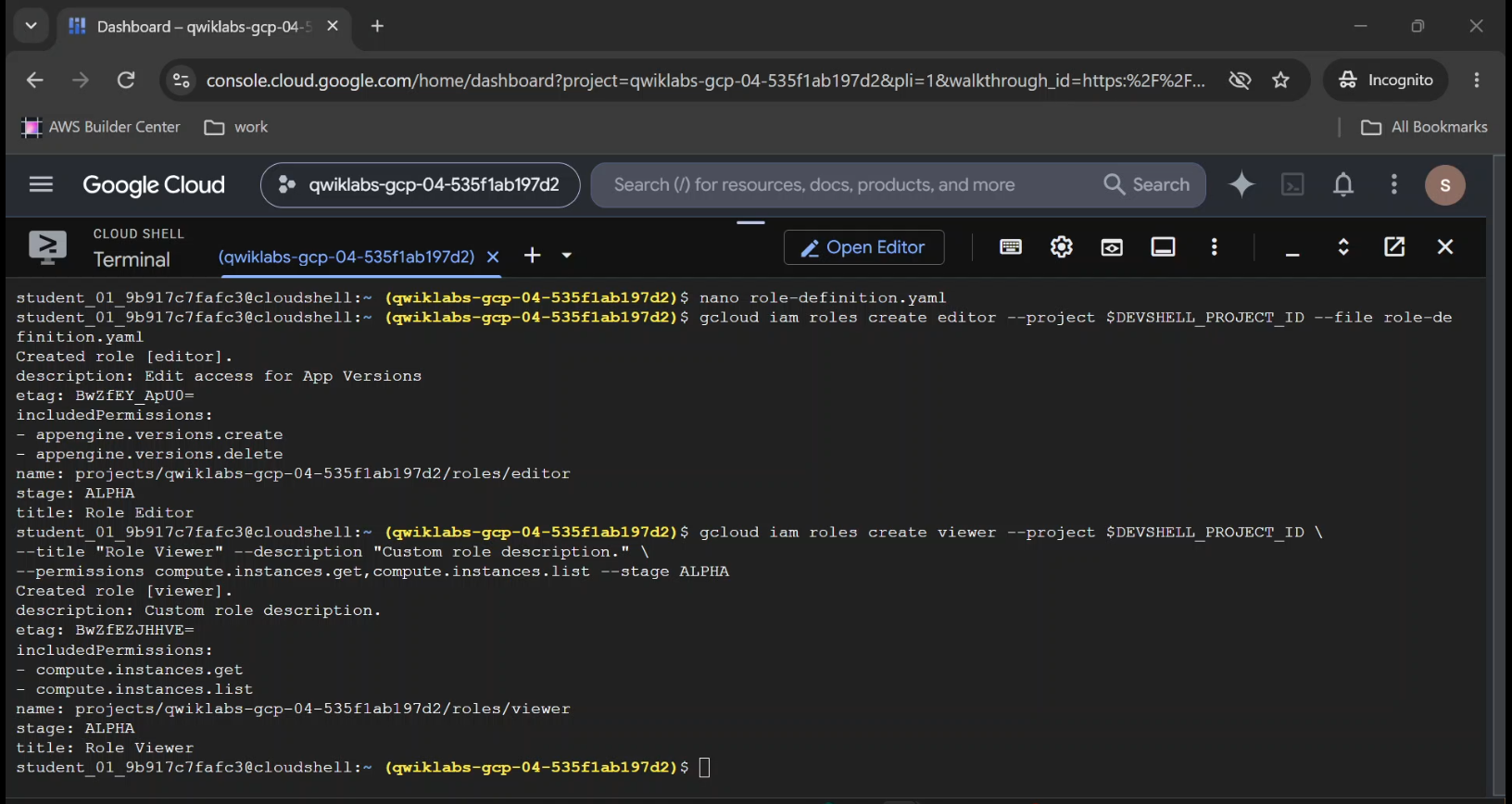
gcloud iam roles create viewer command execution and its output in Cloud Shell.
Task 5. List the Custom Roles
Trust, but verify. Now that both custom roles exist, let's query our project to see them listed side-by-side.
- Run the following command to list your project-level custom roles:
gcloud iam roles list --project $DEVSHELL_PROJECT_ID
Example output:
---
description: Edit access for App Versions
etag: BwVxLgrnawQ=
name: projects/qwiklabs-gcp-04-535f1ab197d2/roles/editor
title: Role Editor
---
description: Custom role description.
etag: BwVxLg18IQg=
name: projects/qwiklabs-gcp-04-535f1ab197d2/roles/viewer
title: Role Viewer
(Pro Tip: If you ever want to see custom roles that were recently deleted, pass the --show-deleted flag to this command.)
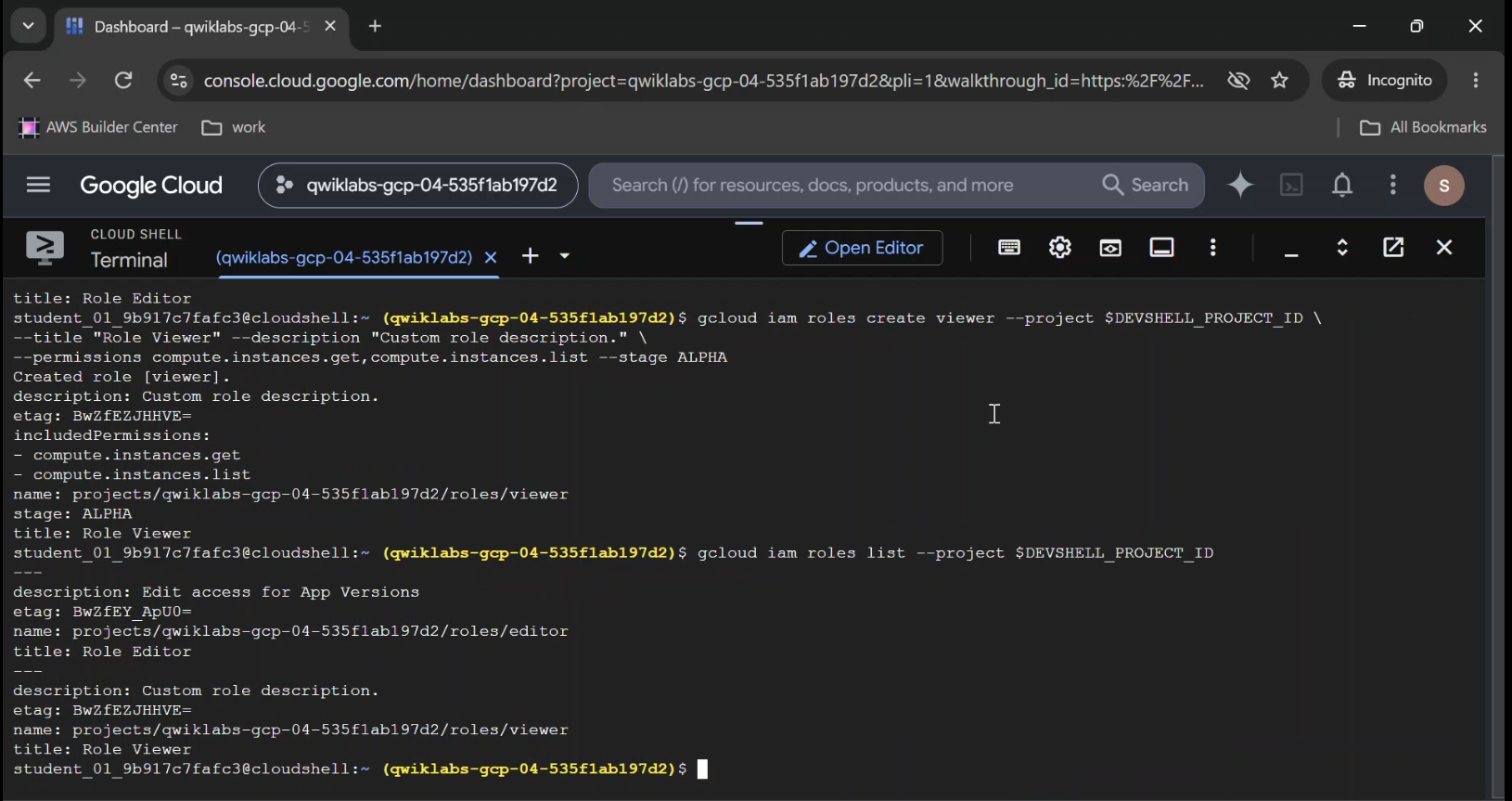
- Want to list all predefined roles across Google Cloud instead? Simply drop the
--projectflag and run:
gcloud iam roles list
Task 6. Update an Existing Custom Role (And How etag Saves Teams from Chaos)
Here is a classic distributed systems problem:
Imagine Admin Alice and Admin Bob both pull down the definition of the editor role at 10:00 AM.
- At 10:02 AM, Alice adds Cloud Storage permissions and pushes her update.
- At 10:03 AM, Bob adds Cloud SQL permissions to his 10:00 AM copy and pushes his update.
Without protection, Bob's push silently wipes out Alice's work.
Google Cloud IAM prevents this collision using an etag property a cryptographic fingerprint of the role's current version. Every time you update a custom role via YAML, Cloud IAM compares the etag in your file against the live etag on Google's servers. If they match, your write succeeds and a brand-new etag is generated. If someone changed the role while you were editing, the etag mismatch blocks the overwrite and protects your team.
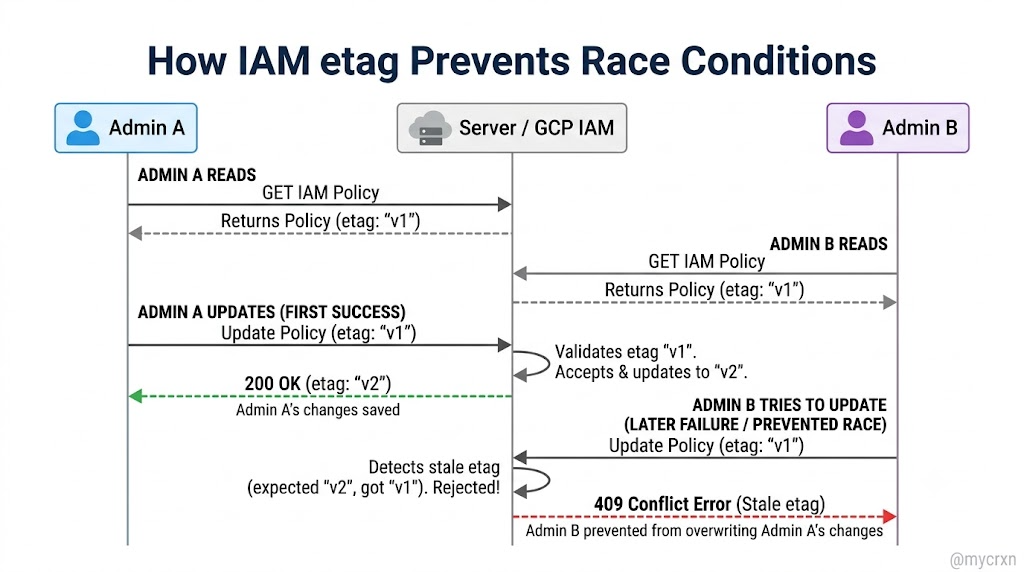
Let's update our custom roles using both the YAML method and the CLI flag method.
Method A: Update a Custom Role Using a YAML File
- First, fetch the current definition (and current
etag) for theeditorrole:
gcloud iam roles describe editor --project $DEVSHELL_PROJECT_ID
The describe command returns output similar to the following:
description: Edit access for App Versions
etag: [ETAG_VALUE]
includedPermissions:
- appengine.versions.create
- appengine.versions.delete
name: projects/qwiklabs-gcp-04-535f1ab197d2/roles/editor
stage: ALPHA
title: Role Editor
Copy the output including your unique etag string to use in the next step.
- Open a new YAML file named
new-role-definition.yamlin your editor:
nano new-role-definition.yaml
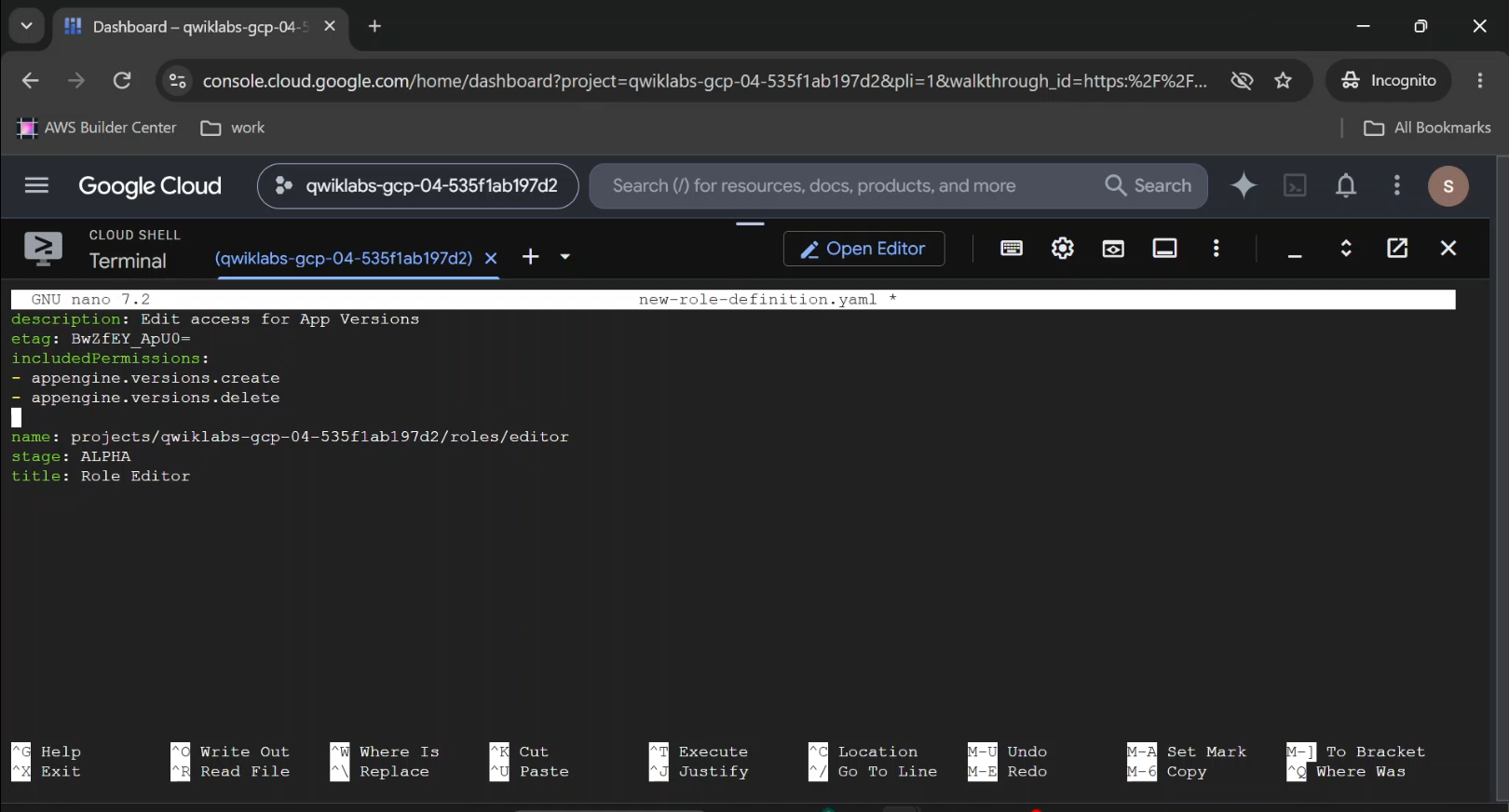
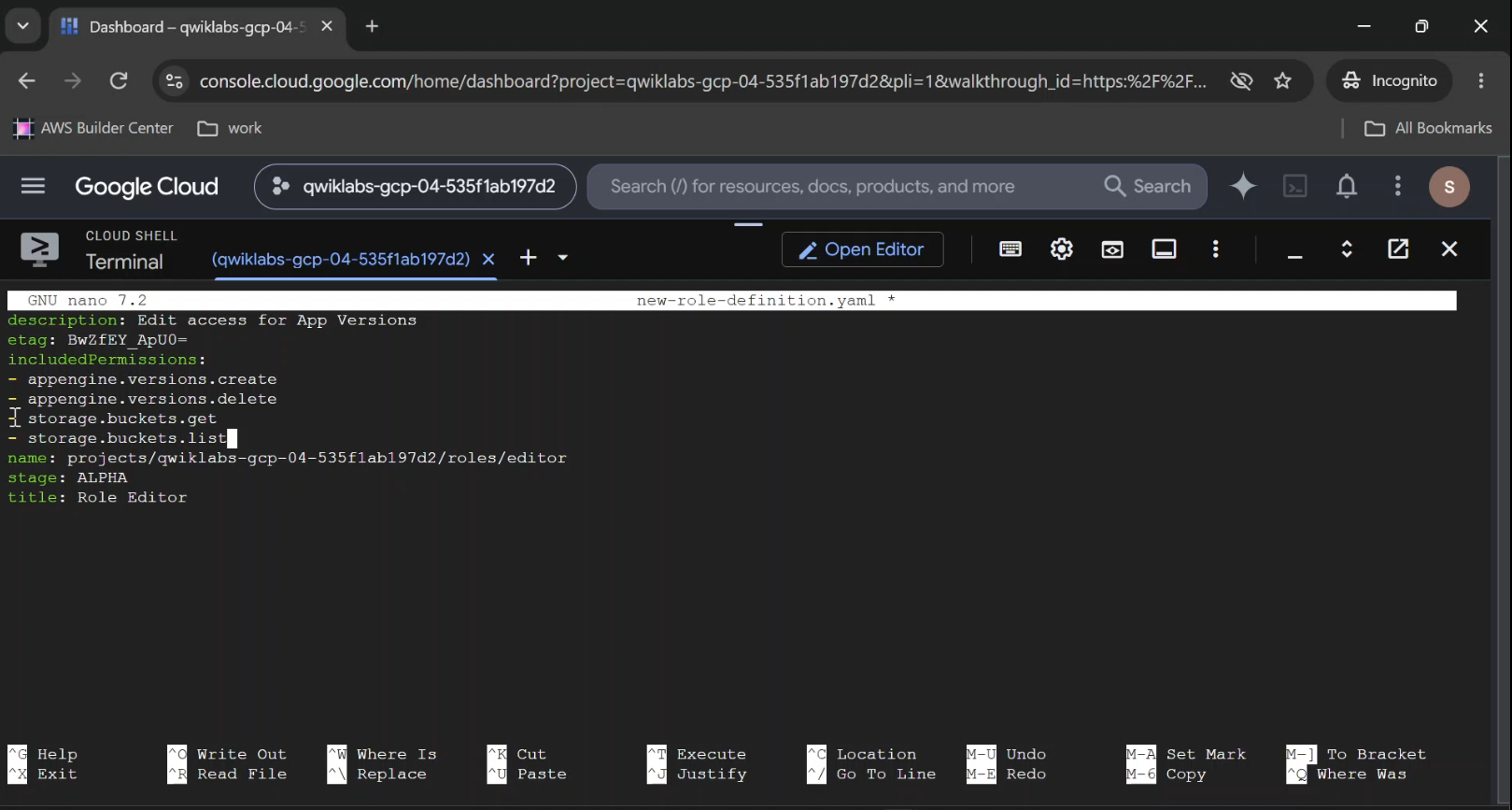
Paste in the exact output from your describe command, and add two new permissions under includedPermissions: storage.buckets.get and storage.buckets.list.
Your YAML file should look like this when you are finished (keep your own etag and project ID):
description: Edit access for App Versions
etag: BwVxIAbRq_I=
includedPermissions:
- appengine.versions.create
- appengine.versions.delete
- storage.buckets.get
- storage.buckets.list
name: projects/qwiklabs-gcp-04-535f1ab197d2/roles/editor
stage: ALPHA
title: Role Editor
- Save and close the file by pressing CTRL+X, Y, and then ENTER.
- Apply the update to the
editorcustom role by running:
gcloud iam roles update editor --project $DEVSHELL_PROJECT_ID \
--file new-role-definition.yaml
If the role was updated successfully, notice how the response shows your four permissions and a brand-new etag:
description: Edit access for App Versions
etag: BwVxIBjfN3M=
includedPermissions:
- appengine.versions.create
- appengine.versions.delete
- storage.buckets.get
- storage.buckets.list
name: projects/qwiklabs-gcp-04-535f1ab197d2/roles/editor
stage: ALPHA
title: Role Editor
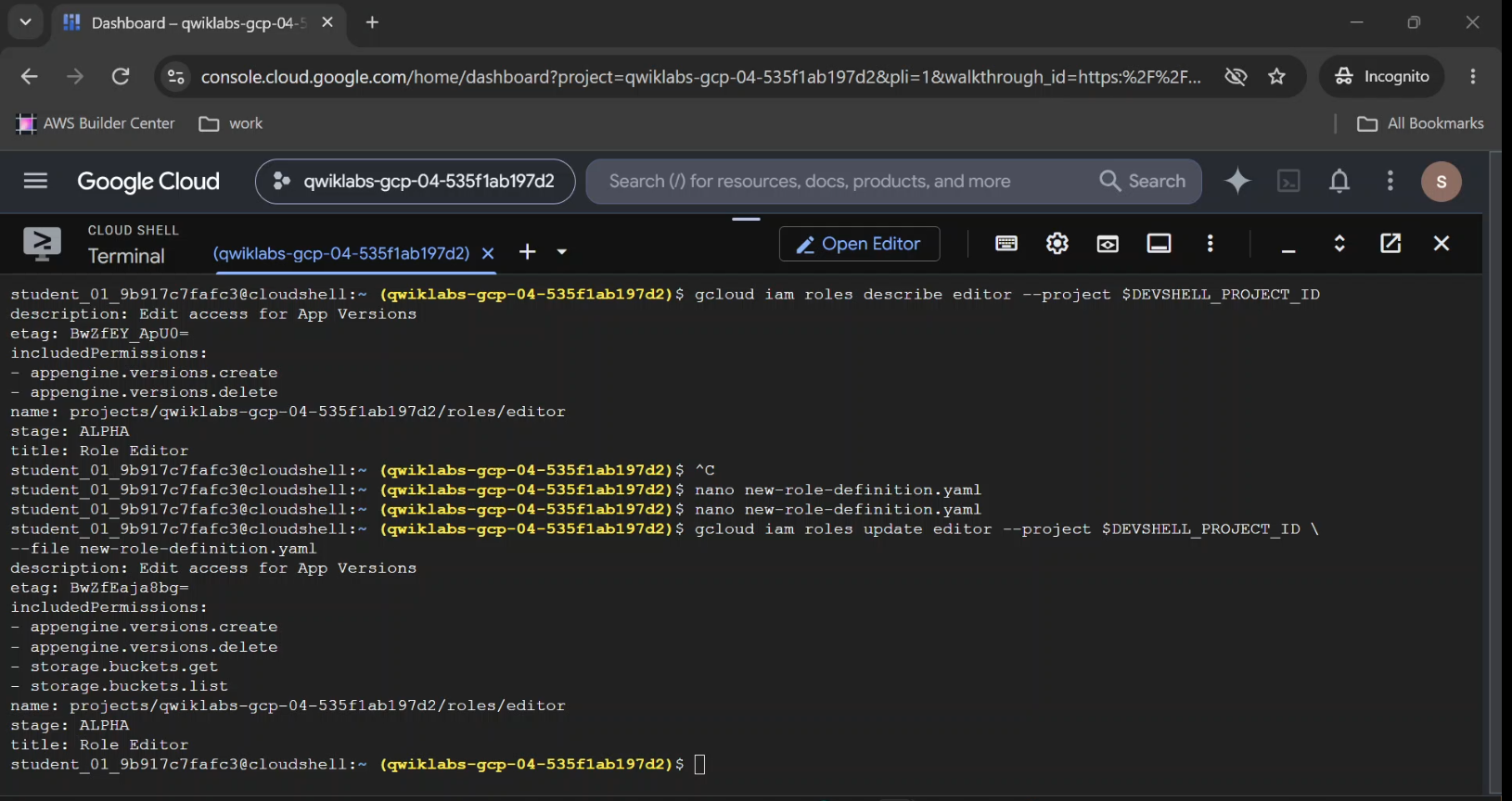
gcloud iam roles update editor output, highlighting how the etag value changed before and after the update(in above yaml etag was different).
Method B: Update a Custom Role Using Flags
Don't want to copy-paste YAML files just to add a couple of permissions? You can modify permissions directly from the command line using three surgical flags:
--add-permissions: Appends one or more comma-separated permissions to the existing role.--remove-permissions: Strips one or more comma-separated permissions from the role.--permissions [PERMISSIONS]: Replaces the entire existing permission list with a brand-new comma-separated list.- Run the following command to append Cloud Storage read permissions to your
viewerrole using flags:
gcloud iam roles update viewer --project $DEVSHELL_PROJECT_ID \
--add-permissions storage.buckets.get,storage.buckets.list
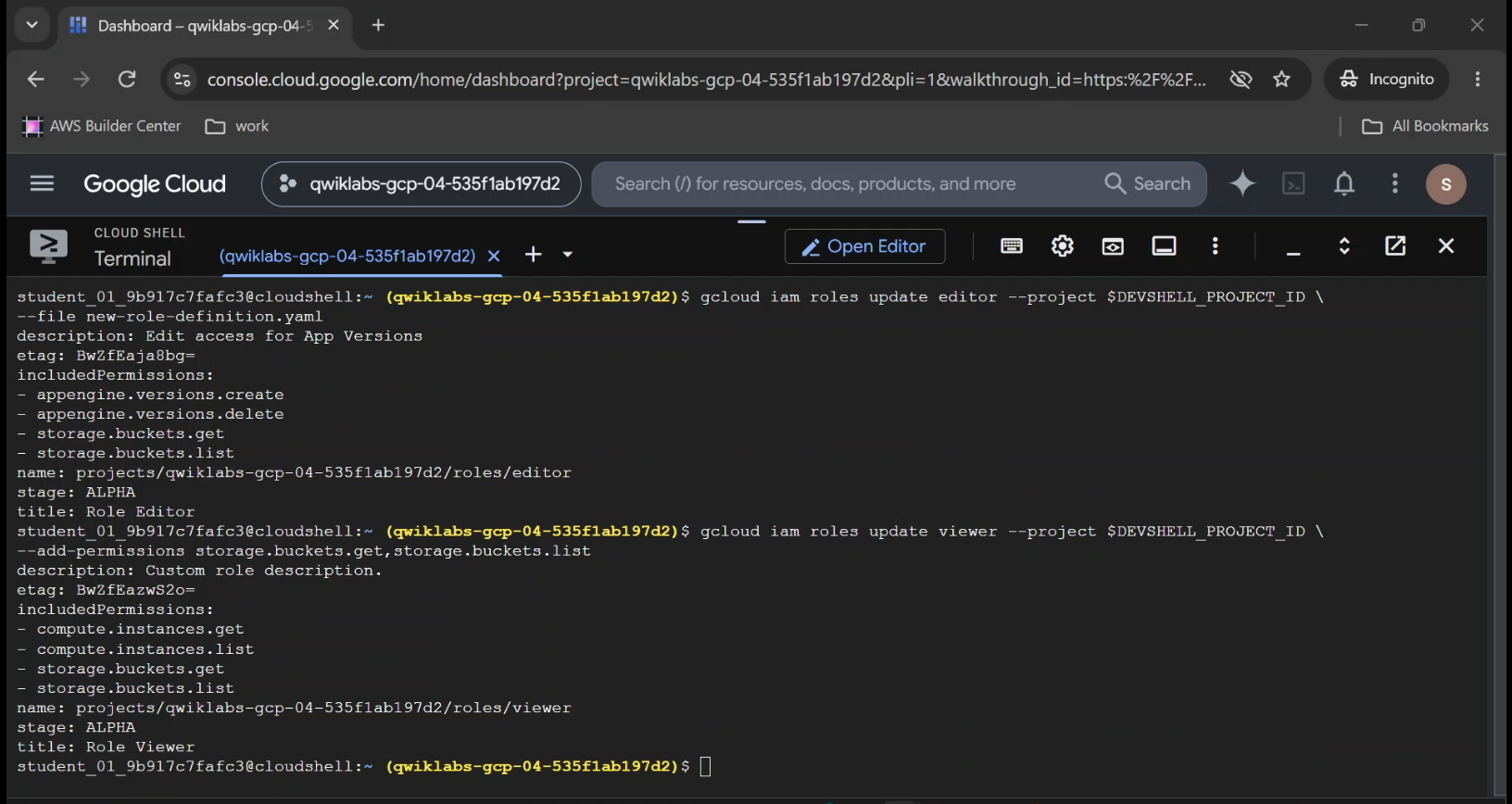
If the role was updated successfully, the following response is returned:
description: Custom role description.
etag: BwVxLi4wTvk=
includedPermissions:
- compute.instances.get
- compute.instances.list
- storage.buckets.get
- storage.buckets.list
name: projects/qwiklabs-gcp-04-535f1ab197d2/roles/viewer
stage: ALPHA
title: Role Viewer
The Kill Switch & The Time Machine: Disabling, Deleting, and Restoring Roles
What happens when a custom role is no longer needed or worse, you suspect it grants too much access, and you want to turn it off without breaking policy bindings permanently?
Google Cloud gives you a staged off-ramp: Disable -> Delete -> 7-Day Recovery Window -> 30-Day Purge.
Task 7. Disable a Custom Role
When you set a custom role's stage to DISABLED, every IAM policy binding attached to that role immediately goes dormant. Even if a user is assigned the role, none of its permissions are granted. It is the cleanest way to test what breaks before deleting a role.
- Run the following command to disable the
viewerrole:
gcloud iam roles update viewer --project $DEVSHELL_PROJECT_ID \
--stage DISABLED
If the role was updated successfully, the following response is returned:
description: Custom role description.
etag: BwVxLkIYHrQ=
includedPermissions:
- compute.instances.get
- compute.instances.list
- storage.buckets.get
- storage.buckets.list
name: projects/qwiklabs-gcp-04-535f1ab197d2/roles/viewer
stage: DISABLED
title: Role Viewer
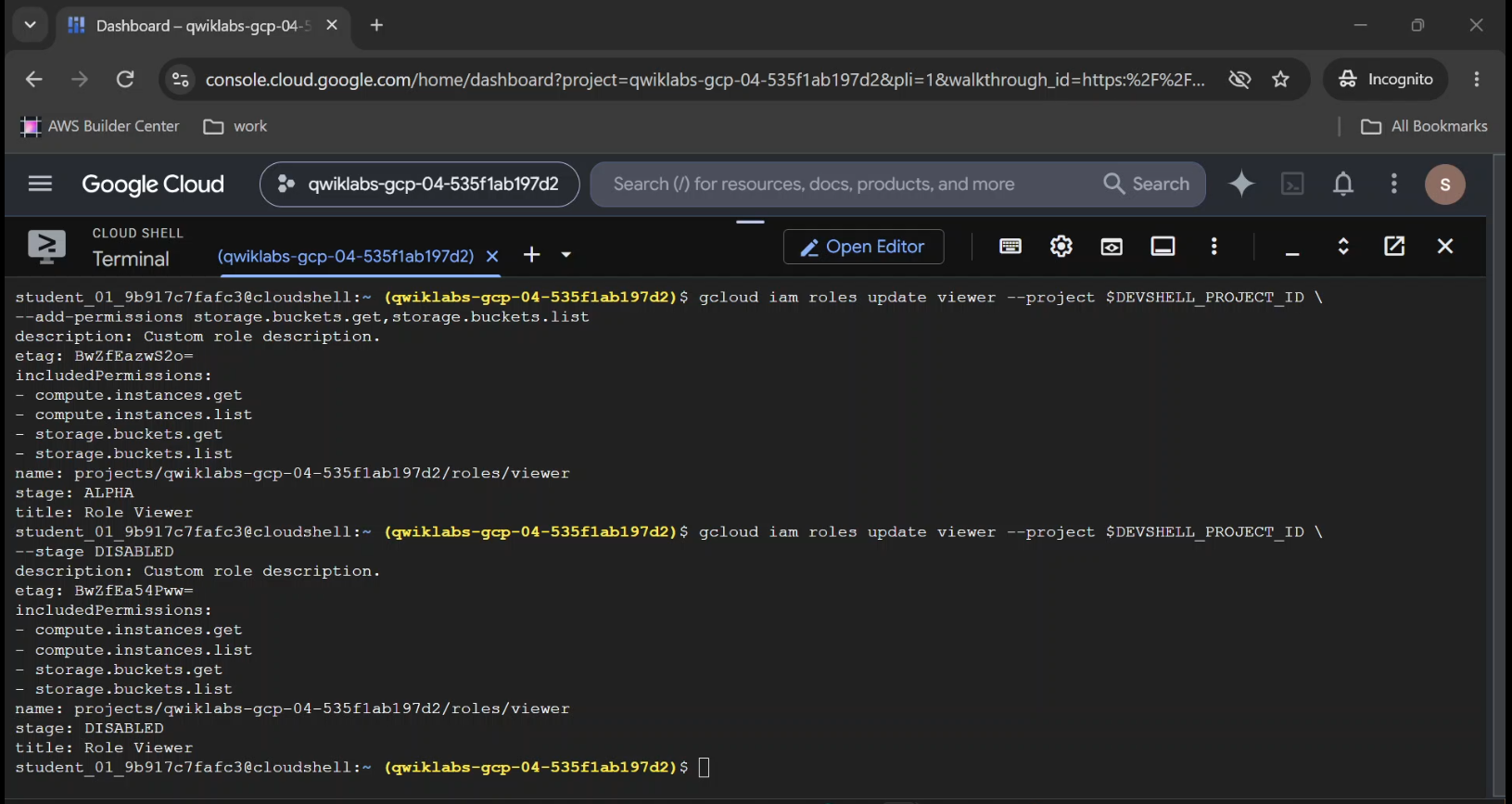
terminal output showing the viewer role marked as stage: DISABLED.
Task 8. Delete a Custom Role
Once you confirm nobody needs the role, you can delete it.
- Use the
gcloud iam roles deletecommand to delete theviewercustom role:
gcloud iam roles delete viewer --project $DEVSHELL_PROJECT_ID
Example output:
deleted: true
description: Custom role description.
etag: BwVxLkf_epw=
includedPermissions:
- compute.instances.get
- compute.instances.list
- storage.buckets.get
- storage.buckets.list
name: projects/qwiklabs-gcp-04-535f1ab197d2/roles/viewer
stage: DISABLED
title: Role Viewer
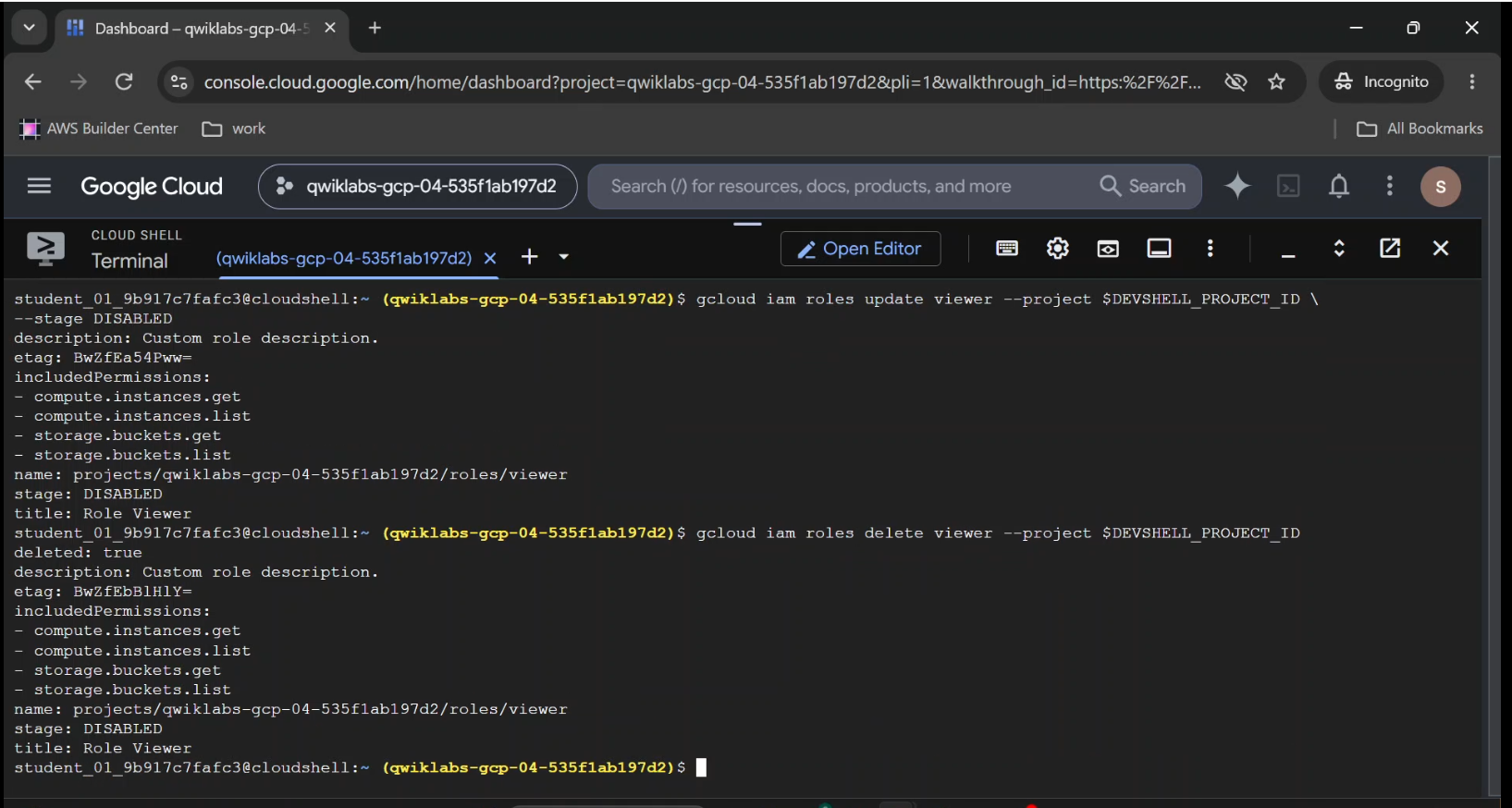
The 37-Day Rule: What Actually Happens When You Delete a Role?
Deleting a custom role in Google Cloud does not vaporize it on the spot. Instead, it triggers a strict 37-day clock:
- Days 1 to 7 (The Grace Period): Existing role bindings remain in your IAM policy, but they are completely inactive. Anytime within these 7 days, you can undelete the role and bring it right back to life.
- Days 8 to 37 (Permanent Deletion): After 7 days, the point of no return passes. The role enters a permanent deletion process that lasts 30 days.
- Day 37 Onward (Role ID Freed): After 37 days total, the Role ID (
viewer) is finally released and available to be reused for a new role.
Architect's Pro Tip: Phasing out a role across a large engineering org? Before disabling or deleting it, set
role.stagetoDEPRECATEDand add adeprecation_messagetelling developers which new role to migrate to.
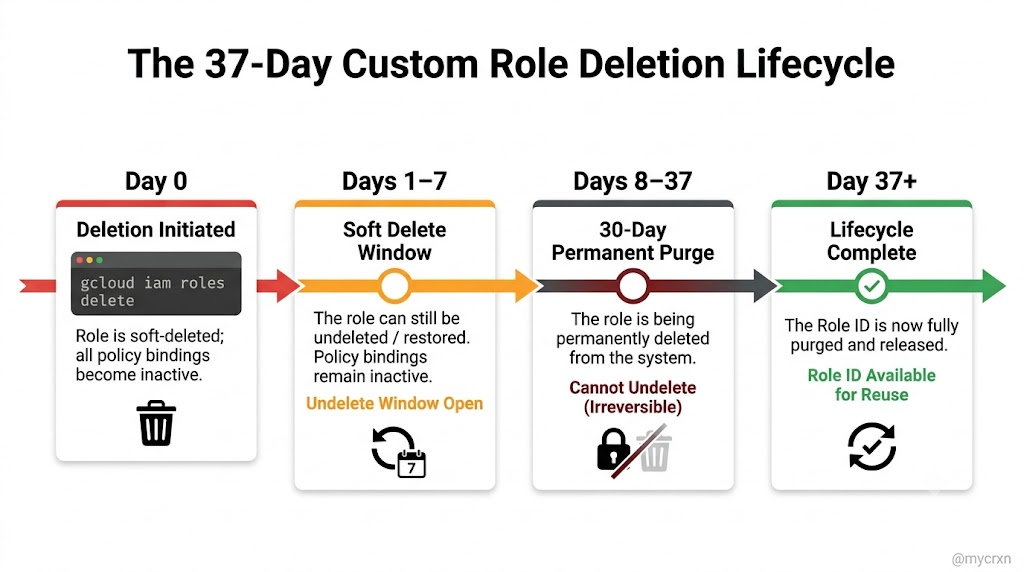
Task 9. Restore a Custom Role
Made a mistake? Or realized a legacy microservice still depended on that custom role? As long as you are inside the 7-day window, one command reverses the deletion.
- Run the following command within the 7-day window to restore the
viewercustom role:
gcloud iam roles undelete viewer --project $DEVSHELL_PROJECT_ID
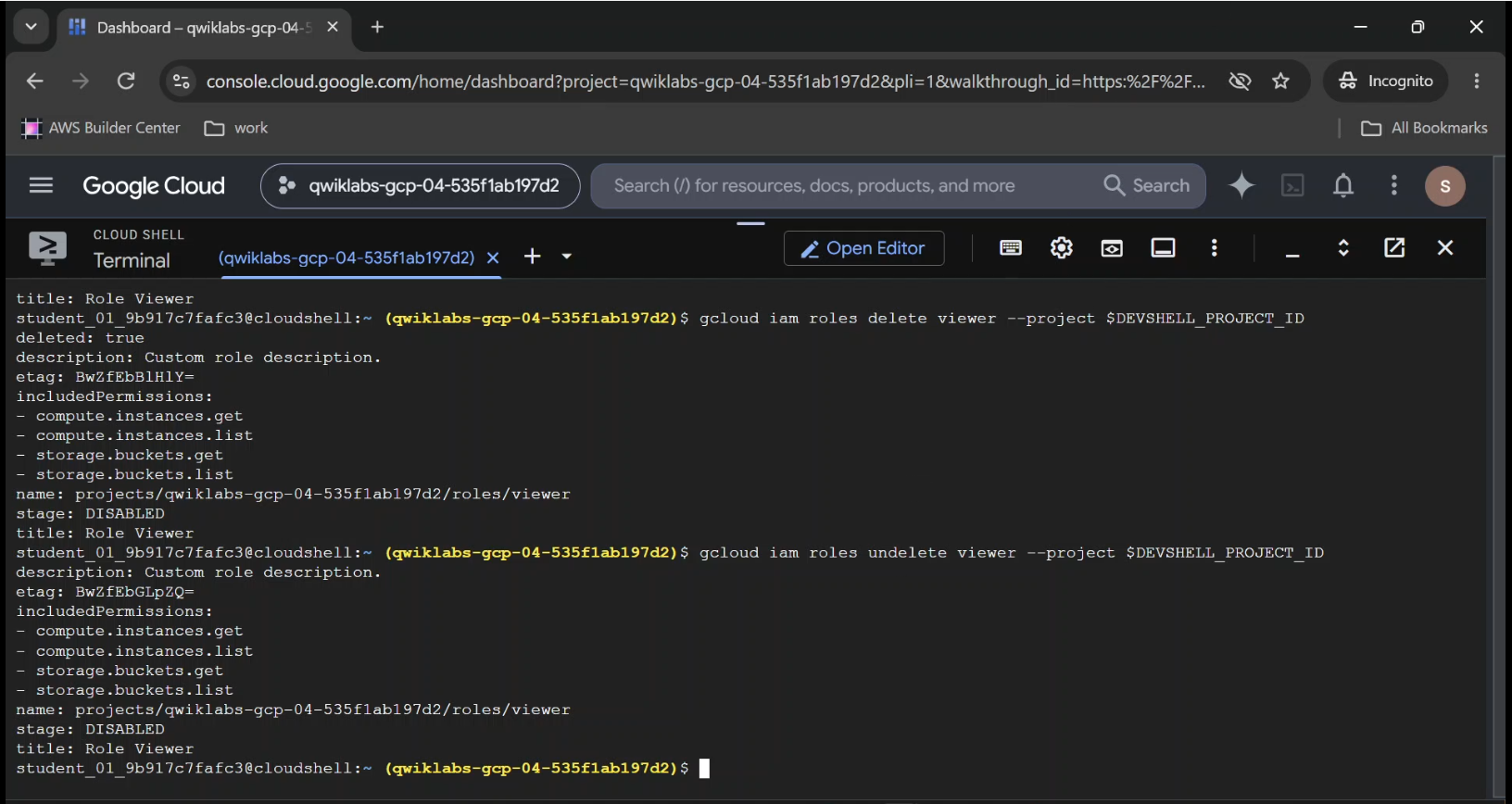
gcloud iam roles undelete viewer returning the restored role definition with deleted: true removed.
Final Takeaways
If you remember nothing else from this guide, carry these four rules into your next architecture review:
- Permissions are liabilities. Every unnecessary permission attached to a user or service account increases your blast radius. Use predefined roles to move fast in sandboxes; use custom roles to lock down production.
- Think in REST verbs. Every Cloud IAM permission is simply
<service>.<resource>.<verb>. Know the API action, and you know the permission. - Never skip the
etag. When automating custom role updates through YAML, always pull the latestetagfirst so your pipeline never overwrites a teammate's security change. - Disable before you delete. Setting
--stage DISABLEDgives you an instant rollback switch without starting the 37-day deletion clock.
Open to Cloud Ops Remote and technical writing projects.
Comments
Join the discussionNo comments yet. Be the first to comment.
Google Cloud Hands-On Labs-Configure Service Accounts and IAM Roles for Google Cloud
https://www.skills.google/course_templates/702 Blog Series: Configure Service Accounts and IAM Roles for Google Cloud Master Google Cloud Identity and Access Management (IAM) with this beginner-friendly, hands-on blog series based on the Google Skills course Configure Service Accounts and IAM Roles for Google Cloud. This series walks you through managing service accounts, assigning IAM permissions, using the `gcloud` CLI, and creating custom IAM roles to secure Google Cloud resources. What you'll learn: 1. Service Accounts and Roles: Fundamentals – Understand service accounts, IAM roles, and access control. 2. Configuring IAM Permissions with gcloud – Manage permissions using Google Cloud CLI commands. 3. IAM Custom Roles – Create and manage custom roles with specific permissions. 4. Challenge Lab – Apply your knowledge through practical Google Cloud IAM configuration tasks. Whether you're a cloud computing beginner, developer, or aspiring cloud engineer, this series will help you build practical IAM skills and prepare for the Google Cloud introductory skill badge. Topics: Google Cloud, IAM, Service Accounts, gcloud CLI, Custom Roles, Cloud Security, Hands-on Labs.