
Google Cloud Compute Challenge Lab: Build a Web Server Without Writing Application Code
How to Create a Cloud Storage Bucket, Attach a 200 GB Persistent Disk, and Deploy NGINX on Google Compute Engine
Introduction: A Website Starts Long Before the First Line of Code
A website is more than a collection of pages.
Behind every working application is an infrastructure foundation: storage, computing power, networking, and a server that knows how to handle incoming requests.
What happens when you're responsible for building that foundation, but another team is writing the application?
That's exactly the challenge in The Basics of Google Cloud Compute: Challenge Lab.
Imagine you've just joined a company as a Cloud Architect. Your manager wants a web application that will eventually provide product and order information.
Your responsibility isn't to develop the application. It's to prepare the environment where the application can run.
In this hands-on Google Cloud lab, we'll accomplish three objectives:
- Create a Google Cloud Storage bucket for application files.
- Deploy a Compute Engine virtual machine and attach a 200 GB persistent disk.
- Install NGINX and make a web server accessible through a public IP address.
By the end, you'll have a working cloud-hosted web server displaying the familiar message:
"Welcome to nginx!"
That simple message proves something important: the infrastructure is responding to web requests.
Let's build it.
Understanding the Architecture Before We Begin
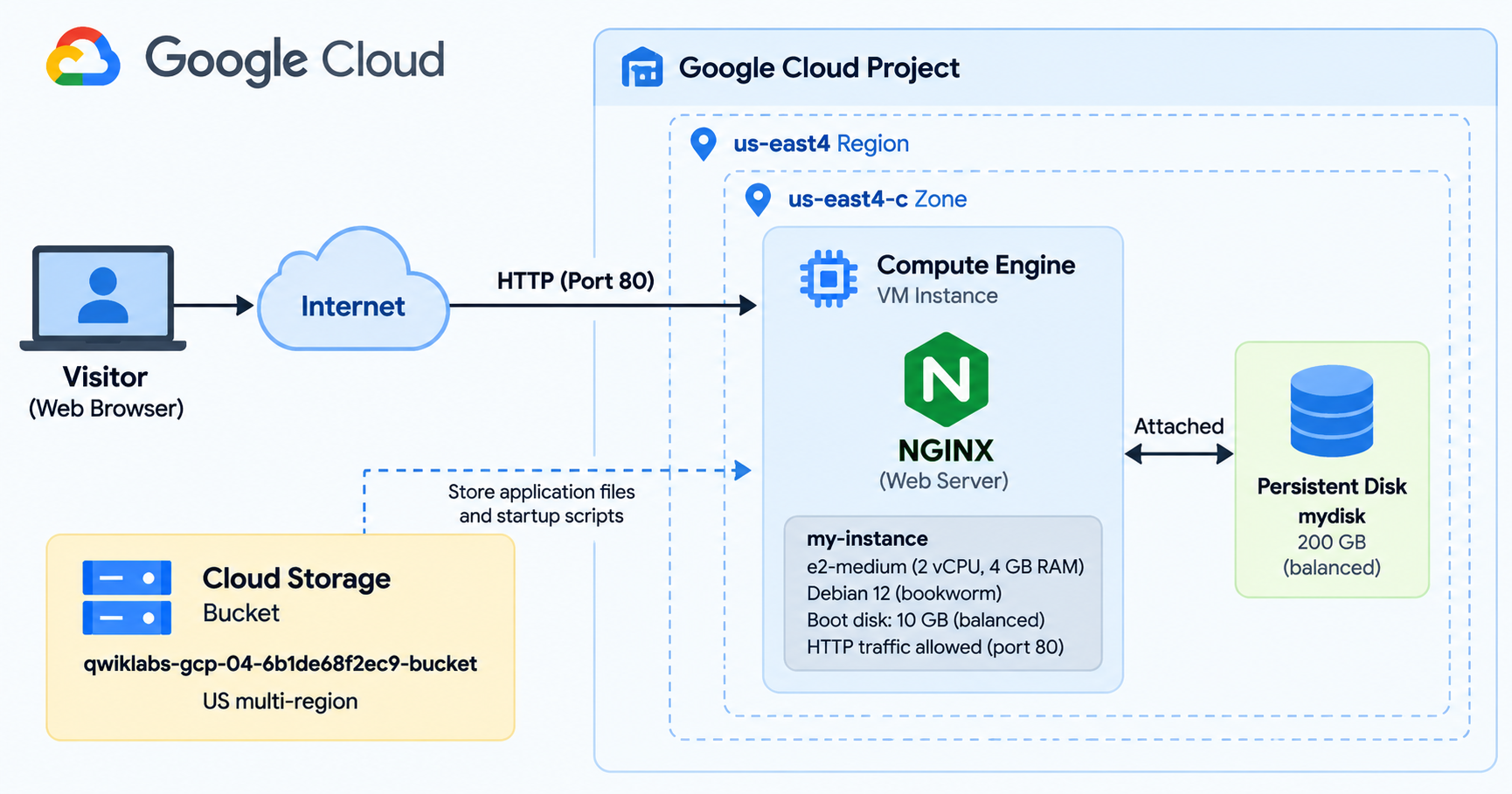
Think of the architecture as three connected building blocks.
Cloud Storage The file repository
The development team needs somewhere to store application files, build artifacts, and startup scripts. Google Cloud Storage provides managed object storage for those resources.
Compute Engine The virtual server
A virtual machine supplies the operating system, processor, memory, and networking environment needed to run server software.
Persistent Disk Additional block storage
A separate persistent disk provides storage that can be attached to the VM independently of its boot disk.
NGINX The web server
NGINX accepts incoming HTTP requests and delivers web content.
Here's the basic flow:
Visitor → Public IP Address → Compute Engine VM → NGINX → Web Page
Cloud Storage serves as a separate repository for application assets. The additional persistent disk is attached to the VM but does not need to serve the default NGINX page for this exercise.
a simple architecture diagram showing a visitor accessing an NGINX server hosted on Compute Engine, with Cloud Storage and Persistent Disk shown as separate infrastructure resources.
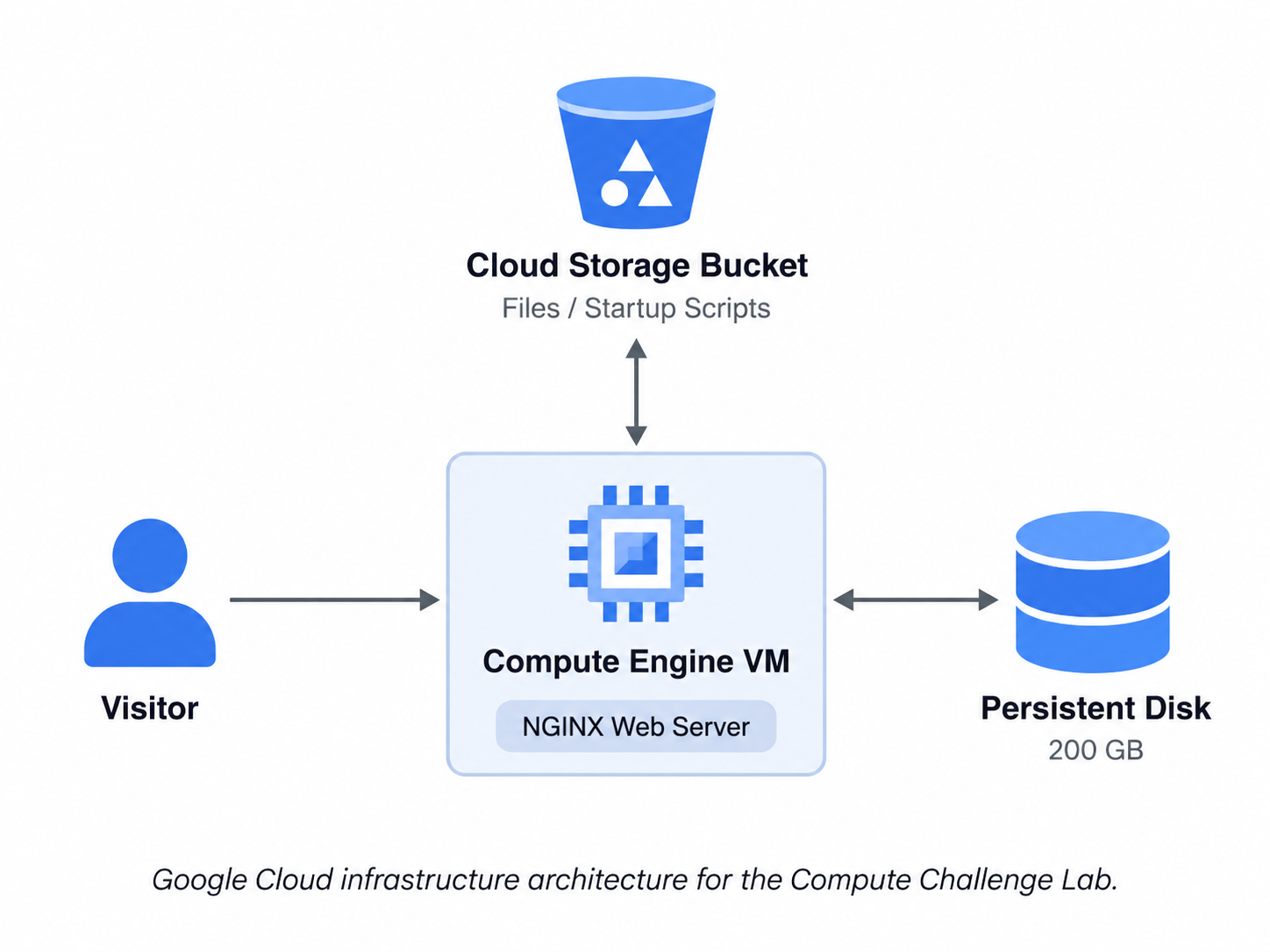
Caption: Google Cloud infrastructure architecture for the Compute Challenge Lab.
Before You Start: Lab Requirements
Open the Google Cloud training lab and click Start Lab.
Use the temporary credentials supplied by the lab to access the Google Cloud Console.
Make sure the active project matches the lab project before creating resources. This matters because resources created in the wrong project may not satisfy the lab's assessment checks.
For this walkthrough, the specified configuration is:
| Resource | Configuration |
|---|---|
| Region | us-east4 |
| Zone | us-east4-c |
| Cloud Storage bucket | qwiklabs-gcp-04-6b1de68f2ec9-bucket |
| Bucket location | US multi-region |
| VM name | my-instance |
| Machine series | E2 |
| Machine type | e2-medium |
| Boot OS | Debian GNU/Linux 12 (bookworm) |
| Boot disk | 10 GB balanced persistent disk |
| Additional disk | mydisk — 200 GB |
| Firewall | Allow HTTP traffic |
| Web server | NGINX |
One important distinction: the bucket must use the US multi-region, even though the VM and additional persistent disk must use us-east4-c.
That location difference is explicitly part of the challenge.
If you're following this guide in a different lab session, use the bucket name assigned to your session when it differs from the example.
Task 1: Create a Cloud Storage Bucket
Our first goal is to create a central location for the development team's application files and startup scripts.
Google Cloud Storage organizes objects into containers called buckets.
Step 1: Open Cloud Storage
From the Google Cloud Console:
- Click the Navigation menu in the upper-left corner.
- Select Cloud Storage → Buckets.
- Click Create.
You can also open the Cloud Storage Buckets page.
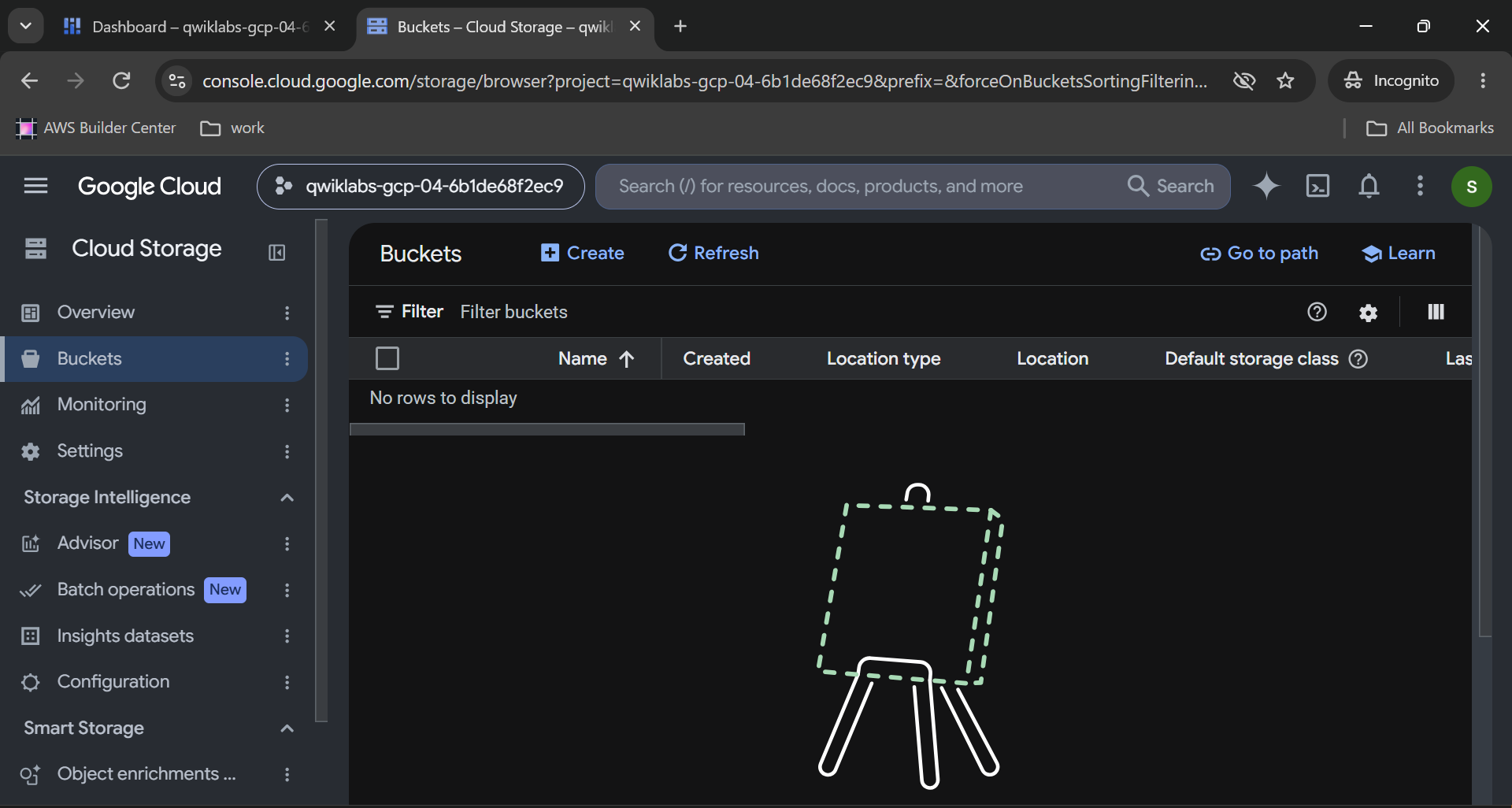
Step 2: Configure the Bucket Name
In the bucket creation form, enter:
qwiklabs-gcp-04-6b1de68f2ec9-bucket
Bucket names are globally unique, so enter the name exactly as specified for this lab session.
Click Continue if your Console presents the creation wizard in separate sections.
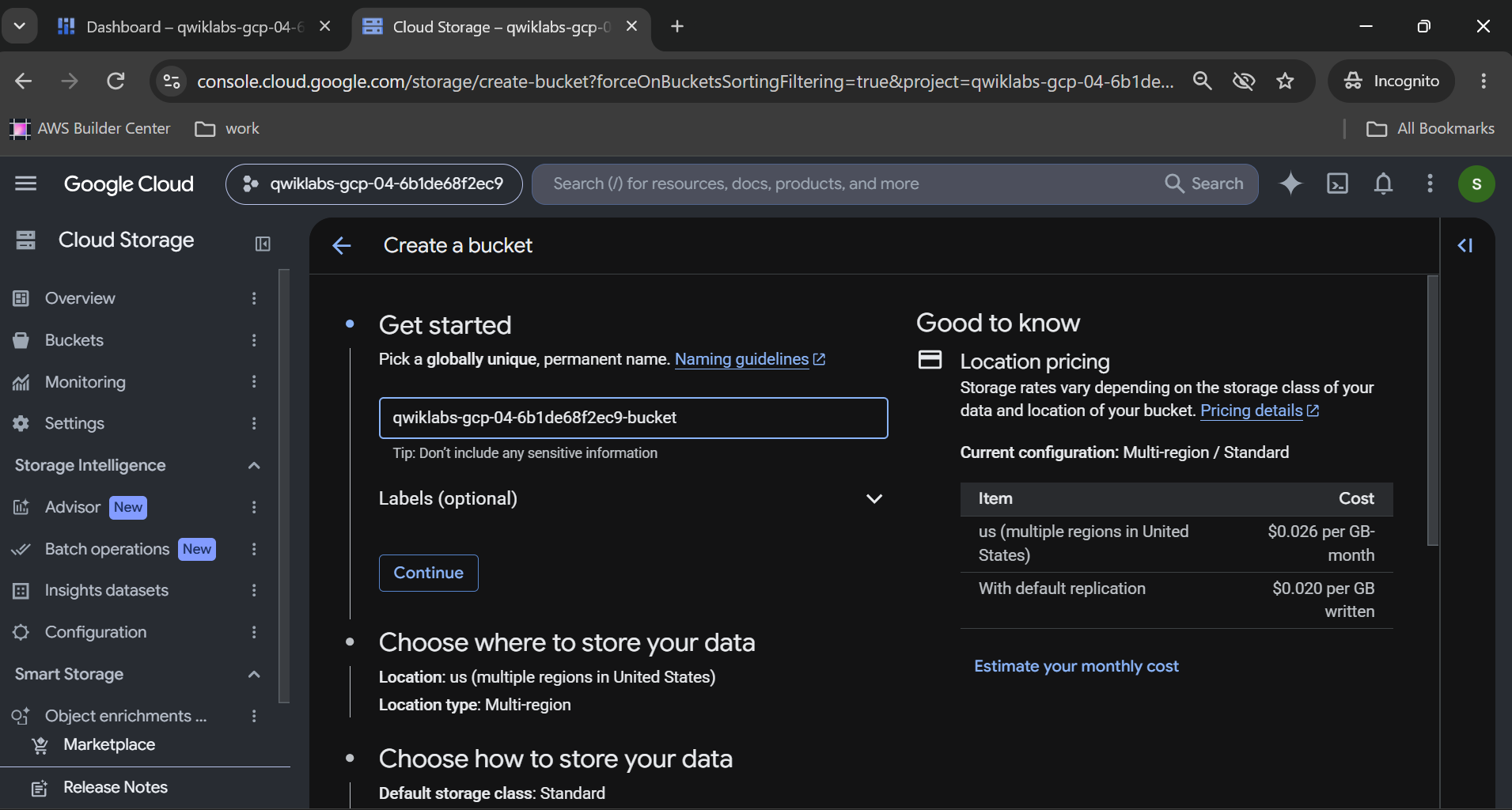
Step 3: Choose the Storage Location
Under Choose where to store your data, configure:
- Location type: Multi-region
- Location: US (United States)
- Default storage class: Standard, unless the lab specifies otherwise
Keep the remaining settings at their defaults unless prompted by the challenge.
Do not select us-east4 as the bucket's regional location. The required location for this resource is the US multi-region.
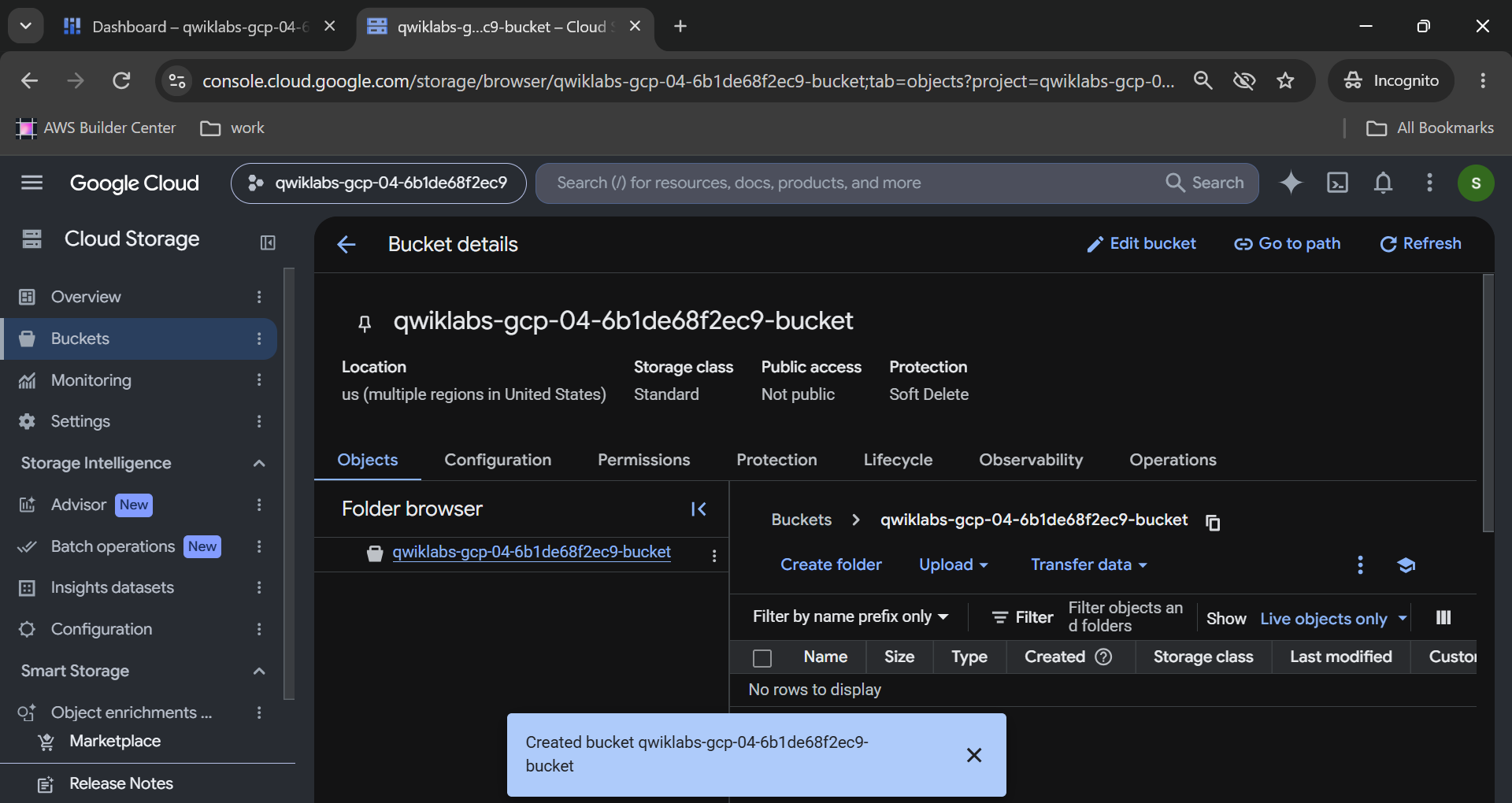
Caption: Creating a Google Cloud Storage bucket with the required name and multi-region location.
Step 4: Create and Verify the Bucket
Click Create and confirm any informational prompt that appears.
Once creation succeeds, the bucket should appear in the Cloud Storage bucket list.
Verify the name and location.
Return to the challenge lab page and click Check my progress under Task 1.
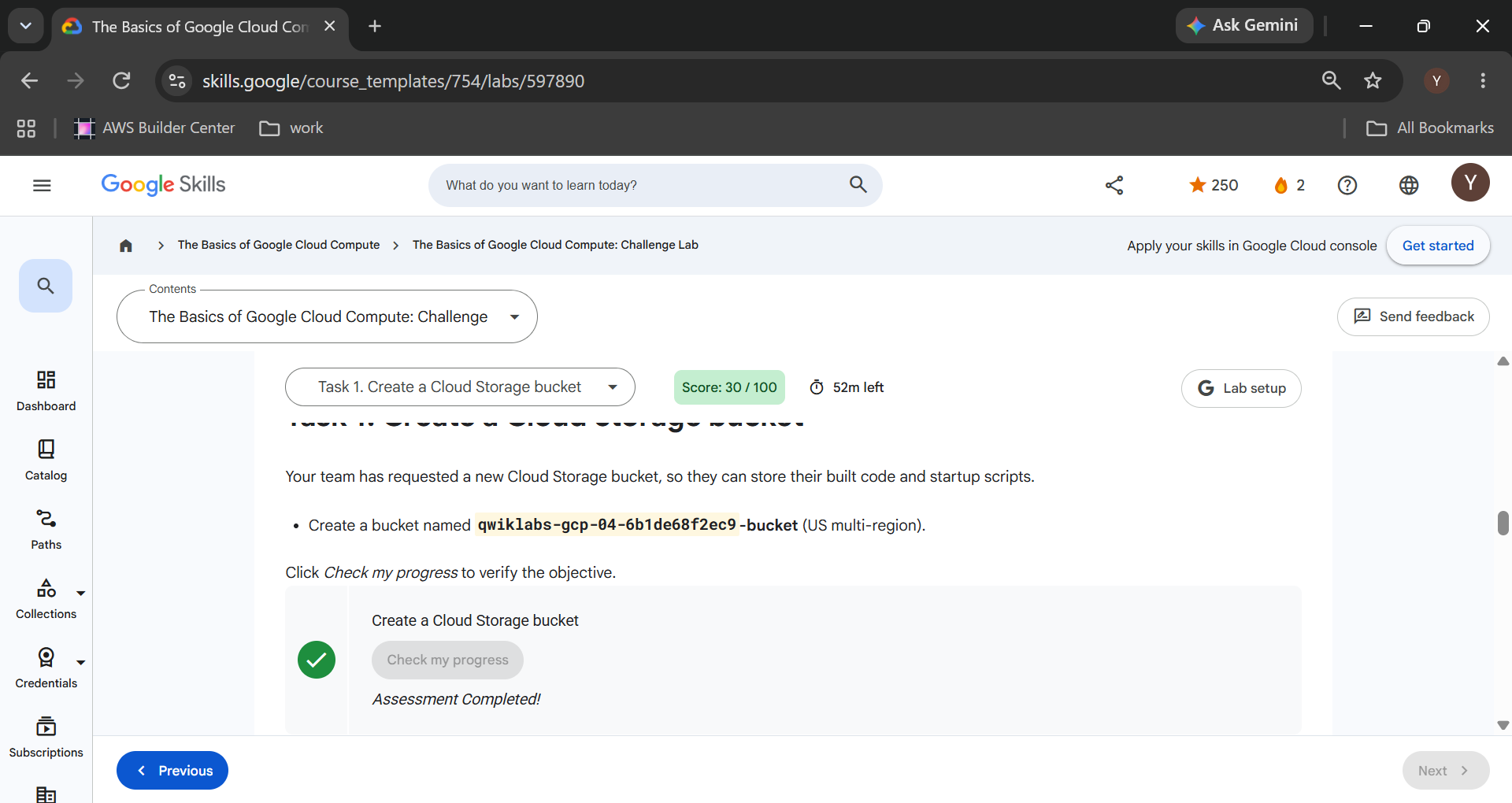
If the objective passes, you've completed the first infrastructure requirement.
What did we accomplish?
We created an object storage location where the application team can store and retrieve files later.
We haven't uploaded any application code because that isn't part of the challenge.
Official reference: Create Cloud Storage Buckets — Google Cloud Documentation
Task 2: Create a Compute Engine VM and Attach a 200 GB Persistent Disk
Now we need the machine that will run our web server.
Compute Engine allows us to provision virtual machines without managing physical servers.
The challenge requires a specific machine type, operating system, boot disk, and an additional persistent disk.
Step 1: Open Compute Engine
In the Google Cloud Console:
Open the Navigation menu.
Go to Compute Engine → VM instances.
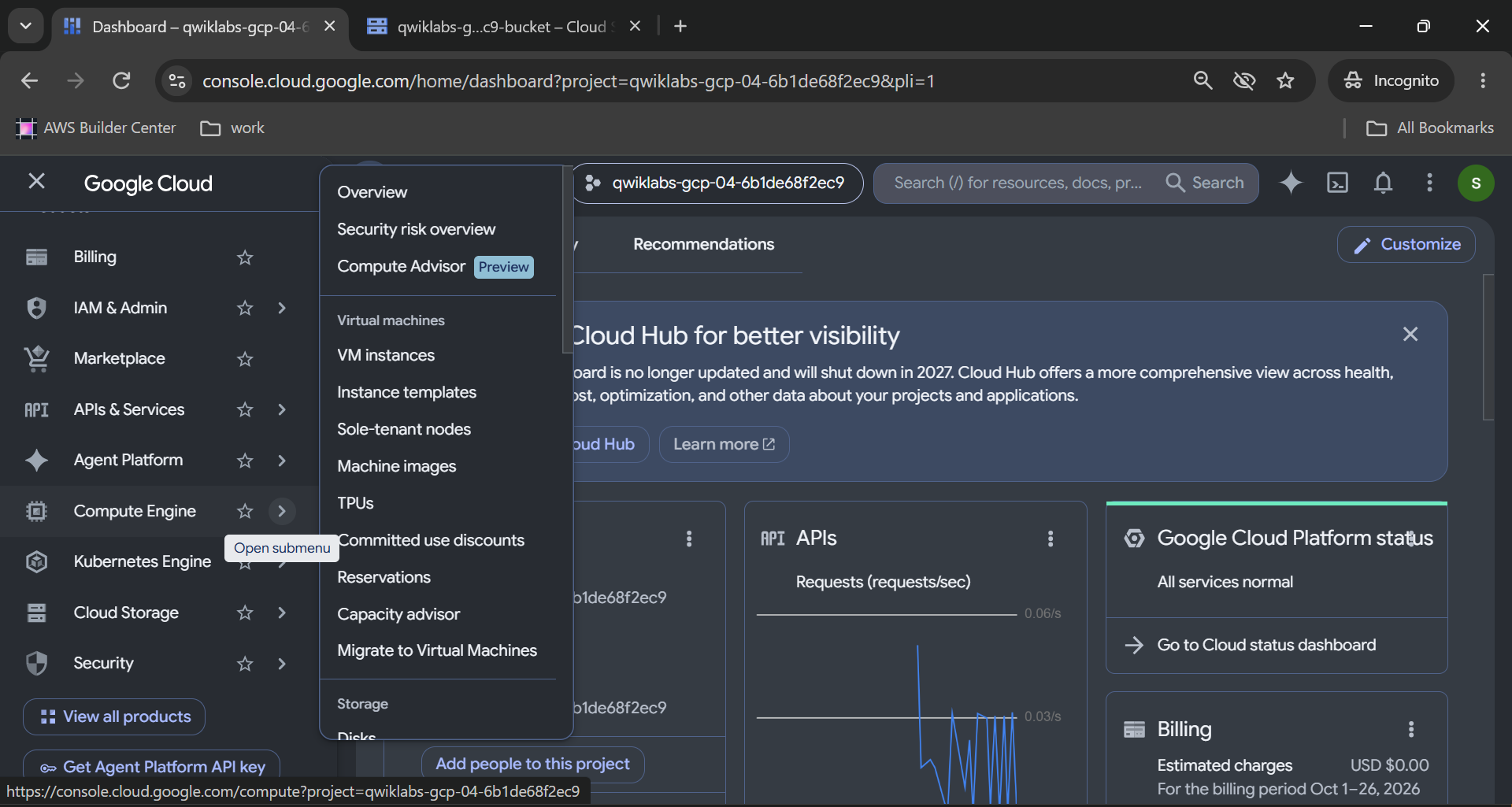
Click Create Instance.
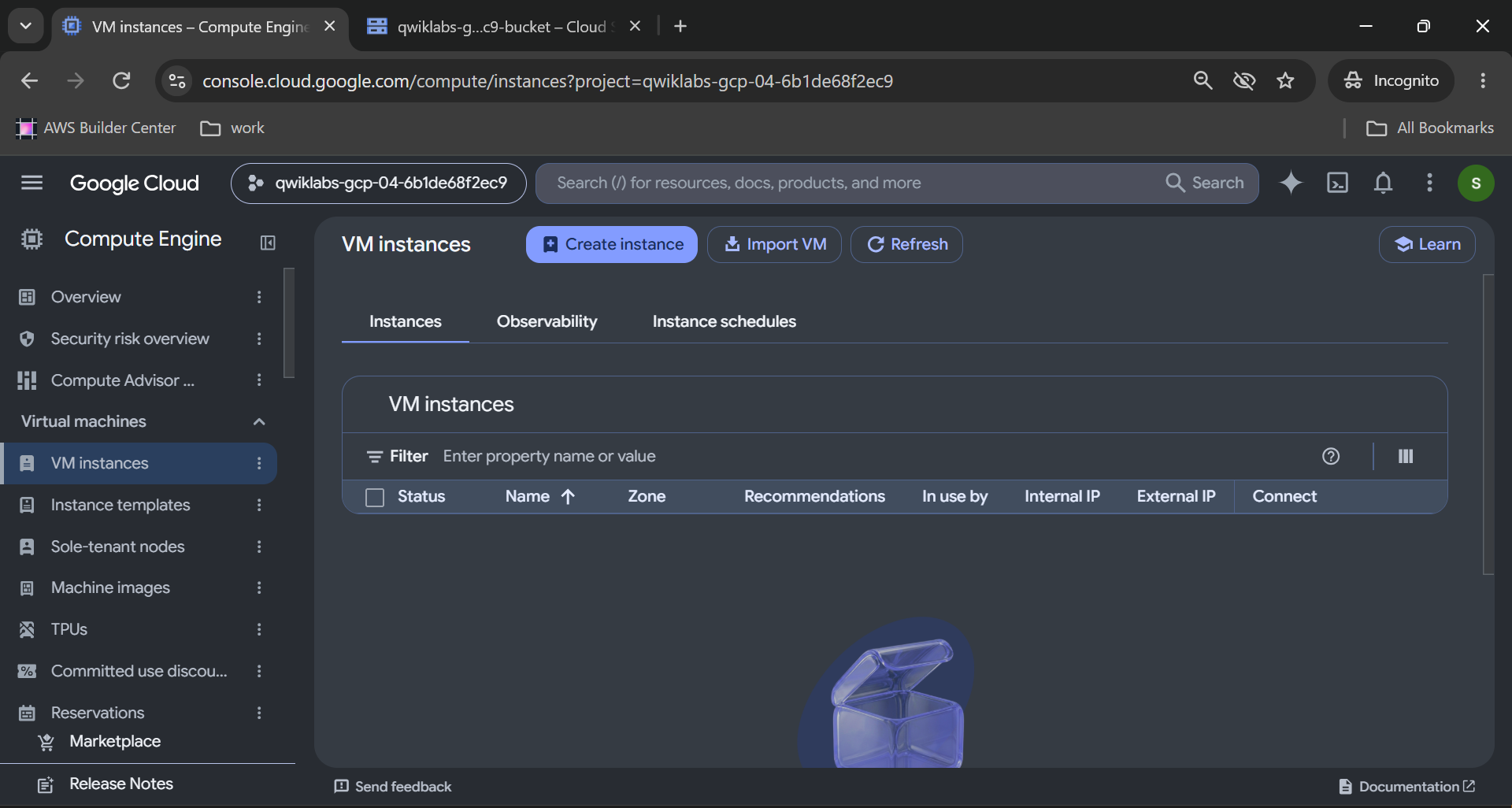
Direct Console link: Compute Engine VM Instances.
Step 2: Configure the Virtual Machine
Enter the following values in the instance creation page.
Instance name: my-instance
Under the machine configuration settings, select:
Region:
us-east4Zone:
us-east4-c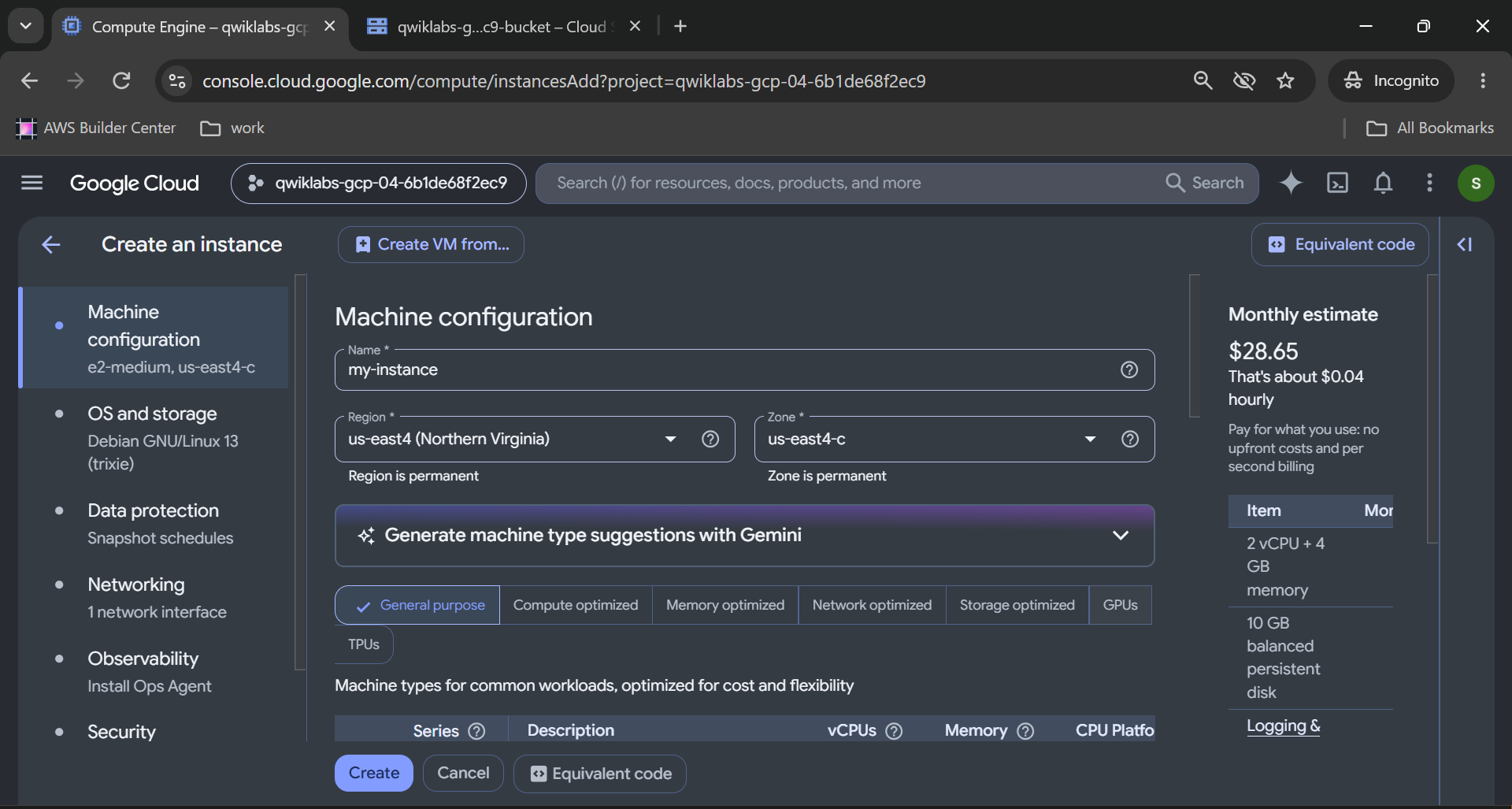
Series: E2
Machine type: e2-medium
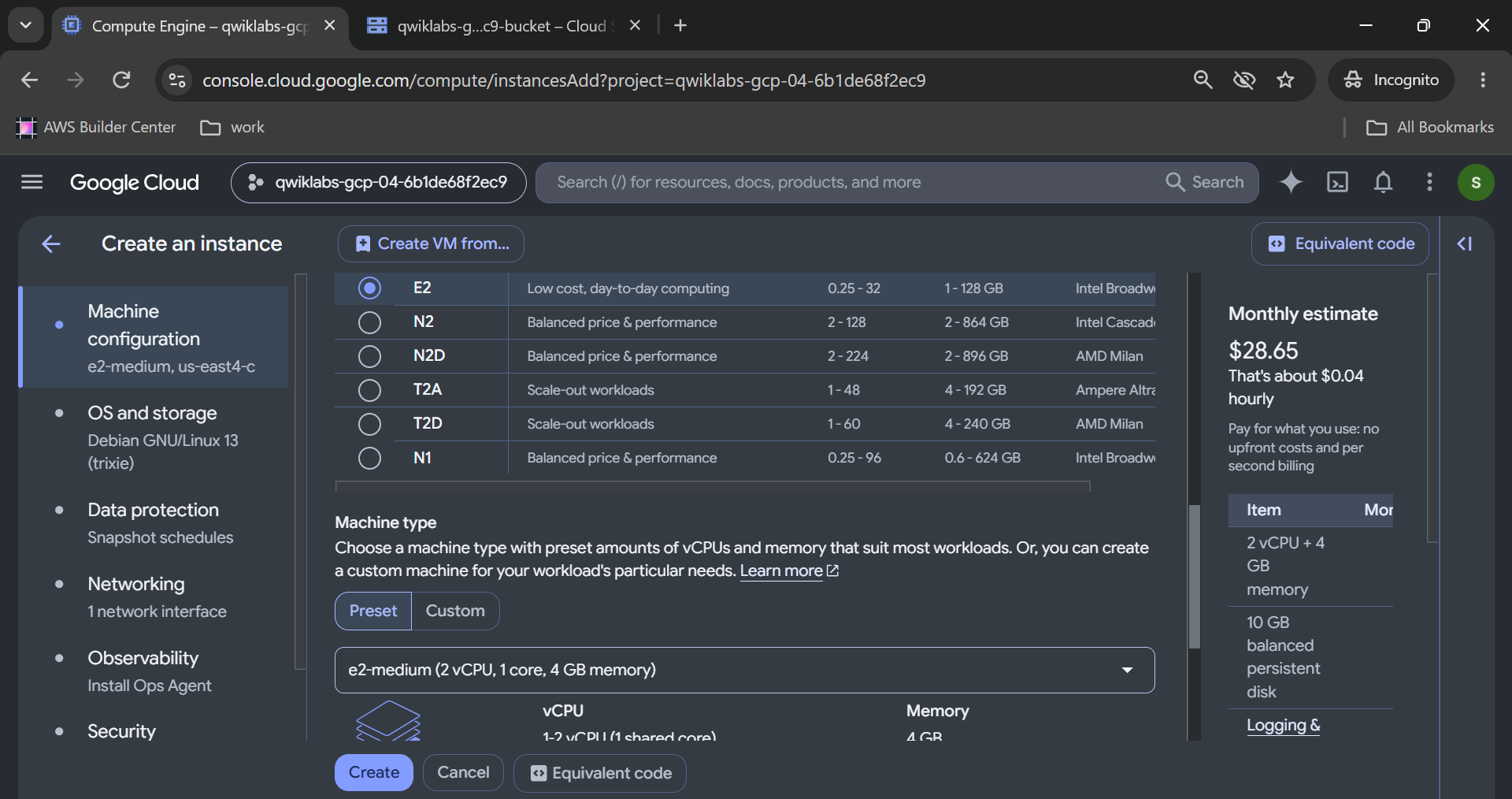
Caption: Configuring an e2-medium virtual machine in Google Compute Engine.
The e2-medium machine type provides 2 virtual CPUs and 4 GB of memory.
For this lab, that configuration is sufficient to host a basic NGINX server.
Step 3: Configure the Boot Disk
In the OS and Storage section, find the boot disk settings and click Change.
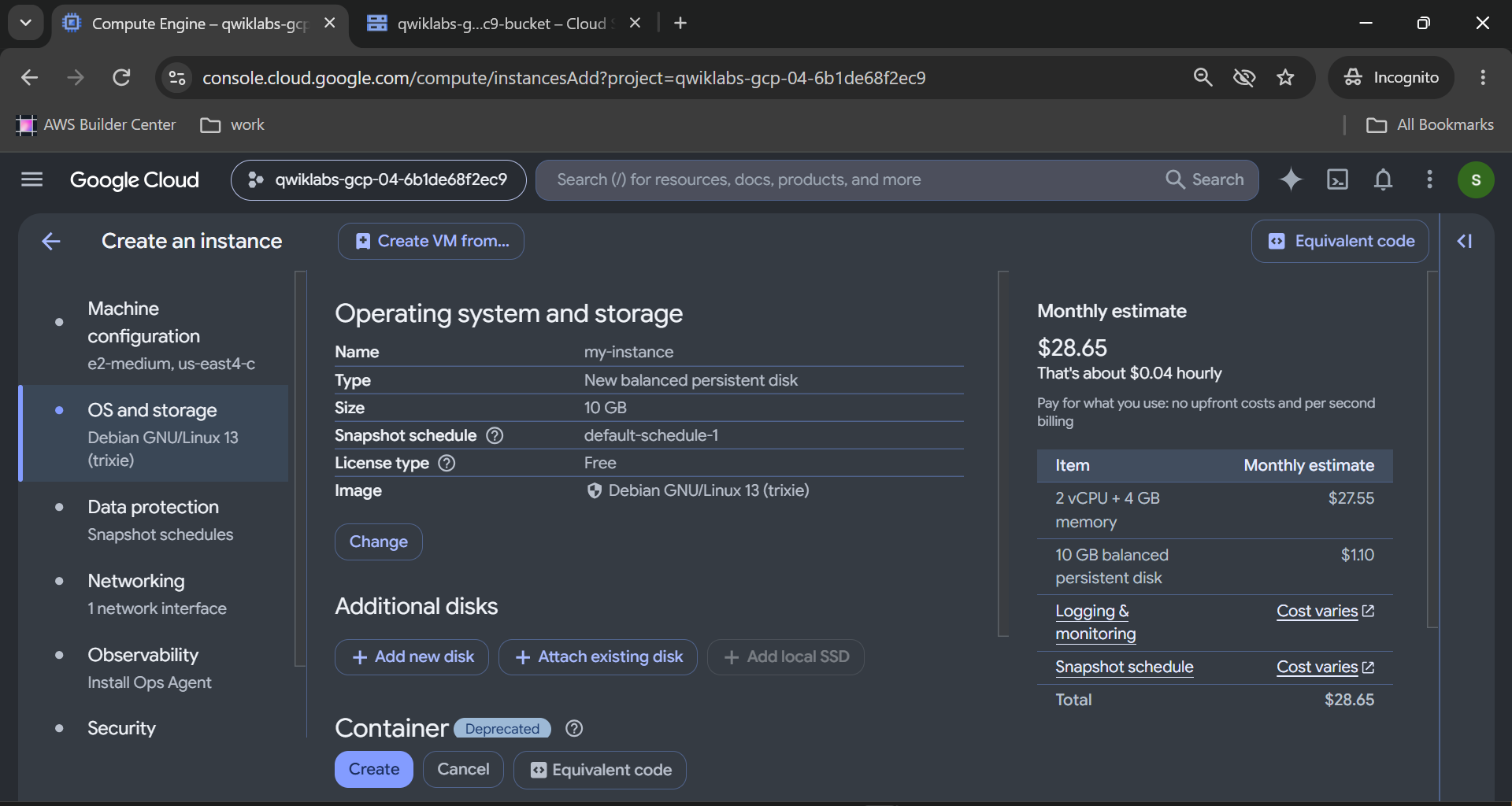
Select:
| Setting | Required value |
|---|---|
| Operating system | Debian |
| Version | Debian GNU/Linux 12 (bookworm) |
| Boot disk type | Balanced persistent disk |
| Size | 10 GB |
Click Select to confirm the boot disk configuration.
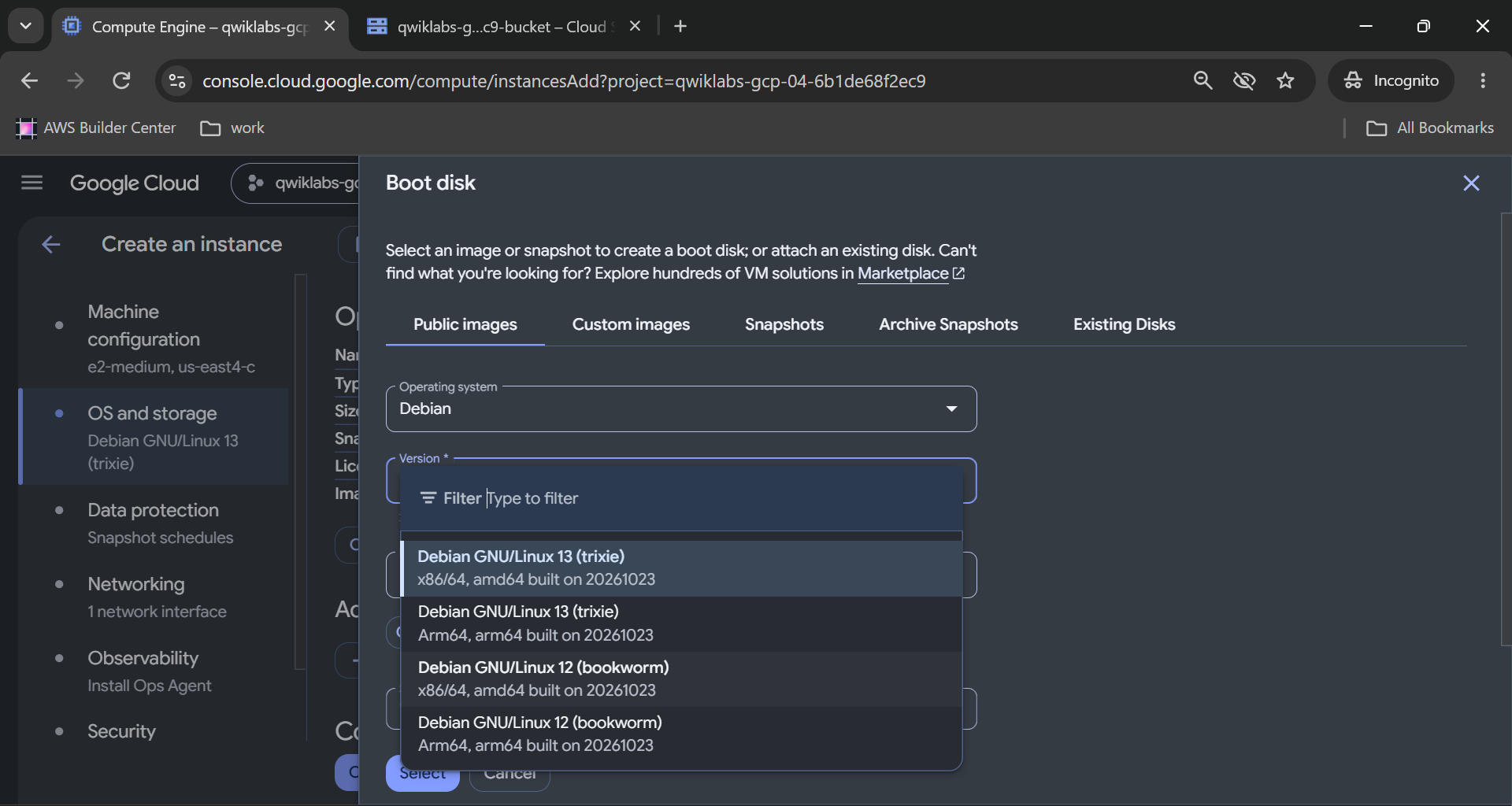
Caption: Configuring the Debian 12 operating system and balanced boot disk.
Why Debian?
Debian is a stable Linux distribution commonly used for server environments. It also supports installing NGINX through the APT package manager.
Why a balanced persistent disk?
Balanced persistent disks provide a general-purpose storage option suitable for many applications, including this training exercise.
Step 4: Enable HTTP Traffic
Navigate to the Networking section of the VM creation page.
Find the Firewall settings.
Enable:
Allow HTTP traffic
This allows incoming HTTP connections to reach the web server on port 80, provided the corresponding firewall rule and network configuration are in place.
Without the correct firewall configuration, NGINX might be running perfectly while visitors still cannot access the website.
This is a classic cloud infrastructure lesson:
A running server is not necessarily a reachable server.
You do not need to enable HTTPS for this lab because the test uses ordinary HTTP.
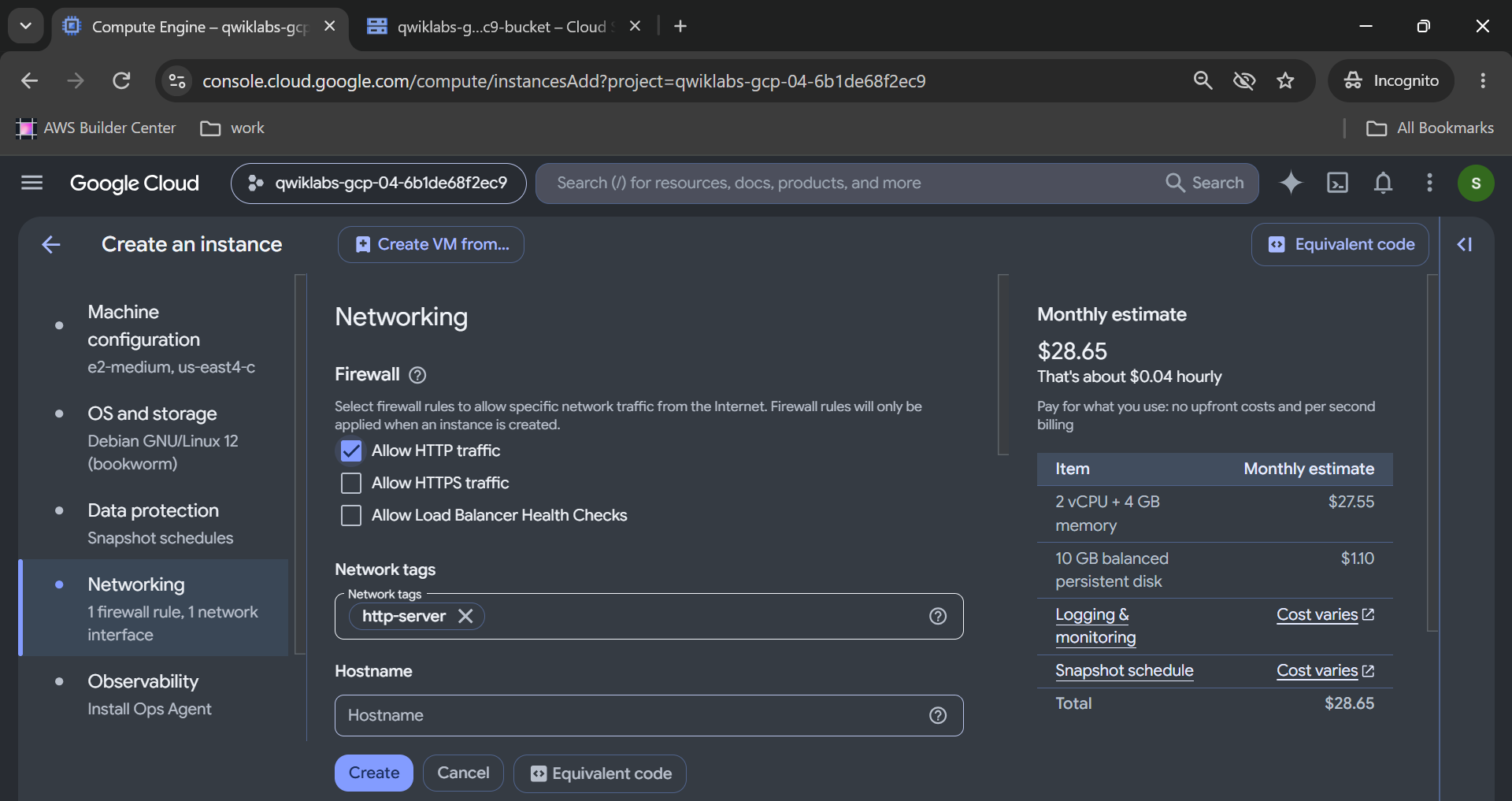
Caption: Enabling inbound HTTP traffic for the Compute Engine web server.
Step 5: Create the Virtual Machine
Review the configuration carefully.
Click Create.
Once provisioning completes, return to the VM instances page.
You should find an instance named my-instance, showing a running status.
VM instances list showing my-instance, its zone, running status, and external IP address.
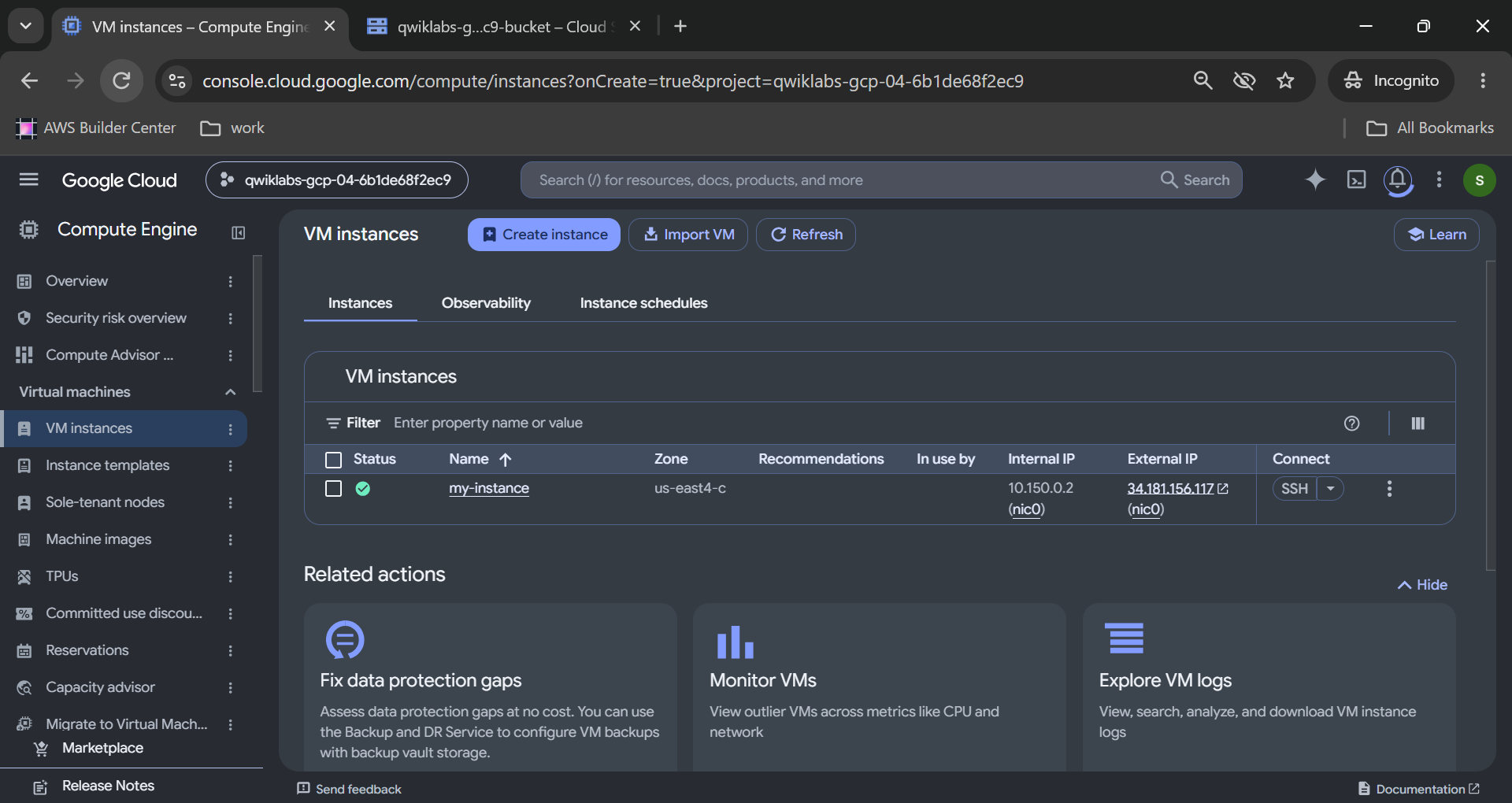
Caption: Compute Engine virtual machine successfully created.
We've now created a virtual computer in Google's cloud.
But the storage configuration isn't finished yet.
Attach the 200 GB Persistent Disk
The boot disk contains Debian and the files needed to run the operating system.
The challenge also requires a separate disk named mydisk.
This additional disk is not the same as increasing the boot disk size.
Step 6: Open the Instance Settings
From Compute Engine → VM instances:
Click
my-instance.Click Edit on the VM details page.
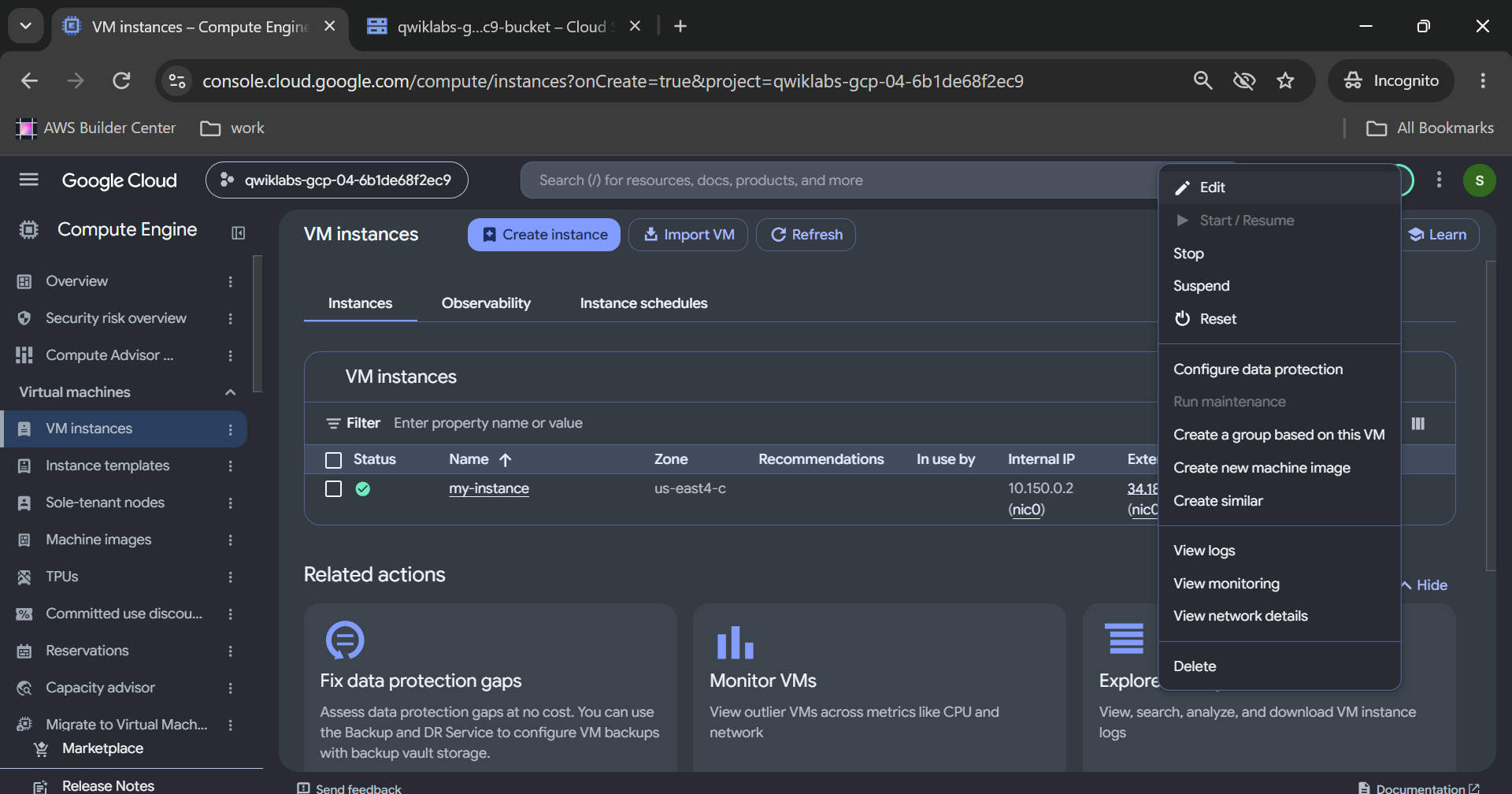
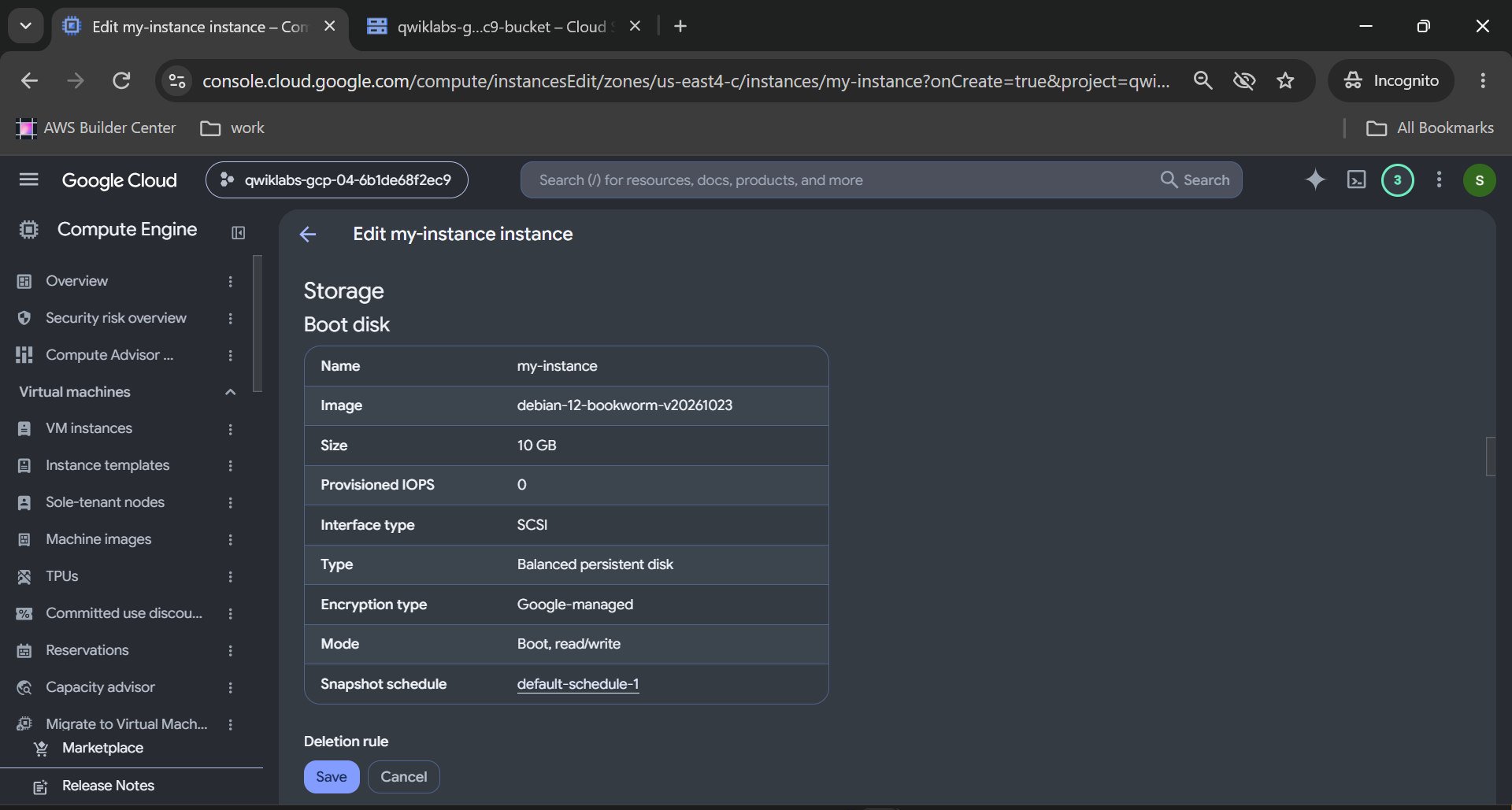
Find the Storage section.
Under Additional disks, click Add new disk.
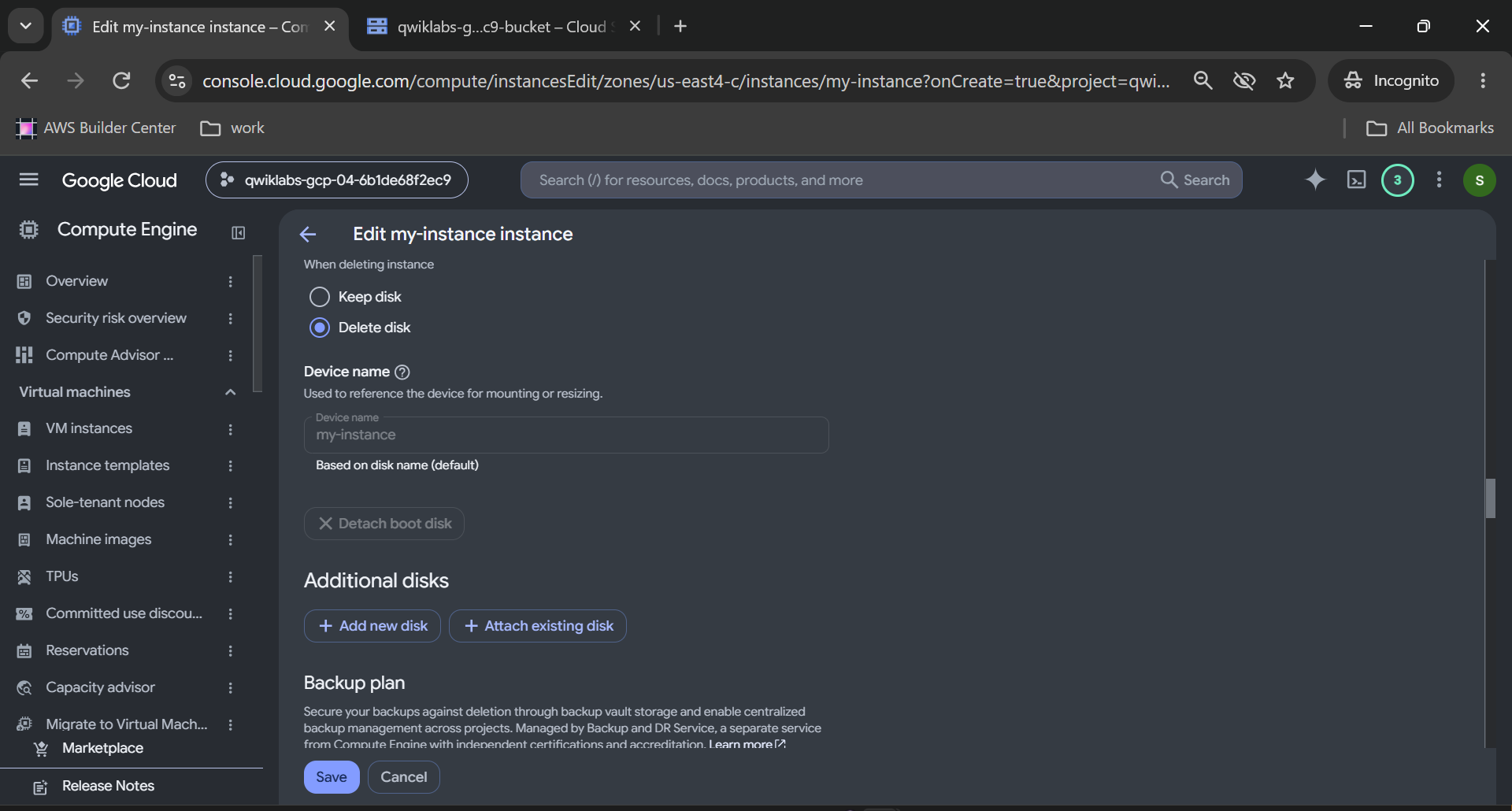
Step 7: Create the New Disk
Configure the additional disk:
Name:
mydiskDisk source type: Blank disk
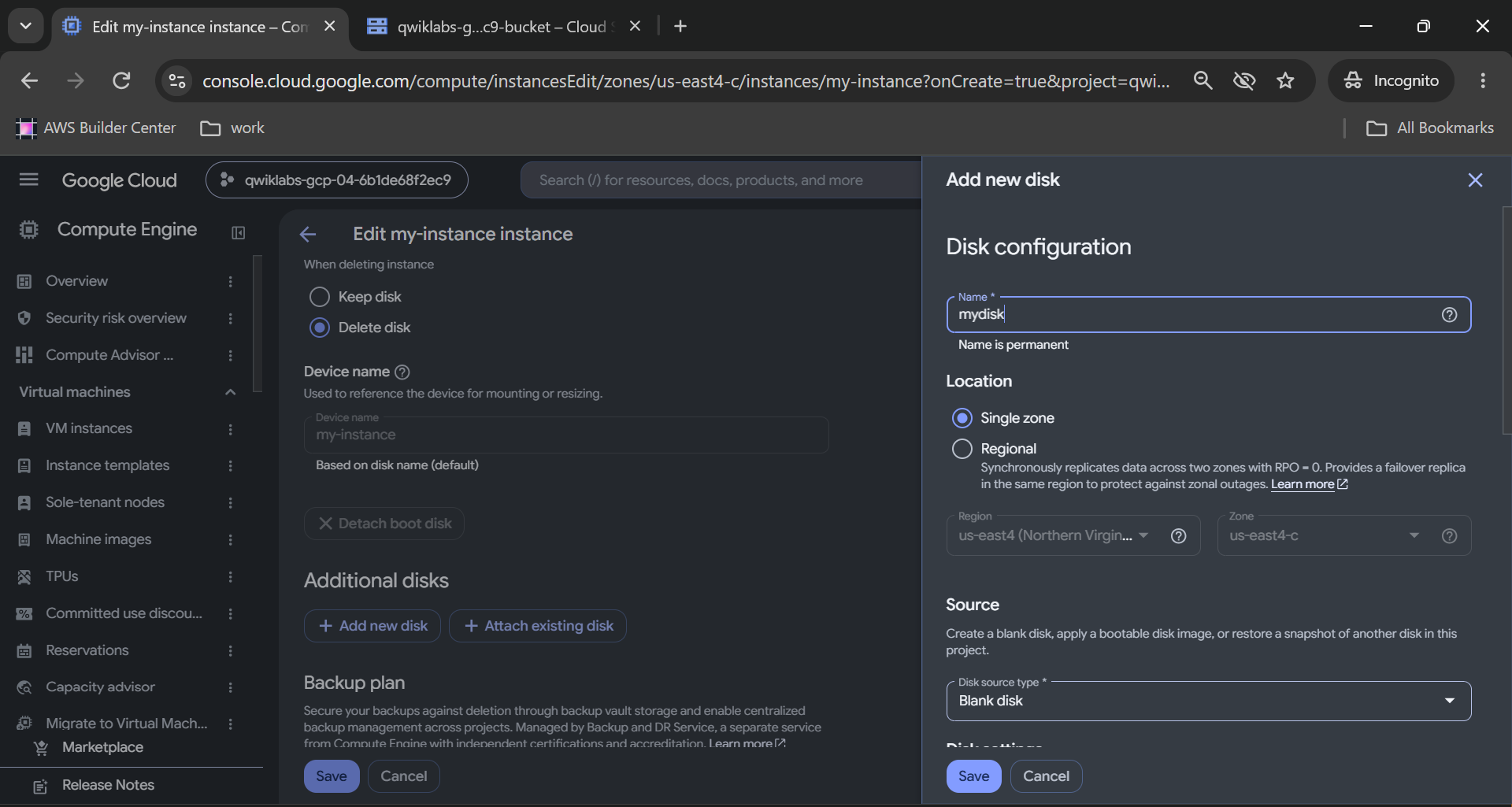
Size: 200 GB
Disk type: Balanced persistent disk, or the default persistent disk type if the task provides no additional type requirement
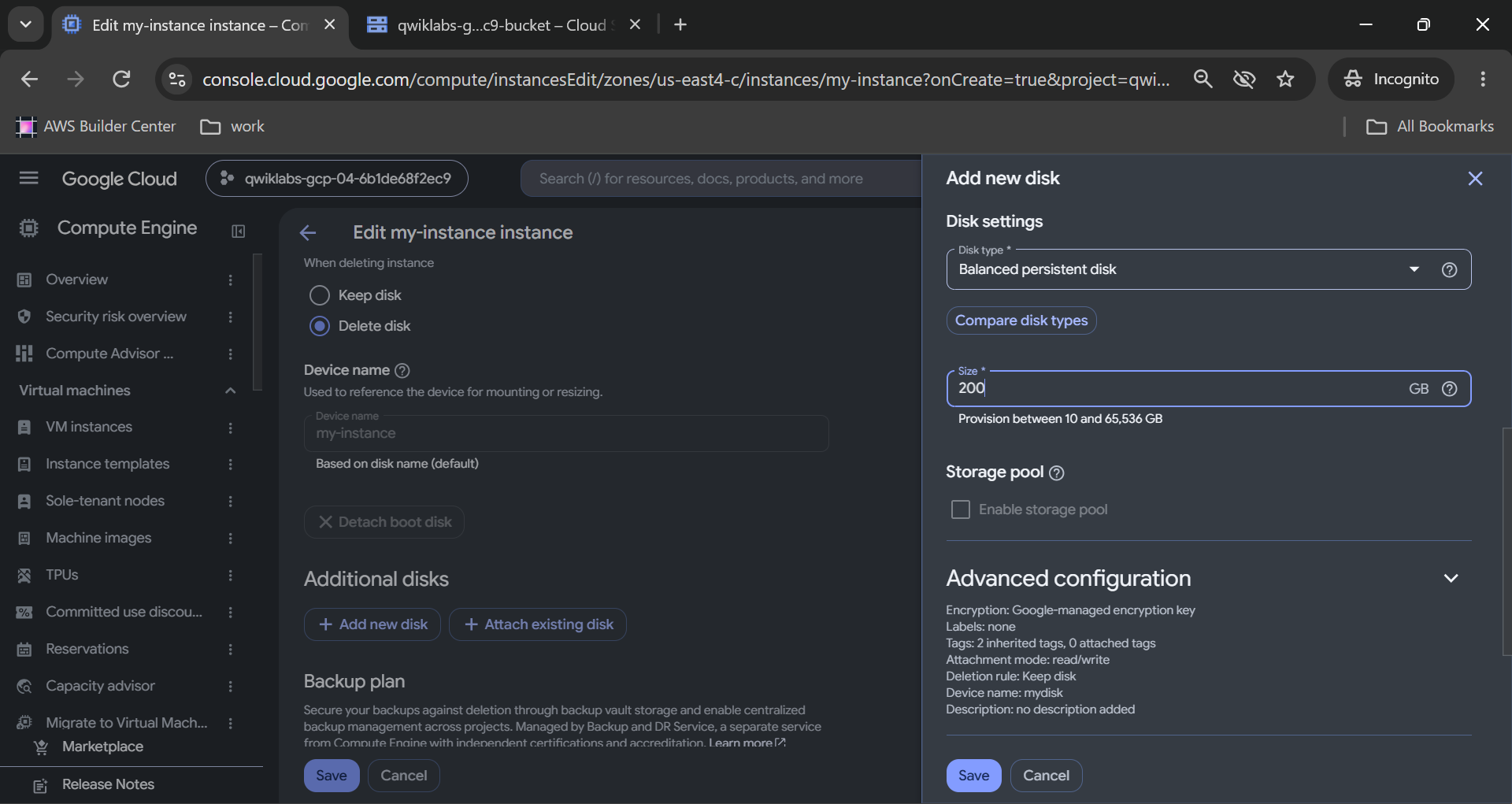
The disk must be in the same zone as the virtual machine: us-east4-c.
Choose a normal read/write attachment configuration.
Click Save to complete the disk configuration, then Save to apply the VM changes.
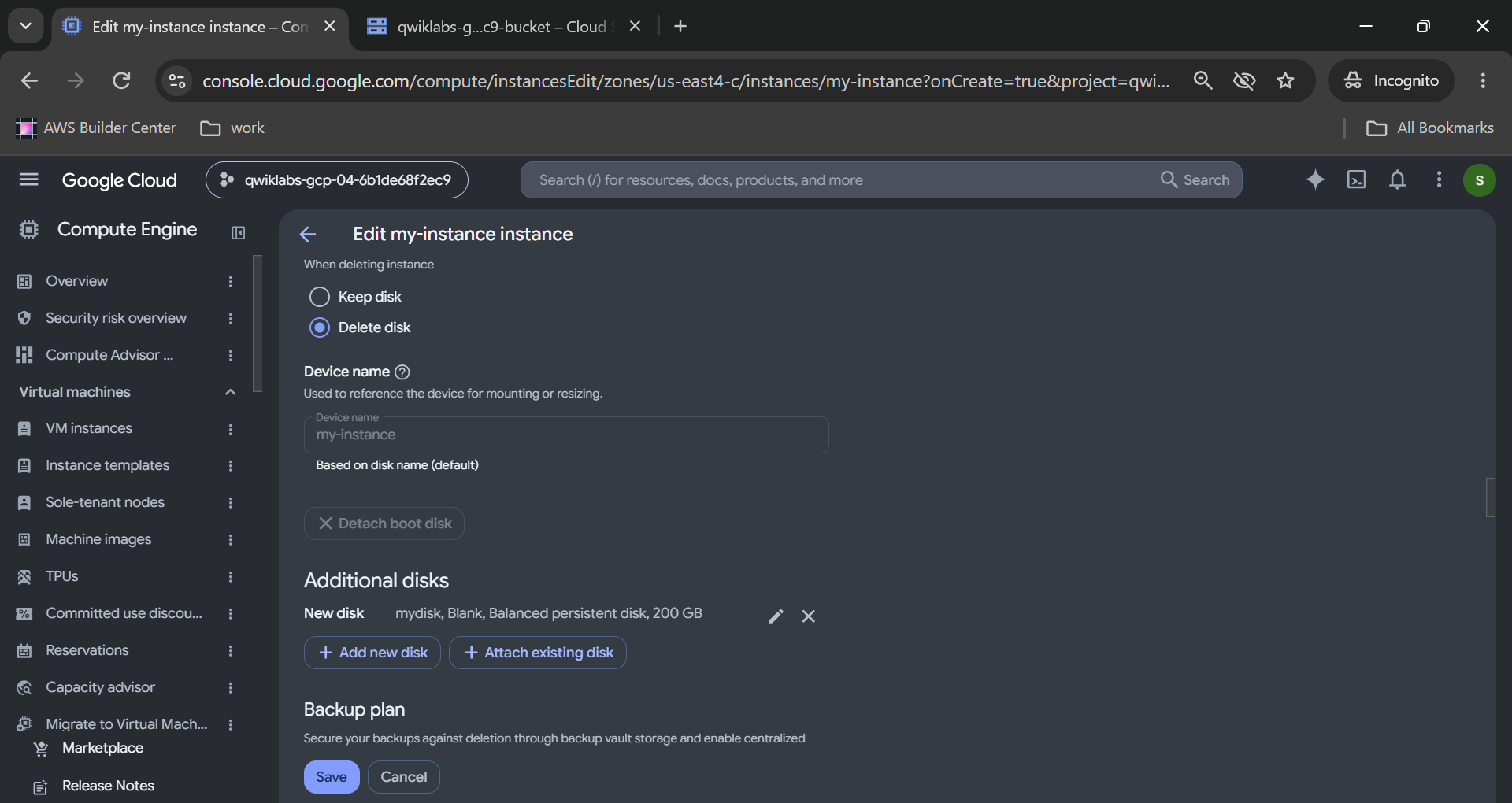
Caption: Creating a 200 GB persistent data disk for the Compute Engine instance.
Google Cloud will create the disk and attach it to your virtual machine.
Alternatively, if you already created mydisk from the Compute Engine Disks page, use Attach existing disk instead of creating a duplicate disk.
Step 8: Verify the Disk Attachment
Return to the my-instance details page.
Find the storage or disks information.
You should see two disks associated with the VM:
- A 10 GB boot disk containing Debian 12.
- An additional 200 GB disk named
mydisk.
VM details page showing both the boot disk and attached mydisk persistent disk.
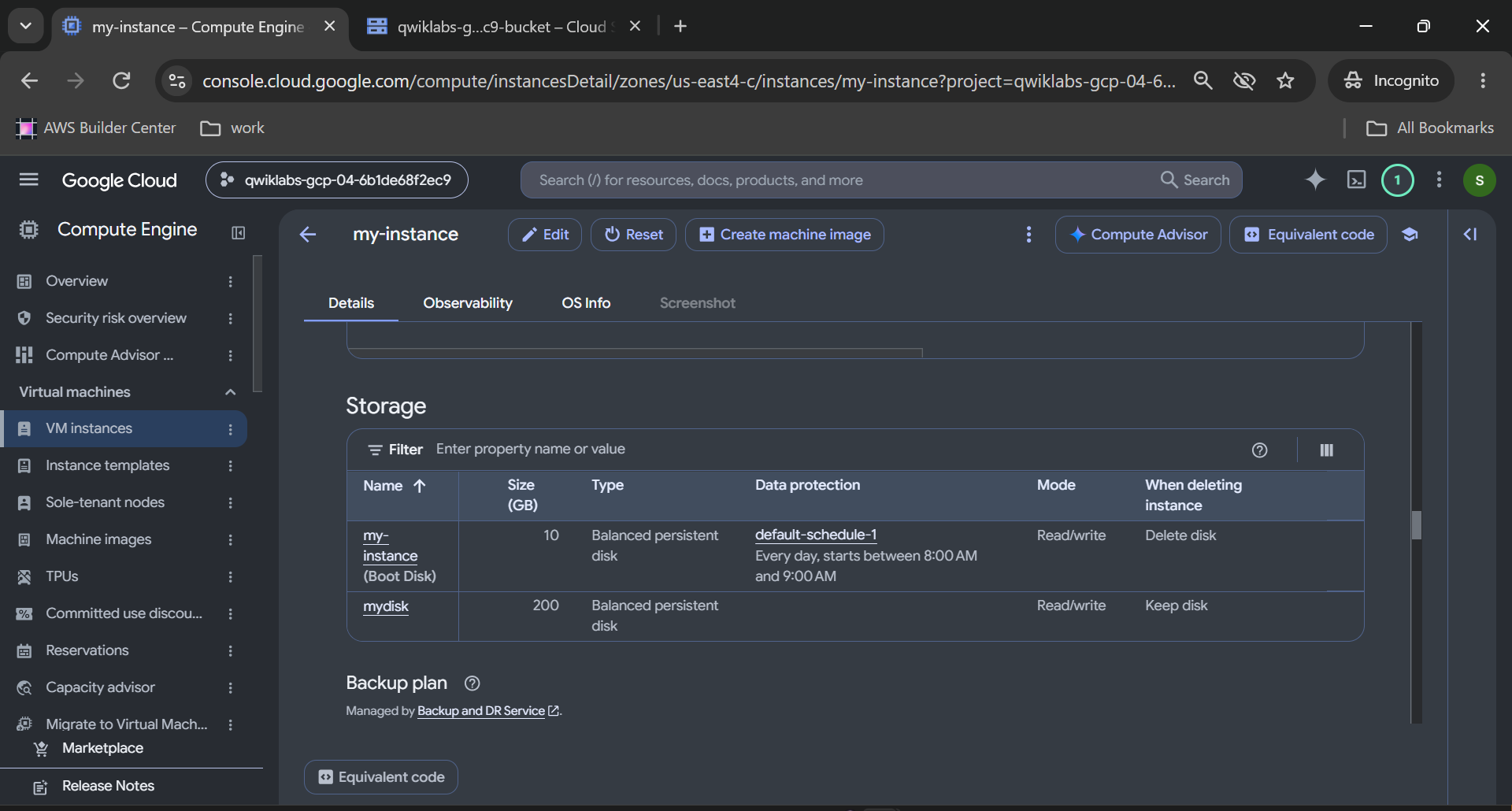
Caption: Verifying the additional persistent disk is attached to the VM.
Now go back to the lab and click Check my progress for Task 2.
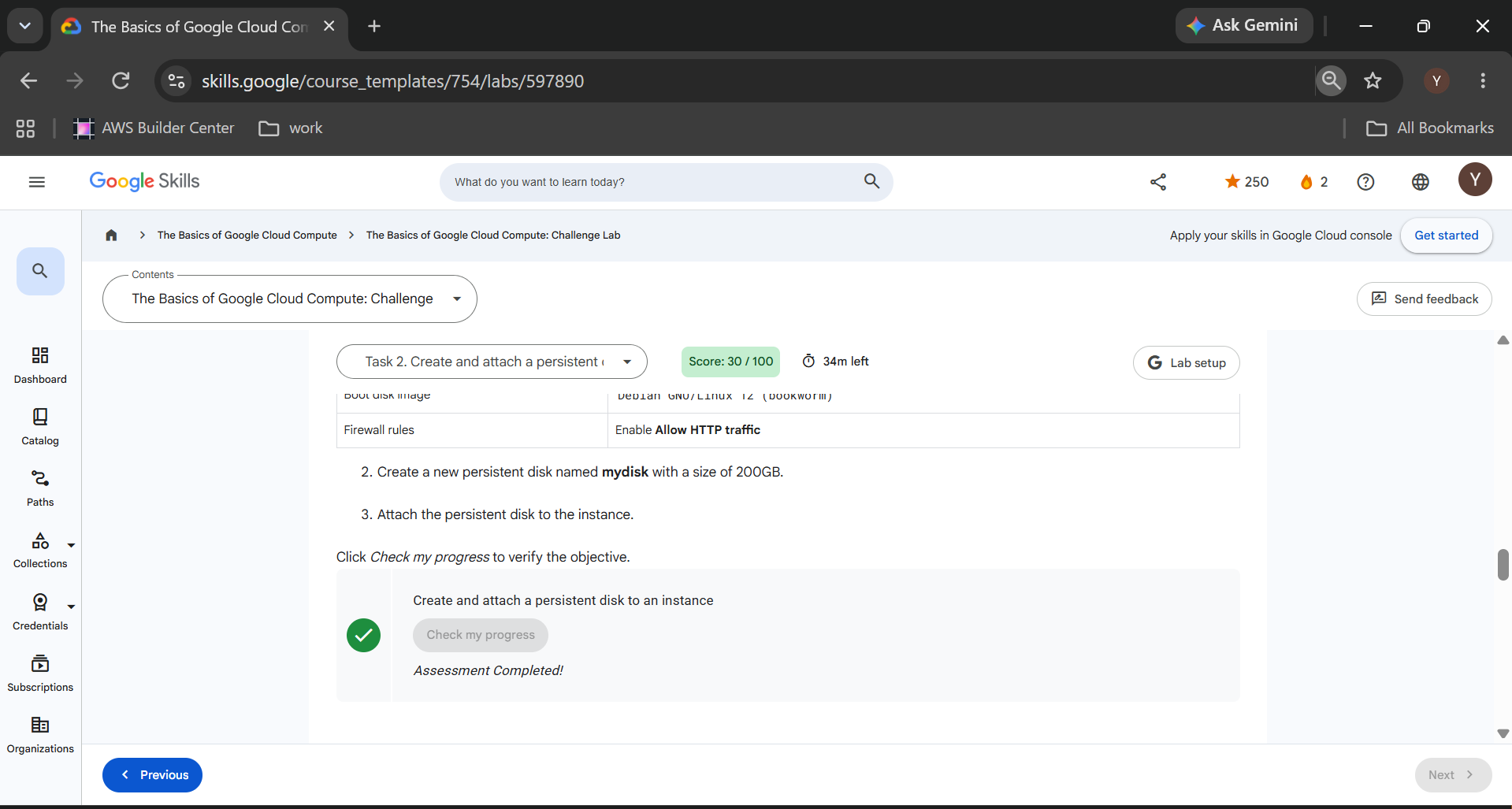
The lab should validate the required instance and its persistent disk attachment.
Do You Need to Format or Mount the Disk?
For this specific challenge, the stated objective is to create and attach the disk.
Formatting and mounting are not explicitly required.
In a real application environment, a new blank disk would normally need a filesystem and a mount point before the operating system can store files on it.
That would be a separate configuration step.
Avoid making unnecessary changes to lab resources when the assessment only asks for attachment.
Official reference: Create and Attach a Persistent Disk — Google Cloud Documentation
Task 3: Install NGINX on the Compute Engine VM
We now have a virtual machine, storage resources, and an HTTP firewall configuration.
It's time to install the software that will actually respond to visitors.
NGINX is a widely used web server and reverse proxy.
For this exercise, we'll install NGINX directly on the Debian virtual machine using its standard package manager.
We won't write application code or build a custom website.
Step 1: Connect to the VM Using SSH
Navigate to Compute Engine → VM instances.
Find my-instance.
In the Connect column, click SSH.
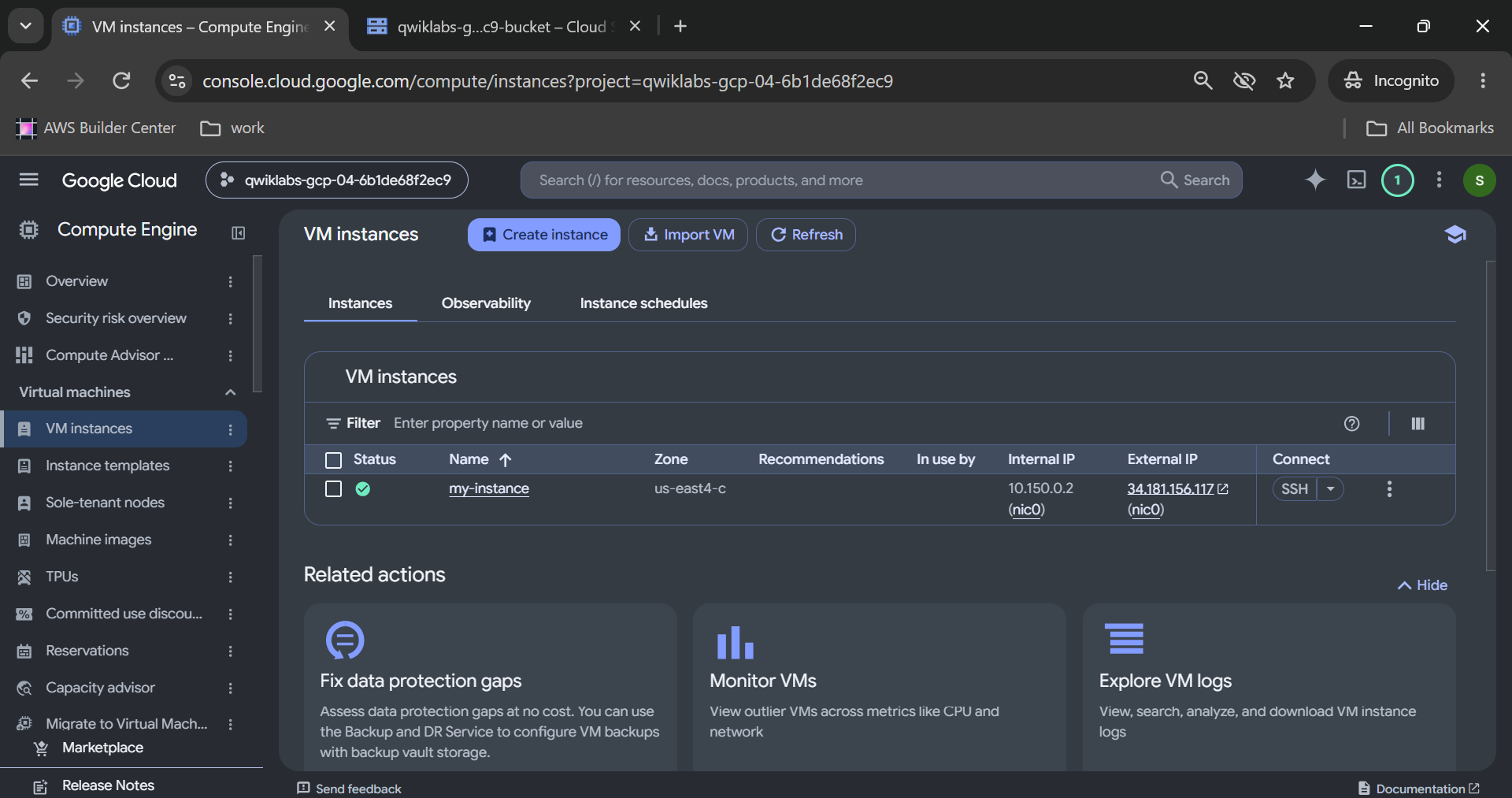
Google Cloud will open a browser-based terminal connected to the VM.
This gives us command-line access to the Debian operating system.
SSH terminal after a successful connection, showing the Debian shell prompt. Caption: Connecting securely to the Compute Engine virtual machine through browser-based SSH.
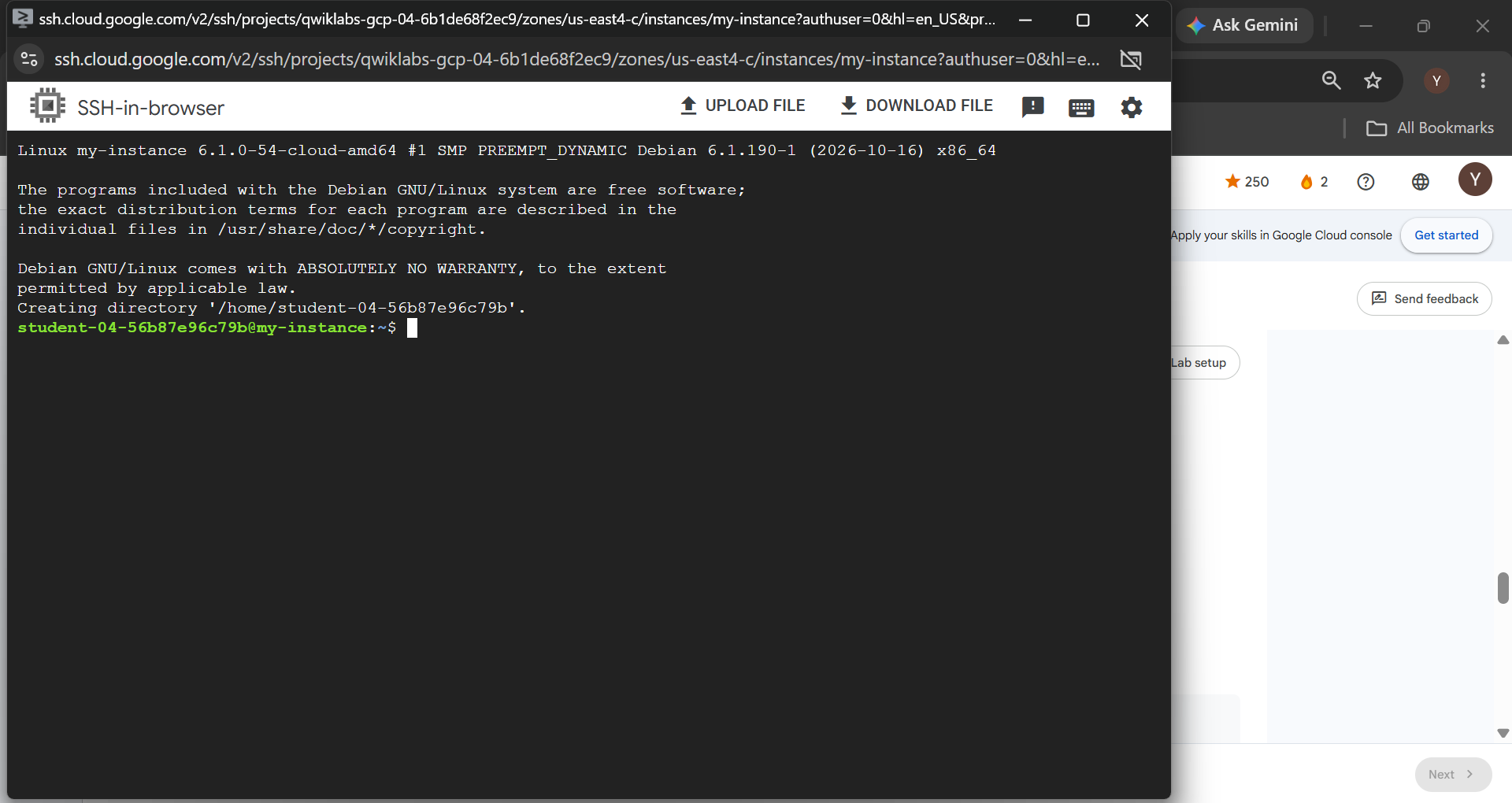
Step 2: Update the Operating System
Before installing server software, refresh the package information.
Run:
sudo apt-get update
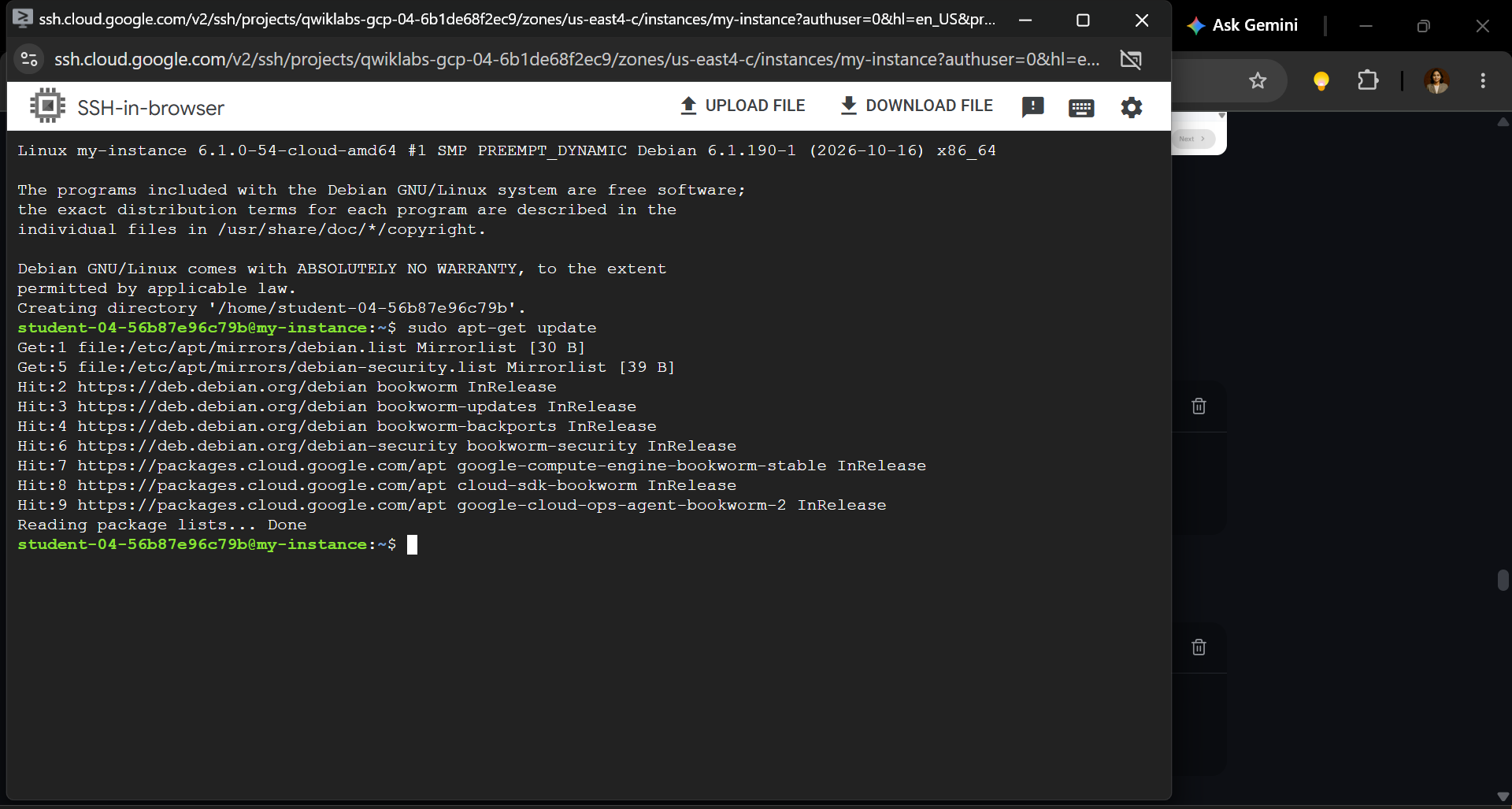
Then update installed packages:
sudo apt-get upgrade -y
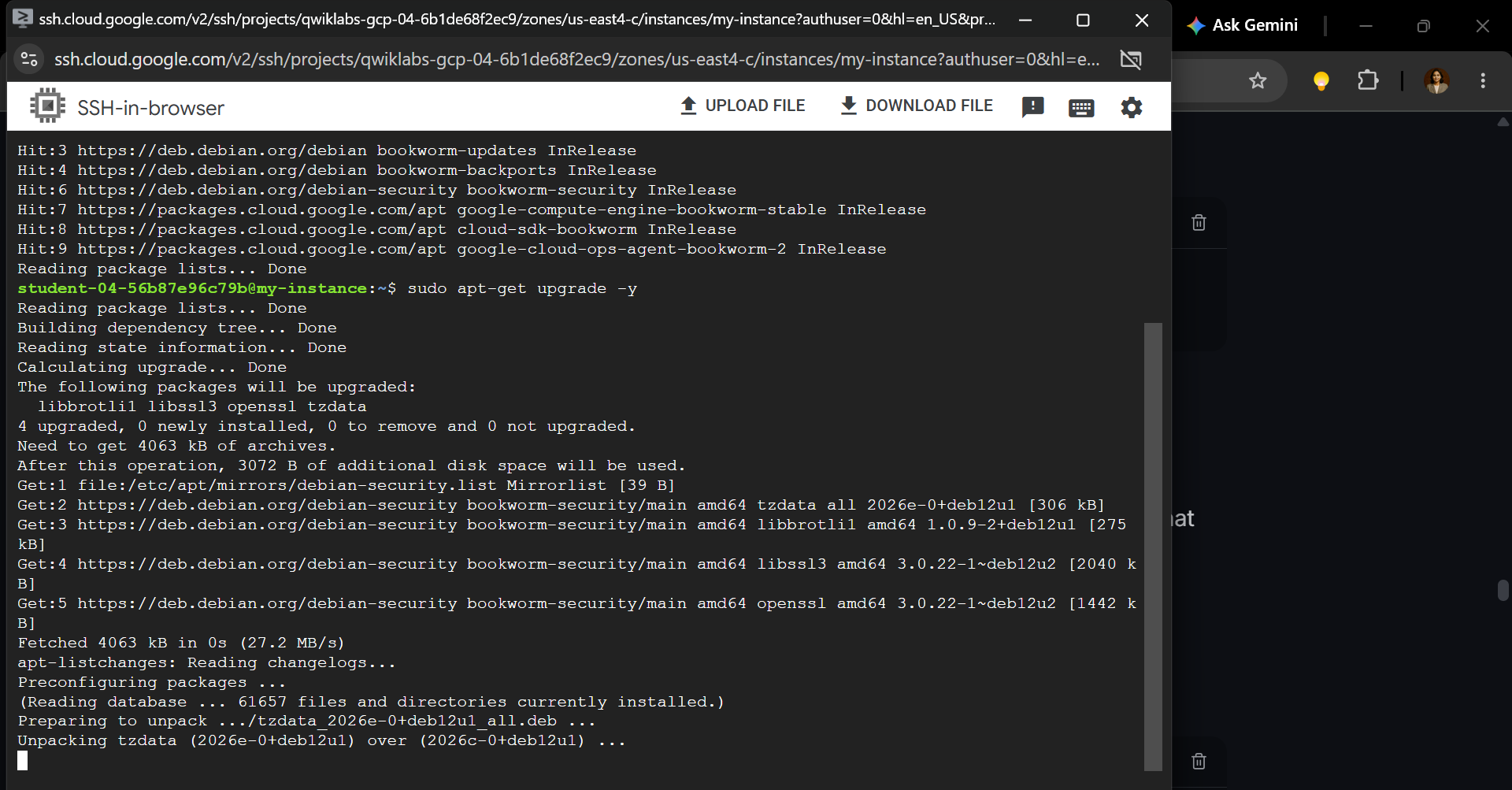
The first command updates the available package information.
The second upgrades installed packages to available newer versions.
For a training lab, follow any package prompts if they appear and confirm that the commands finish successfully before proceeding.
Step 3: Install NGINX
Run:
sudo apt-get install -y nginx
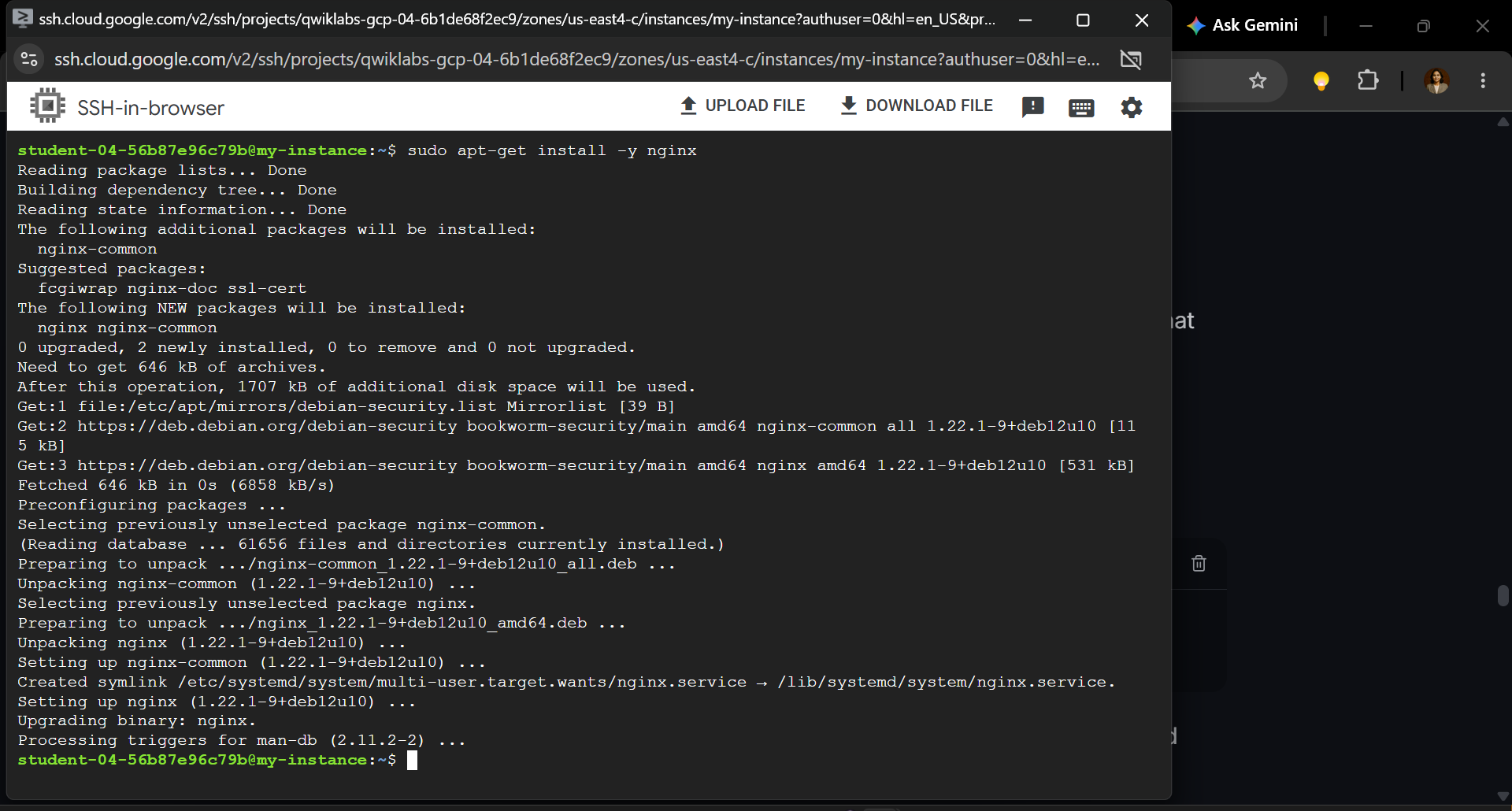
Debian will download and install the NGINX package along with the required dependencies.
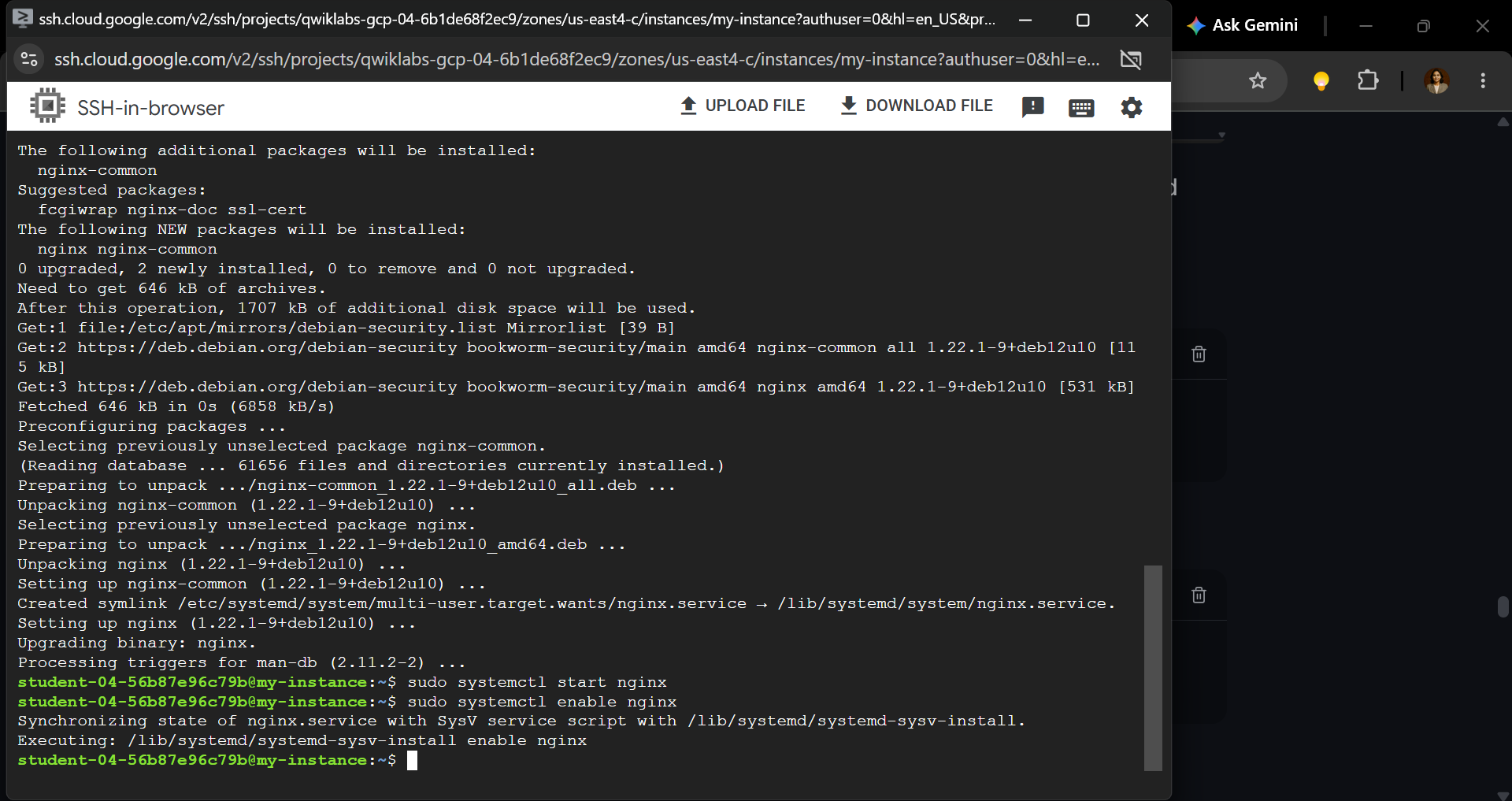
After installation, make sure the service is started:
sudo systemctl start nginx
To configure NGINX to start automatically when the VM boots, run:
sudo systemctl enable nginx
Step 4: Verify That NGINX Is Running
Check the service status:
sudo systemctl status nginx --no-pager
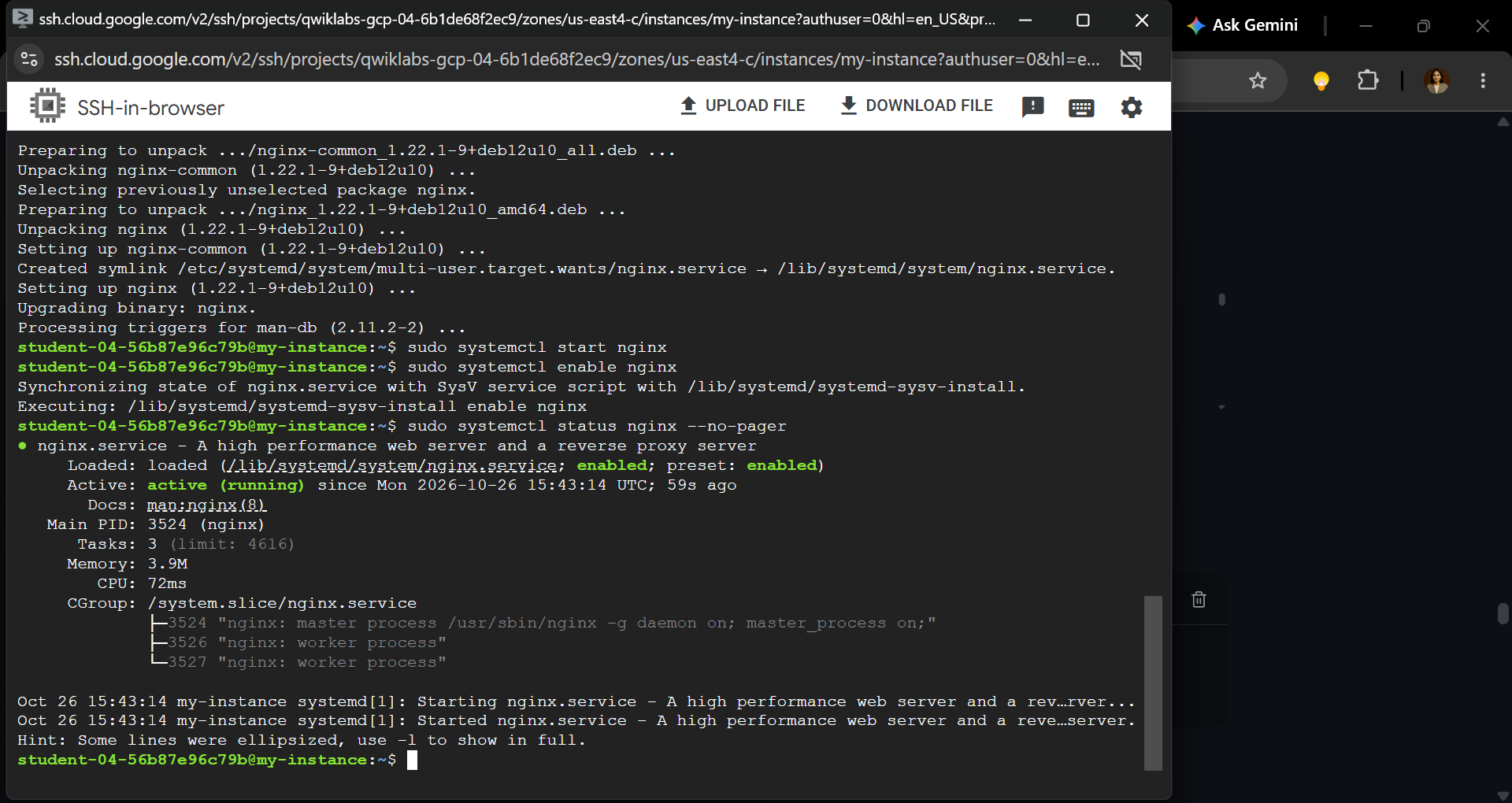
Look for the service state:
Active: active (running)
That is the important signal.
It confirms that the NGINX service is running on the virtual machine.
Captured the SSH terminal showing the NGINX service status with active (running) clearly visible.
Caption: Confirming the NGINX web server is running successfully on Debian.
You can also test the server from inside the VM:
curl -I http://localhost
A successful response should include an HTTP status similar to:
HTTP/1.1 200 OK
Server: nginx
The exact headers and server version may vary.
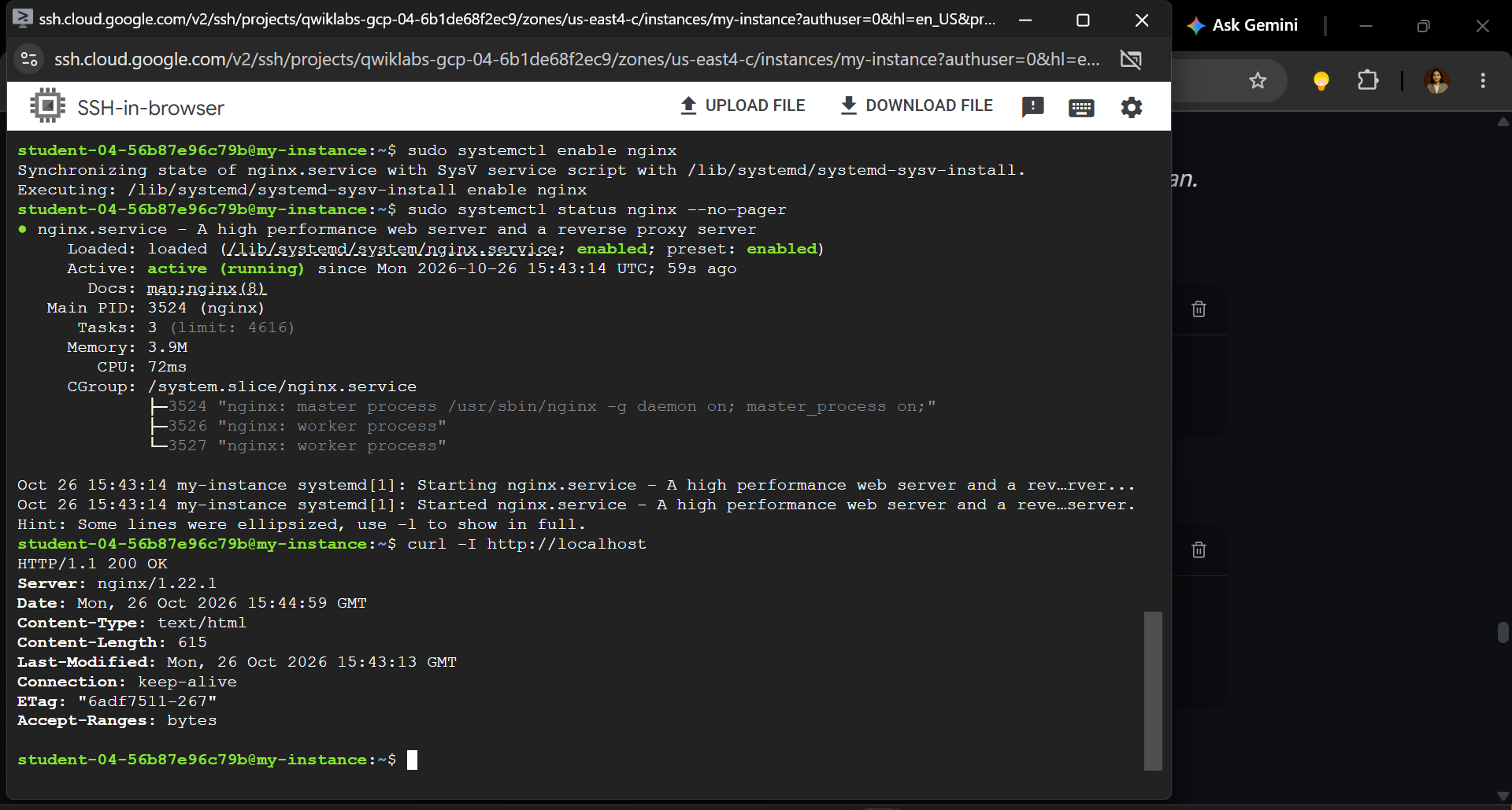
This confirms the web server is responding locally.
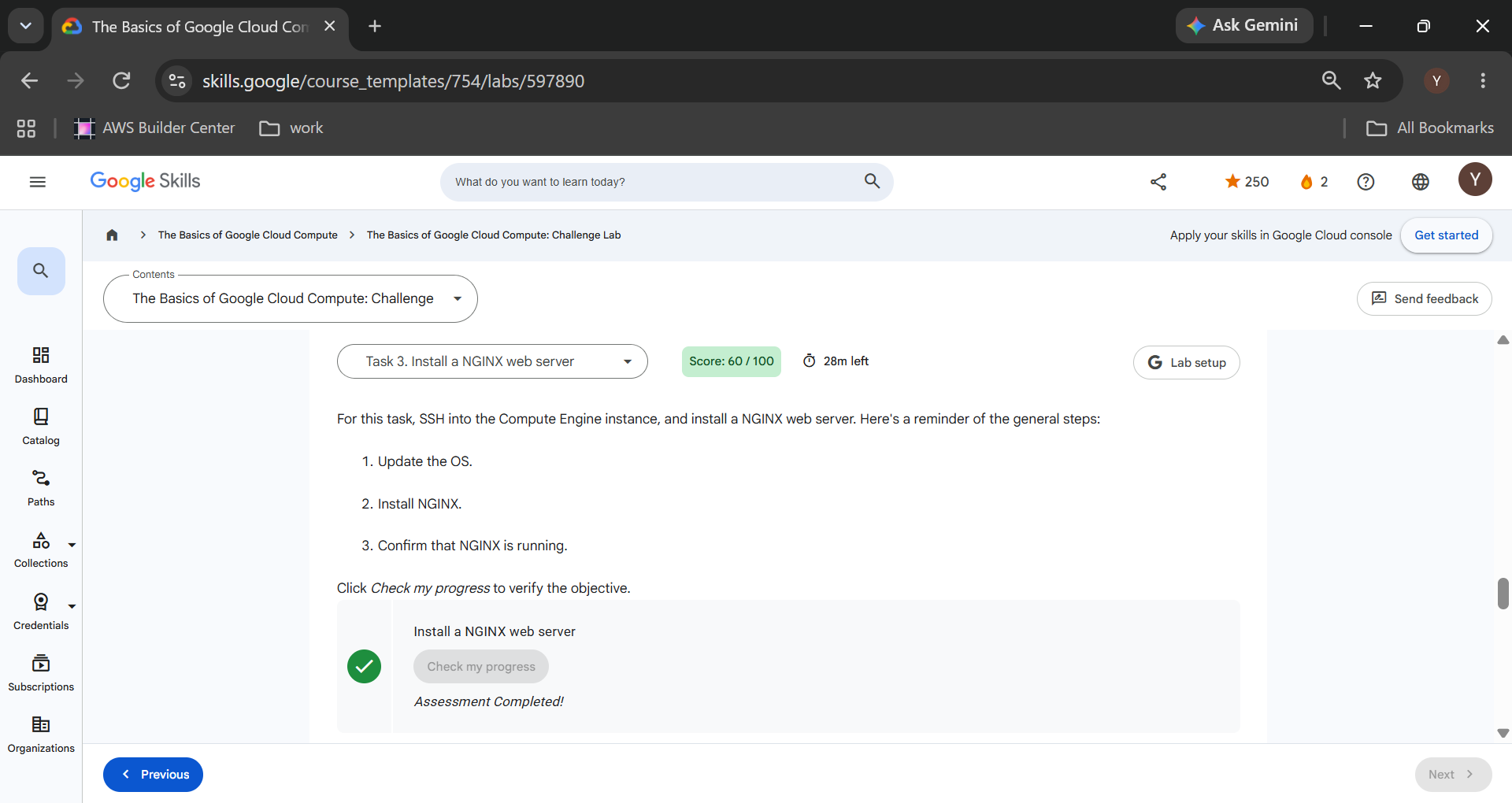
Return to the challenge lab and click Check my progress under Task 3.
Official reference: Installing NGINX Open Source — NGINX Documentation
Final Test: Open the Website Using the External IP Address
We've created the infrastructure and installed the web server.
But the real test happens outside the virtual machine.
Can a browser reach the server?
Step 1: Find the External IP
Go back to:
Compute Engine → VM instances
Locate my-instance.
Copy the External IP address shown in the instance's row.
If the value is blank, review the VM networking settings and confirm that the instance has an external IPv4 address.
Step 2: Open the Website
Click the external IP link in the Console, or open a new browser tab and enter:
http://EXTERNAL_IP/
Replace EXTERNAL_IP with your VM's actual external IP address.
Use http://, not https://, because this challenge only configures the HTTP web server.
Step 3: Confirm the Welcome Page
If the configuration is correct, your browser should display:
Welcome to nginx!
This is the default NGINX welcome page.
It confirms that:
- The virtual machine is running.
- NGINX is installed and responding.
- The VM is reachable through its external IP.
- The networking and firewall configuration permit HTTP traffic.
browser window showing the default "Welcome to nginx!" page with the VM's HTTP address visible.
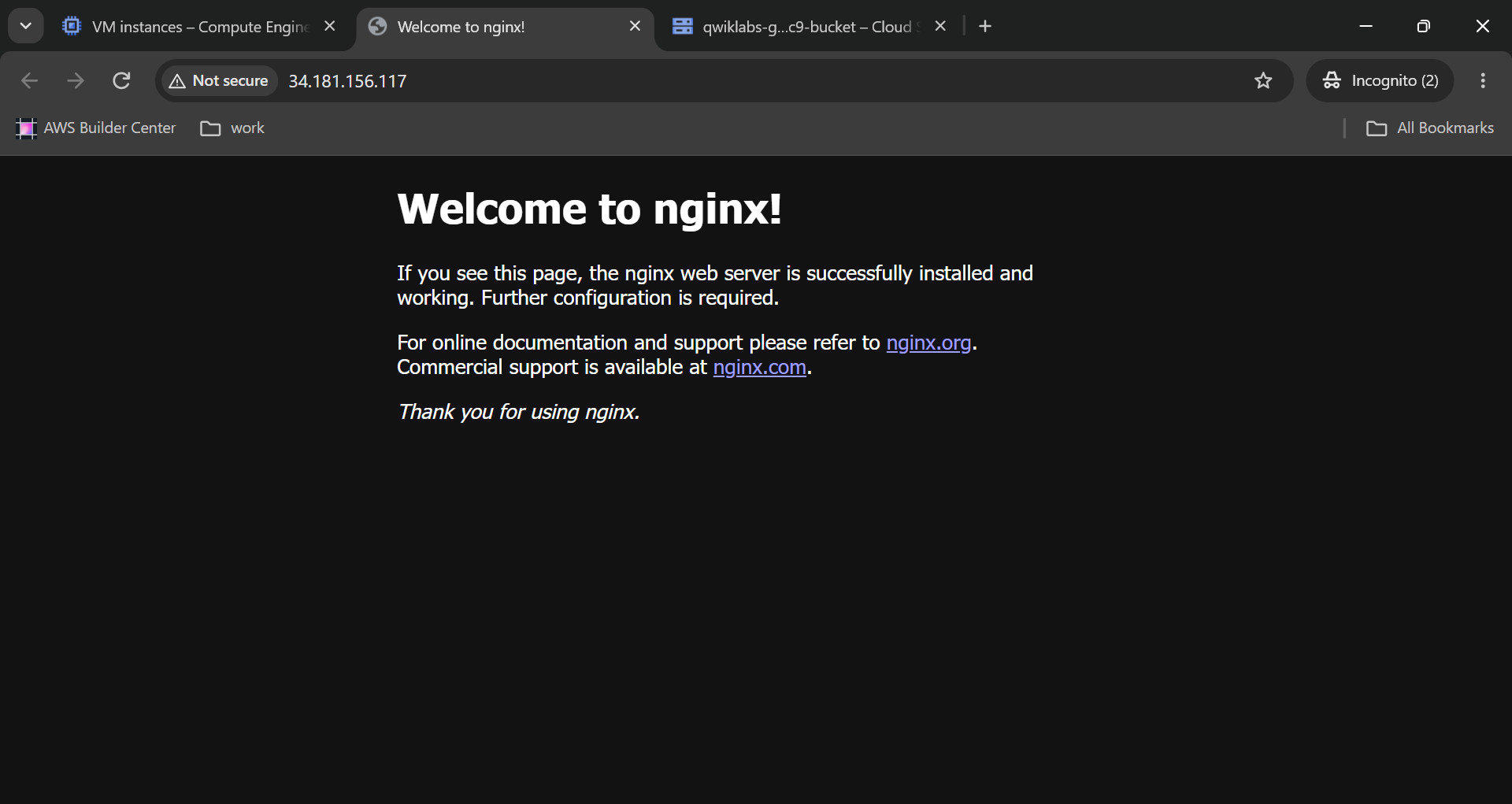
Caption: Successfully hosting an NGINX web server on Google Cloud Compute Engine.
And that's the moment the infrastructure stops being a collection of settings.
It becomes a functioning web service.
One important limitation: the page is still the default NGINX site. It does not yet provide product or order information. That functionality would need to be deployed later by the application development team.
Troubleshooting: Common Errors in the Google Cloud Compute Challenge Lab
Cloud infrastructure problems are often configuration problems rather than software problems.
Here are the issues worth checking before starting over.
1. The Bucket Task Doesn't Pass
Verify that the bucket name matches the assigned lab requirement exactly.
Confirm the location is the US multi-region, not a single US region.
Also check that you're working in the correct lab project.
2. The VM Configuration Isn't Accepted
Open the VM details page and verify the instance name, machine type, and location.
Check that the region is us-east4 and zone is us-east4-c.
Confirm that the boot disk uses Debian 12, has a 10 GB capacity, and uses the specified balanced disk type.
3. The Persistent Disk Isn't Visible
Ensure the disk was created in the same zone as the VM.
If you used Add new disk, confirm that you clicked both Done and Save.
A disk that exists in the project but is not attached to my-instance doesn't satisfy the attachment requirement.
4. NGINX Is Installed but the Website Won't Load
First, verify the local web service:
sudo systemctl status nginx --no-pager
Then test:
curl -I http://localhost
If the local request succeeds but the browser cannot reach the public IP, check the VM's external IP and HTTP firewall configuration.
Make sure you're opening port 80 through http://.
5. The Lab Still Shows an Incomplete Task
Recheck the exact resource requirements and project selection.
A running VM or successful web page does not automatically prove that every resource matches the lab's expected configuration.
For example, NGINX might work on a different machine type, but the challenge specifically requires e2-medium.
The details matter.
What This Challenge Actually Teaches You
It's easy to view cloud labs as a series of buttons and commands.
But there's a bigger lesson behind this exercise.
A Cloud Architect must understand where infrastructure responsibilities begin and end.
This lab introduces several foundational concepts.
1. Infrastructure and application development are different responsibilities.
The infrastructure team prepares the environment. Developers supply the application logic. In this challenge, we set up the web server without building the products-and-orders application.
2. Storage comes in different forms.
Cloud Storage provides object storage for files. Persistent Disk supplies block storage that a virtual machine can use as an attached device.
They are not interchangeable.
3. Resource locations affect deployment design.
The VM and zonal persistent disk must be placed compatibly. The Cloud Storage bucket uses its separately specified multi-region location.
4. Networking determines accessibility.
Launching a VM isn't enough. For the public HTTP test, the server needs a reachable IP address and a suitable firewall rule.
5. Validation should happen at every stage.
A good cloud deployment is not simply one that appears to work. It's one whose configuration can be verified against requirements.
That last lesson is especially valuable beyond training labs.
Production infrastructure demands repeatability, visibility, security, and a clear definition of success.
Frequently Asked Questions
What is The Basics of Google Cloud Compute Challenge Lab?
It is a hands-on Google Cloud training exercise that tests your ability to configure core infrastructure resources, including Cloud Storage, Compute Engine, persistent disks, and a web server.
Can I complete this lab without writing application code?
Yes. The challenge focuses on infrastructure configuration. You use the Google Cloud Console for resource provisioning and Linux commands to update the operating system and install NGINX.
Why do we need both a boot disk and a persistent data disk?
The boot disk contains the operating system. The additional disk provides separate storage capacity that can be used for application data once formatted and mounted.
What does e2-medium mean?
e2-medium is a Compute Engine machine type in Google's E2 family. It supplies 2 vCPUs and 4 GB of memory.
Why does the NGINX welcome page appear instead of our application?
Because NGINX has been installed, but the products-and-orders application hasn't been deployed yet. The default page is sufficient for the infrastructure connectivity test.
Will the resources cost money?
Google Cloud resources can incur charges outside the temporary training environment. When practicing in a personal project, review pricing and remove resources you no longer need. Do not manually delete active lab resources before completing its progress checks.
Final Thoughts: Cloud Skills Are Built by Doing
Creating a storage bucket is straightforward.
Launching a VM is straightforward.
Installing a web server takes only a few commands.
But making these pieces work together, in the right project, with the right settings, is where cloud engineering begins.
In this challenge, we successfully configured the foundation for a future web application:
- A Cloud Storage bucket in the US multi-region.
- An e2-medium Debian 12 VM in
us-east4-c. - A 200 GB persistent disk attached to the VM.
- An NGINX web server running and reachable over HTTP.
The final result might be a simple welcome page.
The underlying skills are far more useful.
Cloud architecture isn't about clicking more buttons. It's about understanding what each resource does, why it's required, and how to verify that the system works.
The next step is deploying an actual application, securing it with HTTPS, adding monitoring, and designing infrastructure that can scale beyond a single virtual machine.
And that is where a basic lab begins to become real-world cloud engineering.
Open to Cloud Ops Remote and technical writing projects.
Comments
Join the discussionNo comments yet. Be the first to comment.
Google Cloud Hands-On Labs-The Basics of Google Cloud Compute
https://www.skills.google/course_templates/754/ Google Cloud Hands-On Labs – The Basics of Google Cloud Compute Learn Google Cloud computing through practical, step-by-step tutorials based on the official Google Cloud Skills Boost course, The Basics of Google Cloud Compute. This series documents hands-on experience with Google Compute Engine, covering virtual machine creation, regions and zones, machine types, persistent disks, Linux server administration, NGINX web server deployment, and hosting scalable web applications. Follow the learning journey through four essential labs: 1. Create a Virtual Machine – Launch Compute Engine VMs using the Google Cloud console and gcloud CLI, configure networking, and deploy NGINX. 2. Creating a Persistent Disk – Create, attach, and manage persistent storage for virtual machines. 3. Host a Web App on Google Cloud Using Compute Engine – Deploy and scale a web application on Google Cloud infrastructure. 4. The Basics of Google Cloud Compute: Challenge Lab – Apply the skills learned through independent, practical cloud infrastructure tasks. Each tutorial includes clear explanations, commands, screenshots, troubleshooting guidance, and real-world Cloud Ops insights. The goal: Go beyond completing labs to understand how cloud infrastructure works, build practical Google Cloud skills, and prepare for the Google Cloud Compute skill badge. Open to Cloud Ops Remote and technical writing projects.