
How to Host a Web App on Google Cloud Compute Engine (and Scale It)
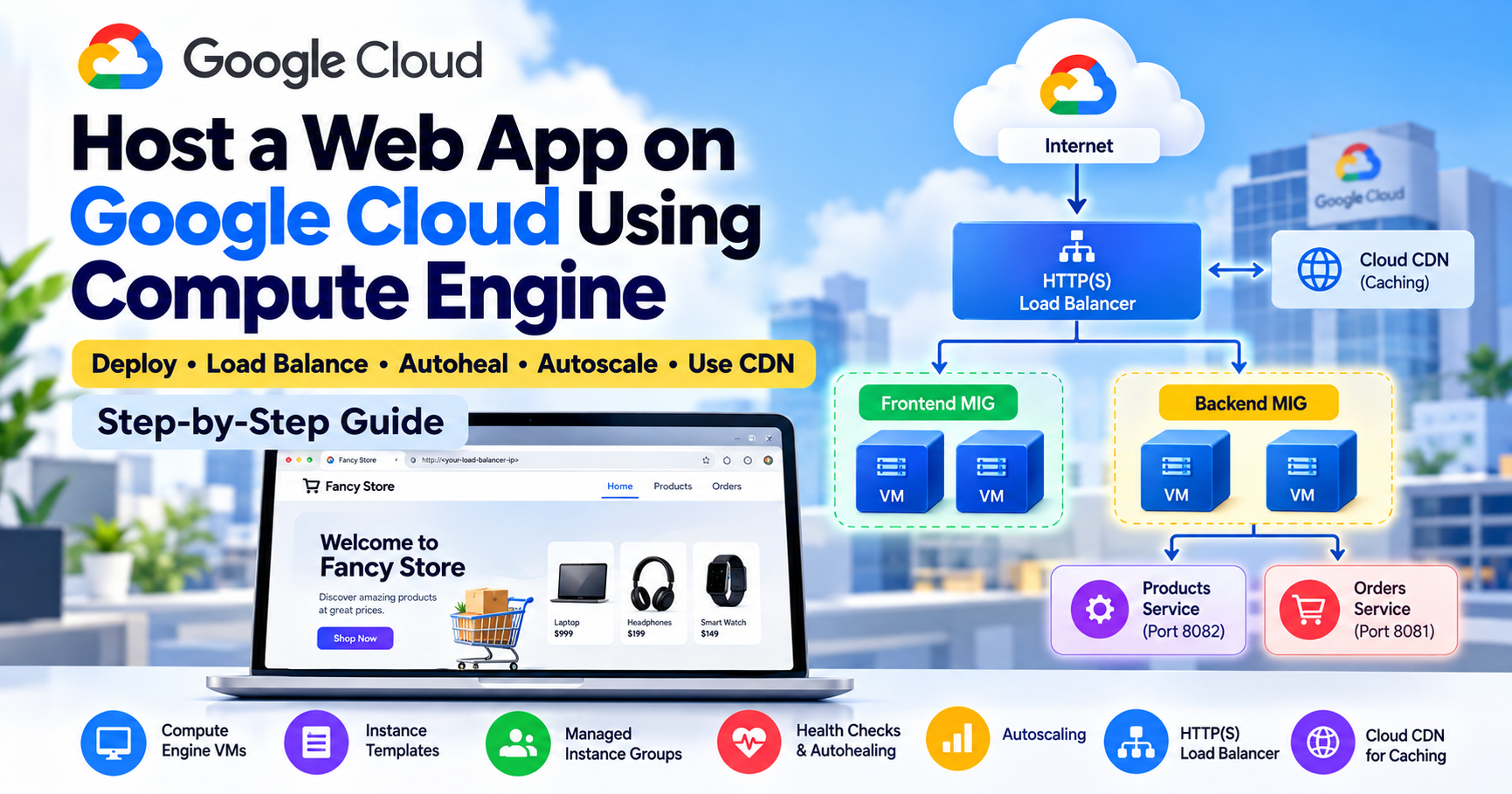
From a single virtual machine to a load-balanced, self-healing web application: a hands-on Google Cloud deployment guide.
A website that works is not necessarily a website that's ready to scale.
Imagine launching an online store.
Your first customer arrives. The homepage loads. Products appear. Orders work.
Everything looks perfect.
Then your website starts getting more traffic. The server struggles to keep up. Or worse, the virtual machine running your application crashes.
Suddenly, the business has a problem that good web design can't solve.
The challenge isn't just getting an application online. It's keeping it available when infrastructure changes or fails.
That's where Google Cloud Compute Engine becomes interesting.
Compute Engine gives you control over the virtual machines running your workloads. Combined with managed instance groups, health checks, load balancing, and Cloud CDN, it provides building blocks for more resilient web infrastructure.
In this tutorial, we'll use the Fancy Store e-commerce application from Google's The Basics of Google Cloud Compute training lab to explore that process.
We'll move from a locally running application to a publicly accessible website, then introduce scaling, self-healing, traffic distribution, and rolling updates.
Along the way, I'll explain not only what each command does, but why it matters in real Cloud Operations.
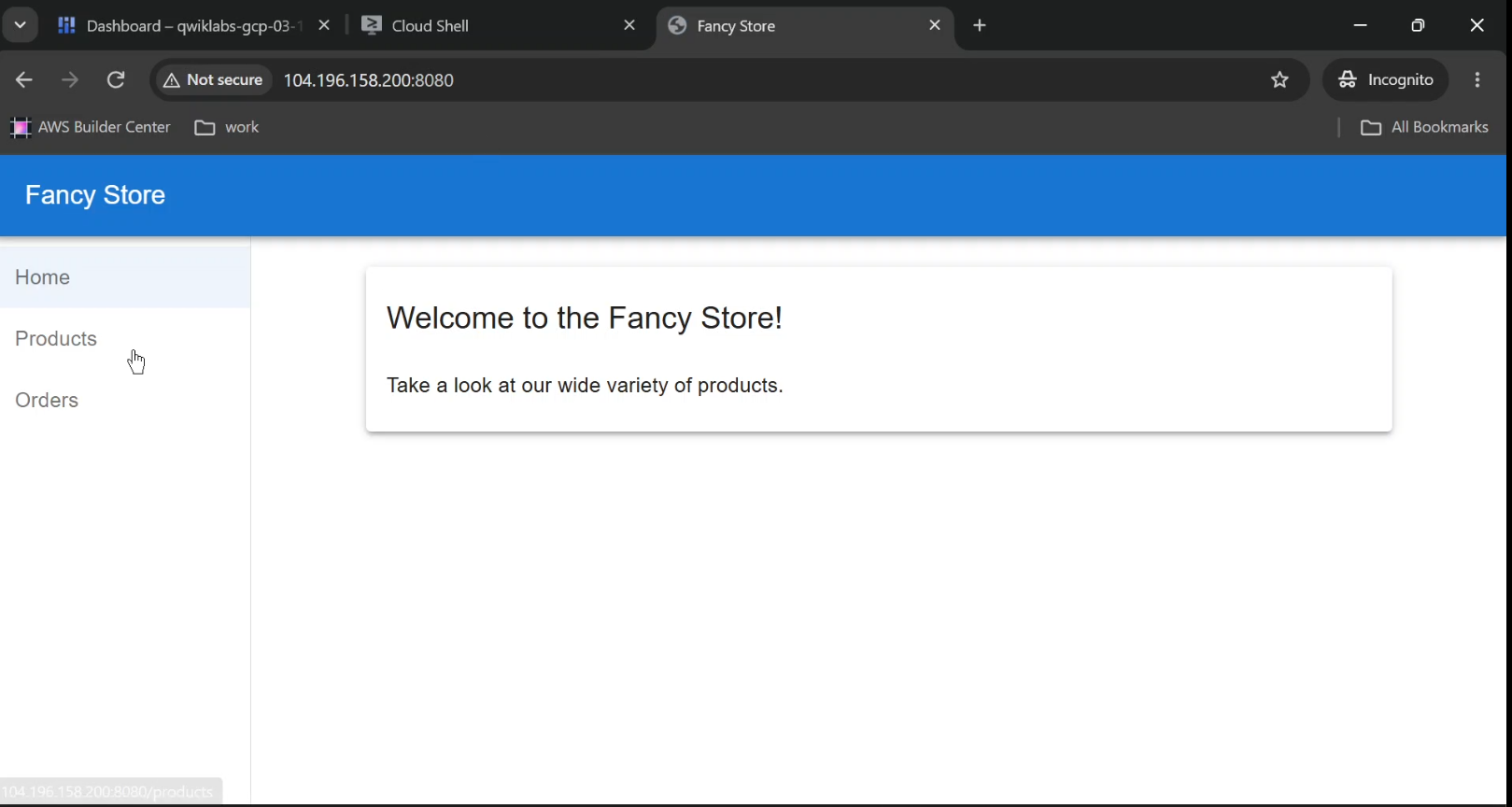
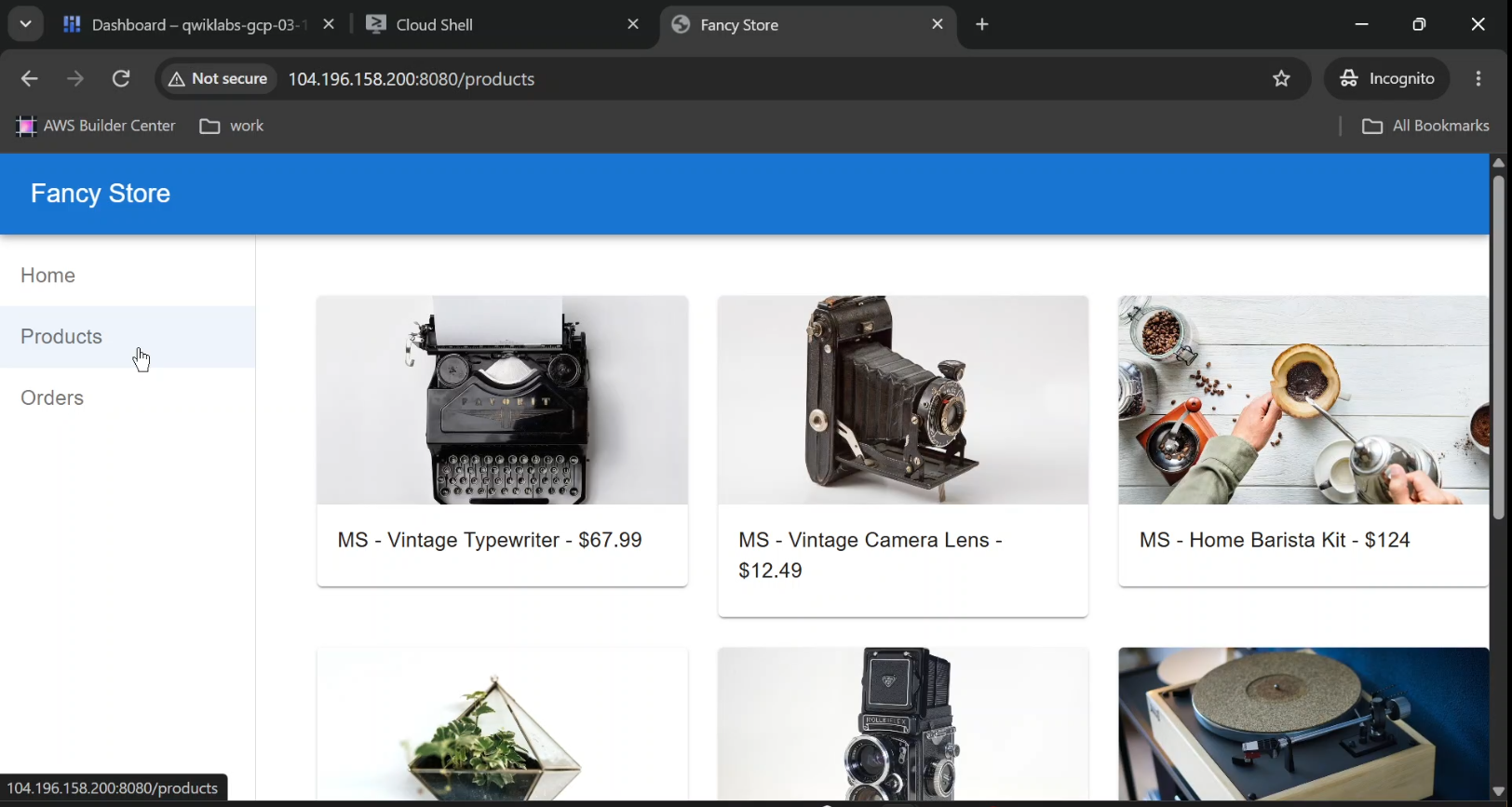
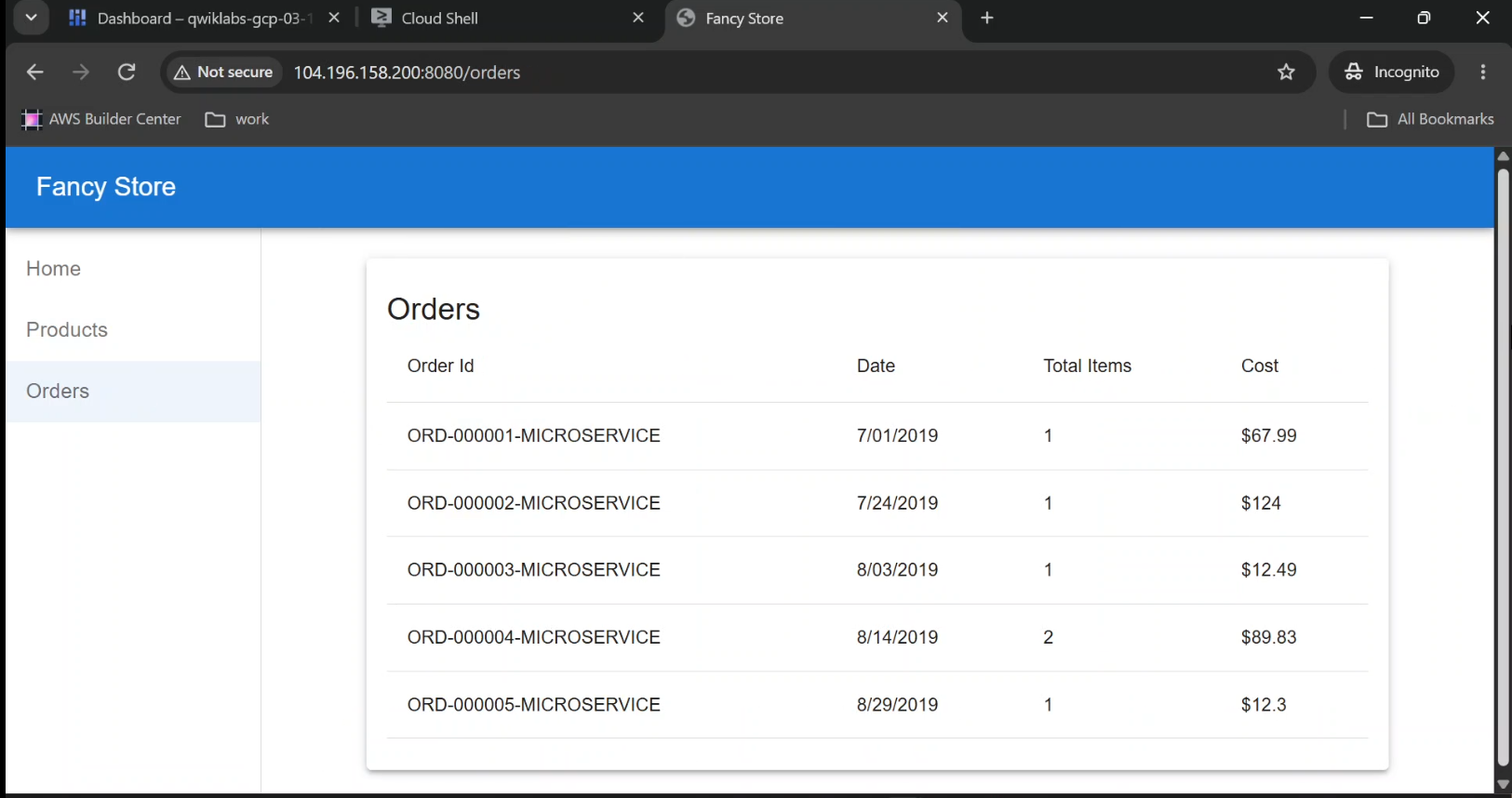
- Captured: The completed Fancy Store homepage running in a browser.
- Shows: The website's branding, navigation, and product interface.
- Caption: "Hosting the Fancy Store web application on Google Cloud Compute Engine."
What You'll Build on Google Cloud
Our application contains three services:
- Frontend: The website visitors interact with.
- Products service: Handles requests for product information.
- Orders service: Handles order-related API requests.
The sample uses these ports:
| Component | Port | Function |
|---|---|---|
| Frontend | 8080 | Serves the web interface |
| Orders API | 8081 | Handles order requests |
| Products API | 8082 | Handles product requests |
We'll initially deploy these components using Compute Engine virtual machines.
Then we'll create managed instance groups so Google Cloud can operate multiple copies of the application.
Finally, we'll configure a load balancer to direct requests to healthy instances.
The Target Architecture
The final infrastructure will follow this request flow:
                  INTERNET
                     |
                     v
          HTTP Load Balancer
                     |
                   URL Map
                     |
          +----------+----------+
          |                     |
          v                     v
   Frontend Service        Backend Services
          |                     |
          v                     v
   Frontend MIG             Backend MIG
          |                     |
      +---+---+             +---+---+
      |       |             |       |
     VM 1    VM 2          VM 1    VM 2
The load balancer routes requests for the homepage to the frontend group and API requests to the appropriate backend service.
Both managed instance groups can replace unhealthy instances and support controlled updates.
For simplicity, the training application initially runs all three microservices on each VM, even though we logically separate the frontend and backend instance groups.
In a production deployment, individual services would normally be packaged and configured to run independently.
Prerequisites
Before proceeding, make sure you have:
- A Google Cloud project with billing or training credits.
- Access to Cloud Shell.
- Permissions to create Compute Engine, Cloud Storage, networking, and load balancing resources.
- Basic familiarity with Linux commands and terminal navigation.
Cost note: Compute Engine instances, persistent storage, forwarding rules, load balancers, and data transfer can incur charges. Use a training project or review the expected costs before creating resources.
Step 1: Activate Cloud Shell and Configure Your Project
Open the Google Cloud Console.
Select your project and click Activate Cloud Shell.
Cloud Shell gives you a terminal with the Google Cloud CLI installed, so you can manage cloud resources directly from your browser.
First, verify your authenticated account:
gcloud auth list
Then check the current project:
gcloud config get-value project
Store your project ID in a variable:
export PROJECT_ID=$(gcloud config get-value project)
Next, configure the region and zone assigned to your lab:
export REGION="YOUR_REGION"
export ZONE="YOUR_ZONE"

gcloud config set compute/region "$REGION"
gcloud config set compute/zone "$ZONE"
Replace the placeholders with valid values.
For example, us-central1 and us-central1-a form a valid region-zone pair.
Enable the Compute Engine API
Run:
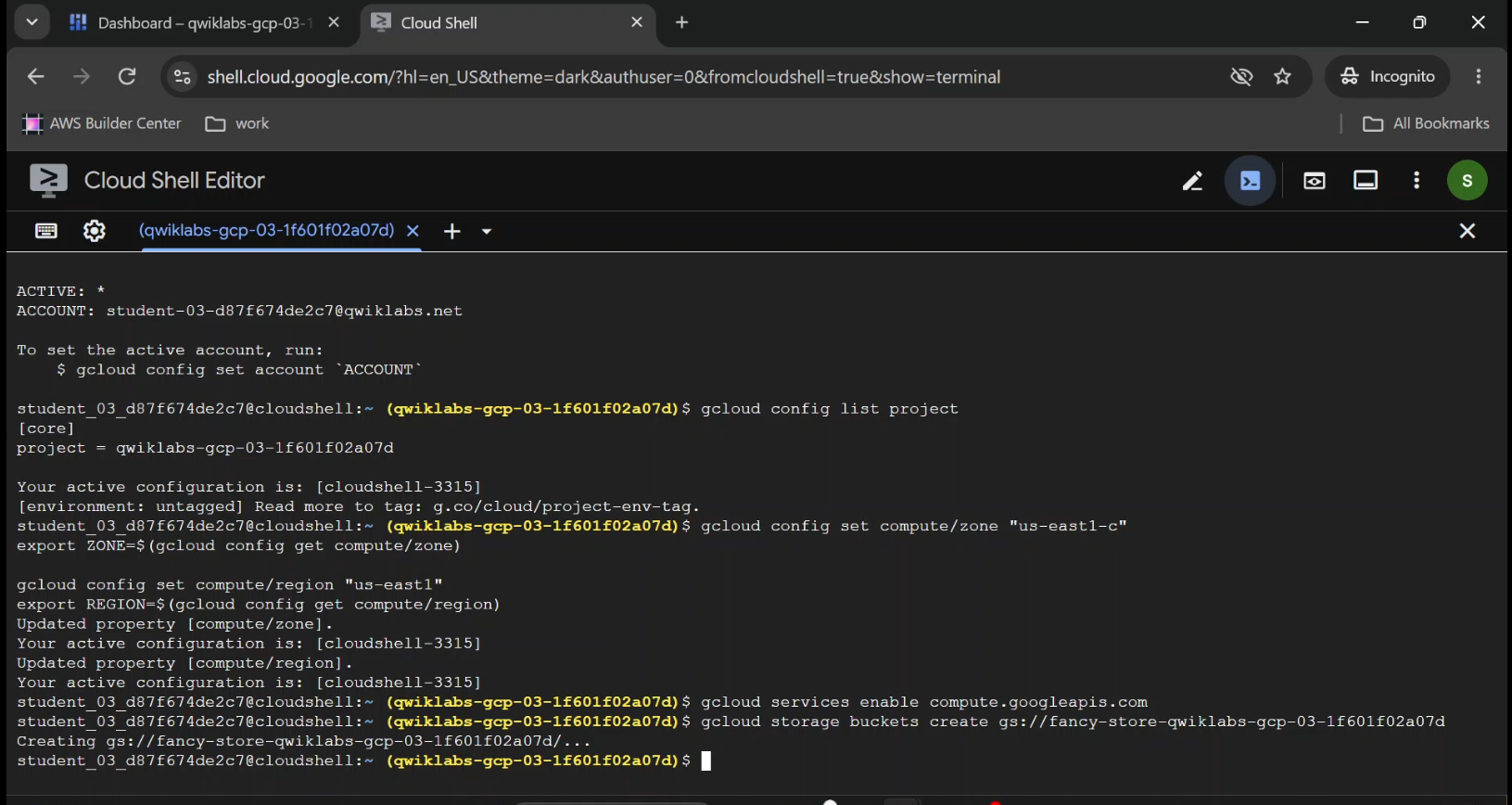
gcloud services enable compute.googleapis.com
This enables the API required to create and manage Compute Engine resources.
Cloud Ops lesson: Before troubleshooting a failed deployment, verify three fundamentals: the active project, the selected location, and the APIs your application requires.
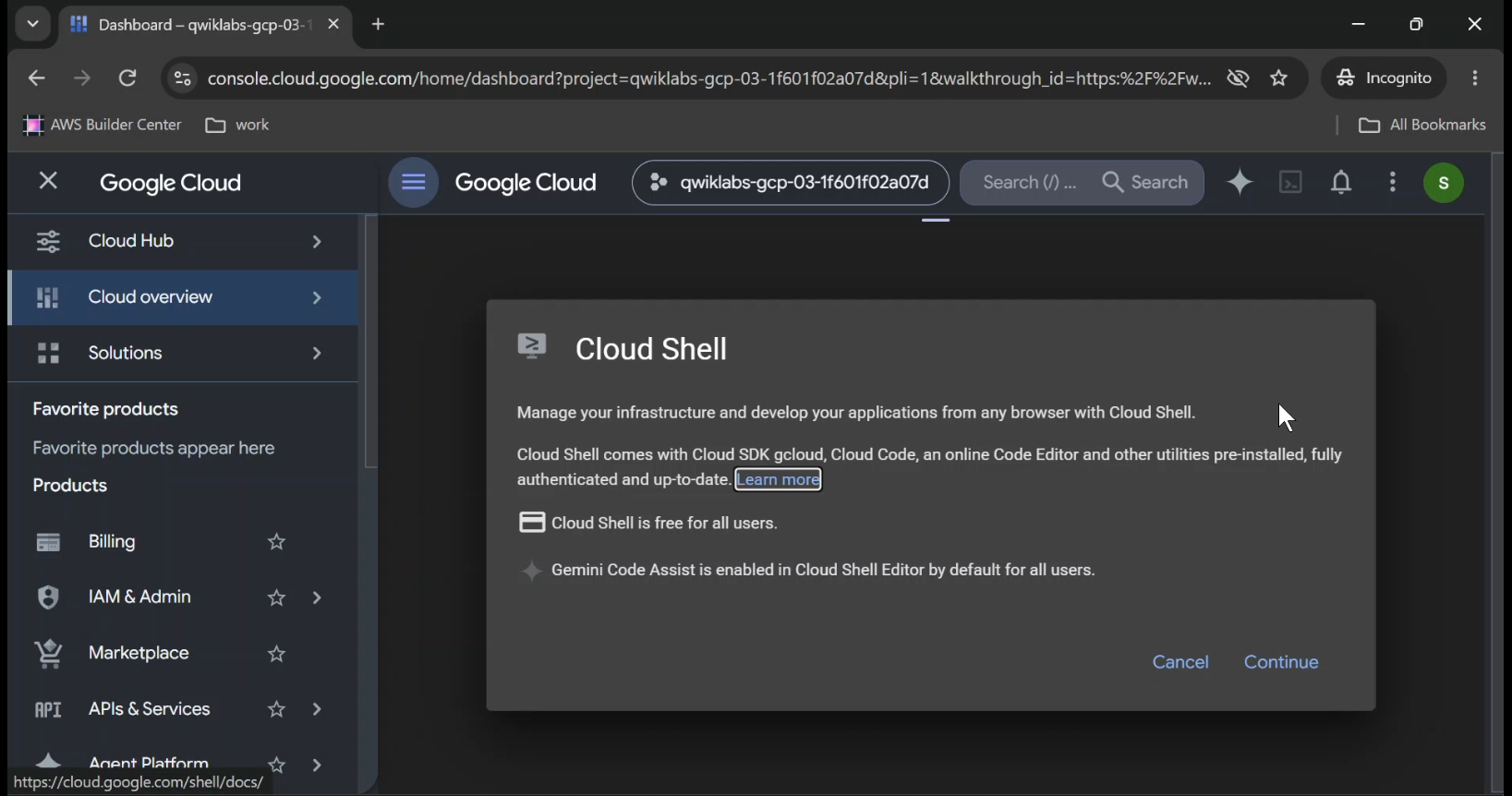
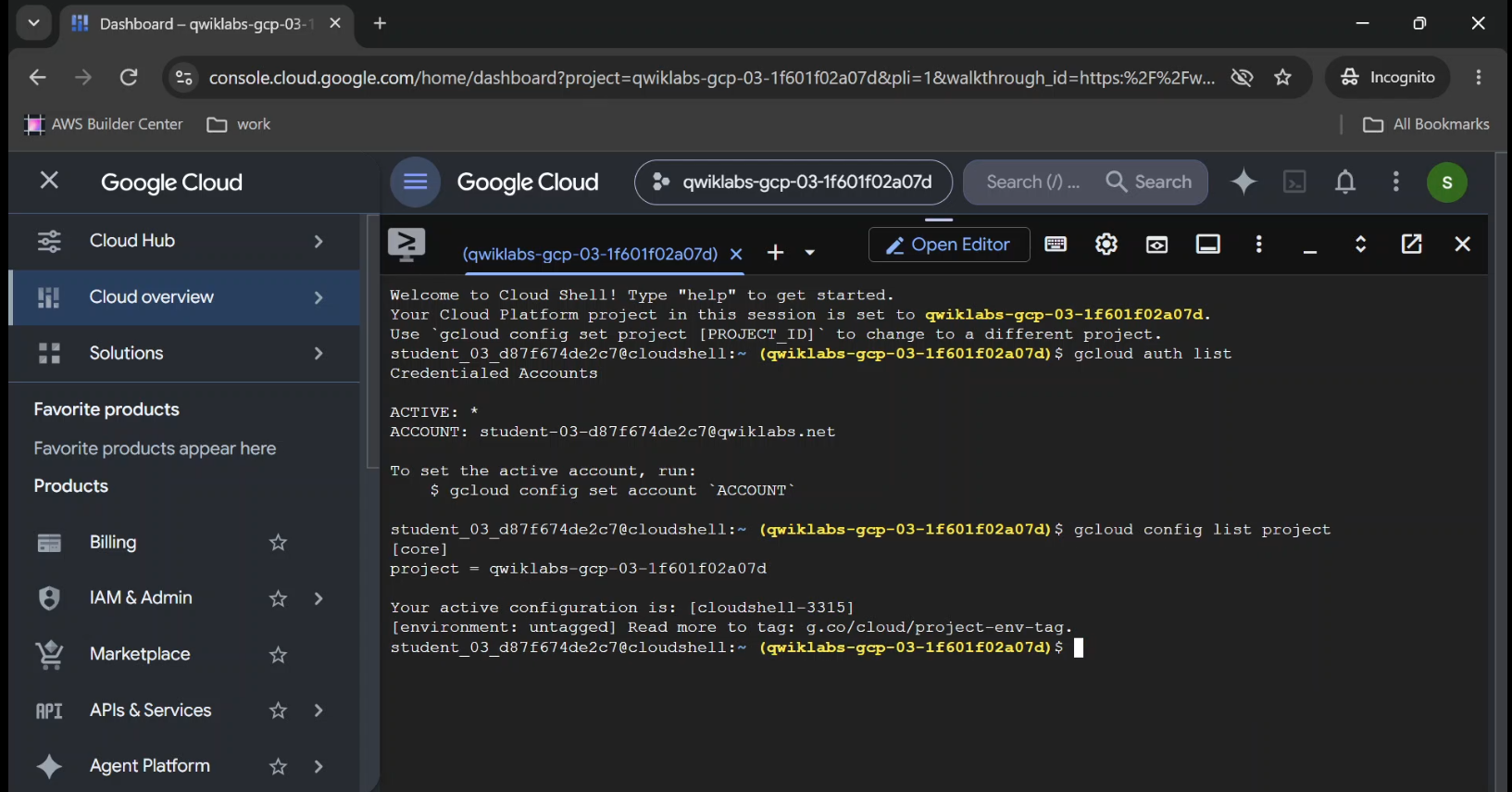
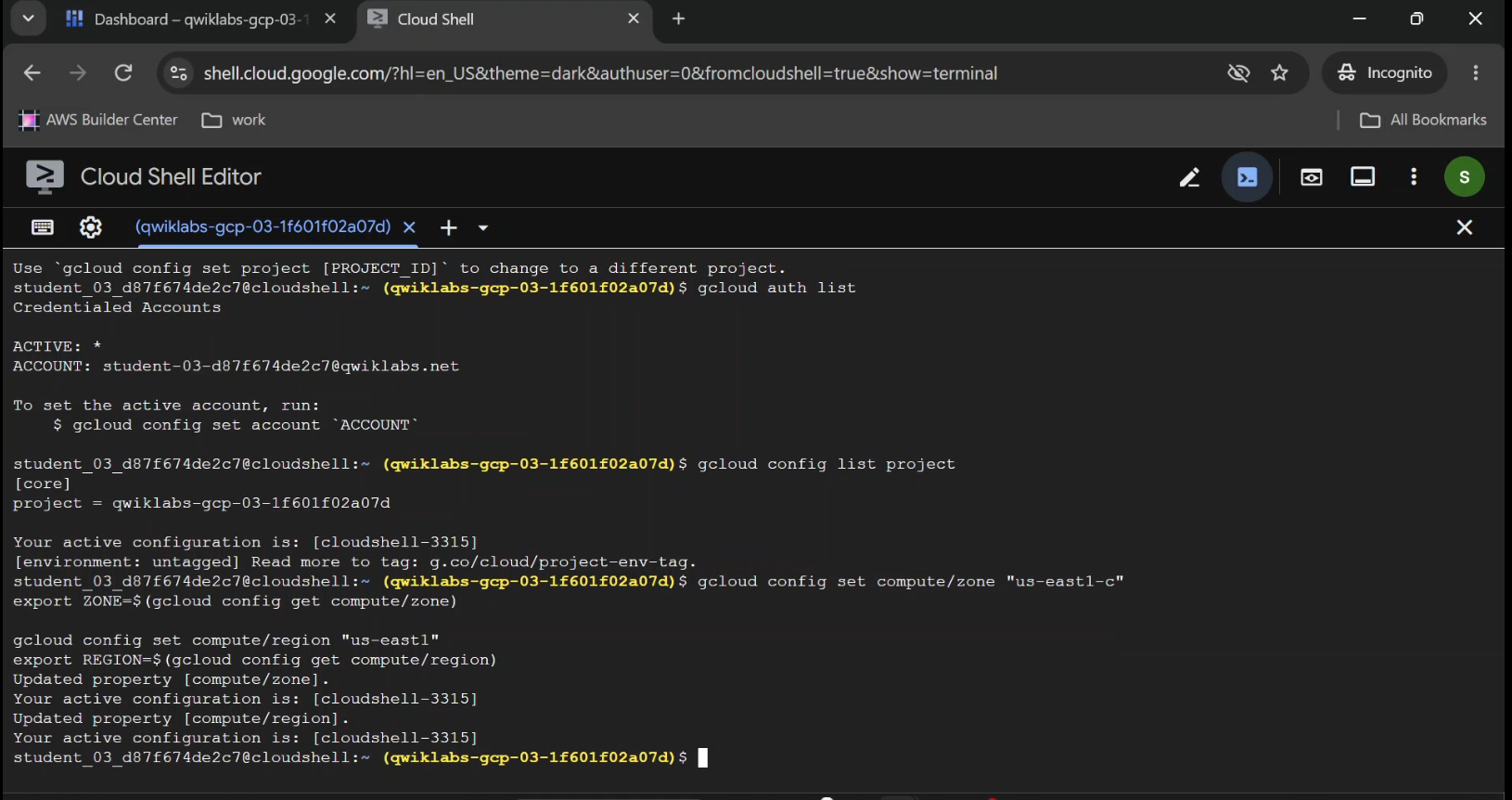
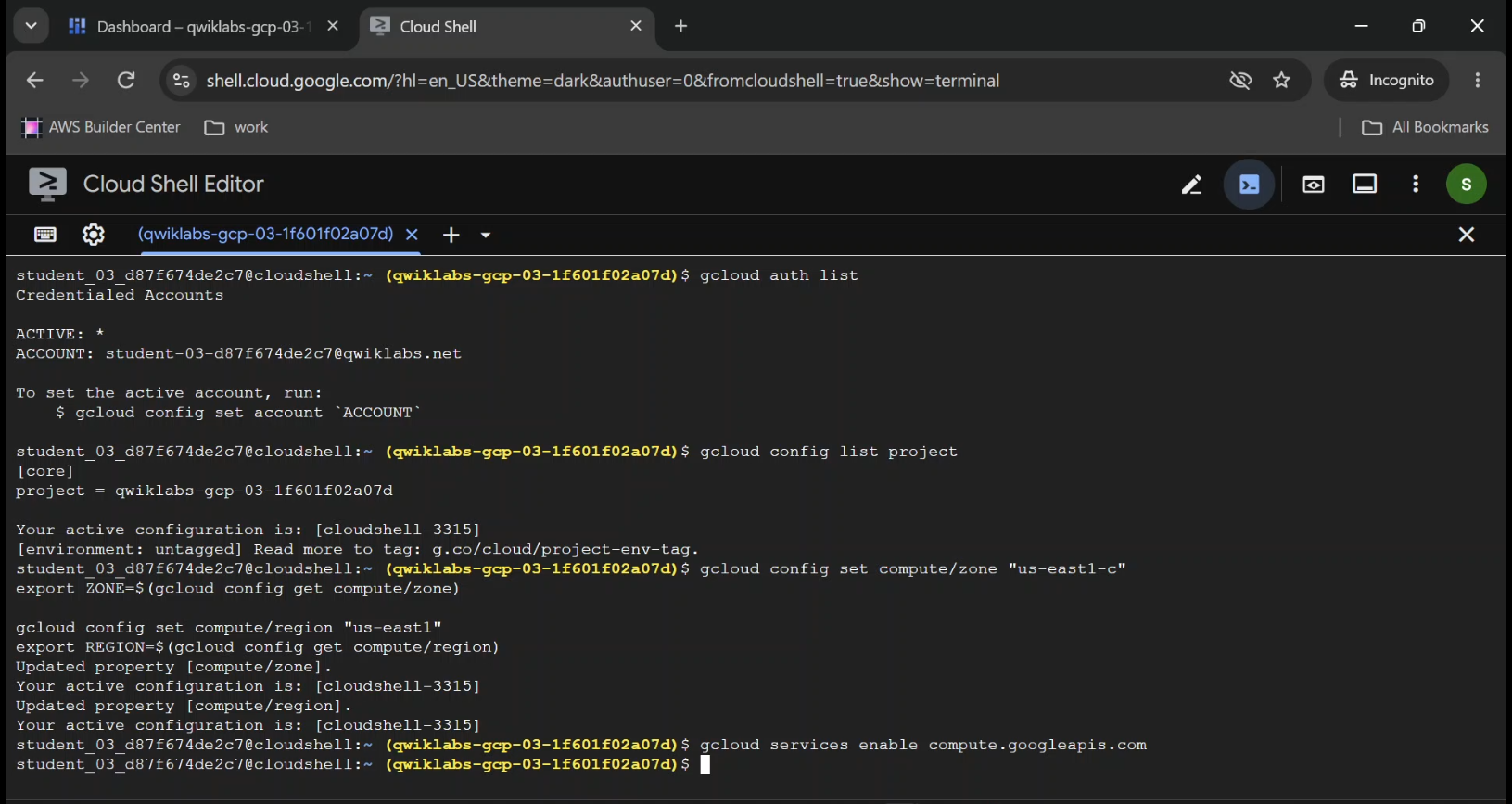
- Captured: Google Cloud Shell with the active project and compute configuration commands visible.
- Highlight: Project ID, region, and zone.
- Caption: "Configuring the Google Cloud environment using Cloud Shell.
Step 2: Create a Cloud Storage Bucket
Our virtual machines need access to the application source code and a startup script.
We'll use a Cloud Storage bucket to hold these deployment files.
Set a bucket name:
export BUCKET="fancy-store-${PROJECT_ID}"
Then create the bucket:
gcloud storage buckets create "gs://${BUCKET}" \
  --location="$REGION"
Cloud Storage bucket names must be globally unique. If your chosen name is unavailable, select a different name and update the references used later in this tutorial.
Why Use Cloud Storage?
Imagine manually installing dependencies and copying application files every time a new VM launches.
That might be manageable for one server.
It becomes inefficient when you're deploying multiple instances.
Instead, a startup script can retrieve the required application files from a central storage location.
That supports more consistent deployment and reduces manual configuration.
However, production applications should use versioned deployment artifacts rather than always pulling an unrestricted, mutable copy of the latest files.
- Verify: Google Cloud Console → Cloud Storage → Buckets.
- Shows: The newly created
fancy-storebucket. - Caption: "Creating a Cloud Storage bucket to store application files and startup scripts.
Step 3: Clone the Fancy Store Application
Now we need the application itself.
Google provides a sample project called Monolith to Microservices, which includes the Fancy Store website.
Clone the repository:
git clone https://github.com/googlecodelabs/monolith-to-microservices.git
Move into the project directory:
cd ~/monolith-to-microservices
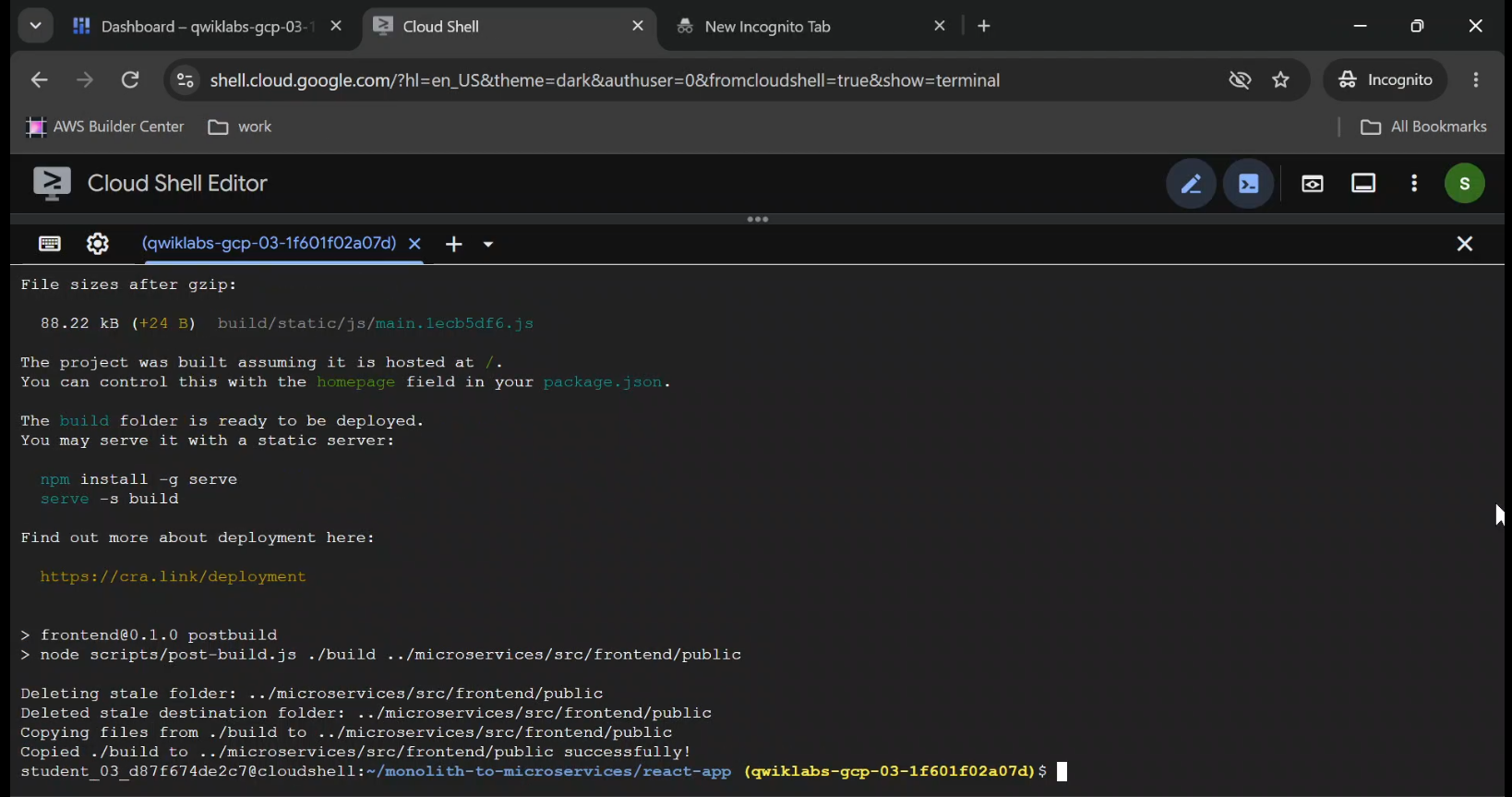
Run the provided setup script:
./setup.sh
The setup process prepares the sample application's dependencies and build output.
The repository requires a compatible Node.js version. Check the version available in Cloud Shell:
node --version
npm --version
If the current Node.js version is incompatible, use the version manager to install a supported release:
nvm install --lts
For repeatable deployments, prefer a specific tested Node.js release instead of allowing the runtime to change unexpectedly.
Run the Application Locally
Navigate to the microservices directory:
cd microservices
npm start
If the application starts successfully, the terminal should display messages similar to:
Frontend microservice listening on port 8080!
Orders microservice listening on port 8081!
Products microservice listening on port 8082!
Open the Web Preview menu in Cloud Shell and select Preview on port 8080.
The Fancy Store frontend should appear in a browser window.
At this stage, some application functions may not work correctly because the backend URLs haven't been configured for public access.
That's expected in the original lab workflow.
Stop the local server using Ctrl + C.
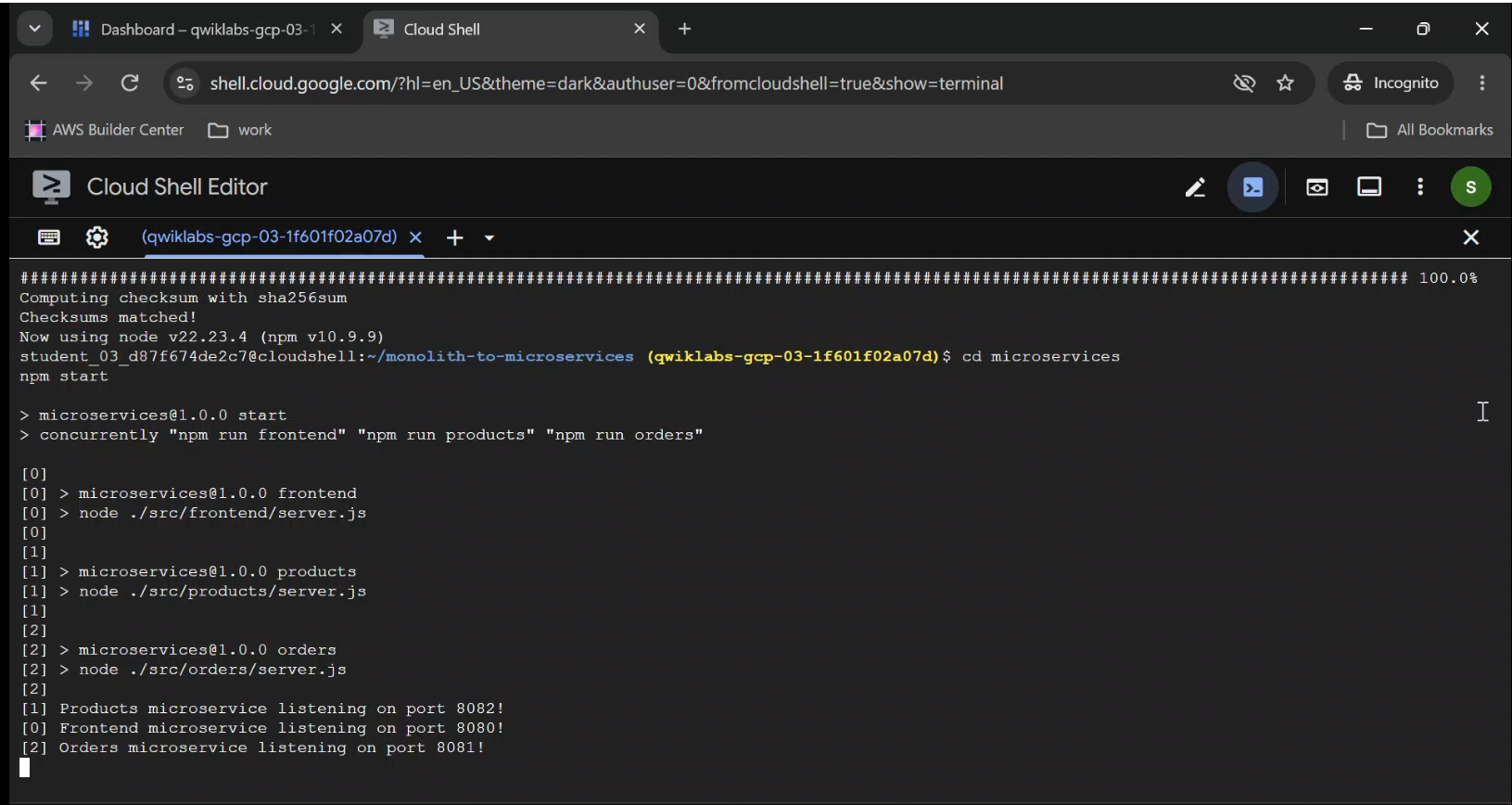
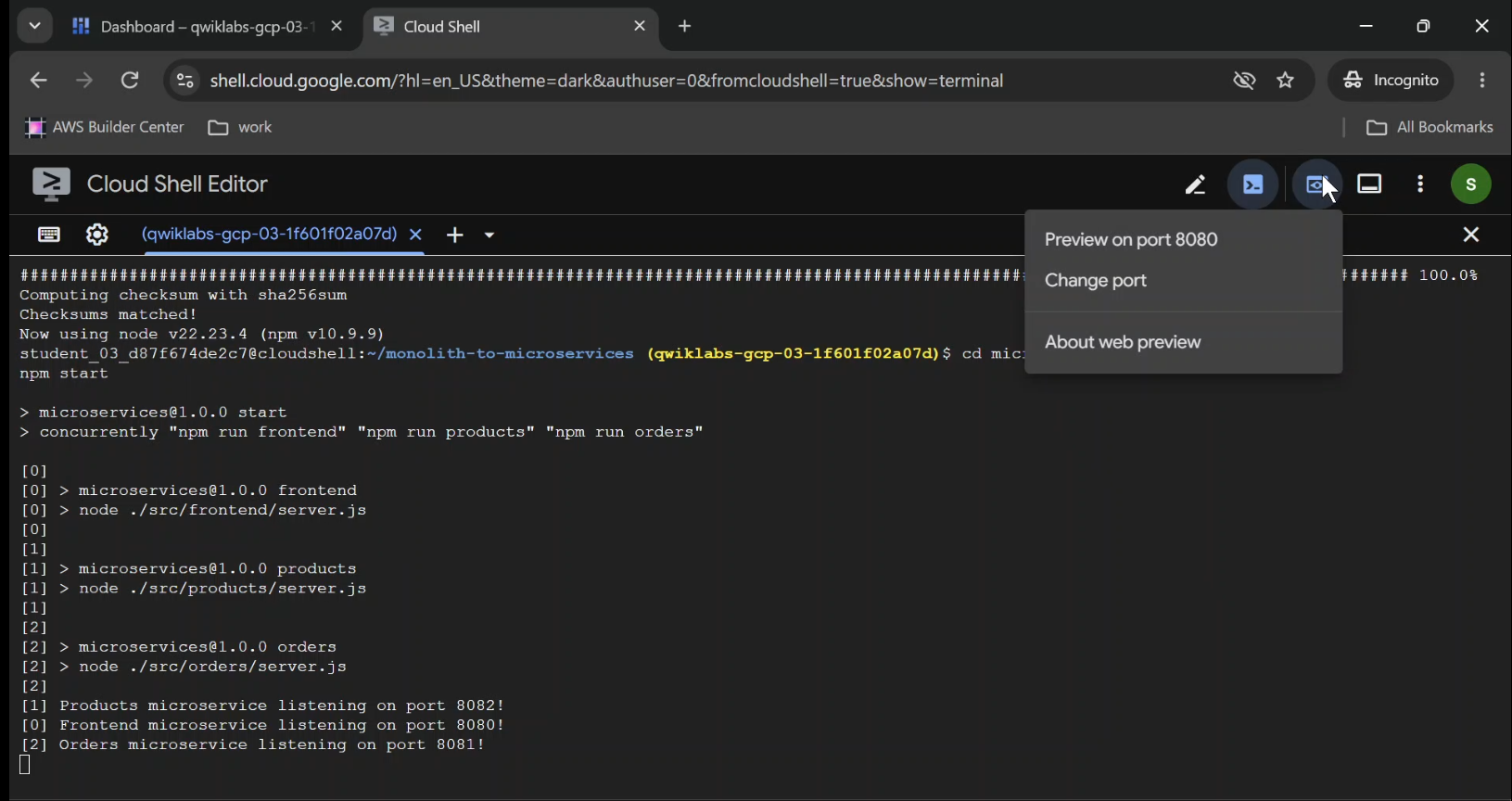
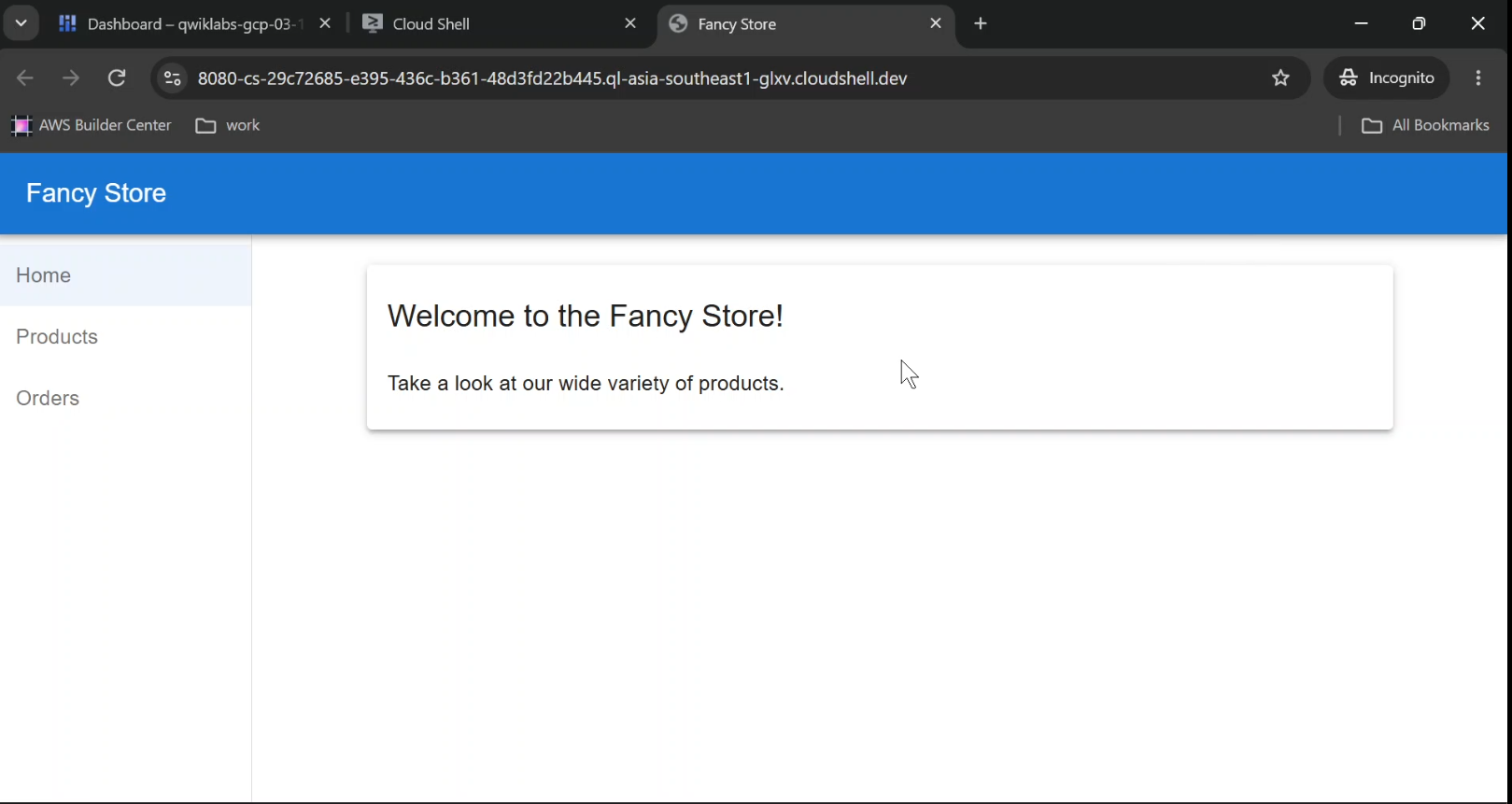
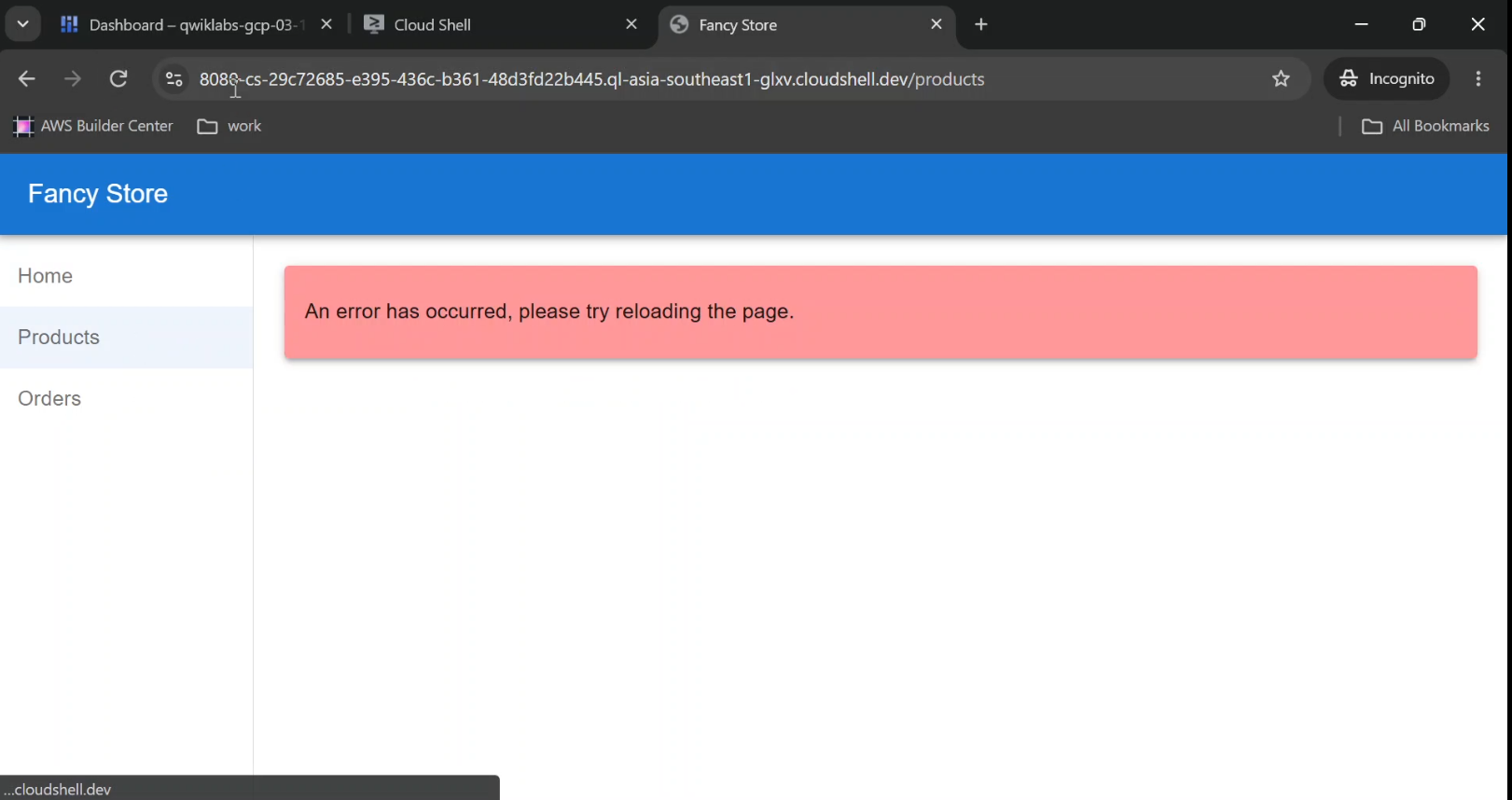
- Capture: Fancy Store running through Cloud Shell Web Preview.
- Show: Homepage and navigation links.
- Caption: "Testing the Fancy Store microservices application locally before deployment."
Step 4: Automate VM Configuration with a Startup Script
Here's where deployment becomes more interesting.
Creating a VM gives you compute resources.
It doesn't automatically install your dependencies, download application code, or start the web server.
A startup script helps bridge that gap.
When a Compute Engine VM boots, it can execute instructions that configure the application environment.
For this exercise, we'll use the startup script provided by the lab.
Create the file:
touch ~/monolith-to-microservices/startup-script.sh
Open it using Cloud Shell Editor.
The script needs to handle several responsibilities:
- Install Linux packages and a compatible Node.js runtime.
- Download the application files from Cloud Storage.
- Install application dependencies.
- Create a dedicated application user.
- Configure Supervisor to keep the Node.js process running.
The key application deployment section follows this pattern:
#!/bin/bash

# Install required packages
apt-get update
apt-get install -y git build-essential supervisor nodejs npm

# Prepare application directory
mkdir -p /fancy-store

# Copy application files from Cloud Storage
gcloud storage cp -r \
  gs://BUCKET_NAME/monolith-to-microservices/microservices/* \
  /fancy-store/

# Install dependencies
cd /fancy-store
npm install

# Create a dedicated application user
id nodeapp >/dev/null 2>&1 || useradd -m nodeapp
chown -R nodeapp:nodeapp /fancy-store
Replace BUCKET_NAME with your actual bucket name.
This snippet illustrates the deployment portion of the script. Use the complete lab script, including its Supervisor configuration, to reproduce the training workflow.
The source lab also includes a legacy google-fluentd Logging agent installation command.
Important 2026 update: Google's legacy Logging and Monitoring agents reached the end of standard maintenance on September 28, 2026. New deployments should prefer the Google Cloud Ops Agent or another currently supported telemetry solution rather than blindly copying the older agent installation step.
How Supervisor Helps
Supervisor manages the application process.
If the Node.js application exits unexpectedly, Supervisor can attempt to restart it based on the configured policy.
This creates a useful distinction between process management and infrastructure recovery.
Supervisor helps restart a failed application process. A managed instance group can replace a failed virtual machine.
They're related, but they solve different problems.
After completing and saving the startup script, ensure that the file uses Linux LF line endings.
Upload it:
gcloud storage cp \
  ~/monolith-to-microservices/startup-script.sh \
  "gs://${BUCKET}/"
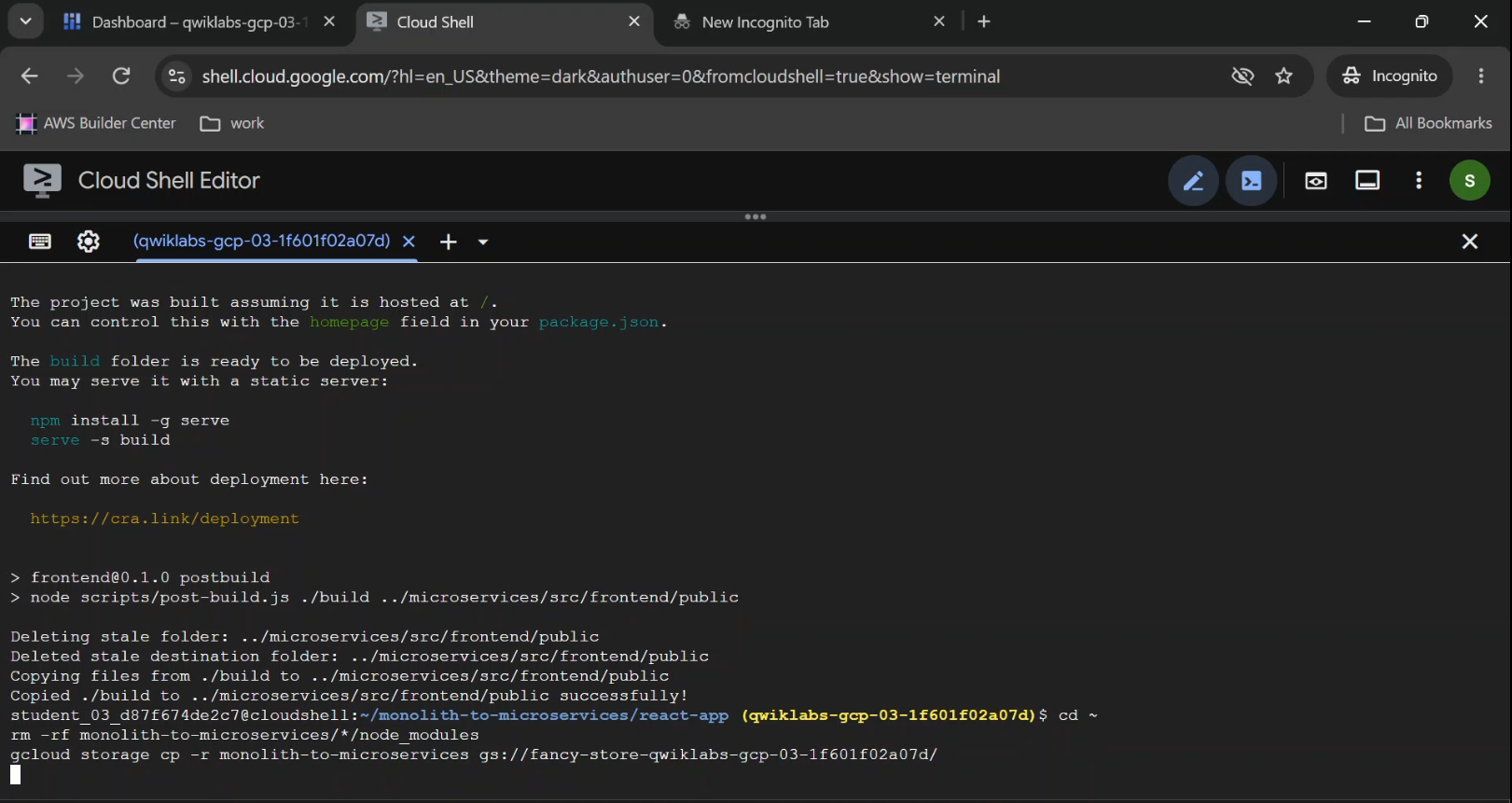
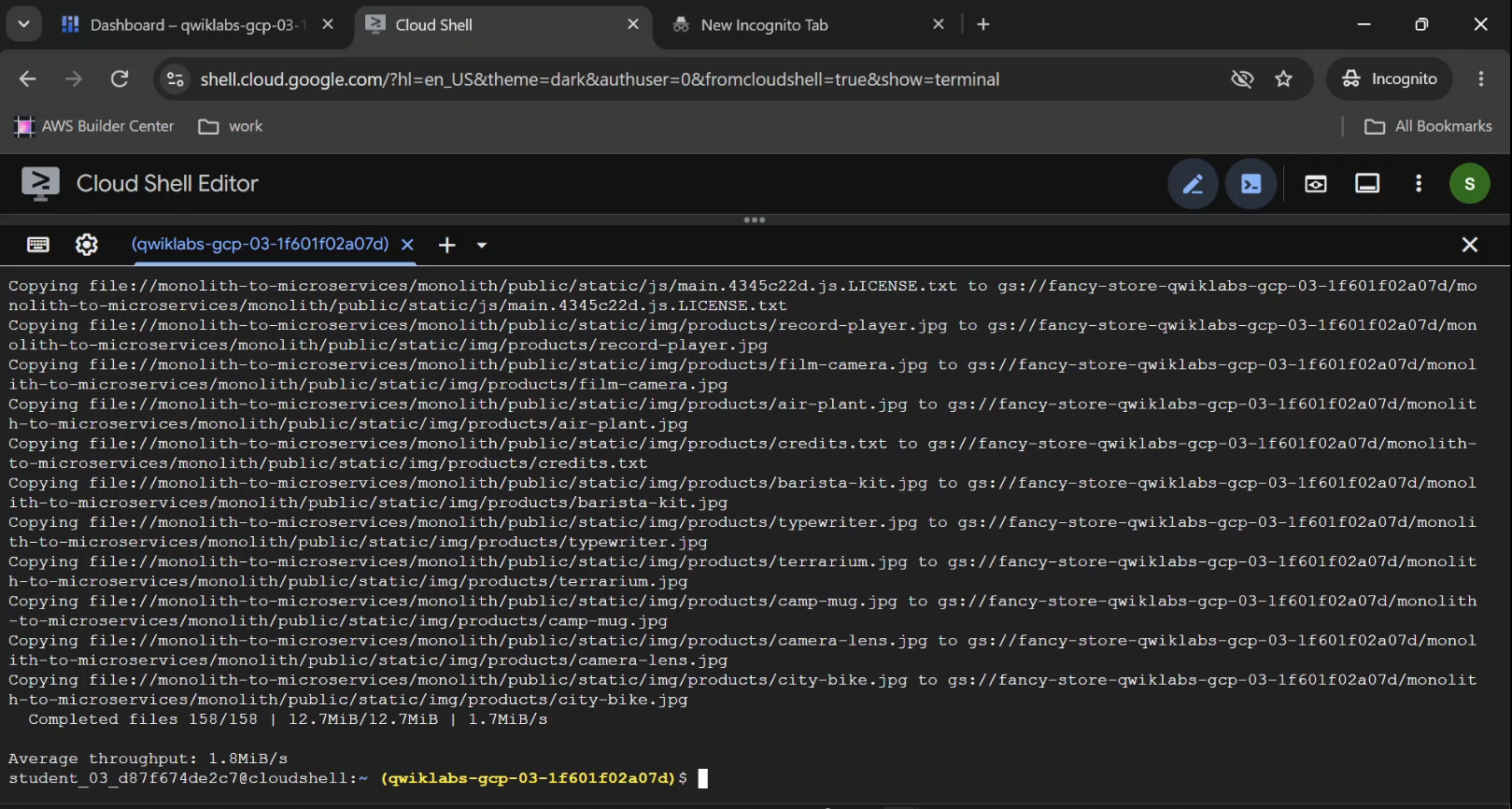
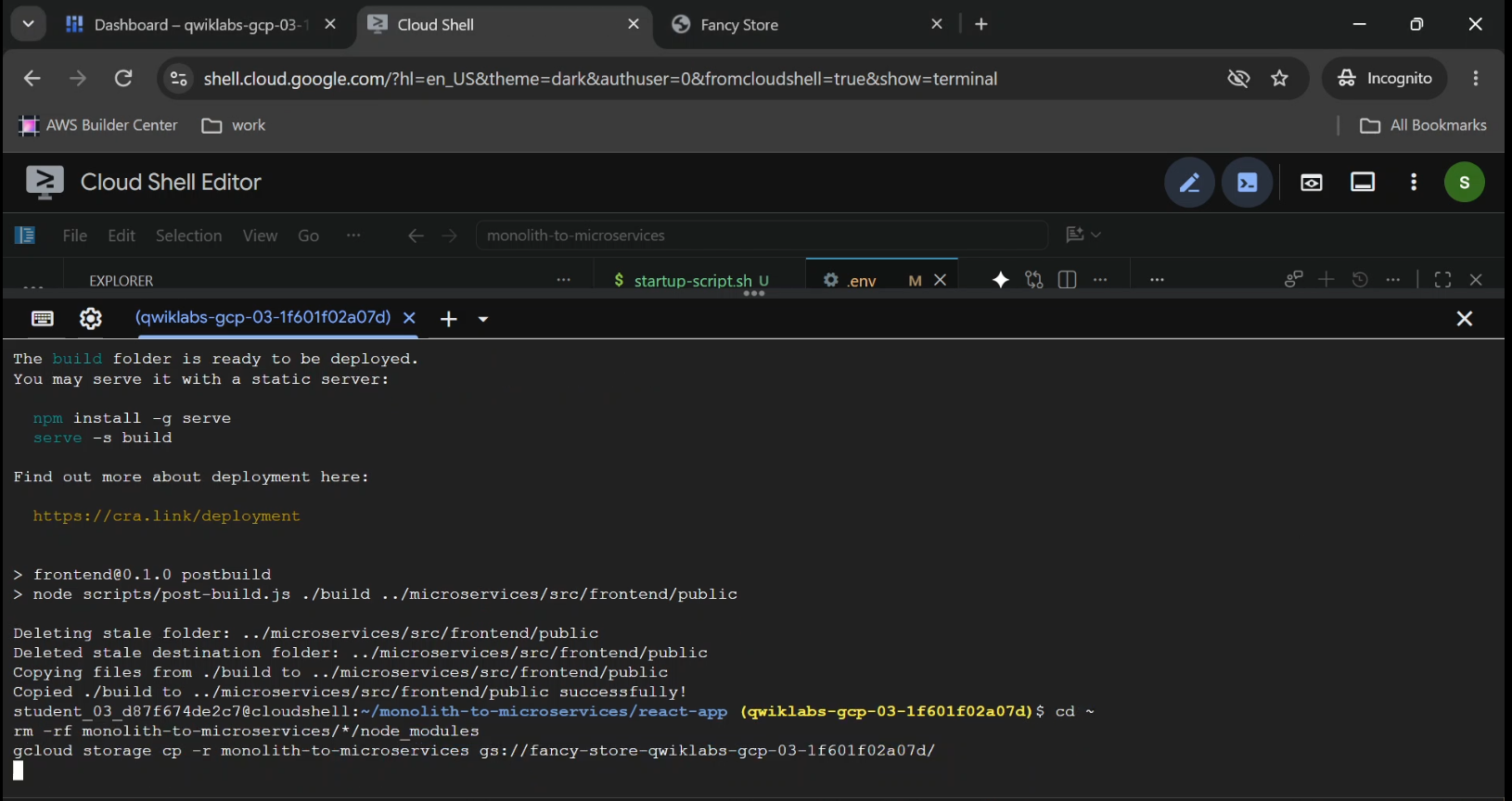
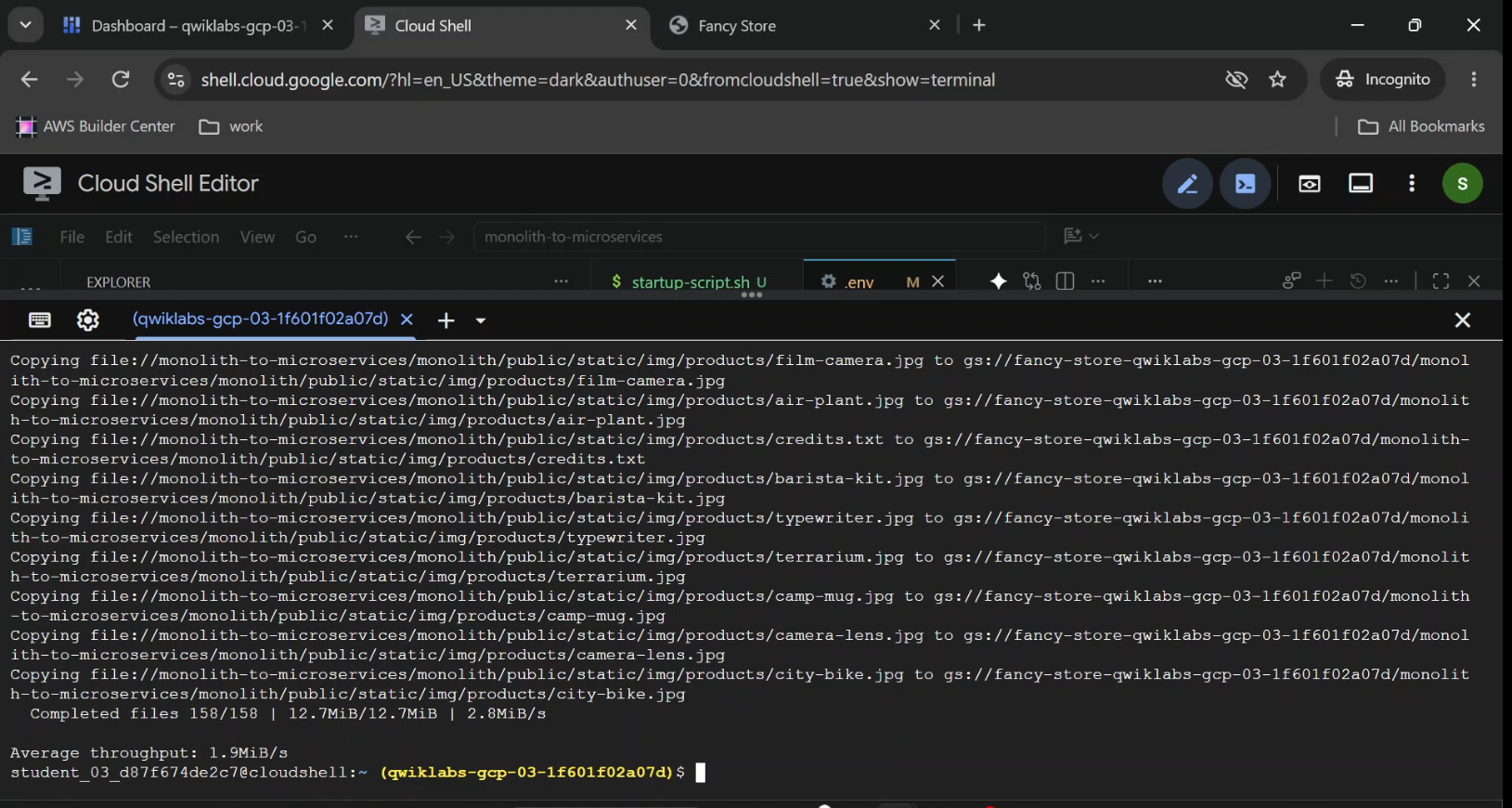
Next, upload the application repository without its local node_modules directories:
cd ~

rm -rf monolith-to-microservices/*/node_modules

gcloud storage cp -r \
  monolith-to-microservices \
  "gs://${BUCKET}/"
Make sure the VM's attached service account has permission to read the bucket, such as the Storage Object Viewer role, with compatible access scopes.
Also verify that the selected VM image provides the Google Cloud CLI used by the startup script. If not, install the CLI or change the script to use another supported Cloud Storage download method.
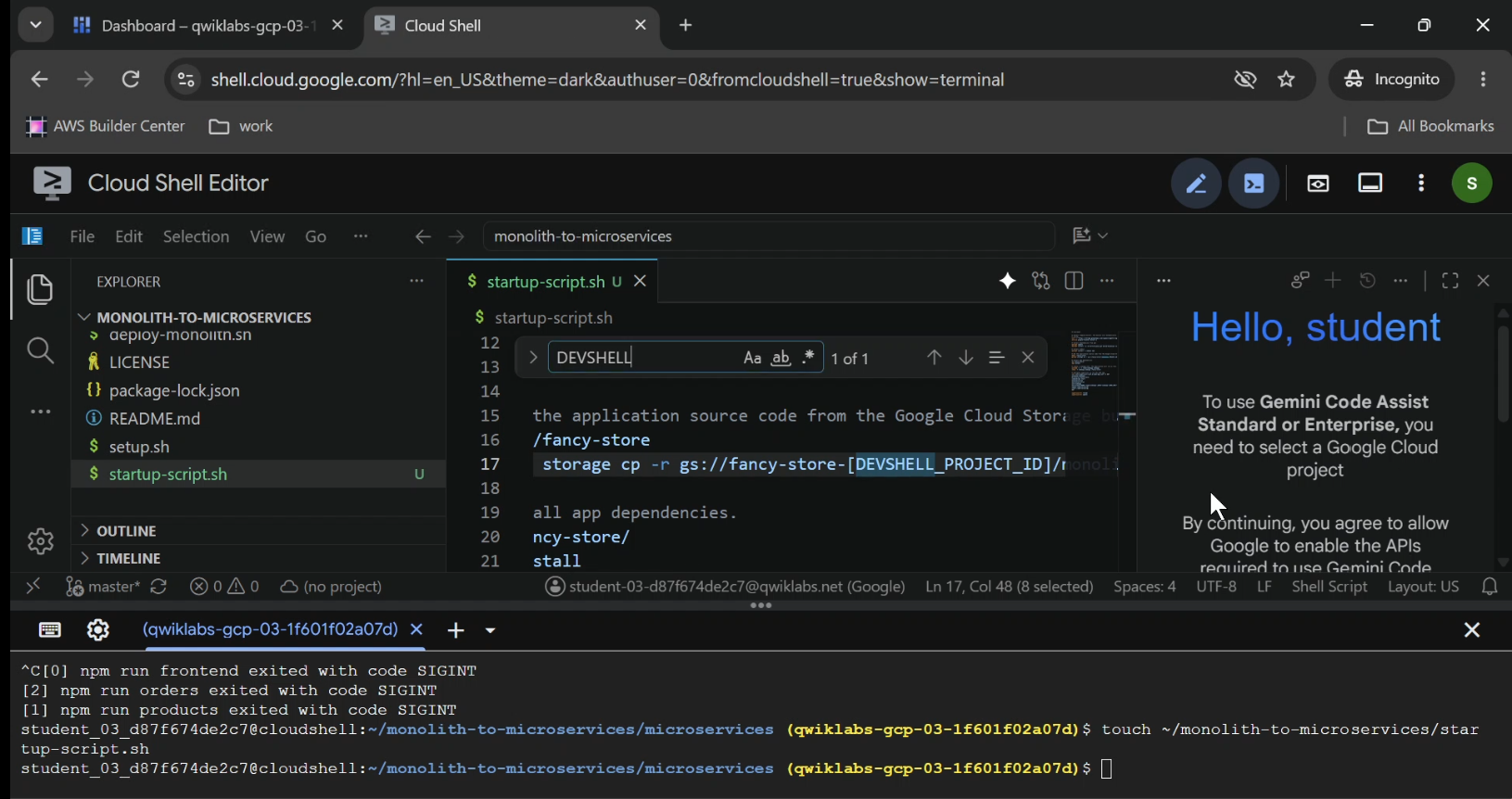
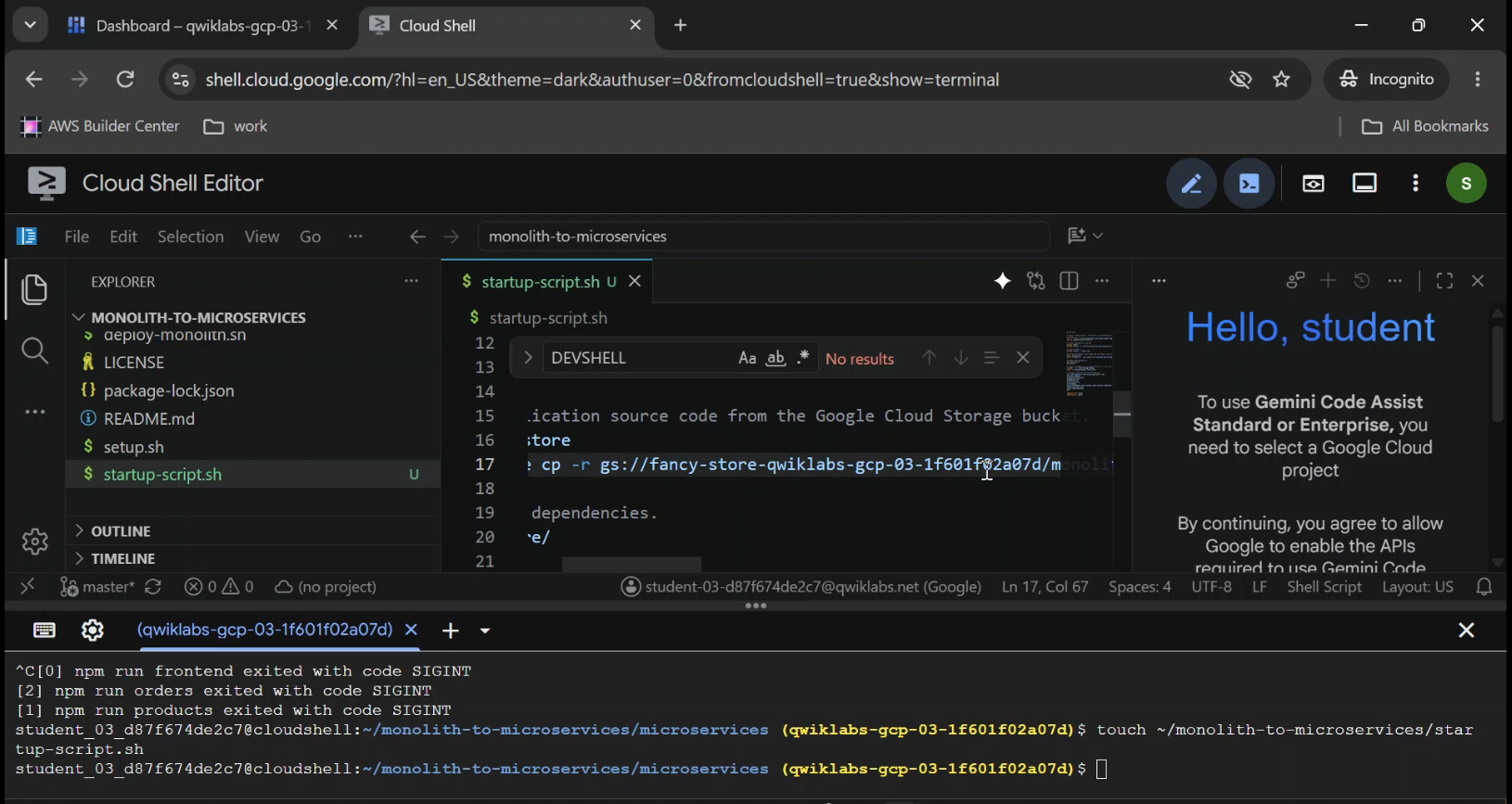
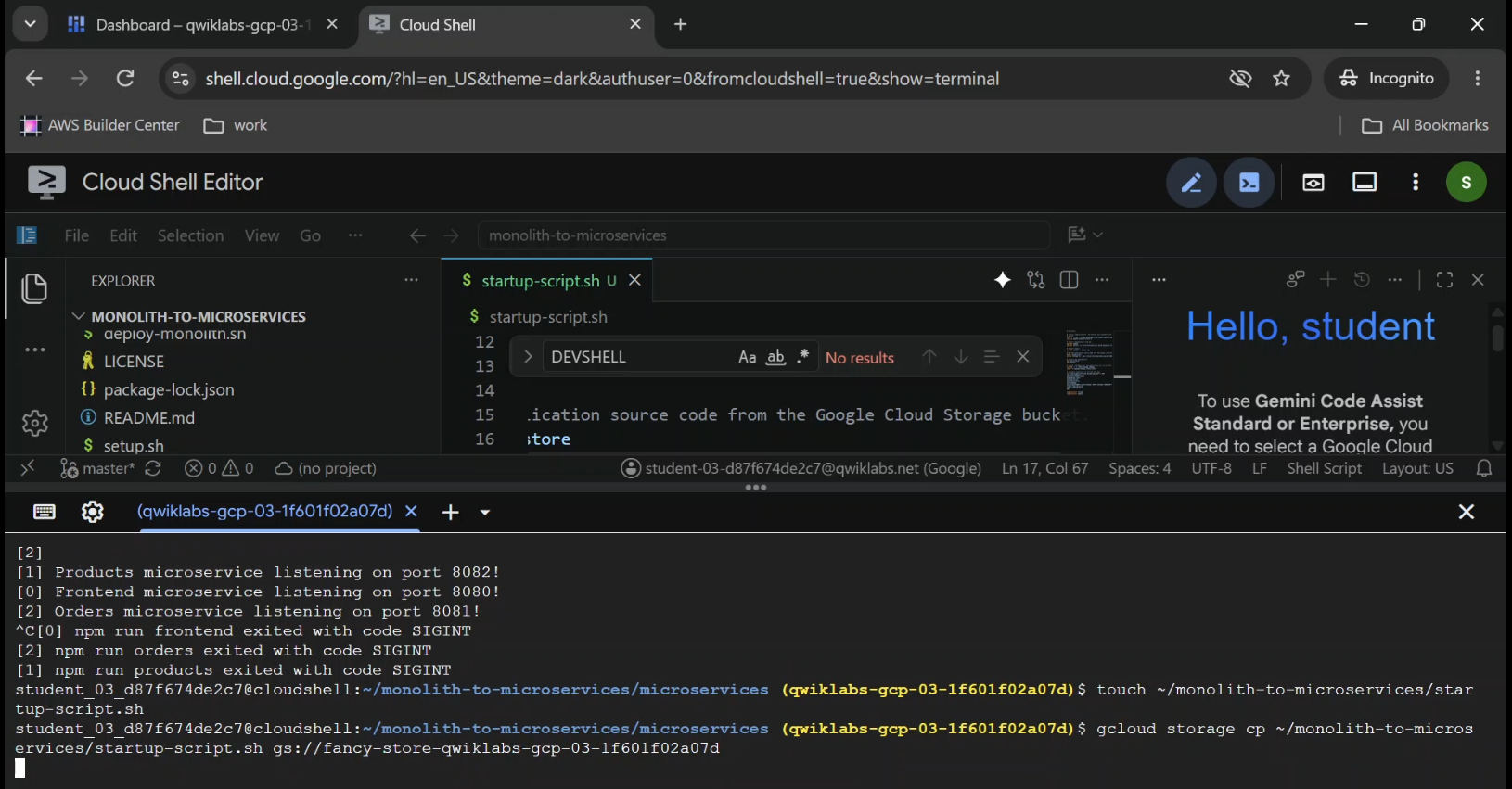
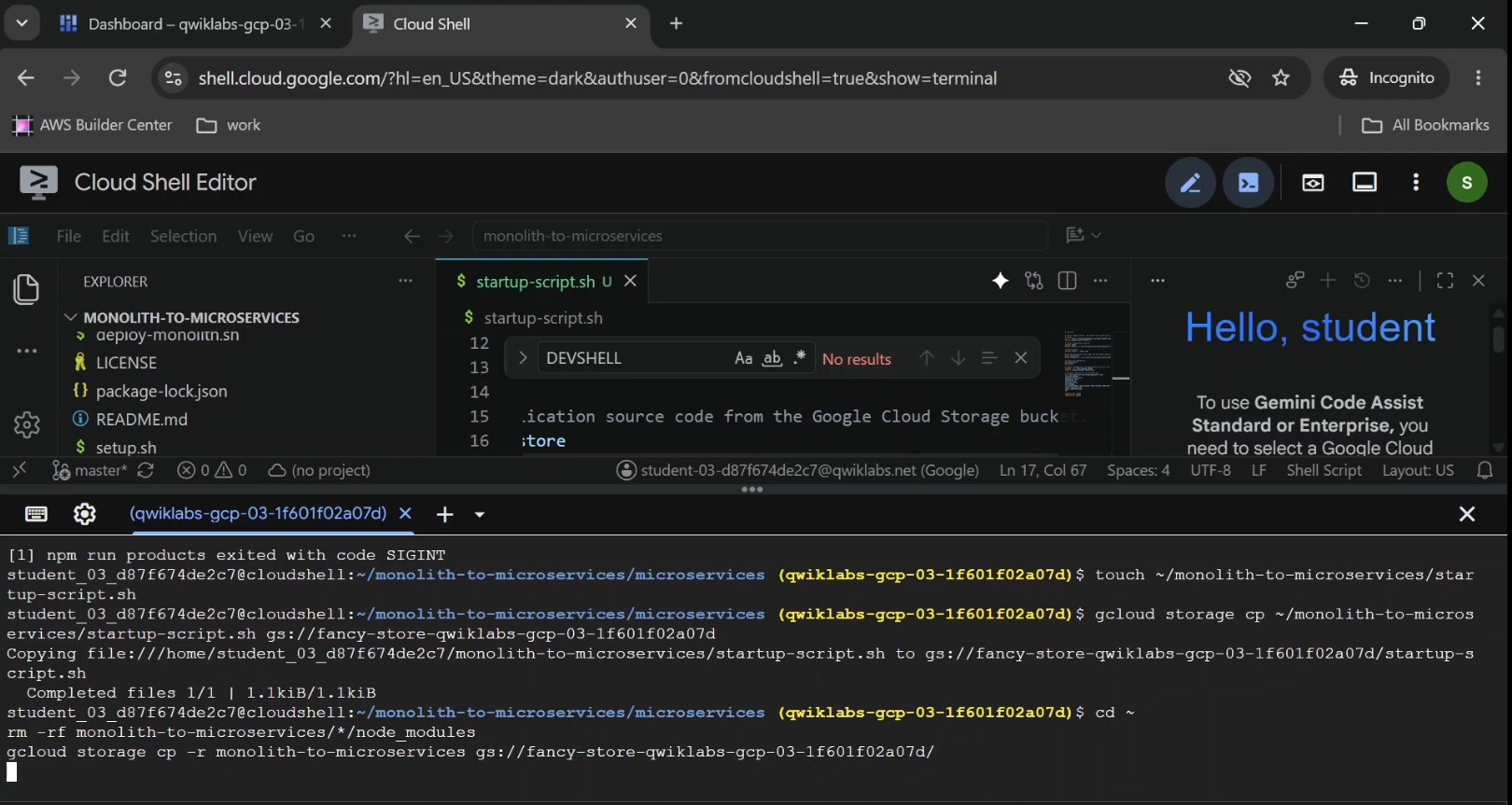
- Captured: Cloud Shell Editor showing
startup-script.sh, plus the Cloud Storage bucket's objects view. - Shows Startup script and
monolith-to-microservicesdirectory. - Caption: "Preparing automated Compute Engine deployment with a startup script and Cloud Storage."
Step 5: Deploy the Backend Compute Engine Instance
Our first VM will handle the backend side of the application.
Run:
gcloud compute instances create backend \
  --zone="$ZONE" \
  --machine-type=e2-standard-2 \
  --tags=backend \
  --image-family=debian-12 \
  --image-project=debian-cloud \
  --metadata=startup-script-url=https://storage.googleapis.com/${BUCKET}/startup-script.sh
This provisions a Debian-based VM with an e2-standard-2 machine type.
The backend network tag lets us later apply firewall rules to this instance.
The startup-script-url metadata points to the startup script stored in Cloud Storage.
During startup, the VM can install dependencies and launch the application without requiring us to configure each component manually.
Get the Backend IP Address
Run:
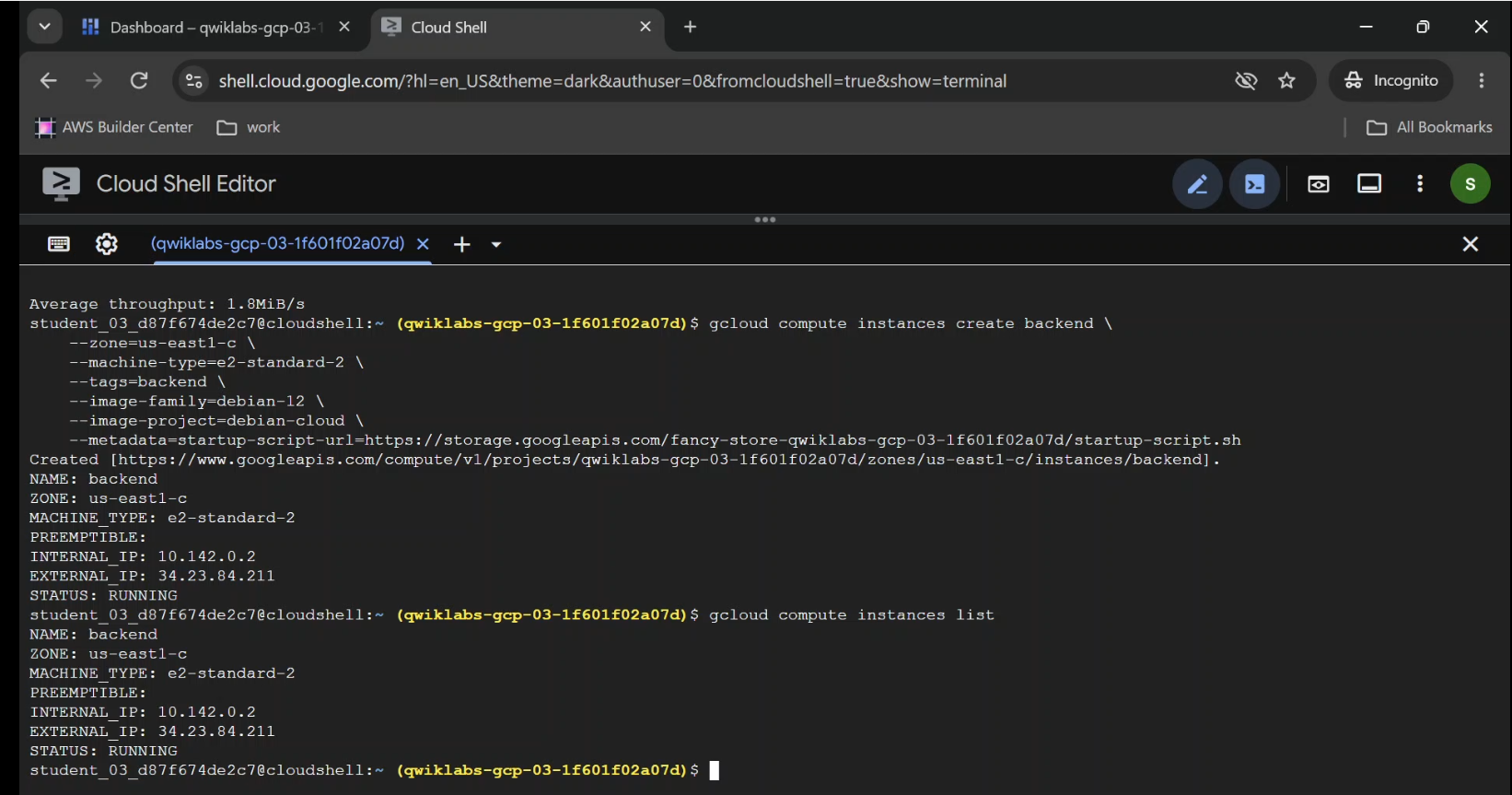
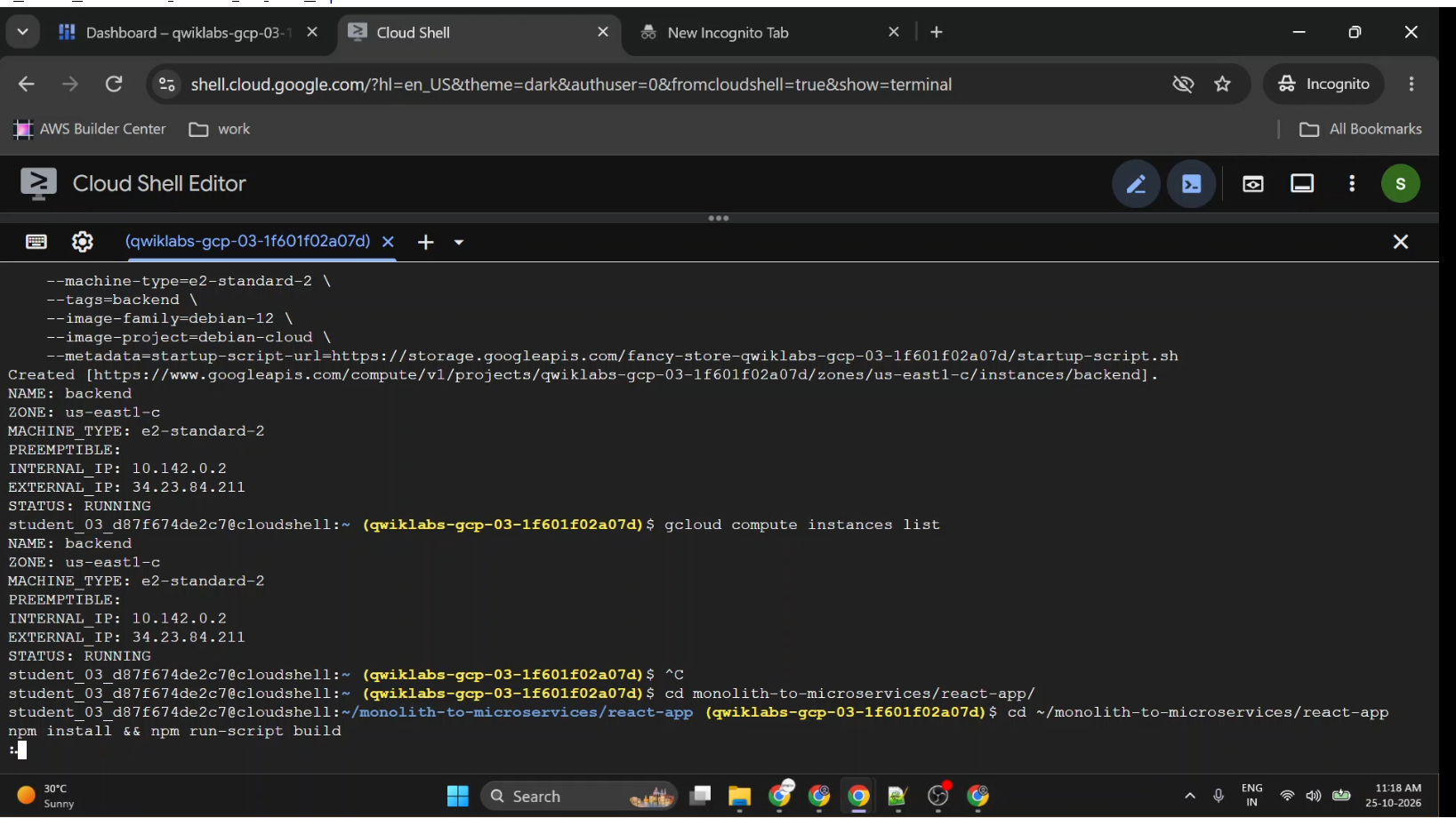
gcloud compute instances list
Find the backend instance and record its external IP address.
We'll use that address to configure the frontend application's connection to the backend APIs.
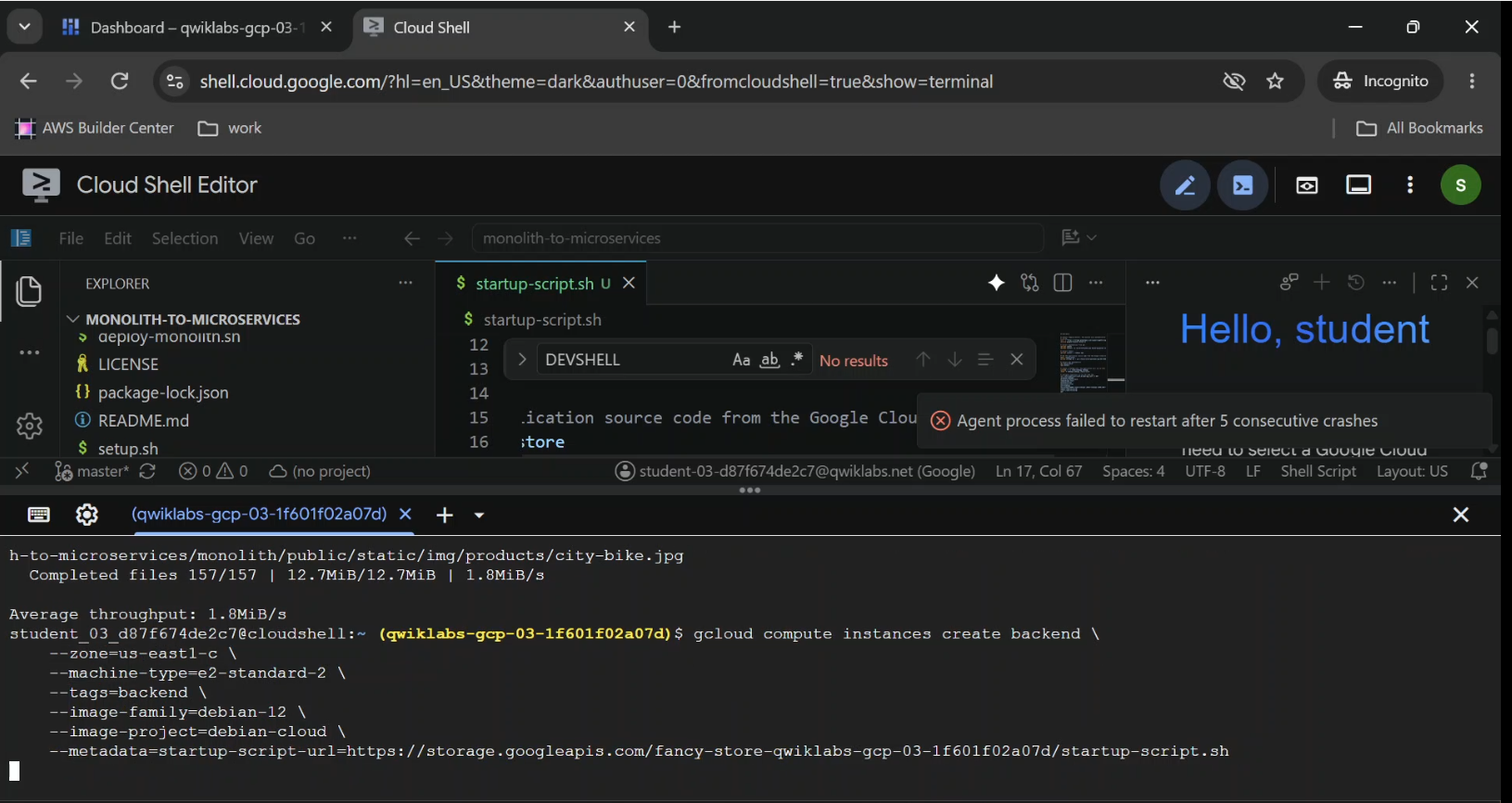
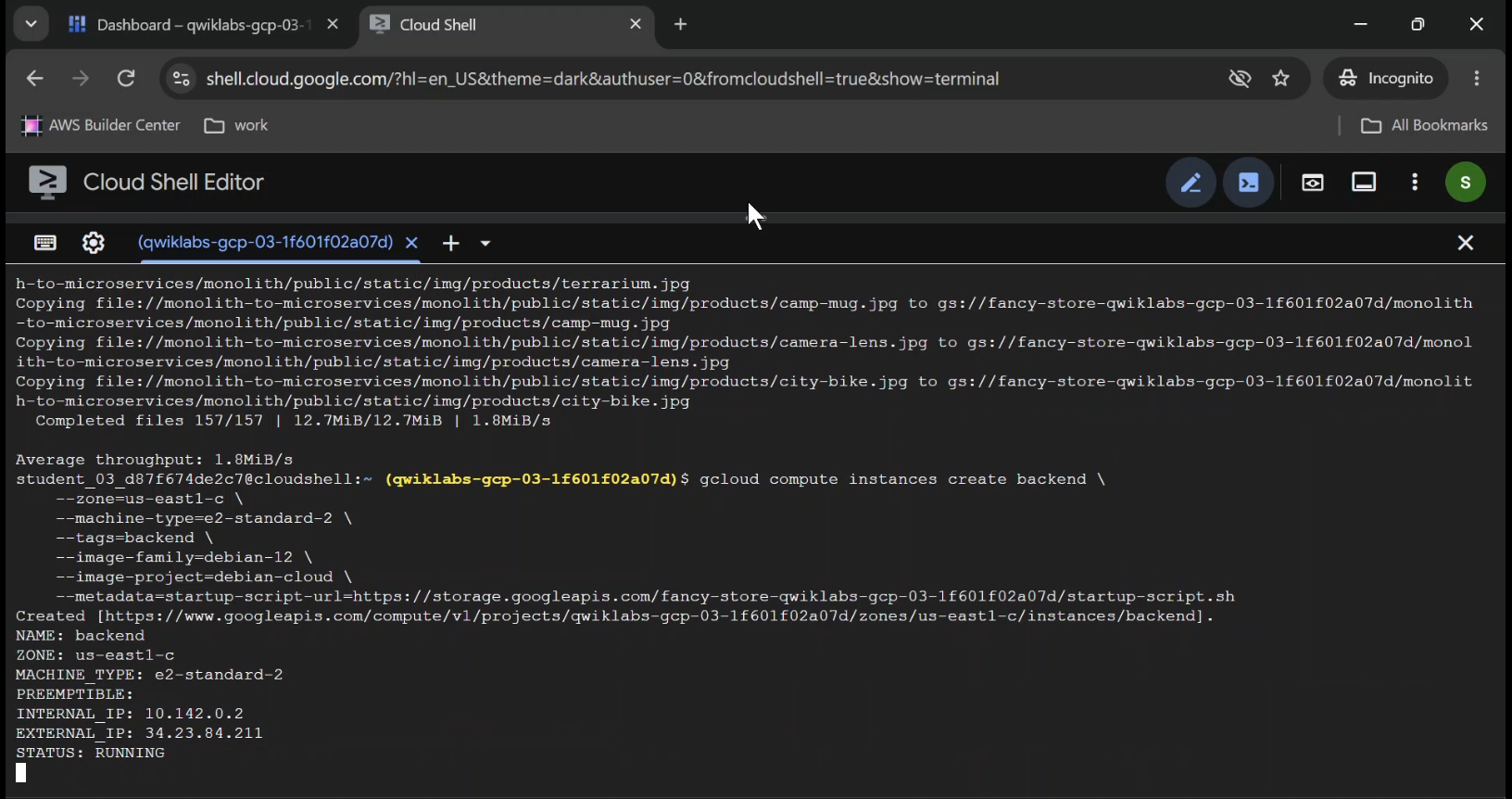
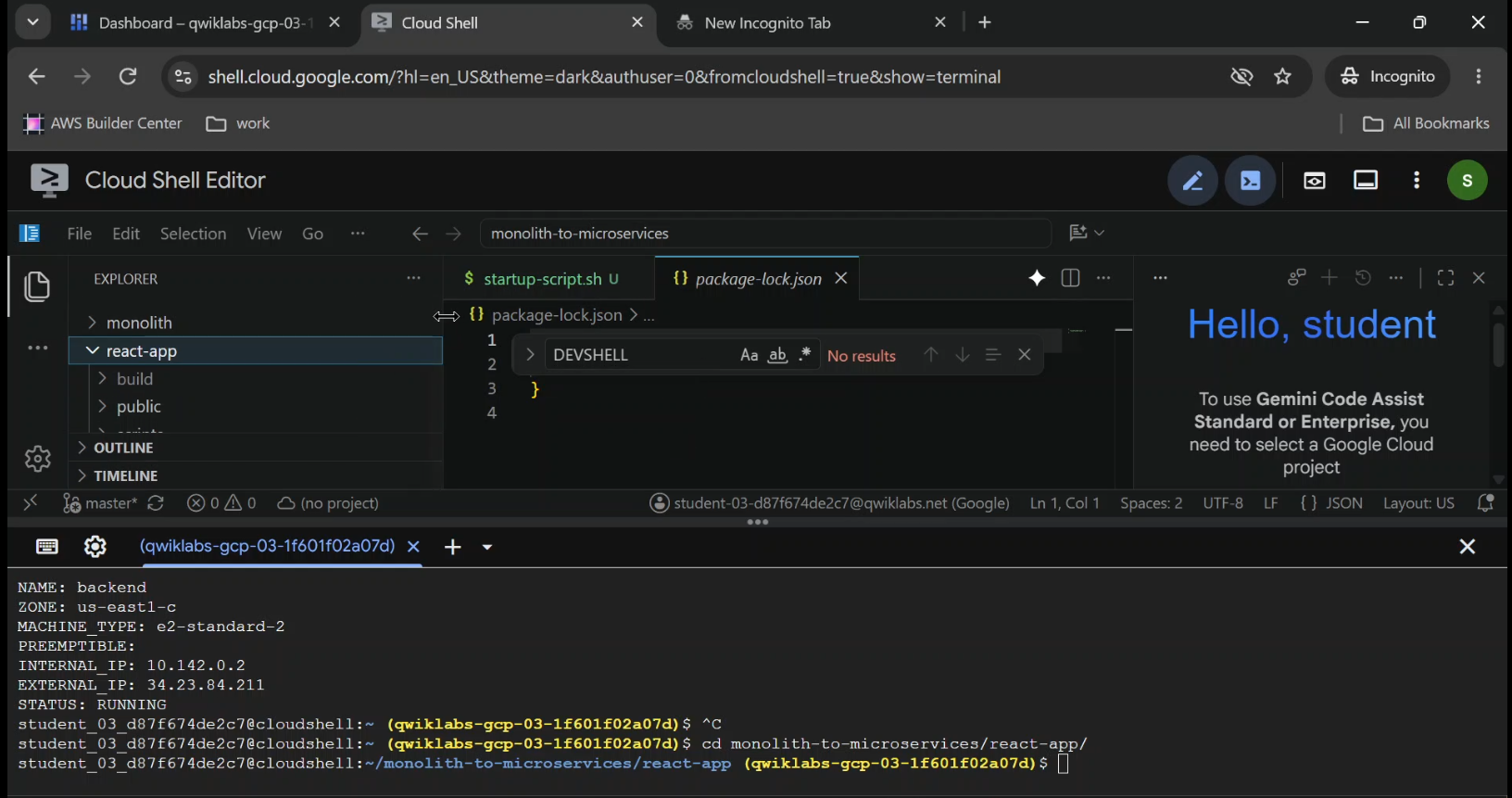
- Verify: Compute Engine → VM instances.
- Show: Backend VM name, external IP, machine type, and running status.
- Caption: "Deploying a backend web application server on Google Cloud Compute Engine."
Step 6: Connect and Deploy the Frontend
The frontend needs to know where the Products and Orders APIs are running.
Navigate to the React application directory:
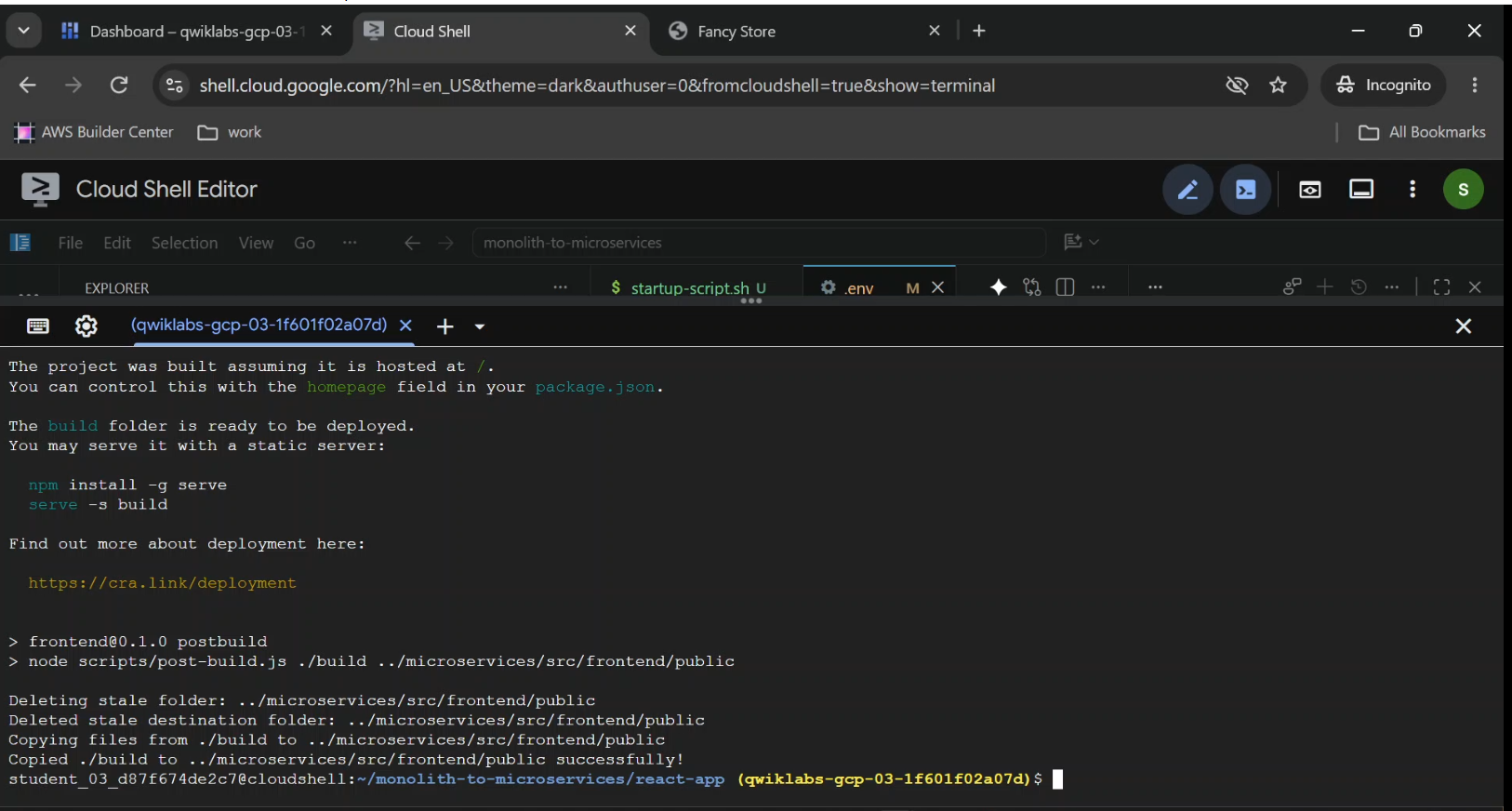
cd ~/monolith-to-microservices/react-app
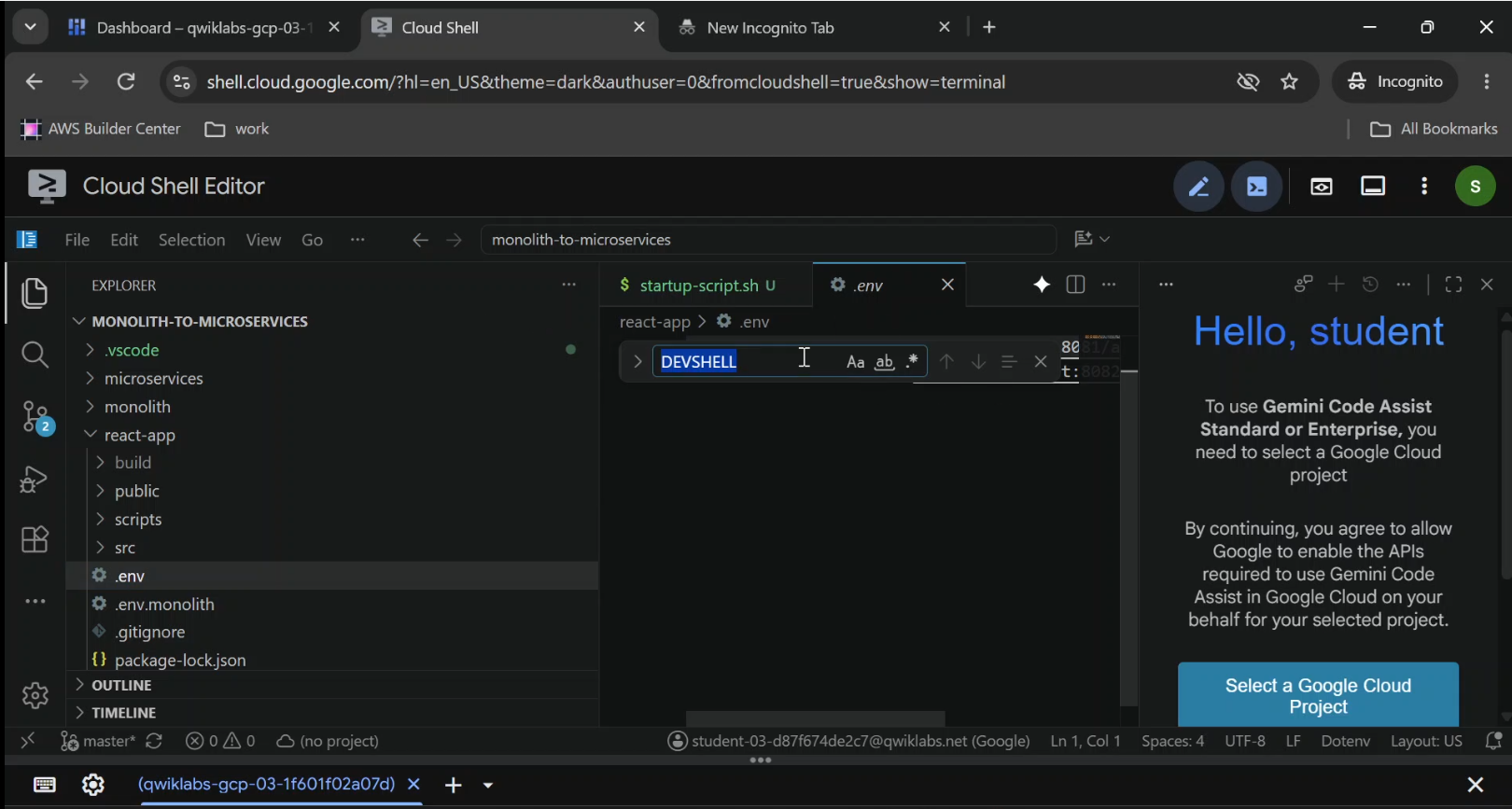
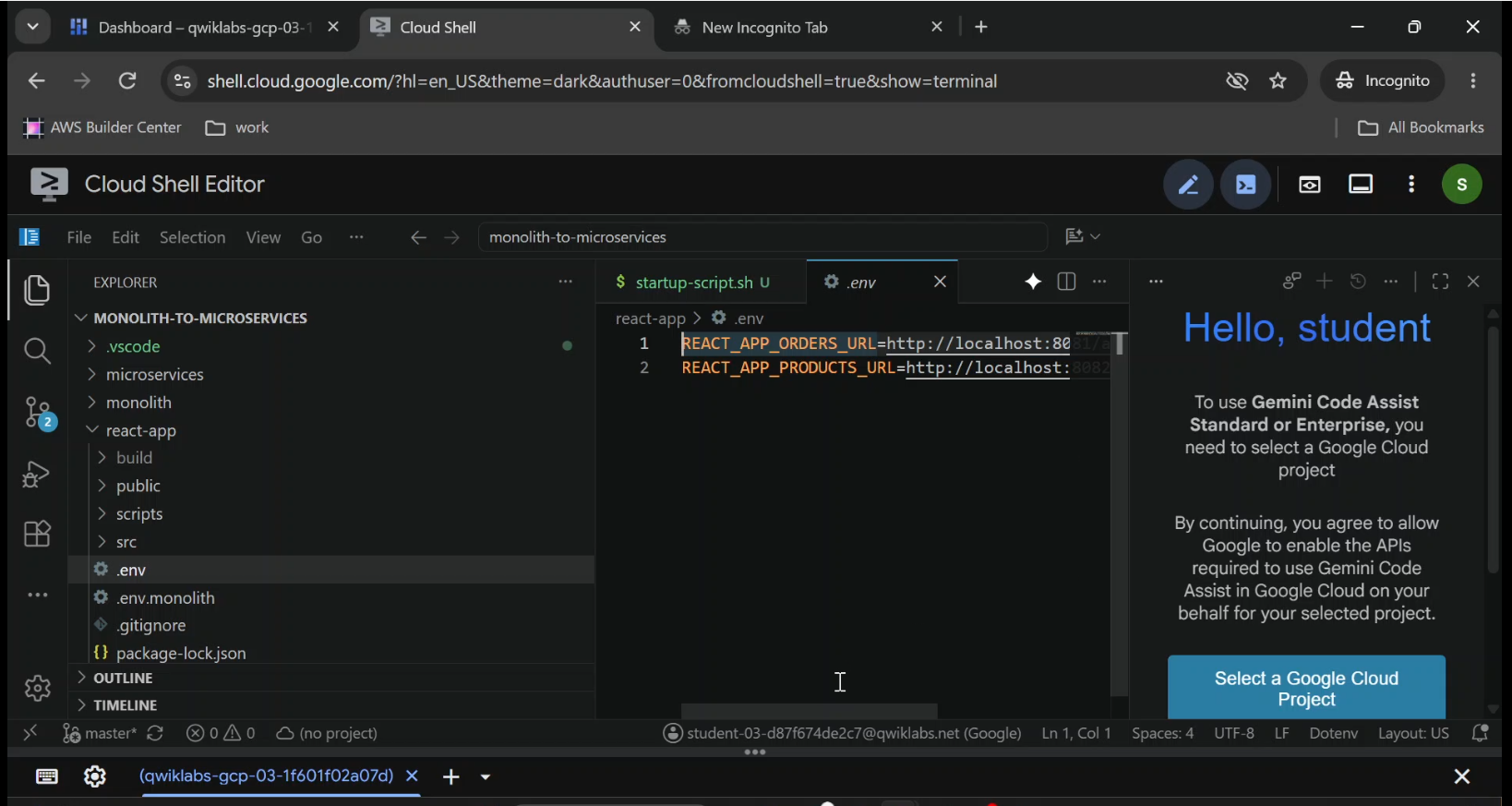
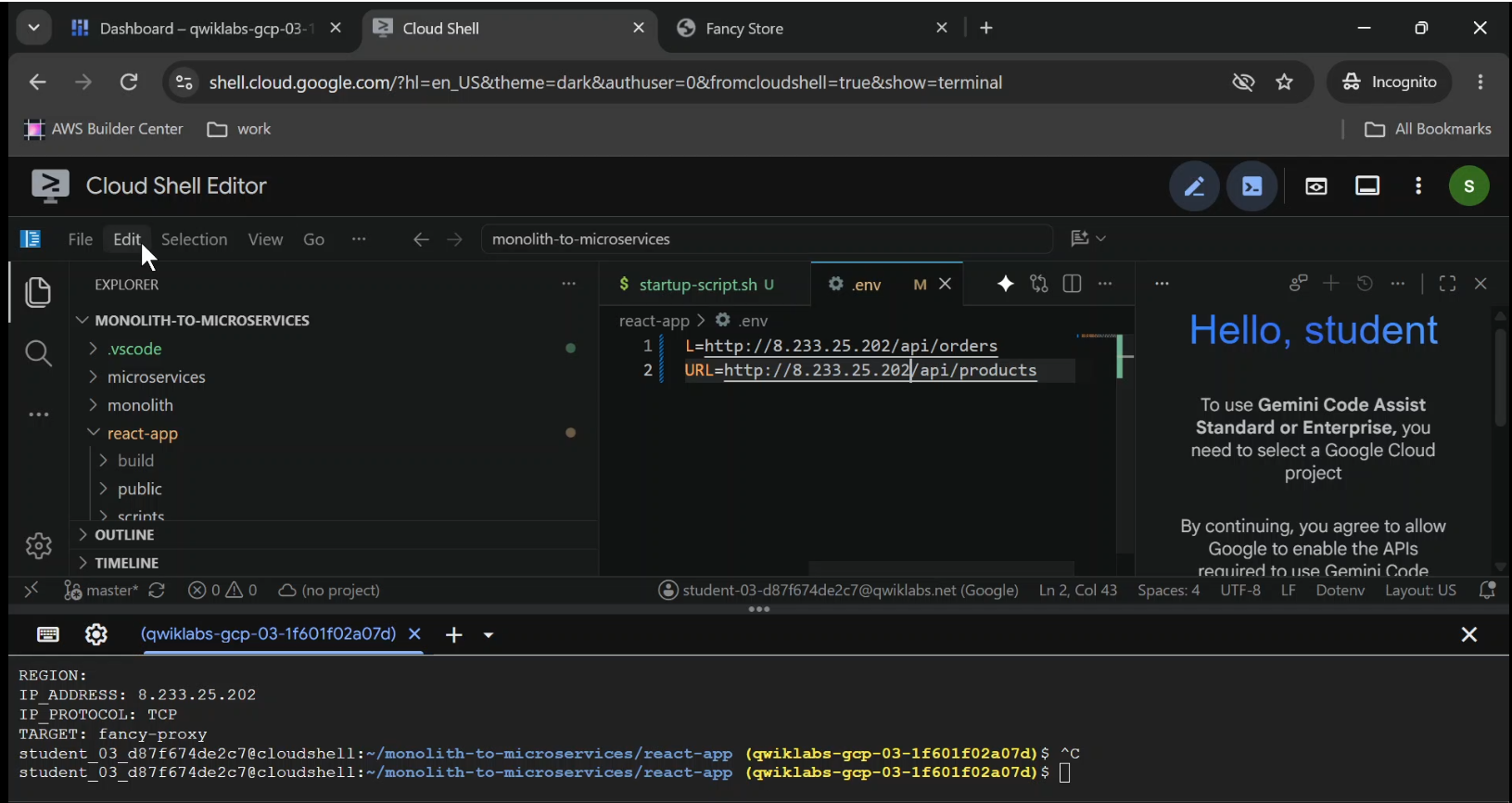
Open its .env file.
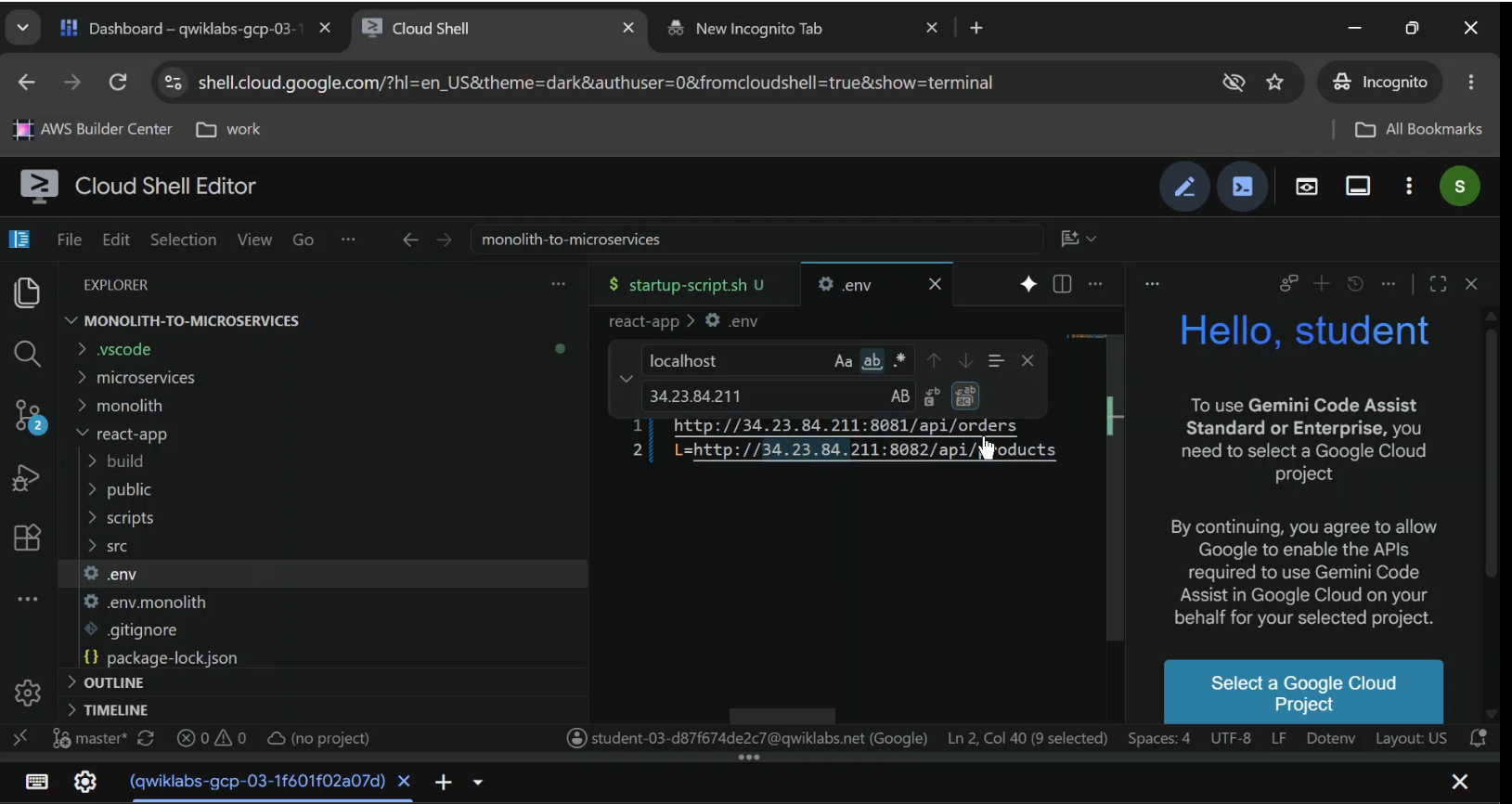
Replace the local backend addresses with the external IP of your backend VM.
For example:
REACT_APP_ORDERS_URL=http://BACKEND_IP:8081/api/orders
REACT_APP_PRODUCTS_URL=http://BACKEND_IP:8082/api/products
Replace BACKEND_IP with the real external IP.
These environment variables are embedded into the client application during the React build process.
That means changing the .env file alone won't automatically update a previously built frontend.
You need to rebuild the application.
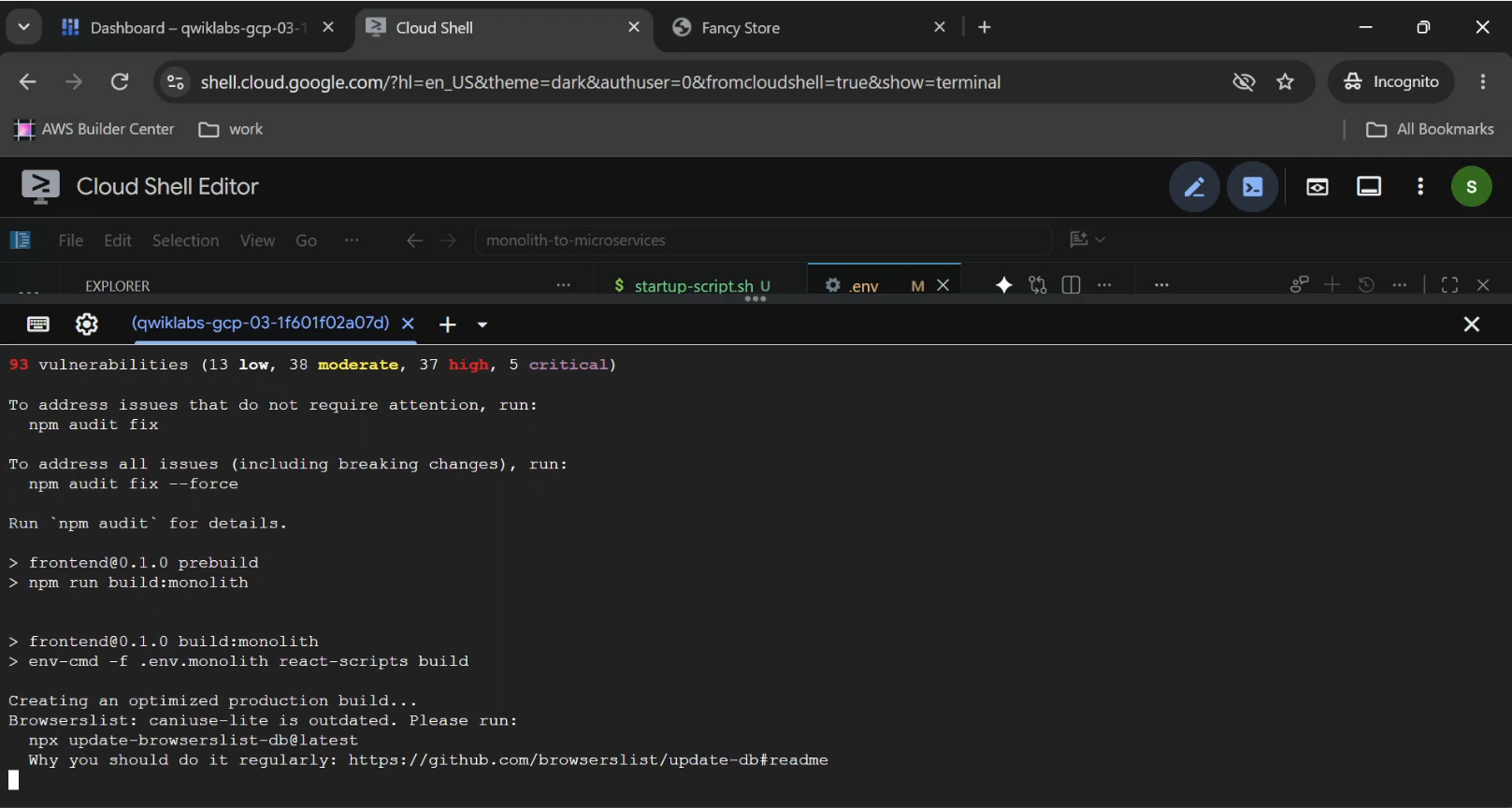
Run:
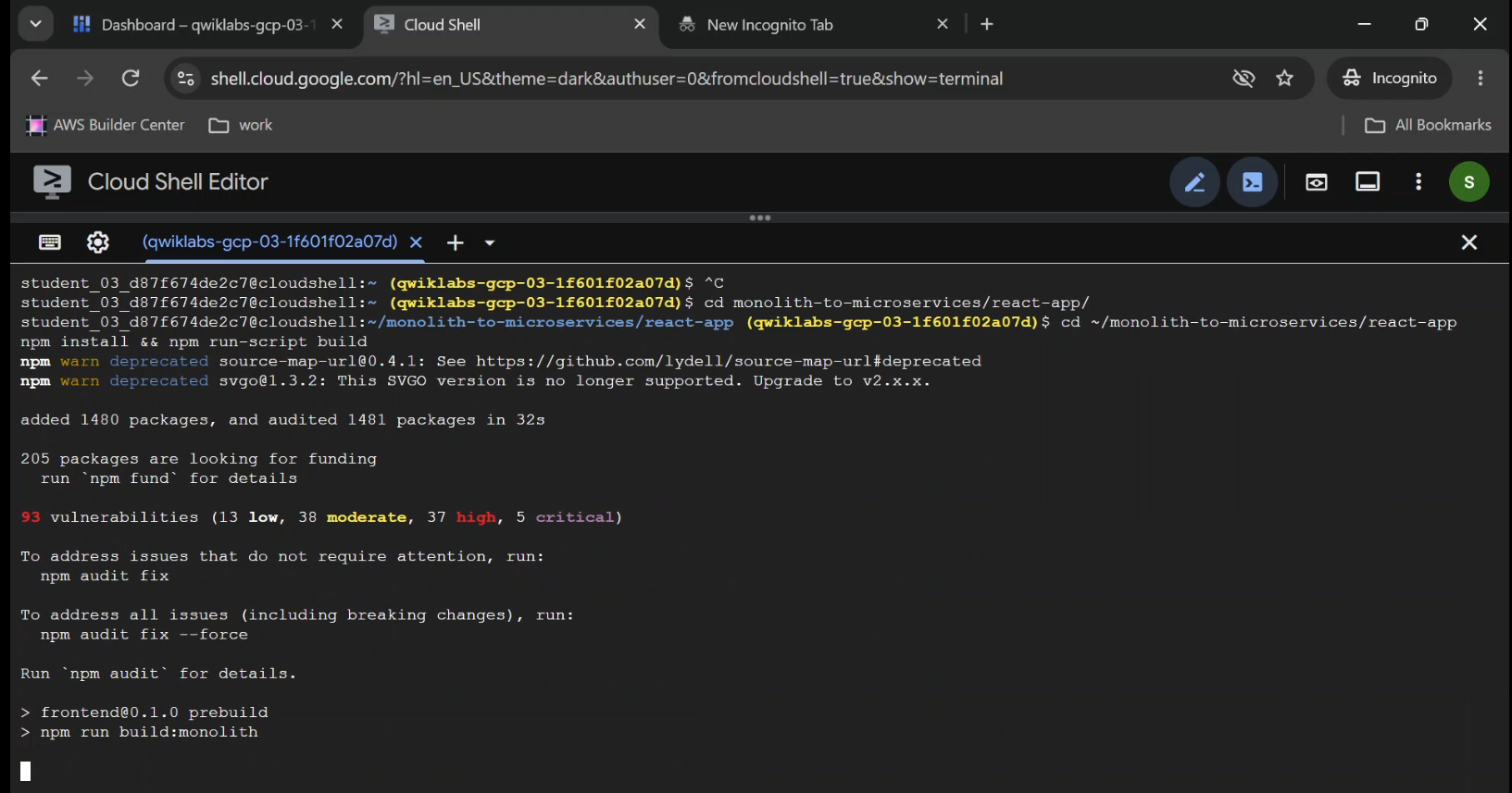
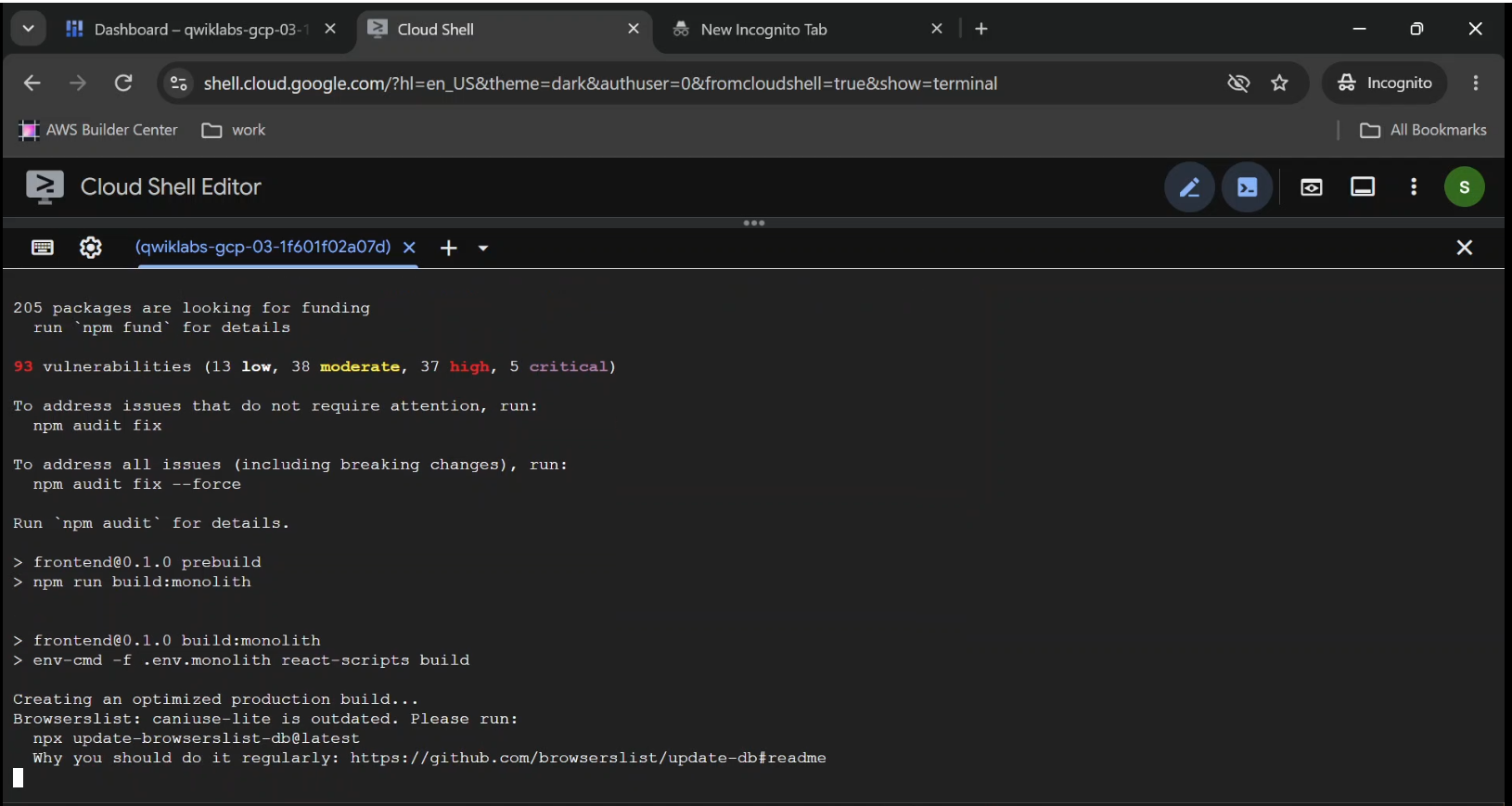
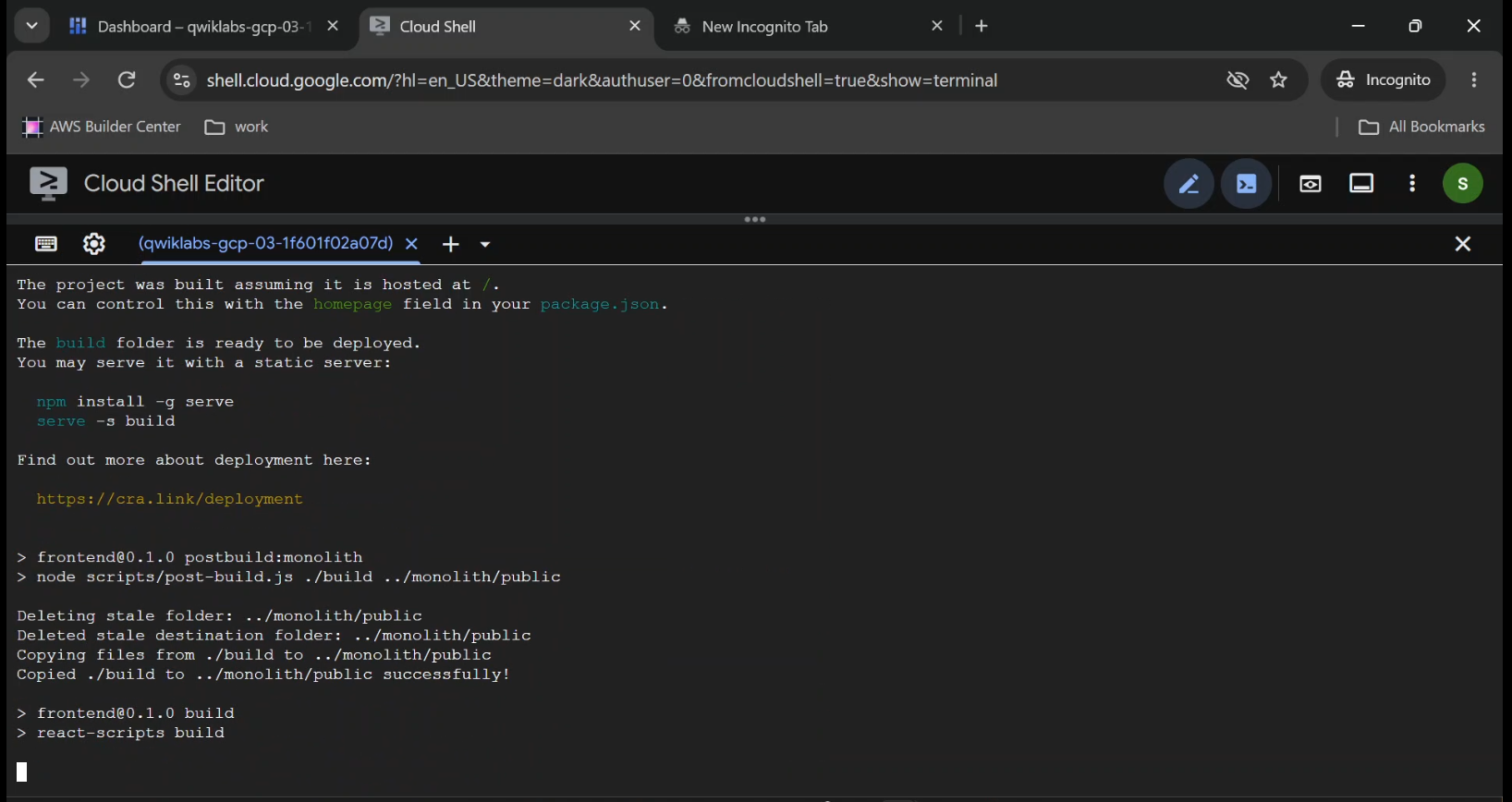
npm install
npm run-script build
Then upload the rebuilt source to Cloud Storage:
cd ~

rm -rf monolith-to-microservices/*/node_modules

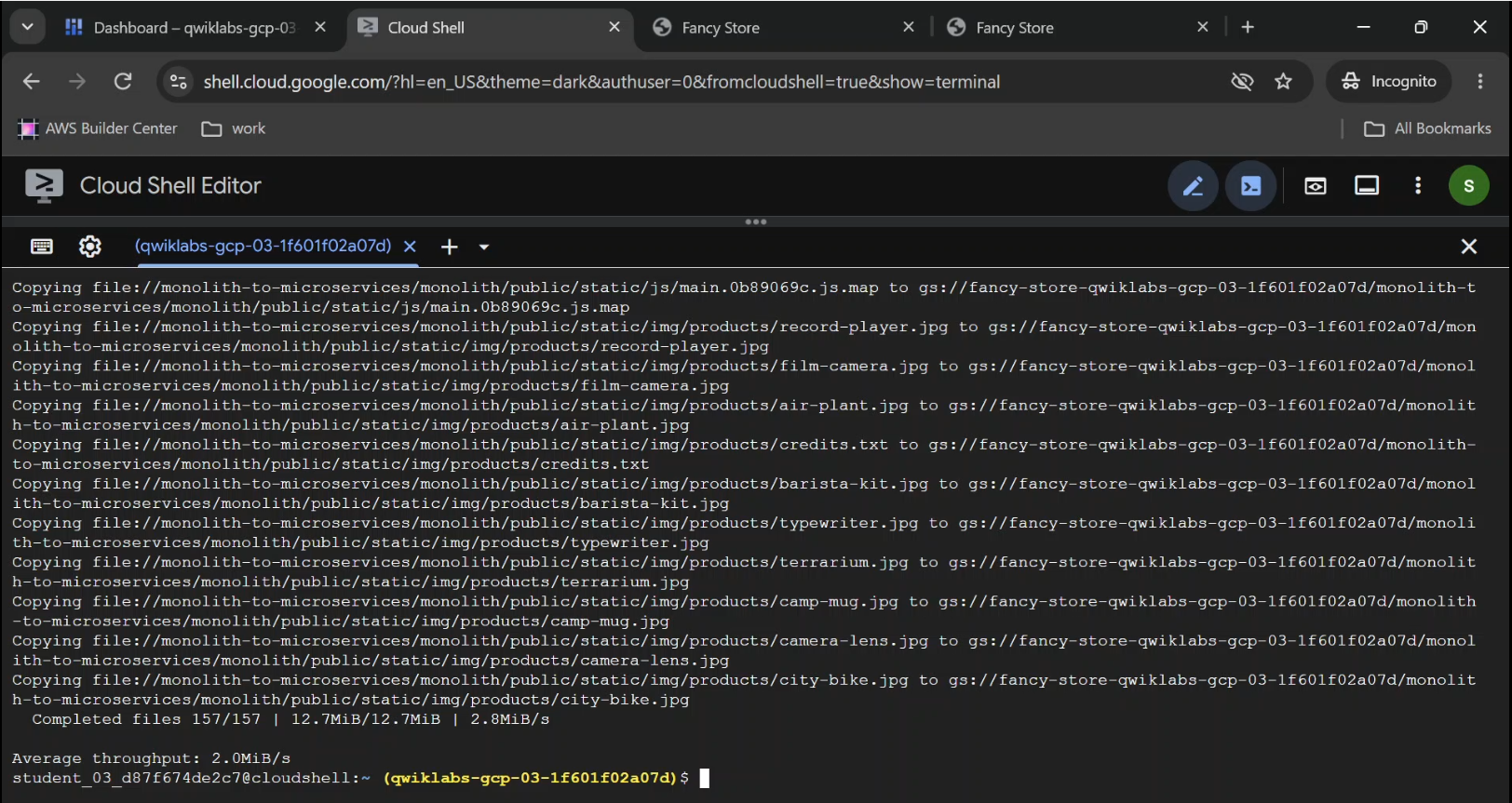
gcloud storage cp -r \
  monolith-to-microservices \
  "gs://${BUCKET}/"
Launch the Frontend VM
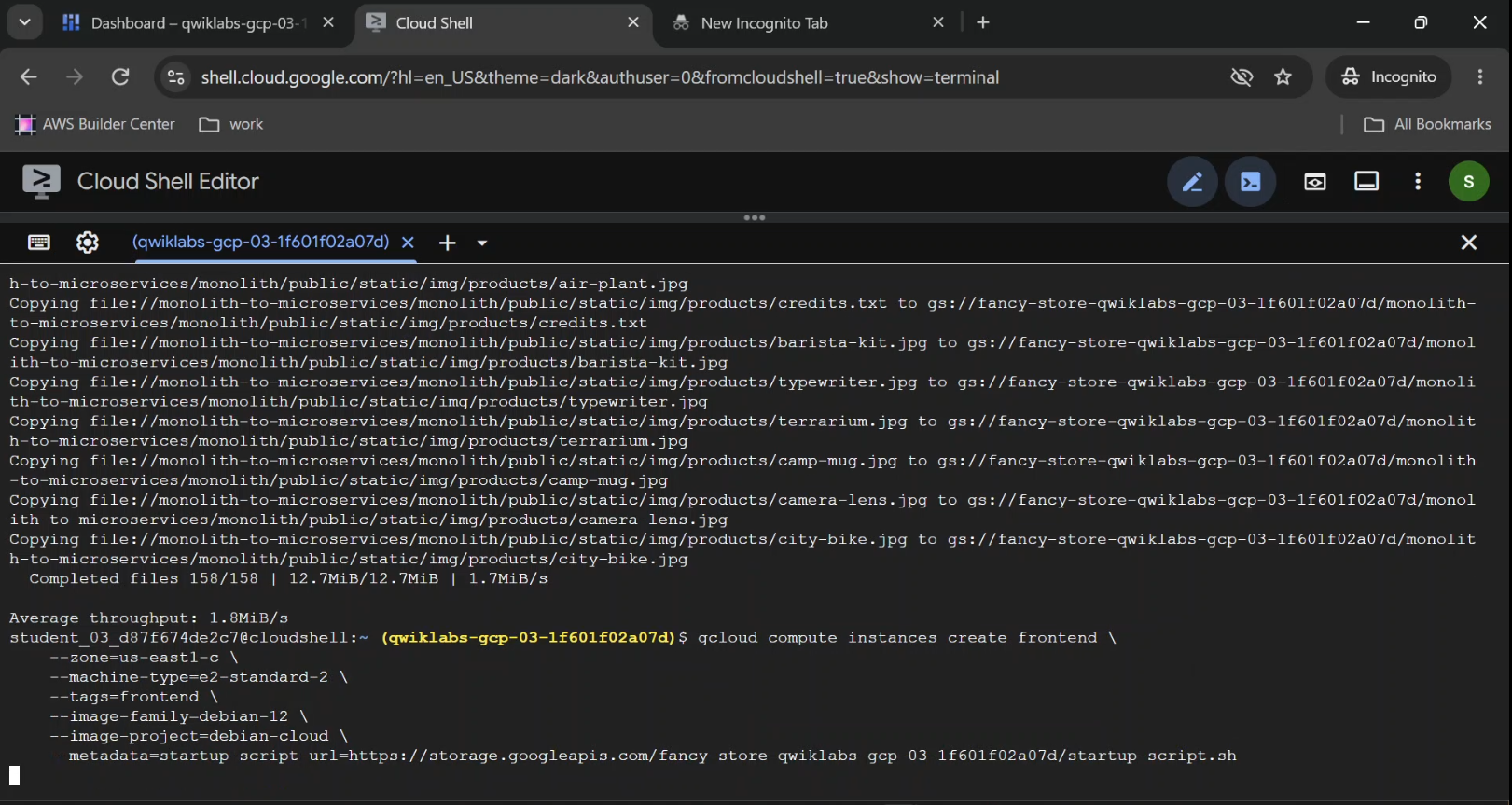
Create another Compute Engine instance:
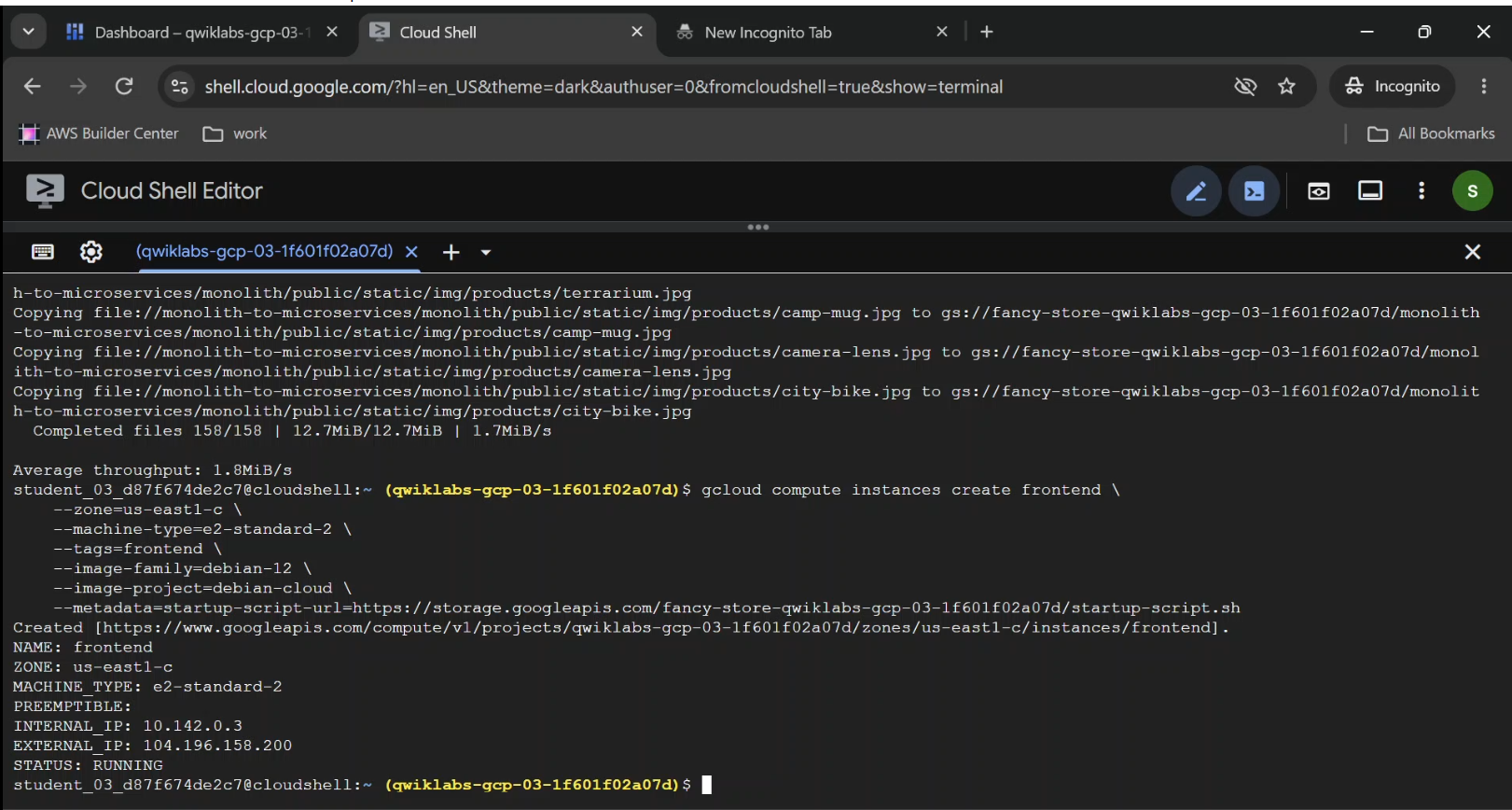
gcloud compute instances create frontend \
  --zone="$ZONE" \
  --machine-type=e2-standard-2 \
  --tags=frontend \
  --image-family=debian-12 \
  --image-project=debian-cloud \
  --metadata=startup-script-url=https://storage.googleapis.com/${BUCKET}/startup-script.sh
We now have two VMs:
frontendserves as the web-facing instance.backendprovides the application APIs.
For simplicity, the sample startup script starts all microservices on both VMs. The separation in this lab is primarily achieved through traffic routing and infrastructure grouping.
Configure Network Access
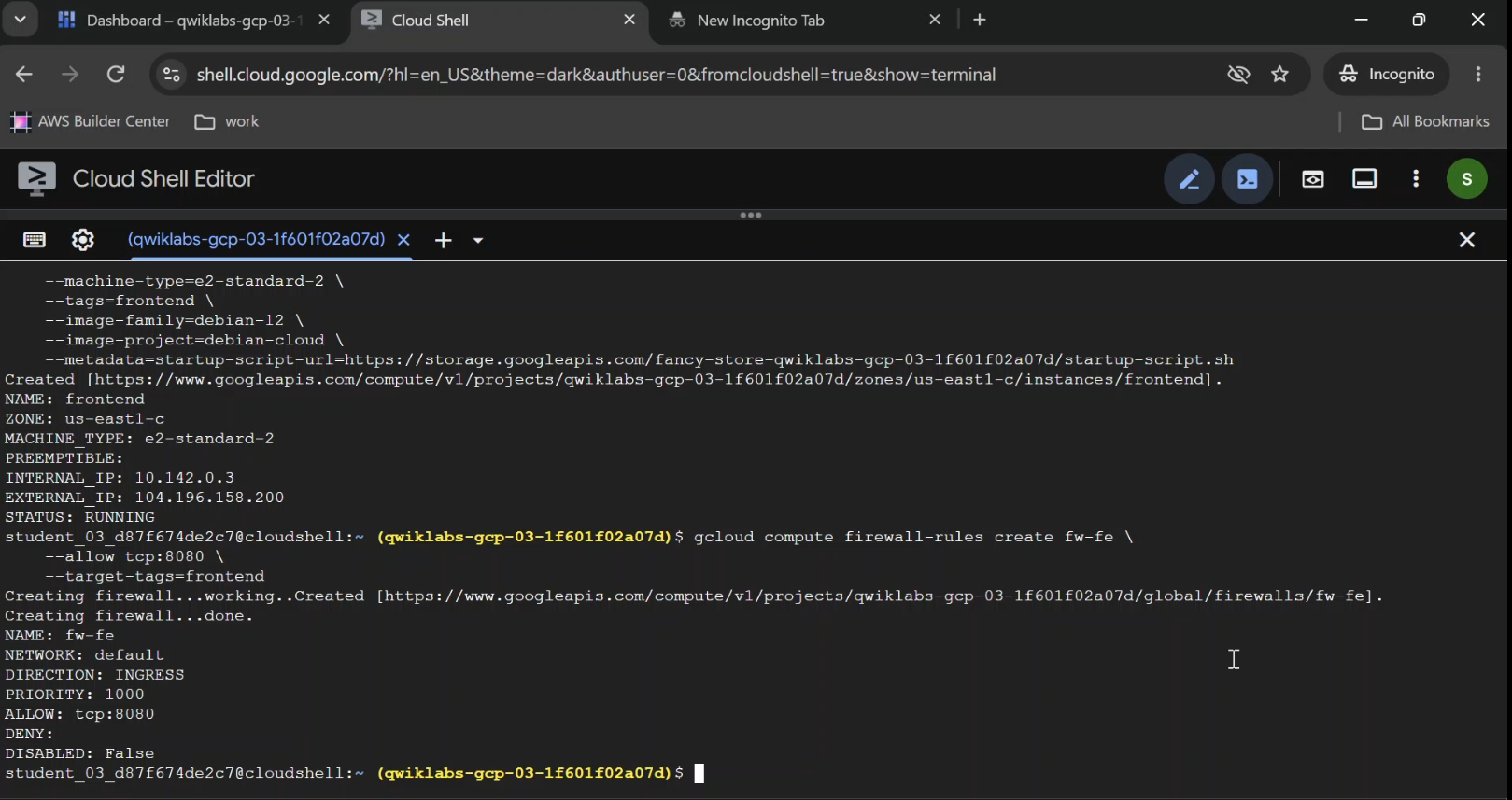
The original lab uses the default VPC network and creates firewall rules for the application ports.
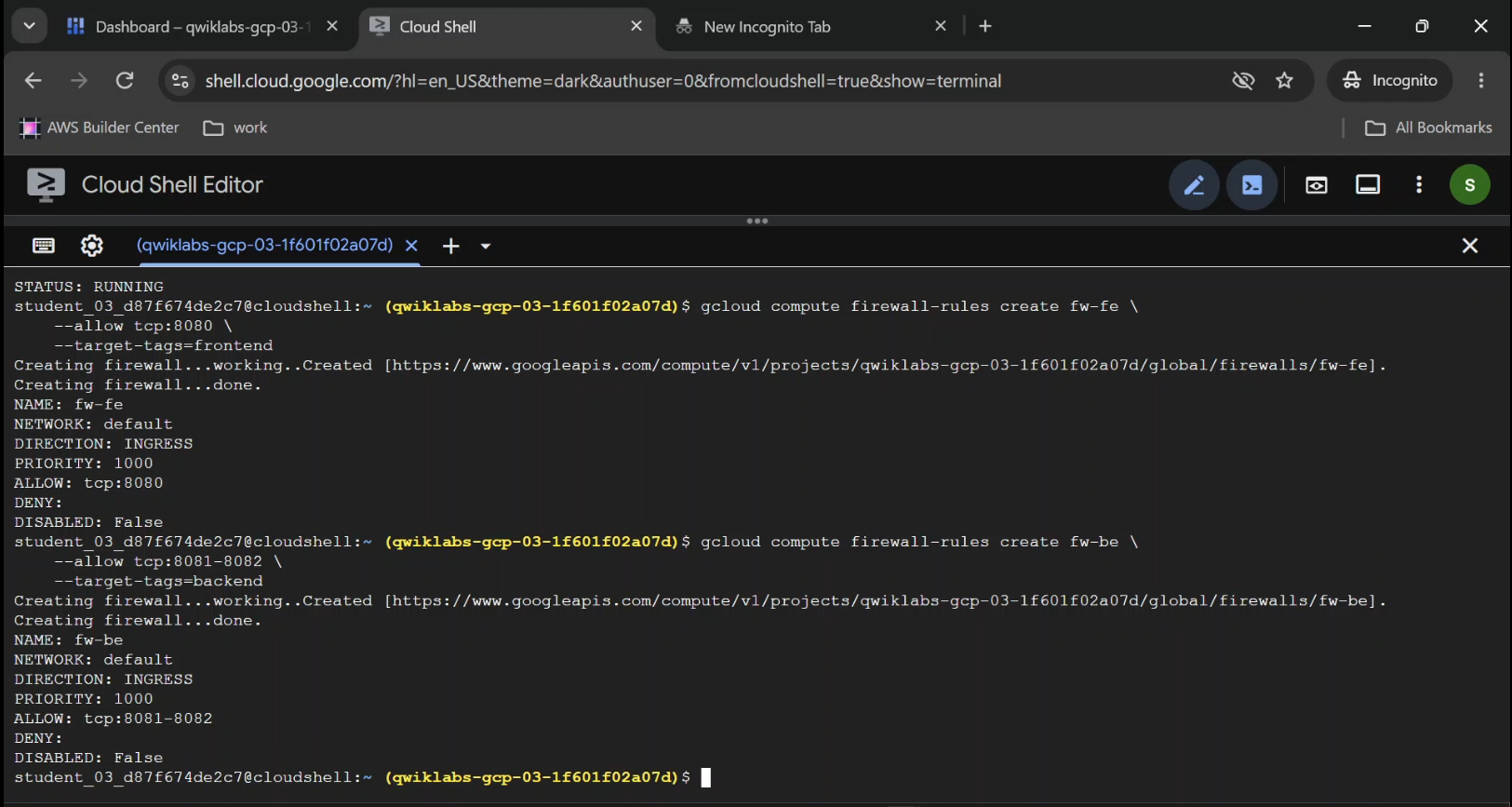
gcloud compute firewall-rules create fw-fe \
  --allow=tcp:8080 \
  --target-tags=frontend \
  --network=default
gcloud compute firewall-rules create fw-be \
  --allow=tcp:8081-8082 \
  --target-tags=backend \
  --network=default
These example rules are broad unless a source range is restricted.
They make sense as part of the temporary lab, but they should not be treated as a secure production networking design.
For production, restrict direct exposure of backend services, use least-privilege firewall rules, and route public traffic through the intended load balancer.
The commands also assume your project has a default VPC network.
Test the Website
Retrieve the frontend external IP:
gcloud compute instances list
Open:
http://FRONTEND_IP:8080
Replace FRONTEND_IP with the frontend instance's external address.
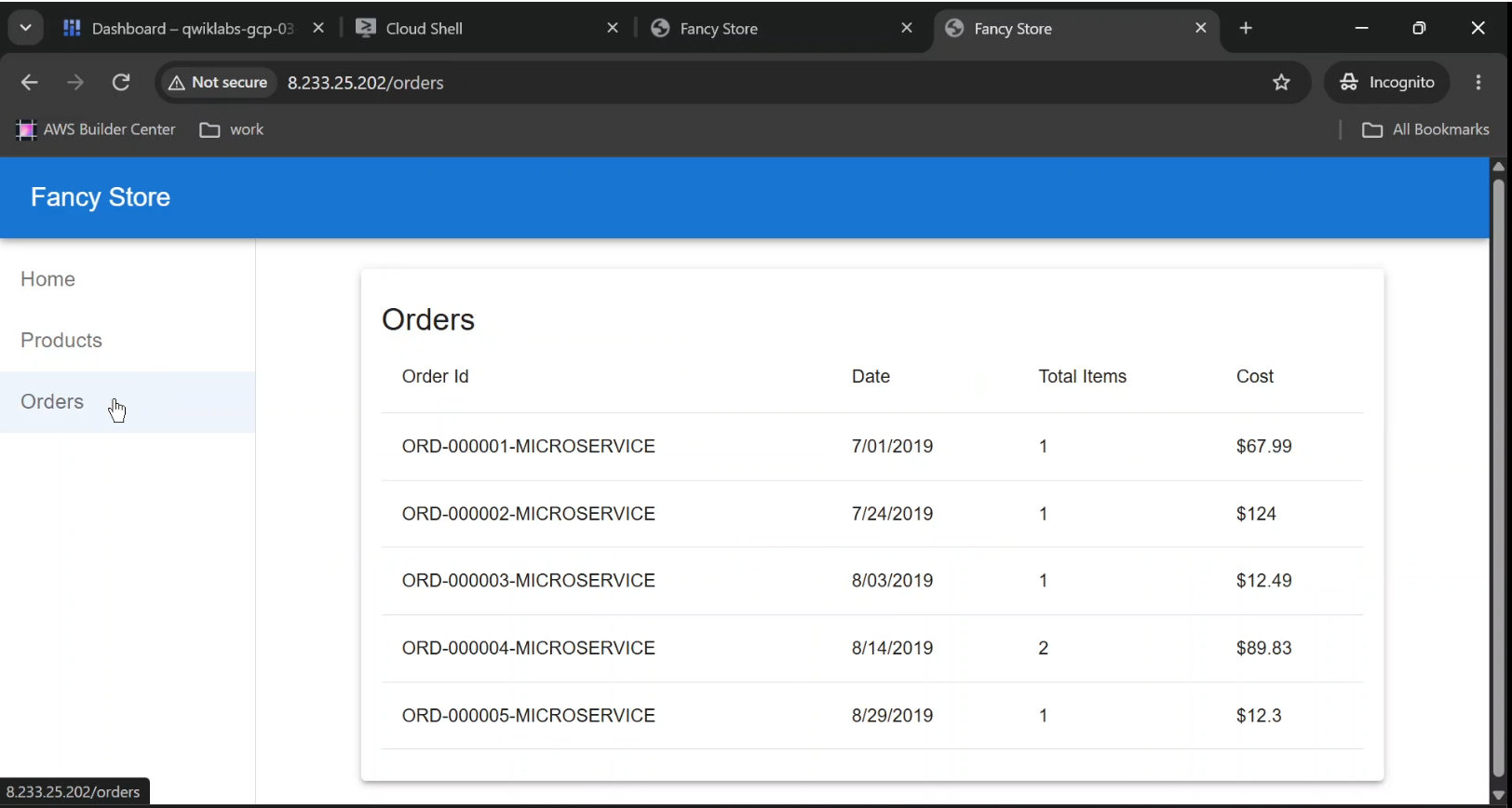
Check the Products and Orders pages.
If the startup script and network configuration succeeded, the application should respond.
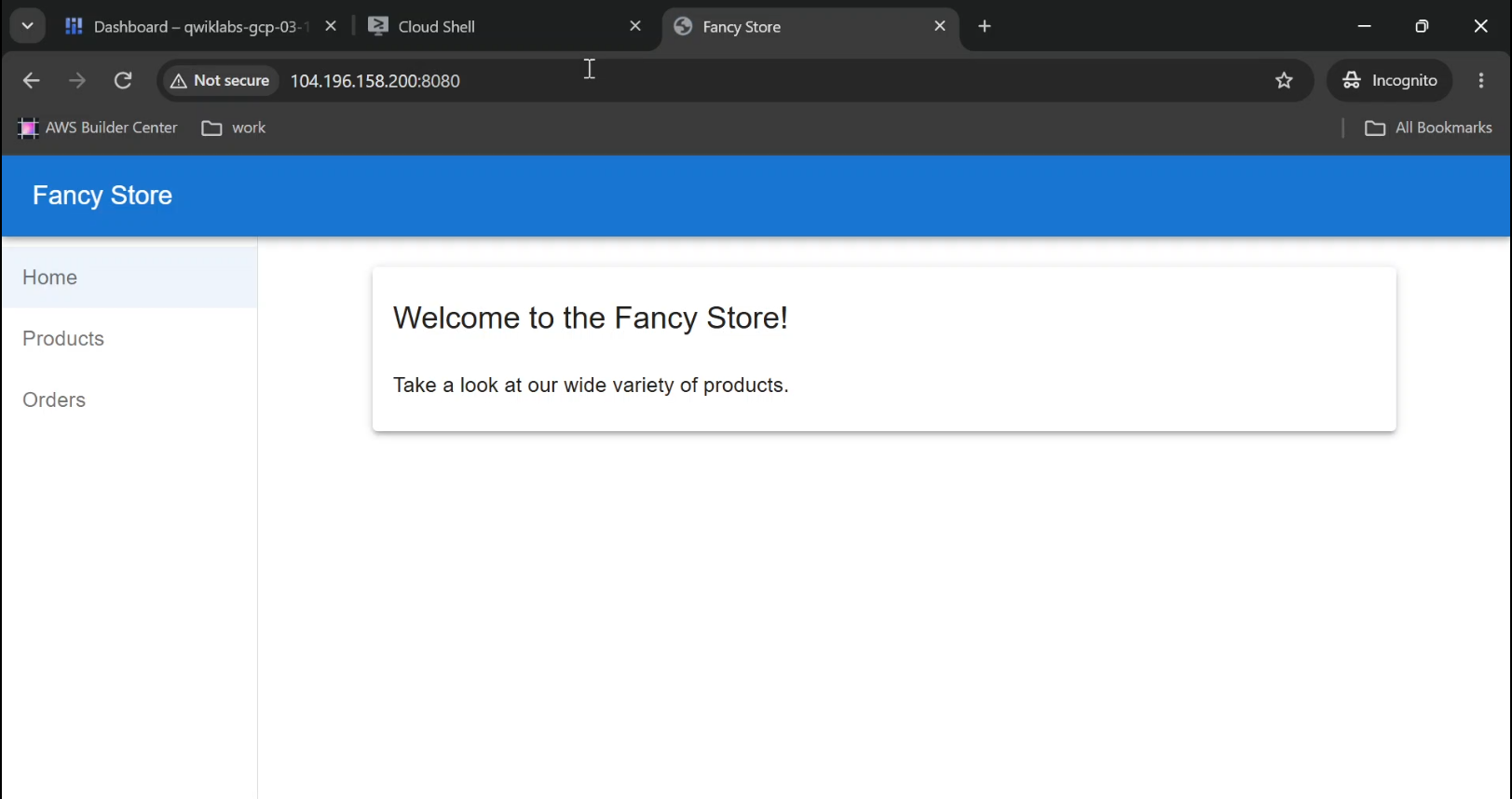
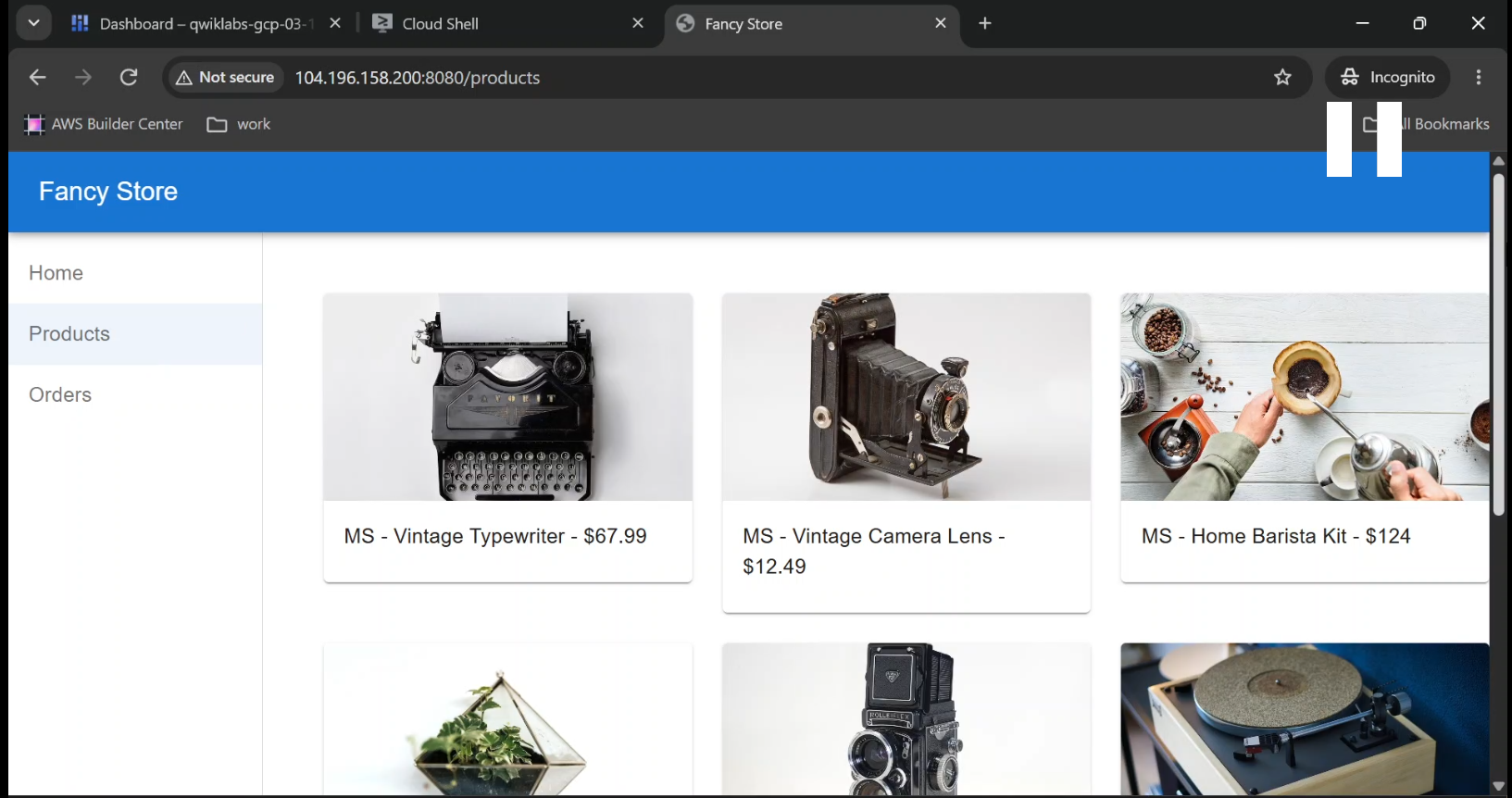
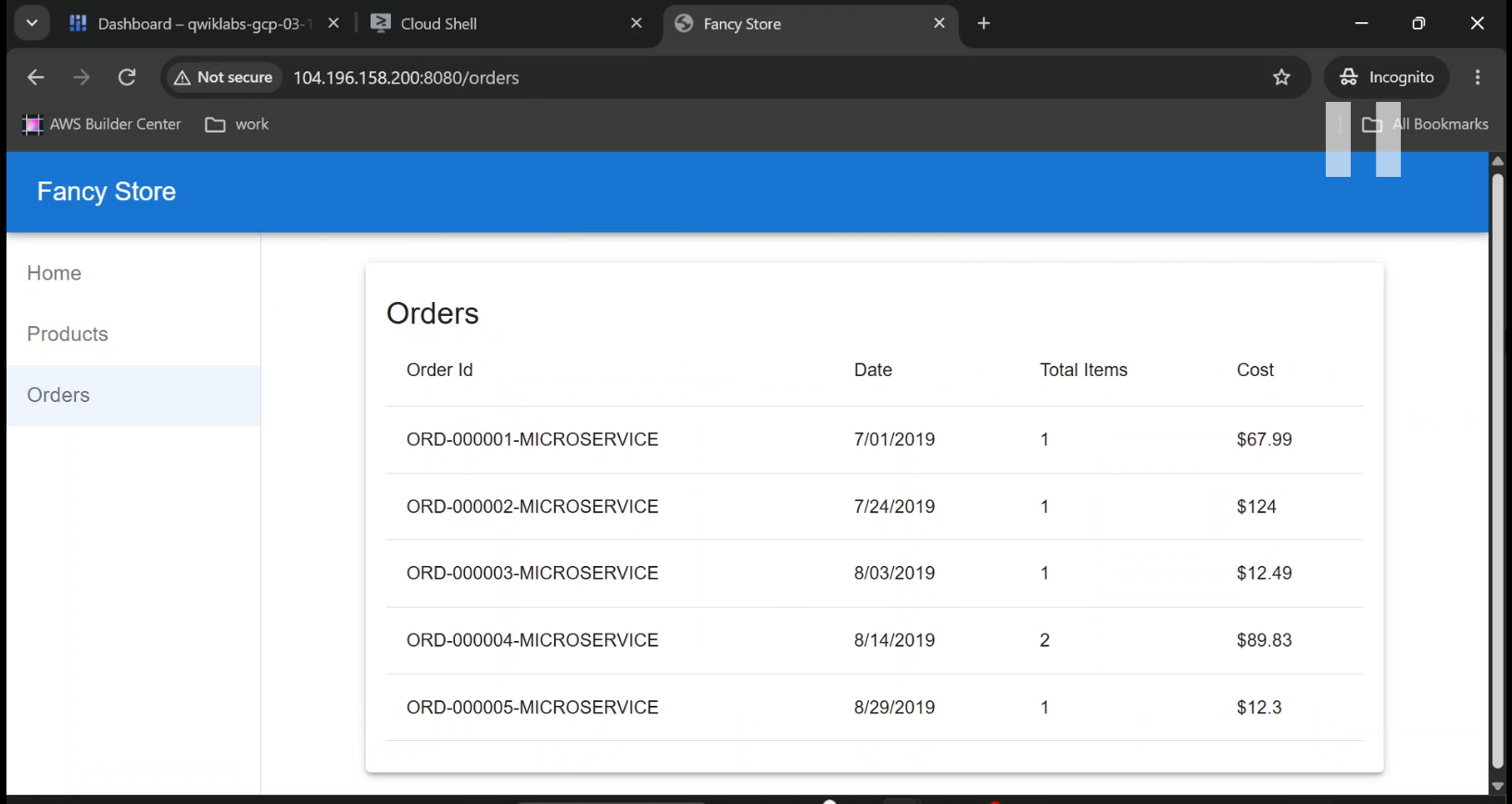
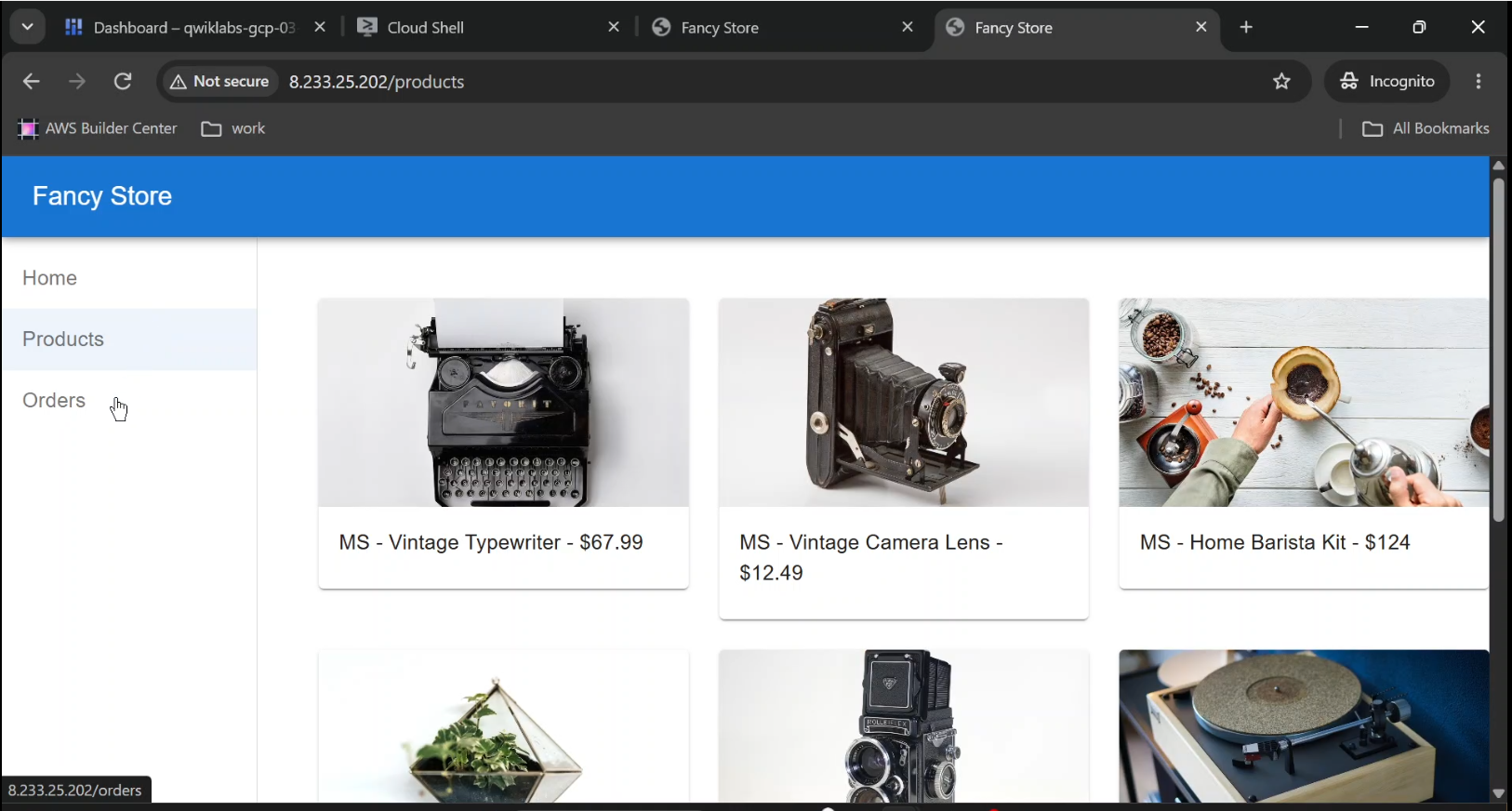
- Captured: Fancy Store running at the frontend VM's public IP and port 8080.
- Shows Products page with product listings.
- Caption: "Successfully hosting the Fancy Store web application on Google Cloud Compute Engine.
Step 7: Turn Individual VMs into Managed Instance Groups
We've now hosted the website.
But we still have a limitation.
A single frontend VM and a single backend VM represent important points of failure.
If one becomes unavailable, the corresponding application functionality may stop working.
Managed instance groups help address this.
A Managed Instance Group (MIG) uses an instance template to create and manage a collection of similarly configured virtual machines.
Instead of treating every VM as a special machine that must be maintained individually, you manage a group using a common configuration.
Create Instance Templates
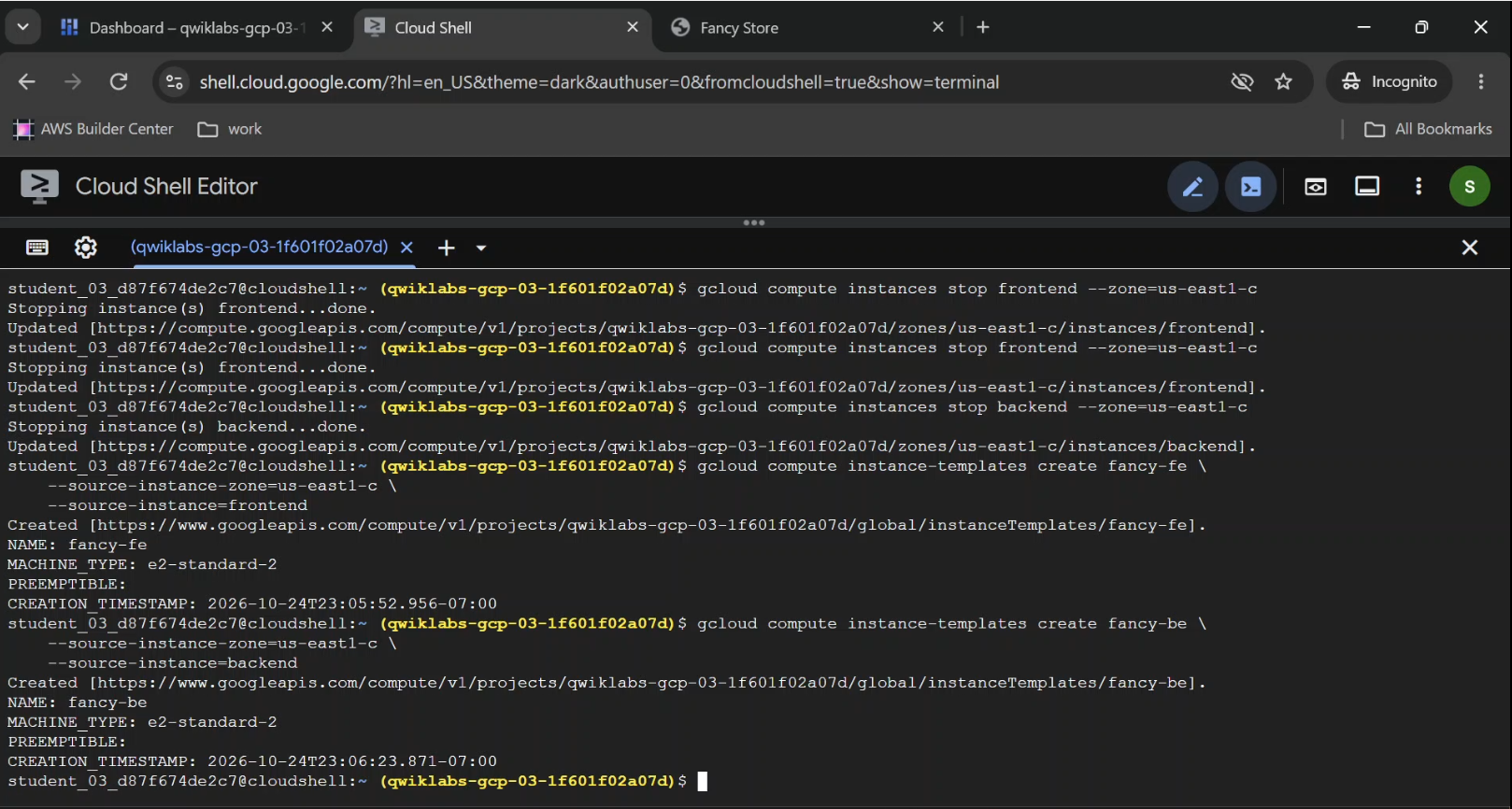
First, stop the original VMs:
gcloud compute instances stop frontend --zone="$ZONE"

gcloud compute instances stop backend --zone="$ZONE"
Create instance templates from the source instances:
gcloud compute instance-templates create fancy-fe \
  --source-instance=frontend \
  --source-instance-zone="$ZONE"
gcloud compute instance-templates create fancy-be \
  --source-instance=backend \
  --source-instance-zone="$ZONE"
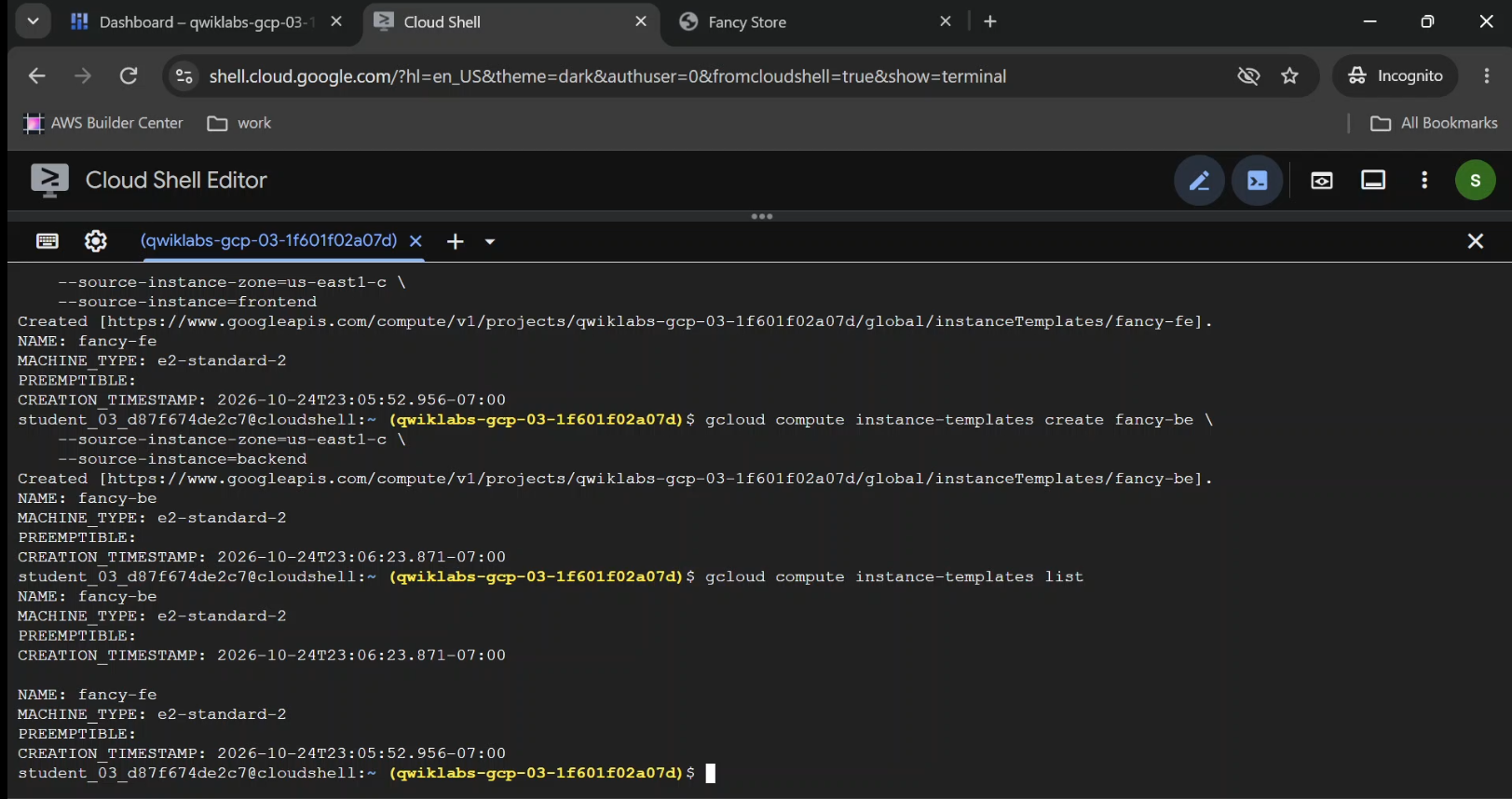
Verify:
gcloud compute instance-templates list
You should see fancy-fe and fancy-be.
Instance templates are immutable configurations. To change a template's properties, you create a replacement template and update the resources that use it.
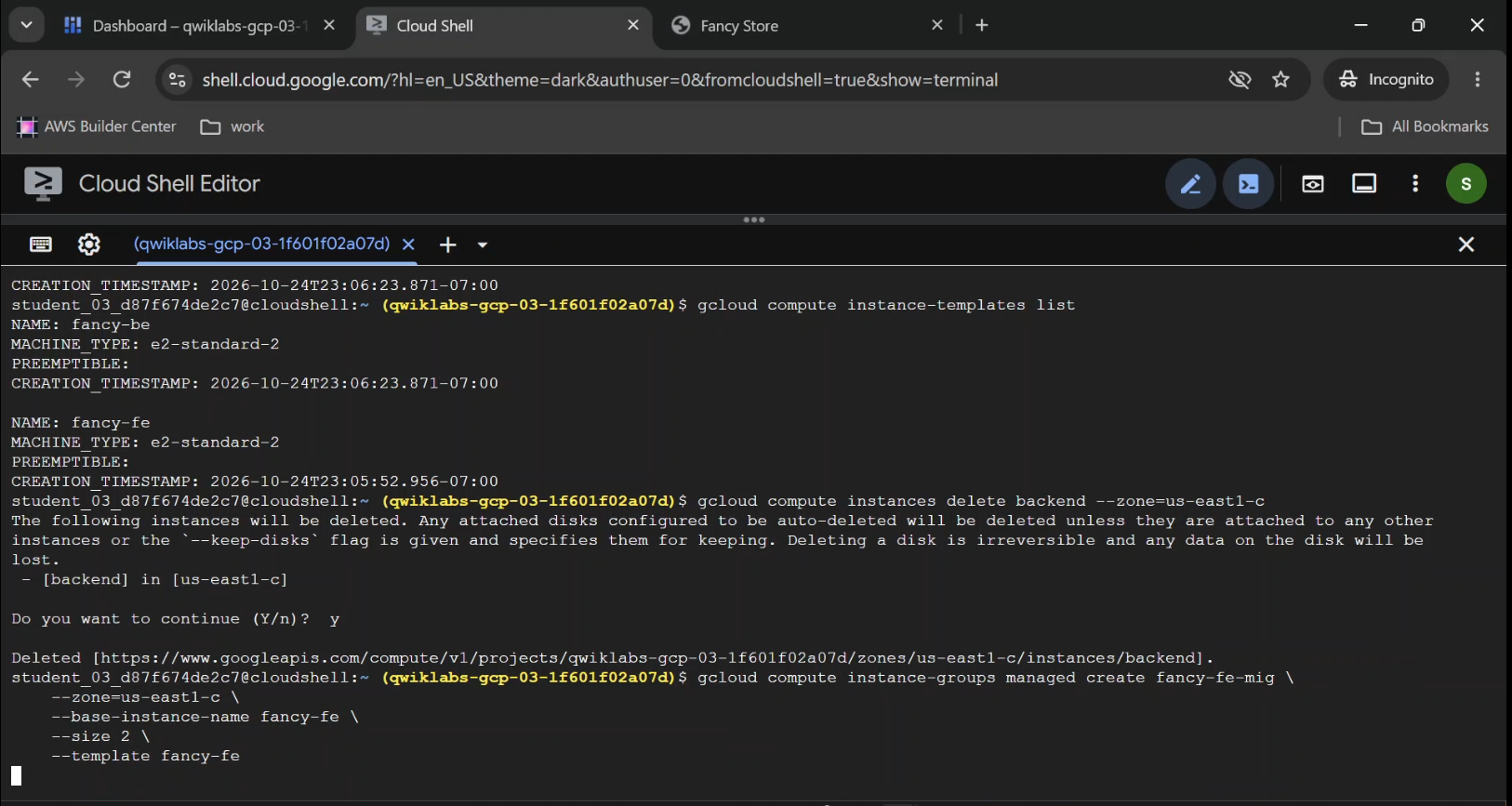
The lab then deletes the original backend VM because the backend template can be used to launch replacement instances:
gcloud compute instances delete backend --zone="$ZONE"
Keep the original frontend VM for the later machine-type update exercise.
Create the Managed Instance Groups
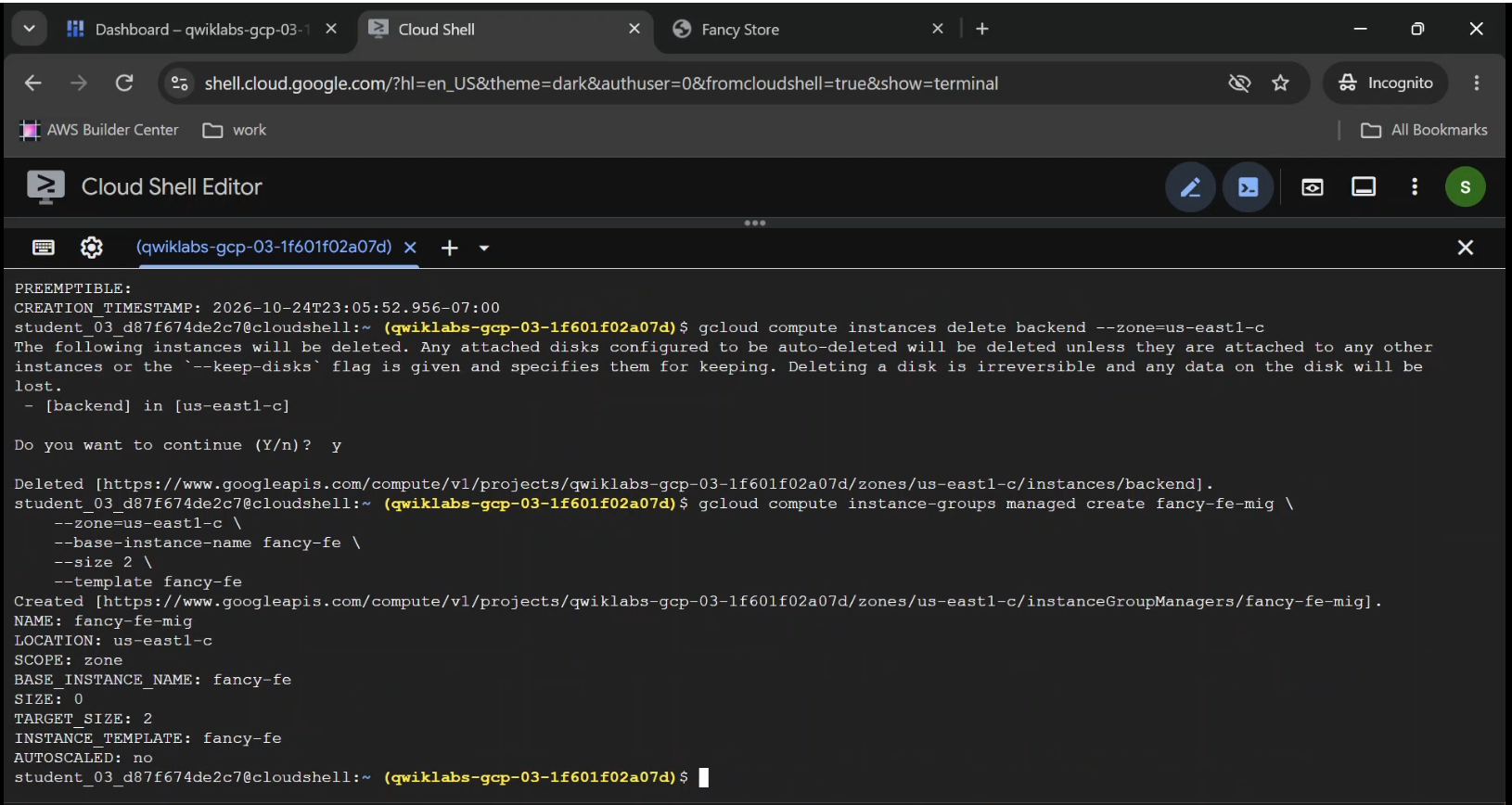
Run:
gcloud compute instance-groups managed create fancy-fe-mig \
  --zone="$ZONE" \
  --base-instance-name=fancy-fe \
  --size=2 \
  --template=fancy-fe
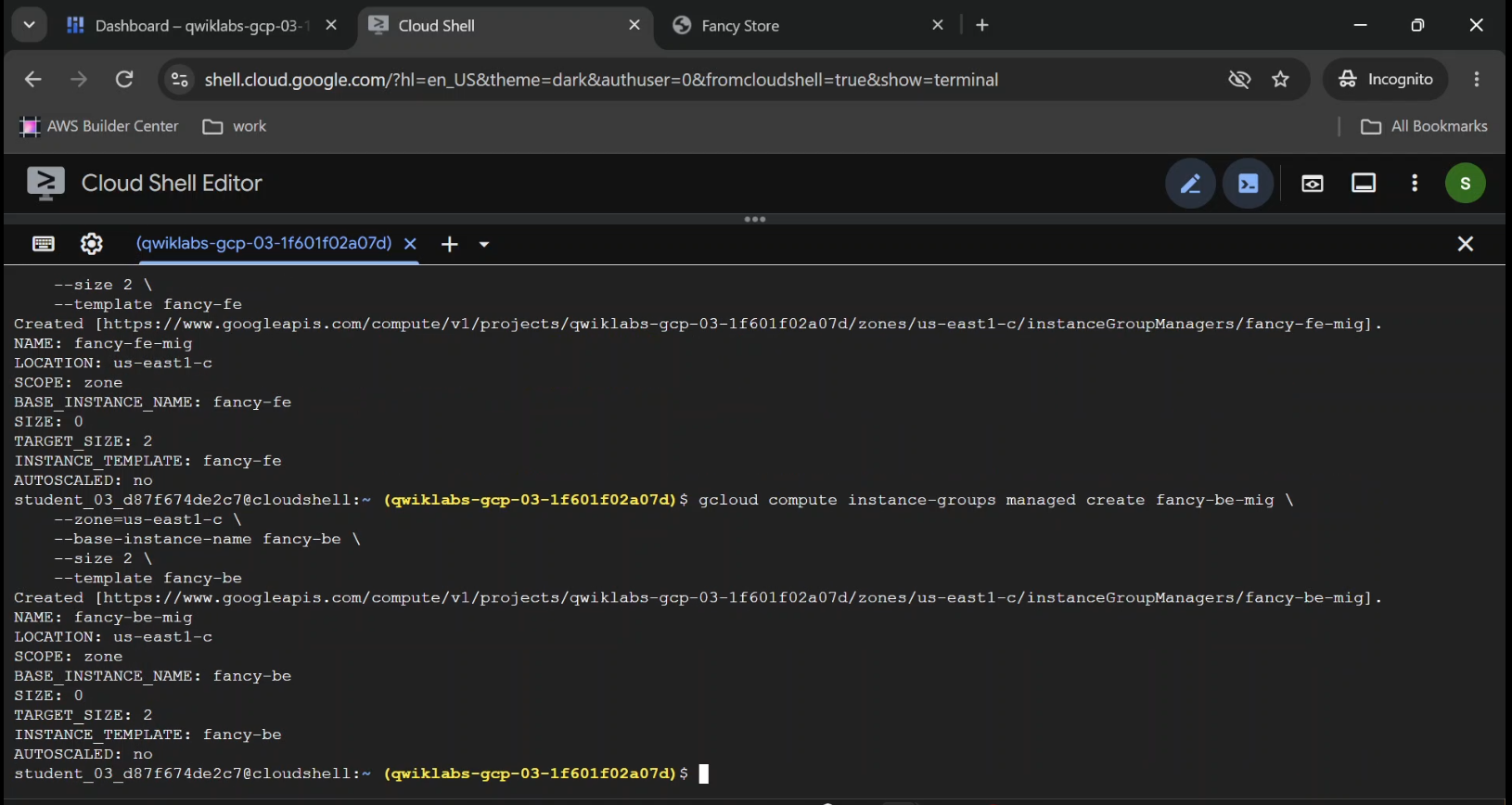
gcloud compute instance-groups managed create fancy-be-mig \
  --zone="$ZONE" \
  --base-instance-name=fancy-be \
  --size=2 \
  --template=fancy-be
We now have two managed instance groups, each initially containing two VMs.
This is a significant change in how the application operates.
We are no longer managing one machine for each application tier.
We are managing a desired group configuration.
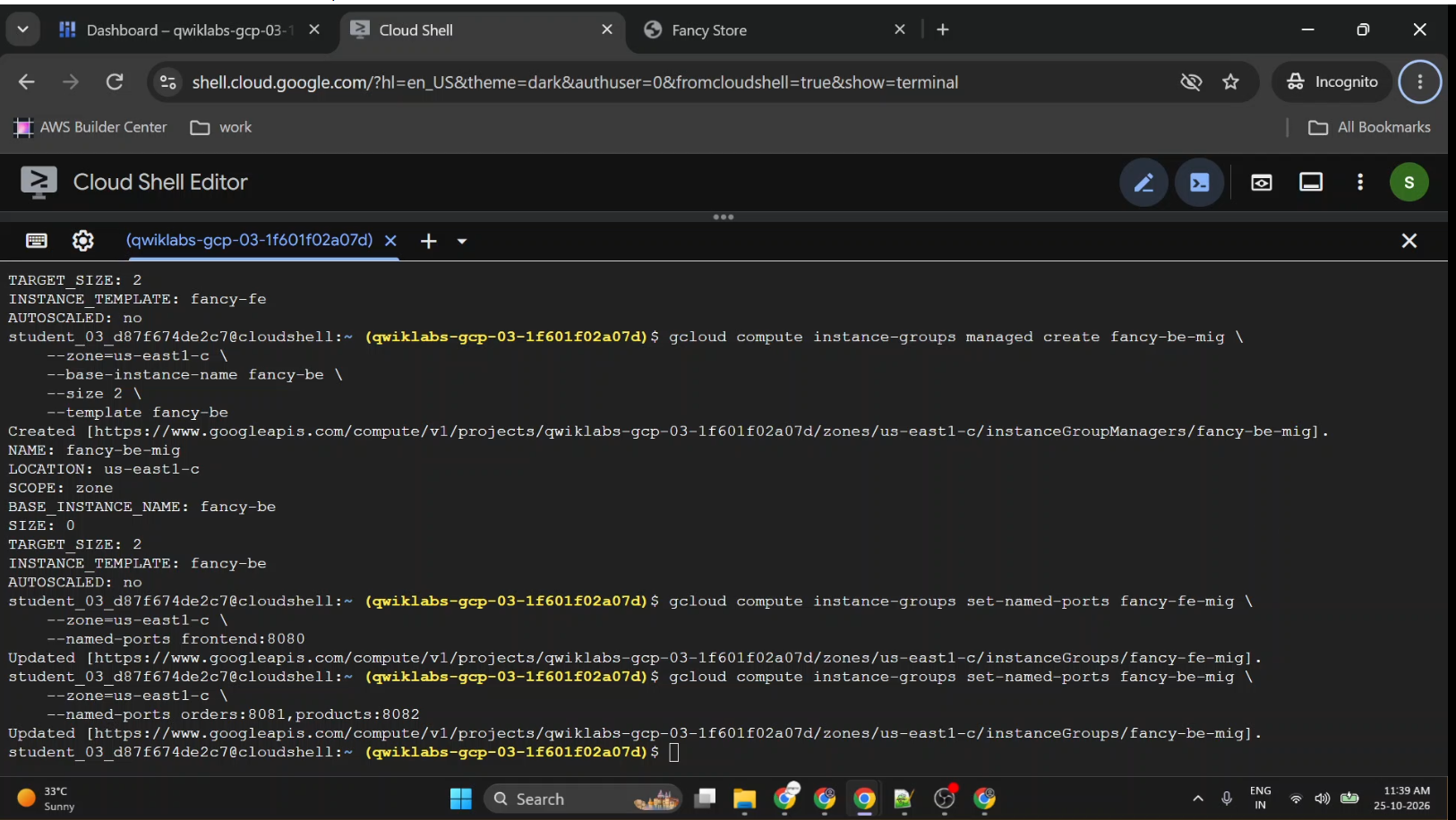
Configure Named Ports
The load balancer needs to know which application ports are available through each group.
Configure the frontend:
gcloud compute instance-groups set-named-ports fancy-fe-mig \
  --zone="$ZONE" \
  --named-ports=frontend:8080
Configure the backend:
gcloud compute instance-groups set-named-ports fancy-be-mig \
  --zone="$ZONE" \
  --named-ports=orders:8081,products:8082
Named ports associate a service identifier with its port.
That information is used when attaching instance groups to backend services.
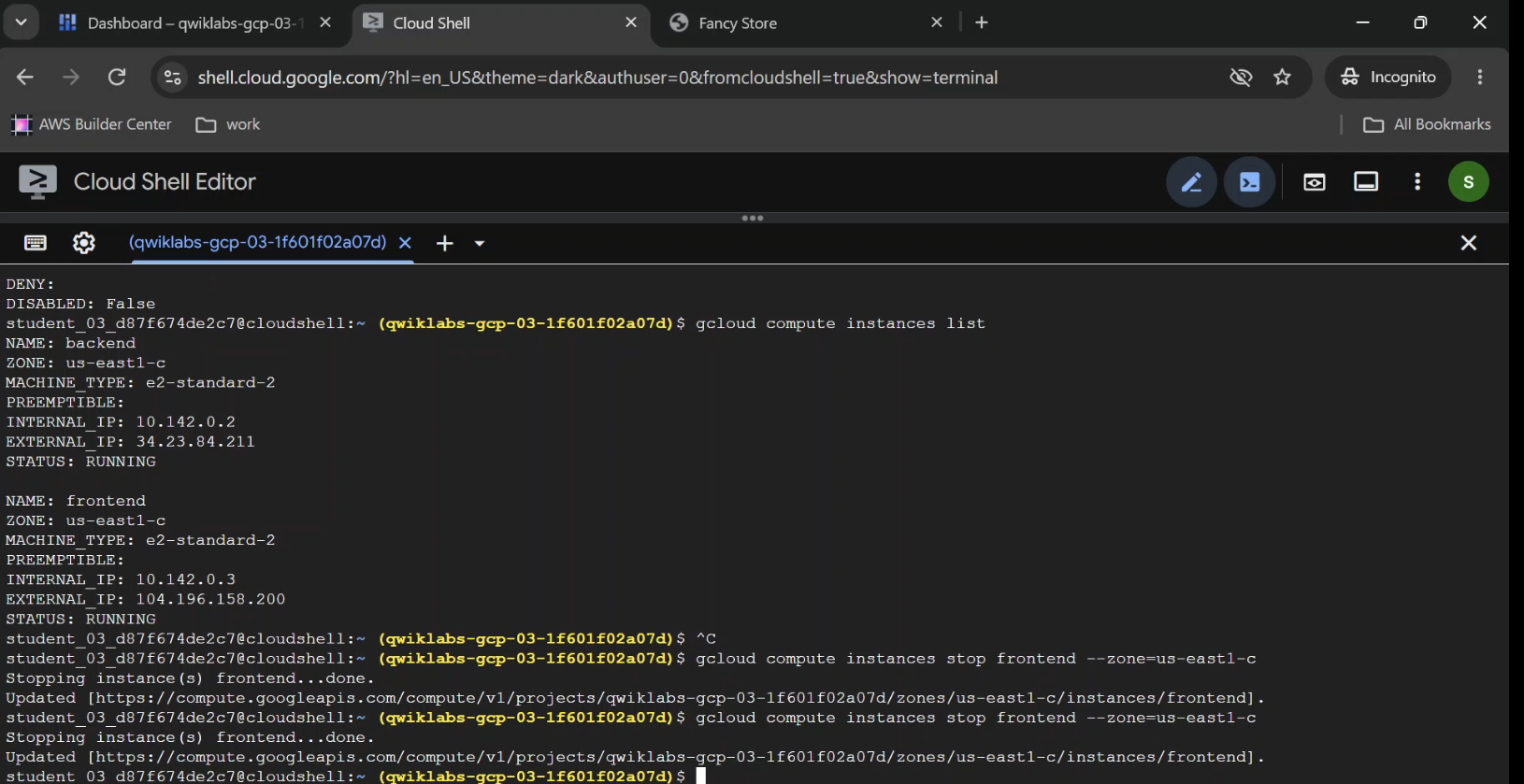
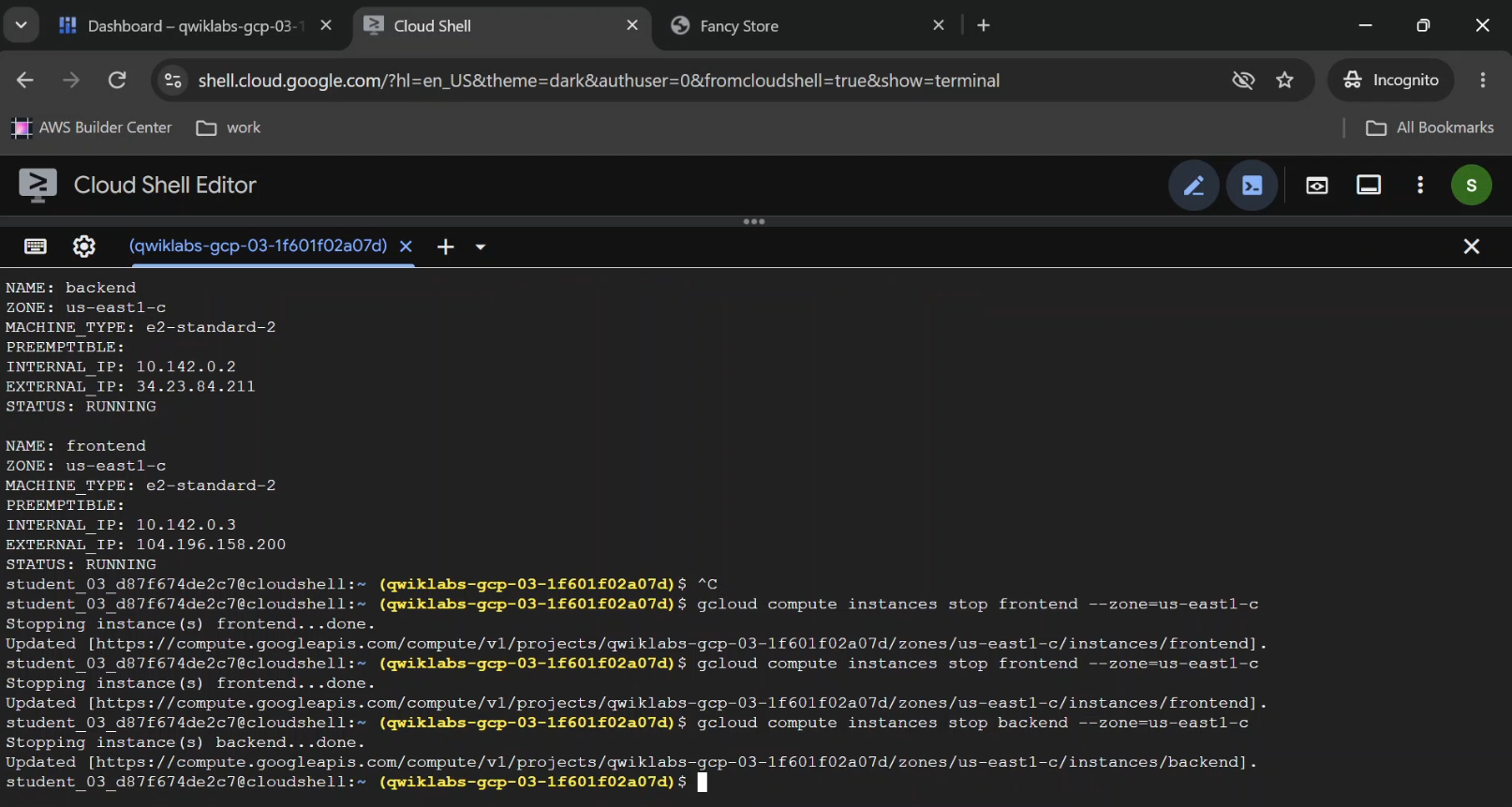
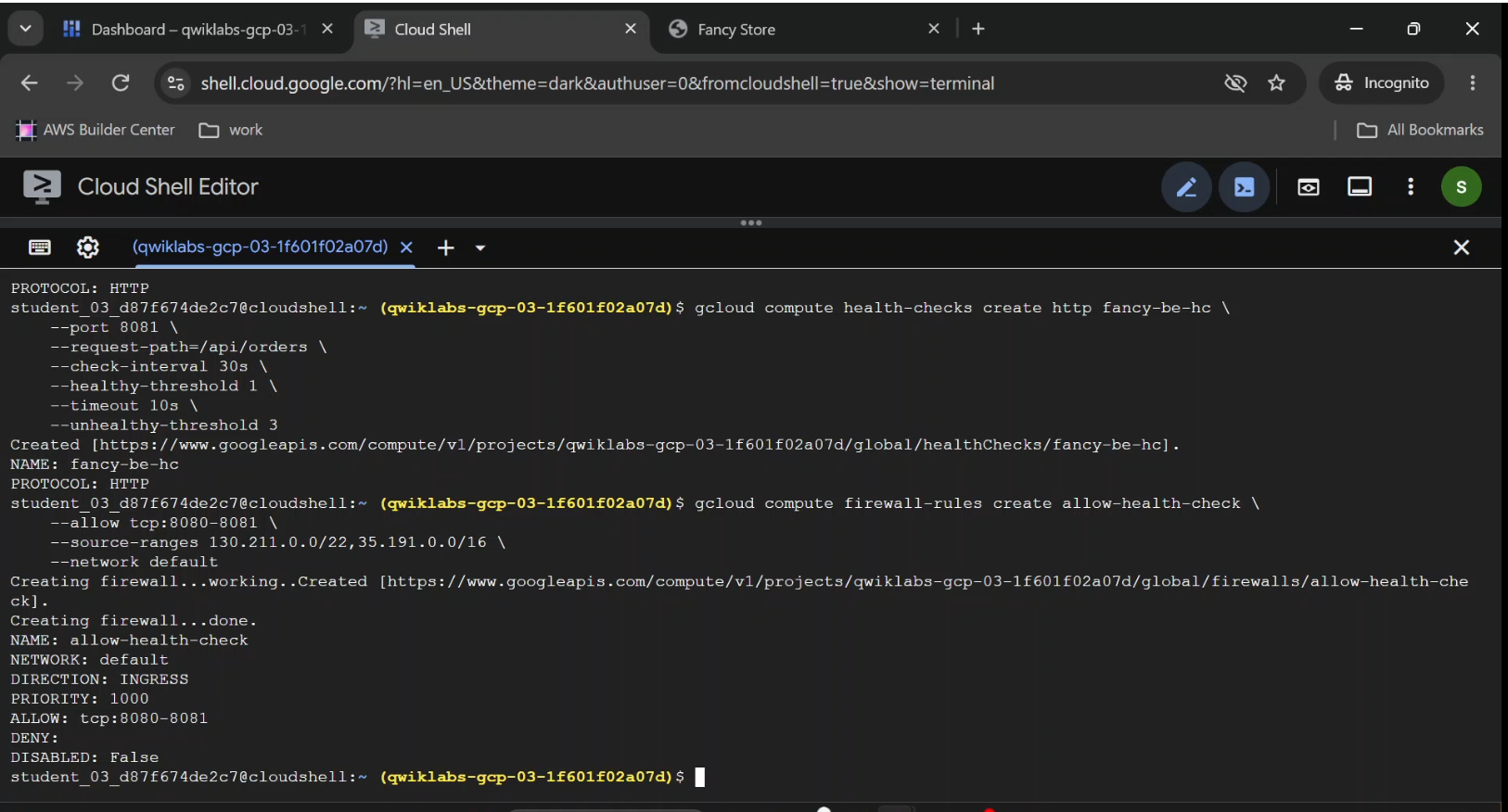
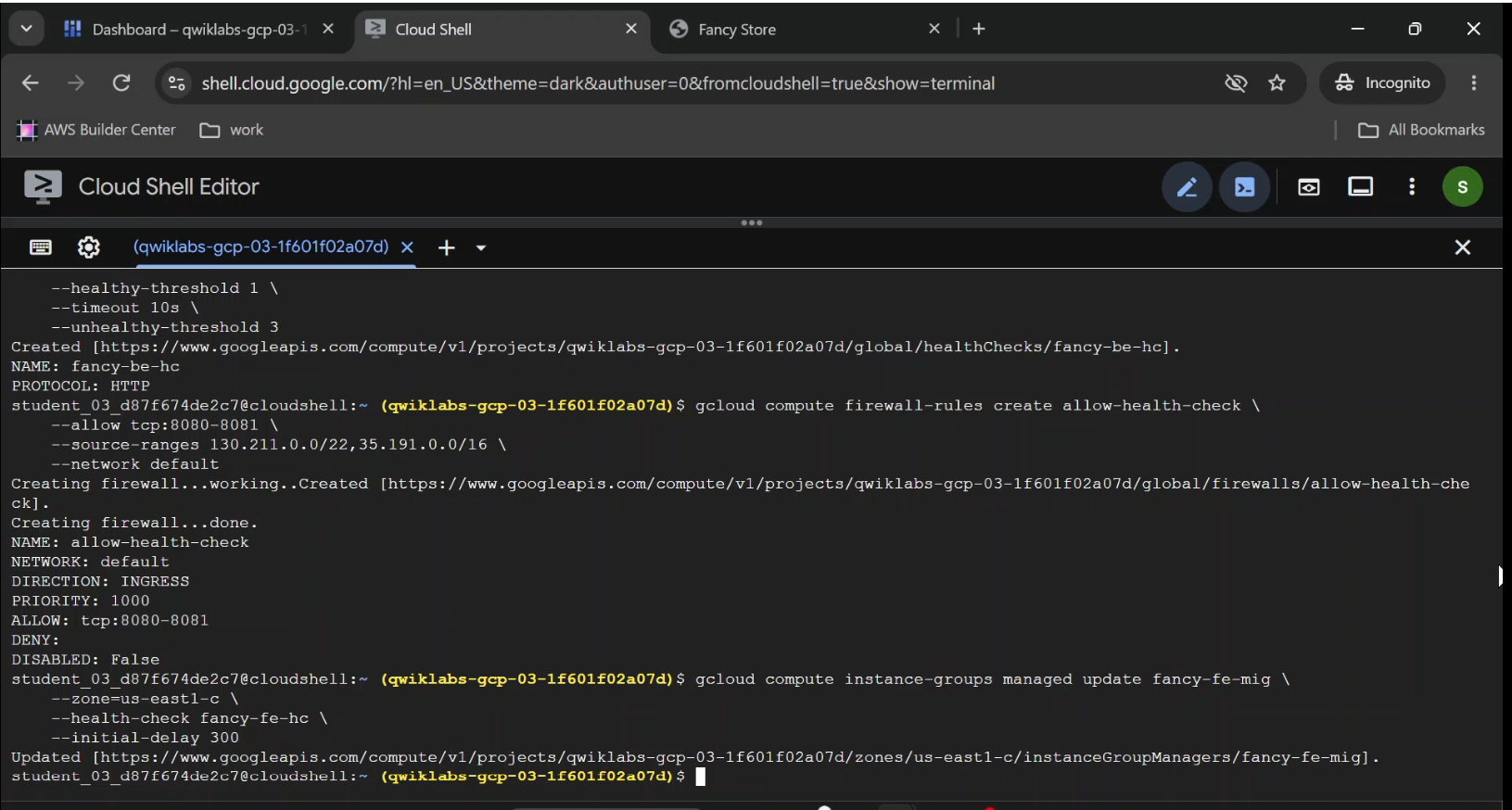
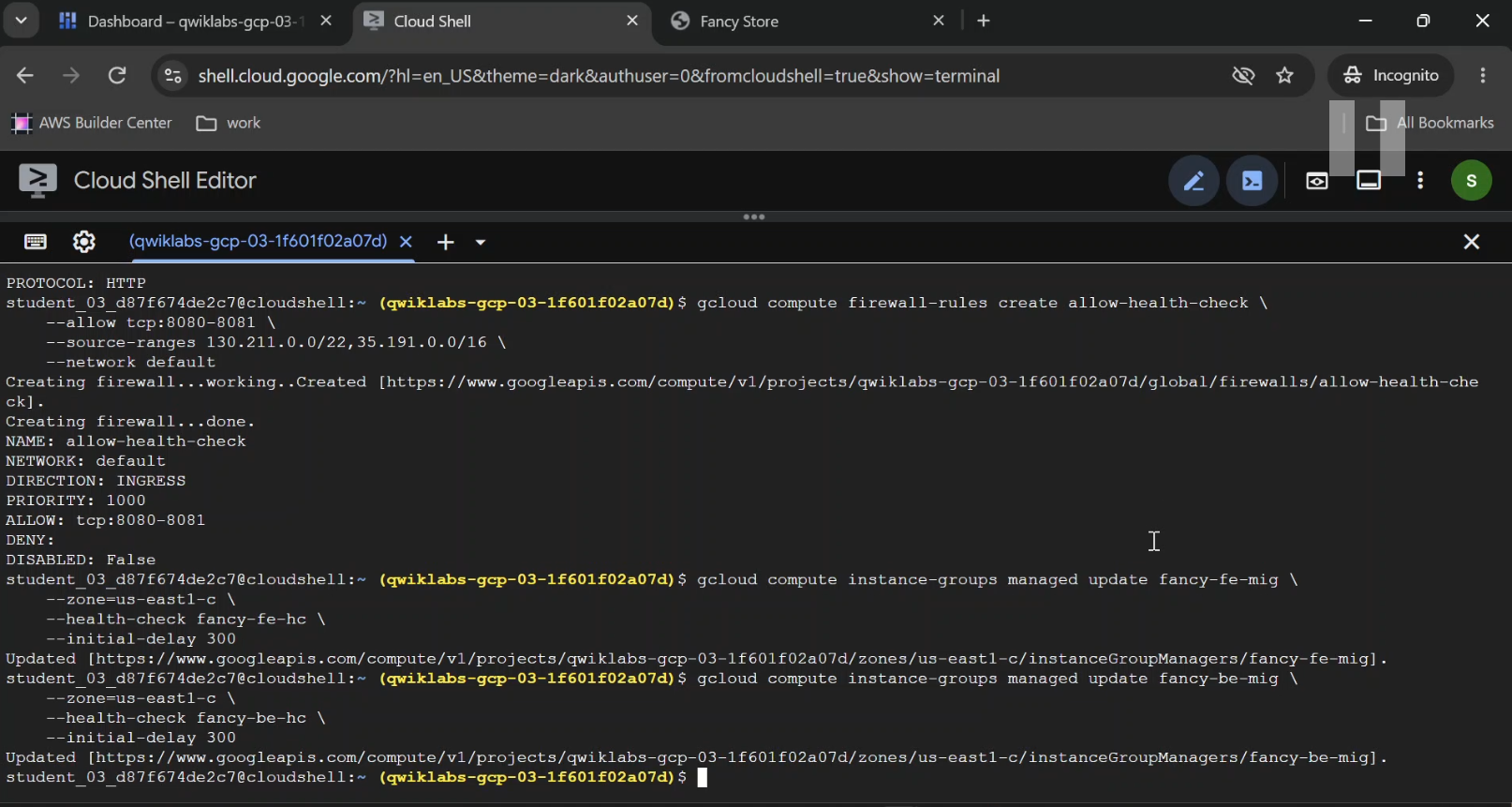
- Verify Compute Engine → Instance groups.
- Shows
fancy-fe-migandfancy-be-mig, their instance counts, and group configurations. - Caption: "Creating managed instance groups for the frontend and backend application services."
Step 8: Configure Autohealing with Health Checks
An instance can show a RUNNING status while its application is broken.
The operating system might still be responding, but the web server could have crashed.
That's why infrastructure monitoring should check application health, not just VM power state.
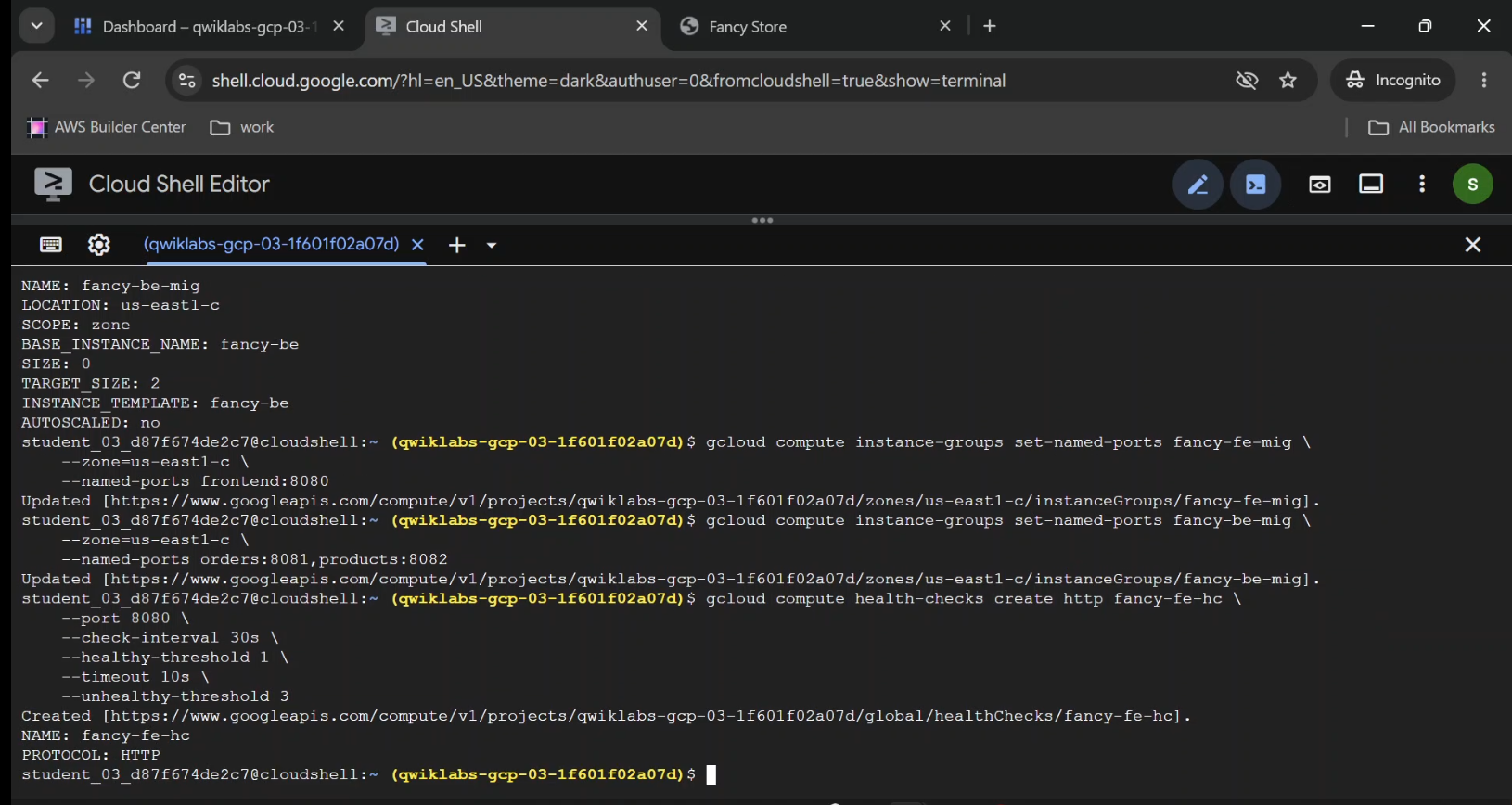
Create Frontend and Backend Health Checks
For the frontend:
gcloud compute health-checks create http fancy-fe-hc \
  --port=8080 \
  --check-interval=30s \
  --timeout=10s \
  --healthy-threshold=1 \
  --unhealthy-threshold=3
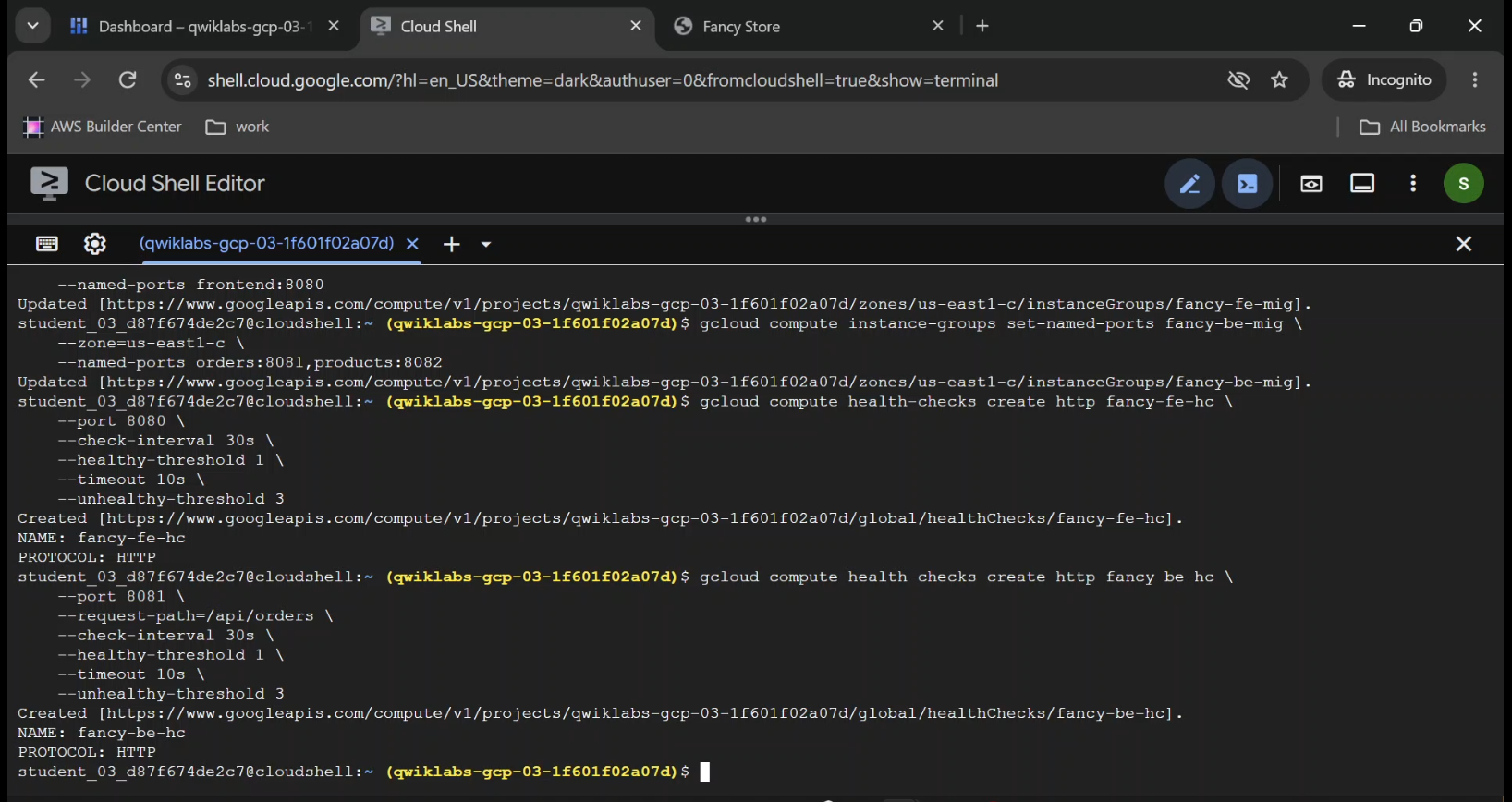
For the backend:
gcloud compute health-checks create http fancy-be-hc \
  --port=8081 \
  --request-path=/api/orders \
  --check-interval=30s \
  --timeout=10s \
  --healthy-threshold=1 \
  --unhealthy-threshold=3
The health checks periodically request responses from the application.
If the application repeatedly fails, the managed instance group can attempt to repair the VM by recreating it.
Allow Health Check Traffic
For the sample default-VPC deployment, allow the relevant Google health check and proxy ranges to reach the application ports:
gcloud compute firewall-rules create allow-health-check \
  --network=default \
  --allow=tcp:8080-8082 \
  --source-ranges=130.211.0.0/22,35.191.0.0/16 \
  --target-tags=frontend,backend
The rules required for a production load balancer depend on its type and network architecture.
Apply Autohealing Policies
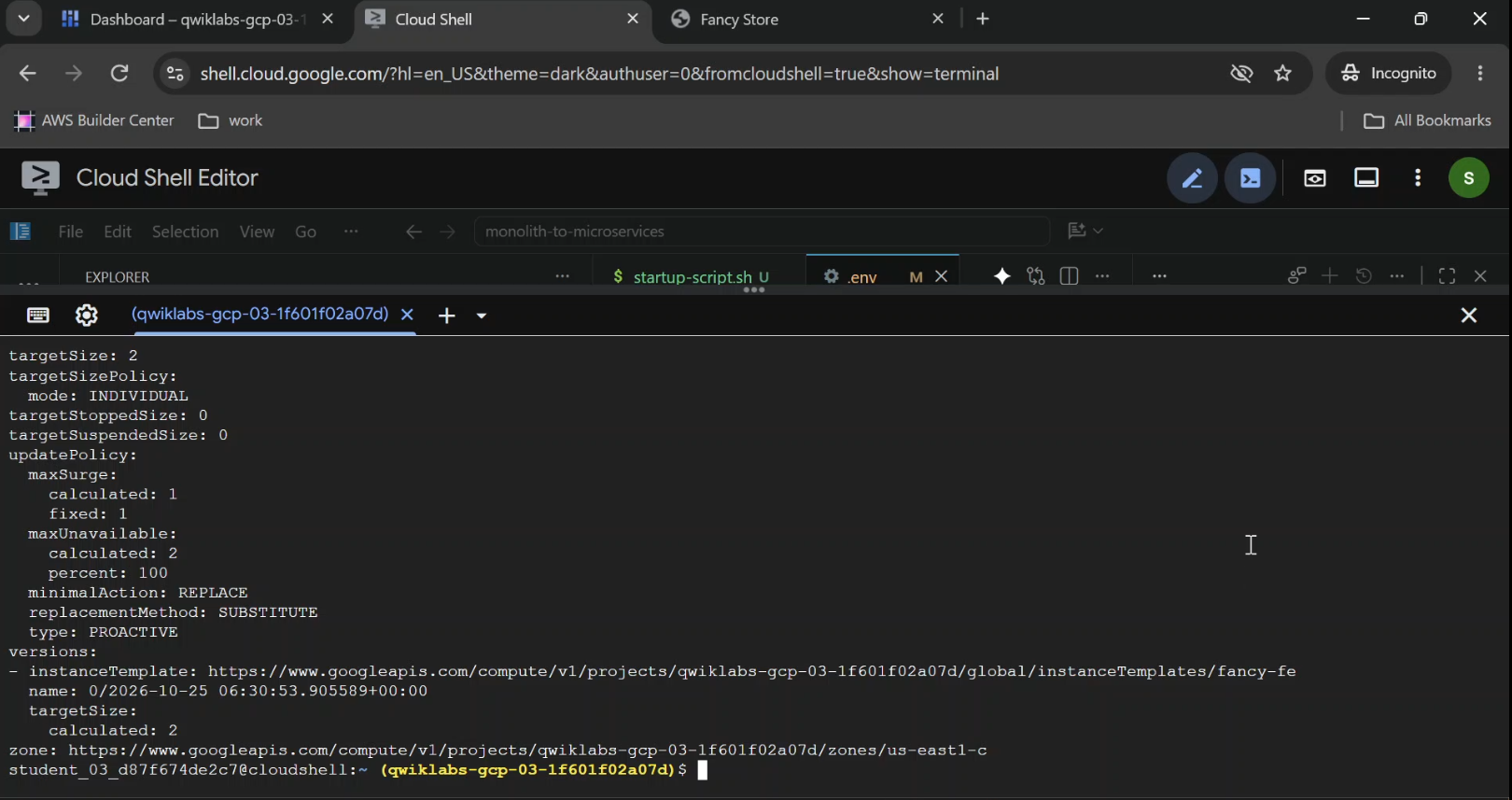
gcloud compute instance-groups managed update fancy-fe-mig \
  --zone="$ZONE" \
  --health-check=fancy-fe-hc \
  --initial-delay=300
gcloud compute instance-groups managed update fancy-be-mig \
  --zone="$ZONE" \
  --health-check=fancy-be-hc \
  --initial-delay=300
The initial delay gives newly launched VMs time to initialize before failed health checks trigger repair decisions.
Autohealing may also take additional time to become active.
Cloud Ops insight: Application health checks can do more than tell you whether software is broken. When connected to a managed instance group, they become part of an automated recovery mechanism.
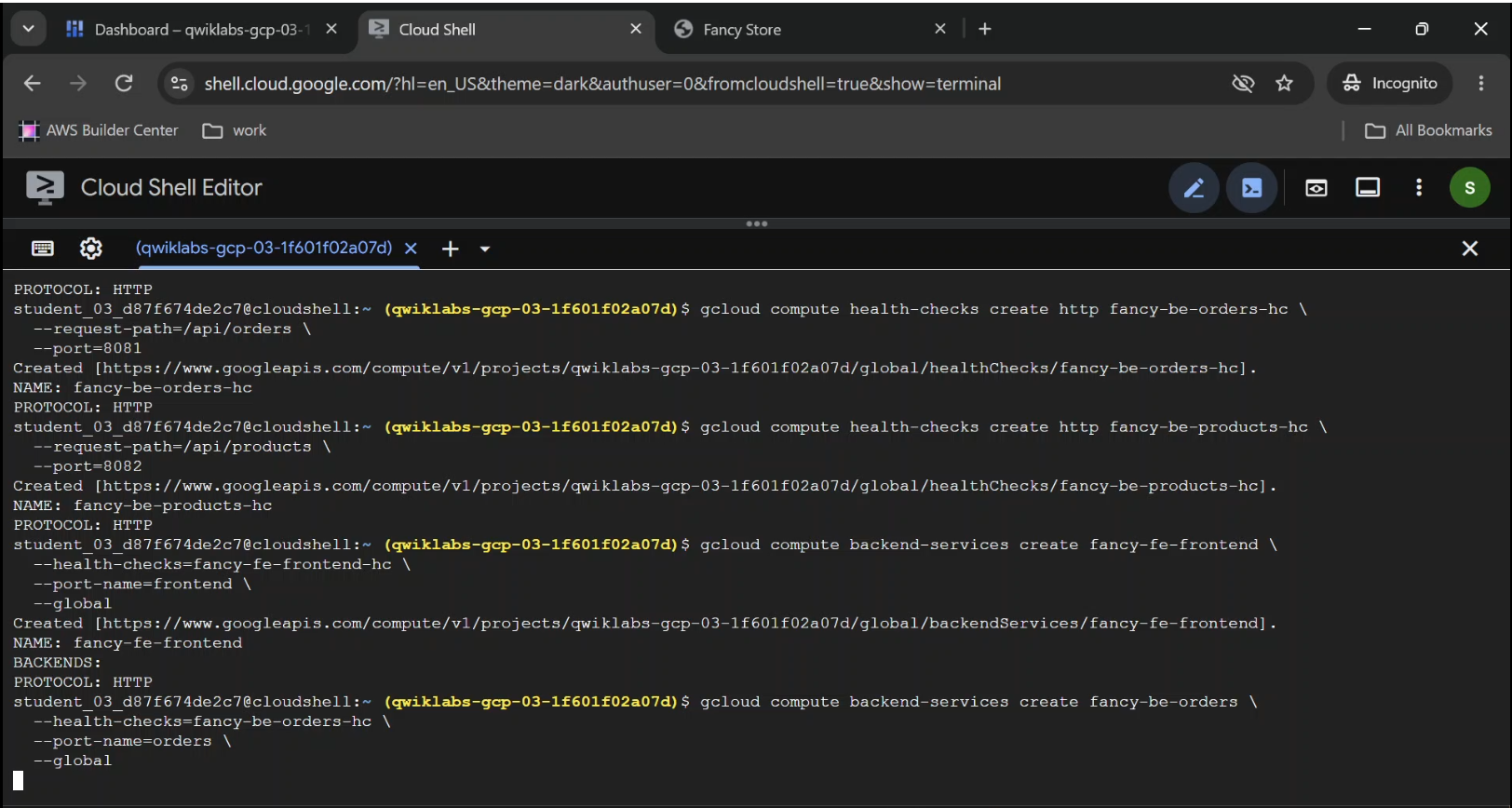
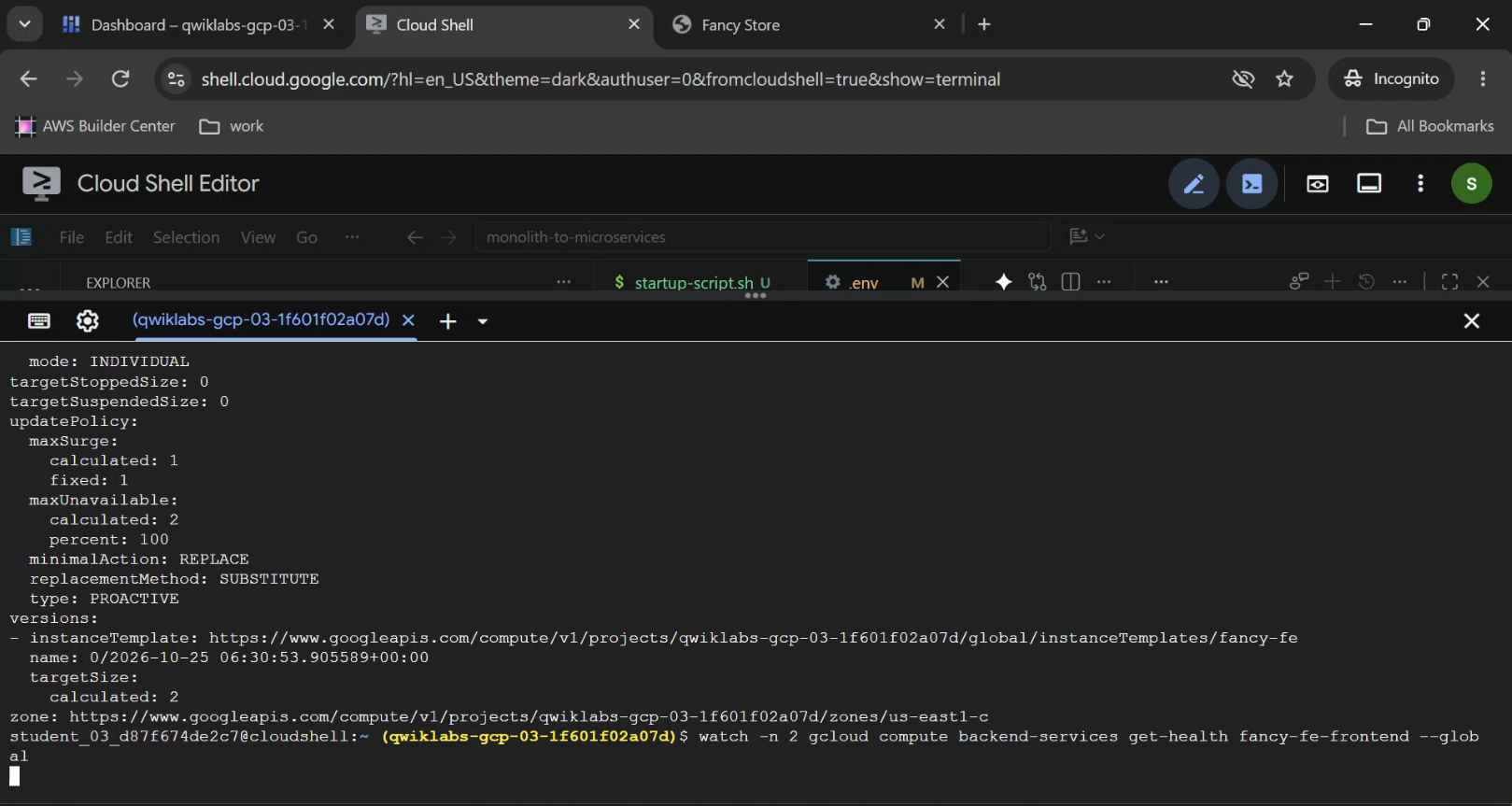
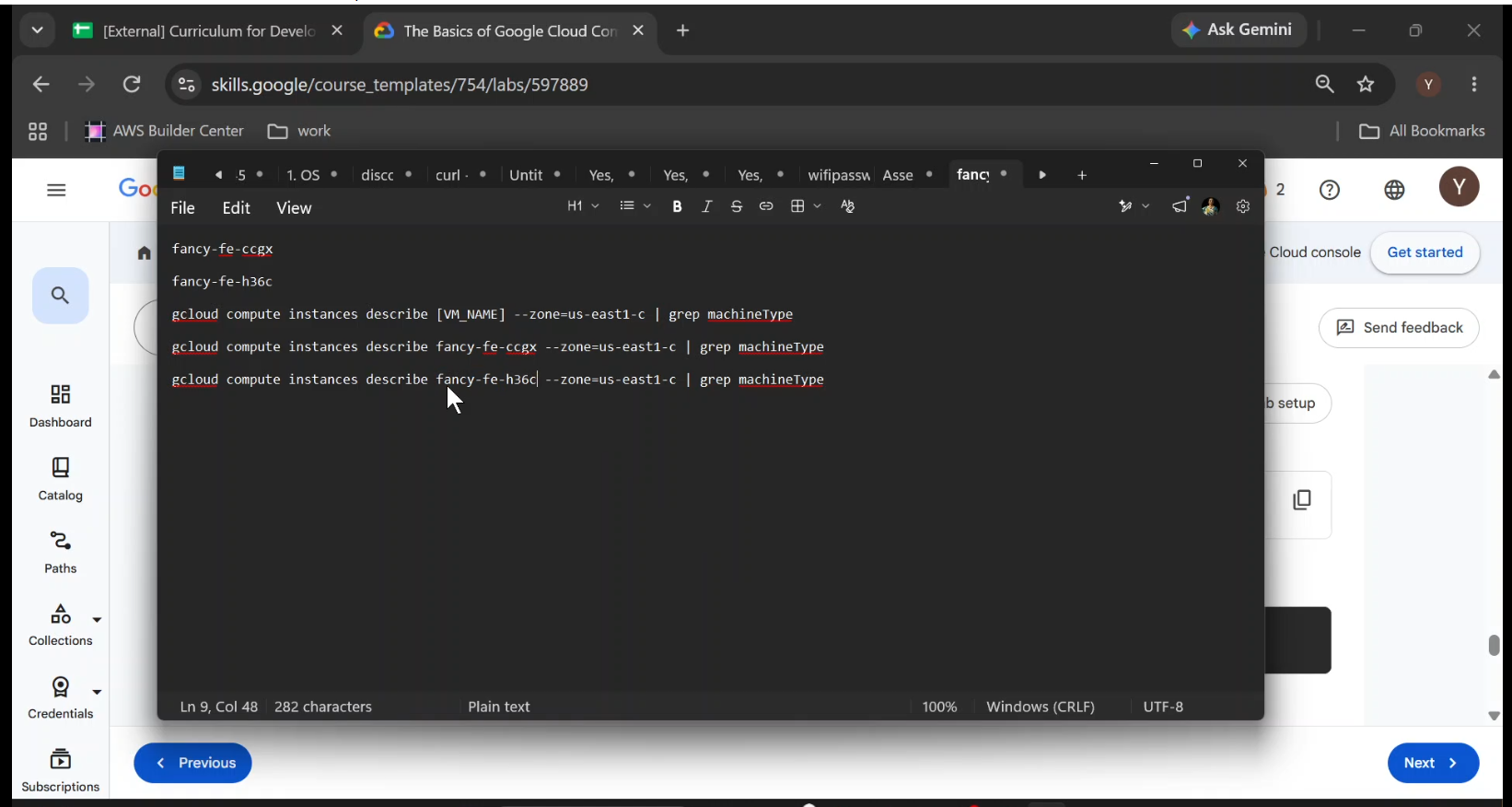
- Verify Compute Engine → Instance groups → Select
fancy-fe-mig→ Autohealing settings. - Shows Health check selection and initial delay.
- Caption: "Configuring automated instance recovery using Google Cloud health checks."
- Alt text: Compute Engine managed instance group with application health checks and autohealing enabled.
Step 9: Set Up HTTP Load Balancing
We've created multiple application instances.
Now we need a way to distribute incoming traffic.
A load balancer provides a common entry point and helps direct requests to healthy application backends.
For our application, the traffic rules will look like this:
| Request | Destination |
|---|---|
/ |
Frontend service |
/api/orders |
Orders service |
/api/products |
Products service |
The sample lab uses an HTTP-based classic Application Load Balancer configuration.
For a production website, use a supported HTTPS deployment with an appropriate certificate and modern security controls.
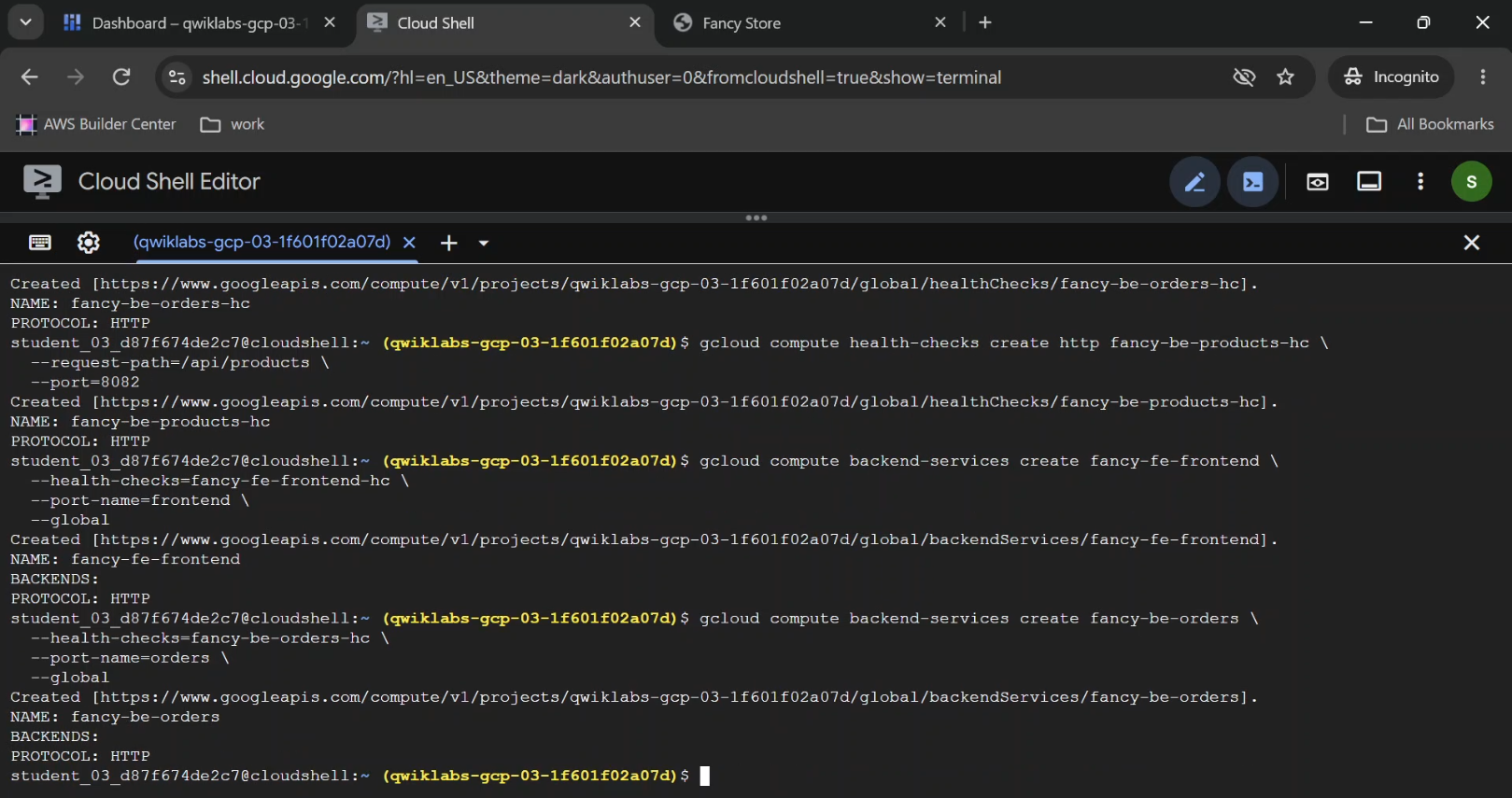
Create Load Balancer Health Checks
These health checks are separate from those used for MIG autohealing.
Their job is to determine which instances should receive requests from the load balancer.
gcloud compute health-checks create http fancy-fe-frontend-hc \
  --request-path=/ \
  --port=8080
gcloud compute health-checks create http fancy-be-orders-hc \
  --request-path=/api/orders \
  --port=8081
gcloud compute health-checks create http fancy-be-products-hc \
  --request-path=/api/products \
  --port=8082
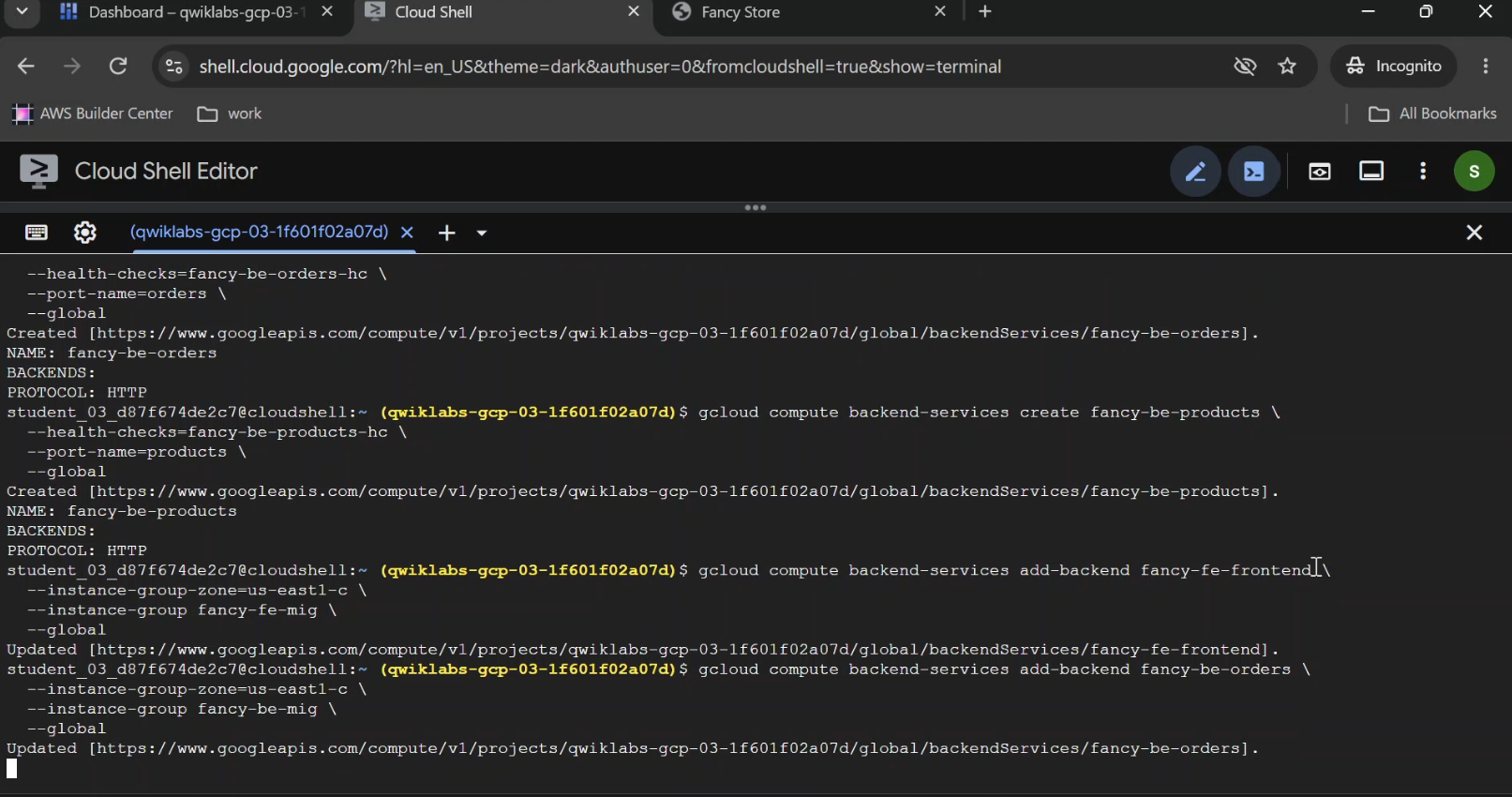
Create Backend Services
gcloud compute backend-services create fancy-fe-frontend \
  --health-checks=fancy-fe-frontend-hc \
  --port-name=frontend \
  --global
gcloud compute backend-services create fancy-be-orders \
  --health-checks=fancy-be-orders-hc \
  --port-name=orders \
  --global
gcloud compute backend-services create fancy-be-products \
  --health-checks=fancy-be-products-hc \
  --port-name=products \
  --global
Then attach the instance groups:
gcloud compute backend-services add-backend fancy-fe-frontend \
  --instance-group=fancy-fe-mig \
  --instance-group-zone="$ZONE" \
  --global
gcloud compute backend-services add-backend fancy-be-orders \
  --instance-group=fancy-be-mig \
  --instance-group-zone="$ZONE" \
  --global
gcloud compute backend-services add-backend fancy-be-products \
  --instance-group=fancy-be-mig \
  --instance-group-zone="$ZONE" \
  --global
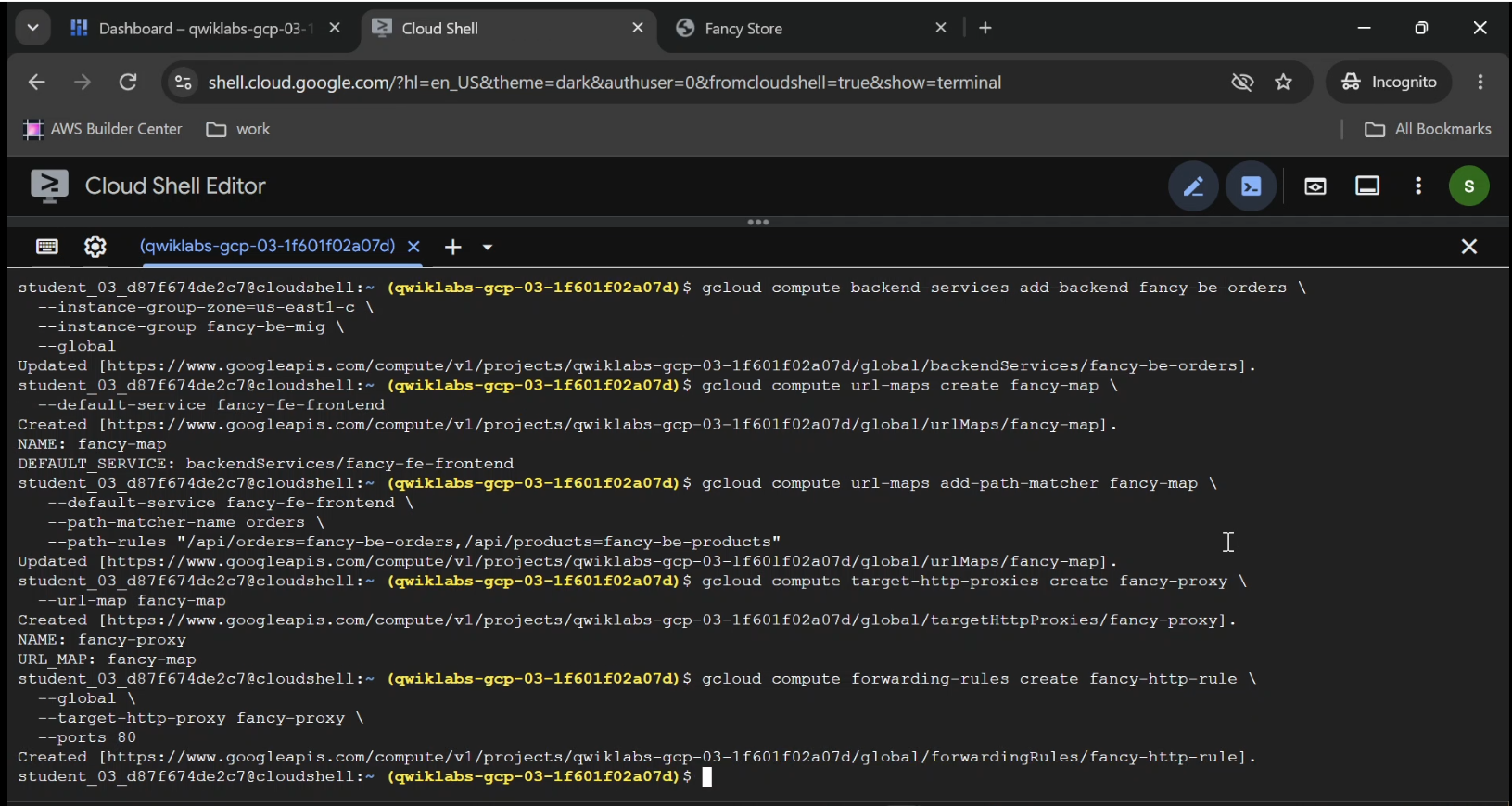
Create URL Routing Rules
Now configure how the load balancer decides where a request should go.
Create a URL map:
gcloud compute url-maps create fancy-map \
  --default-service=fancy-fe-frontend
Add a path matcher:
gcloud compute url-maps add-path-matcher fancy-map \
  --path-matcher-name=api-paths \
  --new-hosts="*" \
  --default-service=fancy-fe-frontend \
  --path-rules="/api/orders=fancy-be-orders,/api/orders/*=fancy-be-orders,/api/products=fancy-be-products,/api/products/*=fancy-be-products"
Requests matching the Orders or Products paths go to their respective backend services.
Requests that don't match those API patterns use the frontend service.
Create the HTTP Proxy and Forwarding Rule
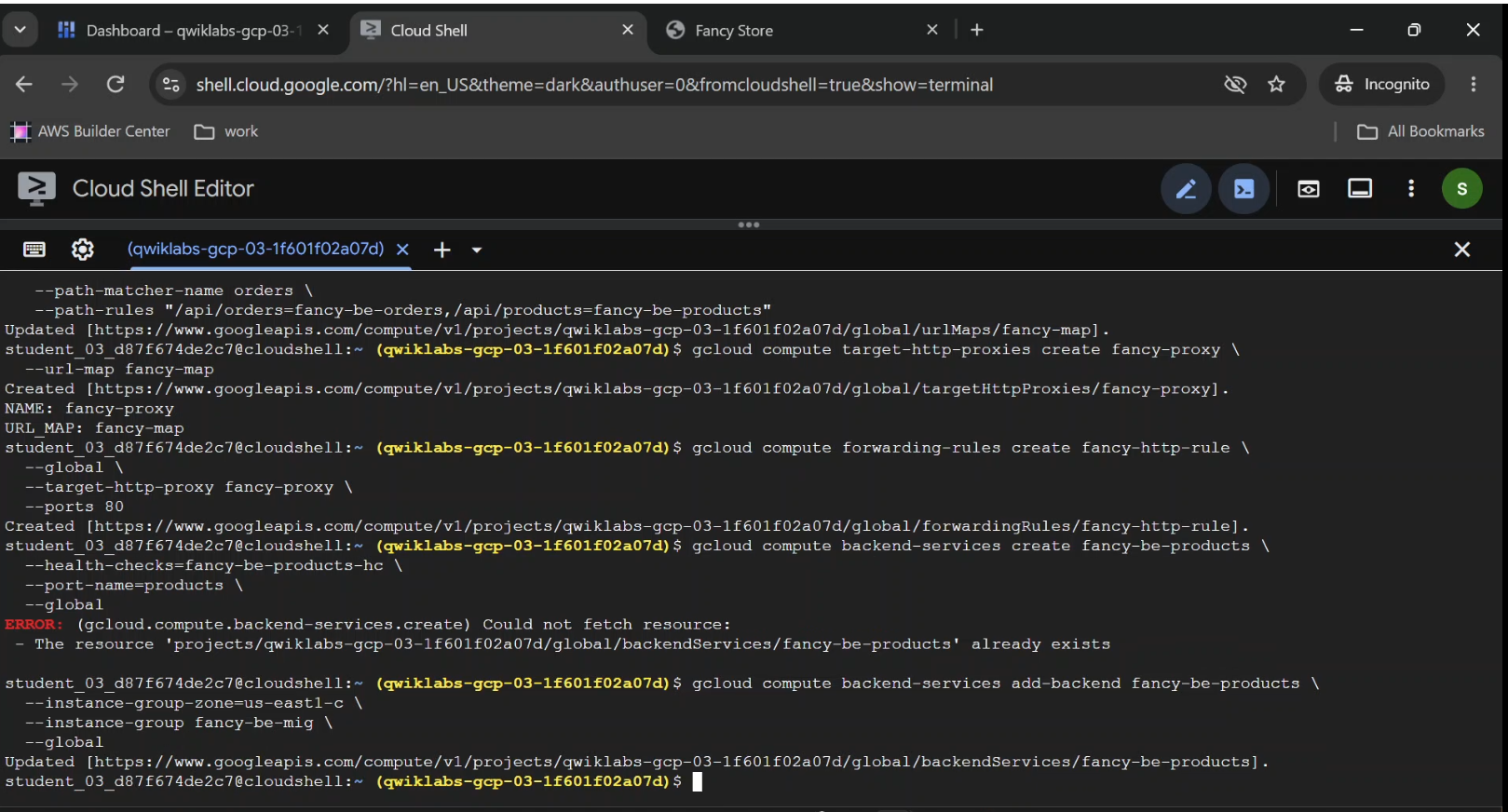
gcloud compute target-http-proxies create fancy-proxy \
  --url-map=fancy-map
gcloud compute forwarding-rules create fancy-http-rule \
  --global \
  --target-http-proxy=fancy-proxy \
  --ports=80
This creates the public HTTP entry point for the application.
The architectural shift: Users no longer need to know which VM runs the website. The load balancer provides a shared address and selects an appropriate backend.
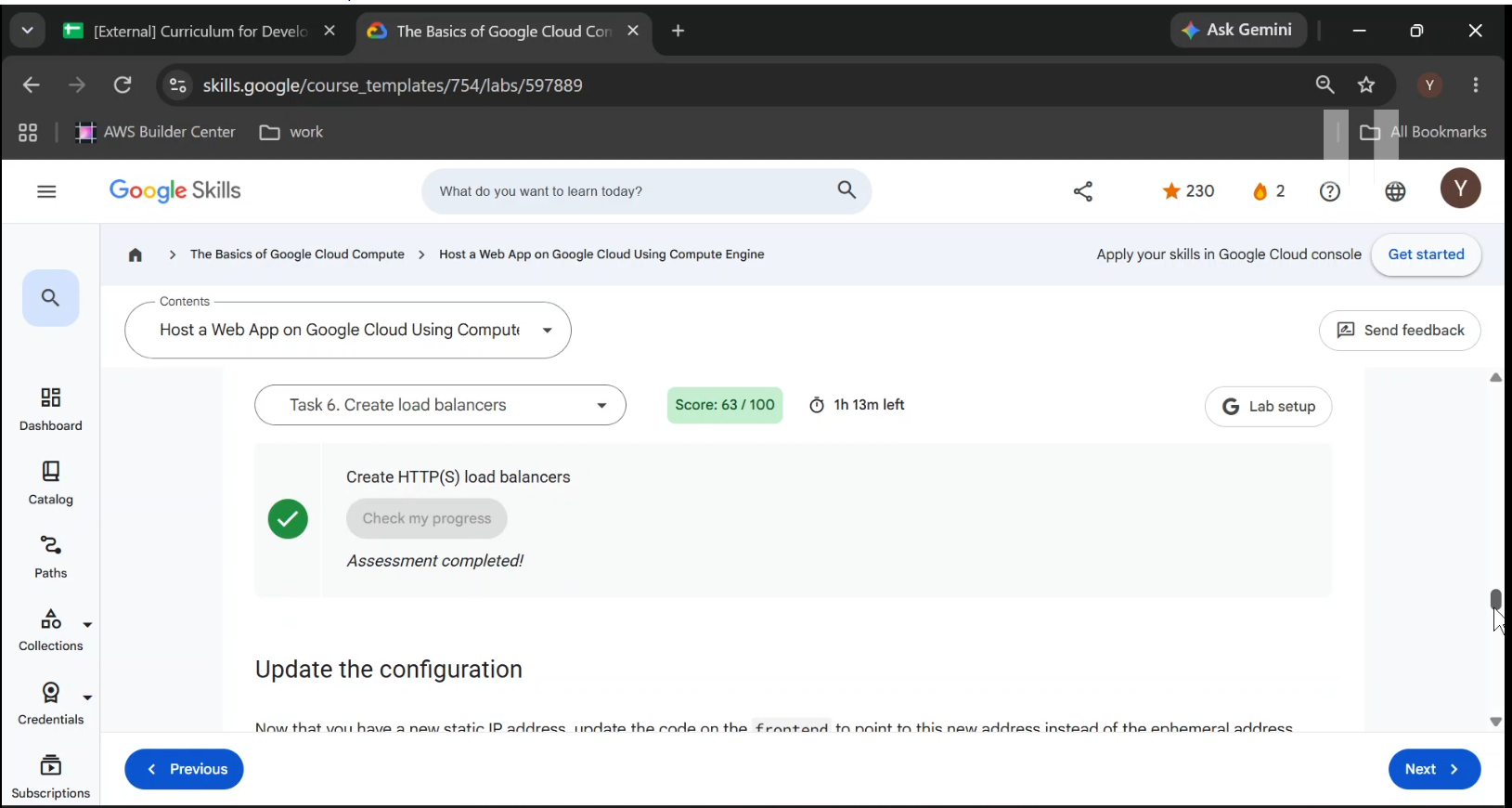
- Verify Network Services → Load balancing → Fancy Store load balancer.
- Shows Frontend, backend services, URL routing, and attached instance groups.
- Caption: "Configuring Google Cloud HTTP Load Balancing across managed instance groups."
Step 10: Update the Frontend to Use the Load Balancer
We initially configured the React application to send API requests directly to the backend VM.
Now that we have a load balancer, those API requests should use its address.
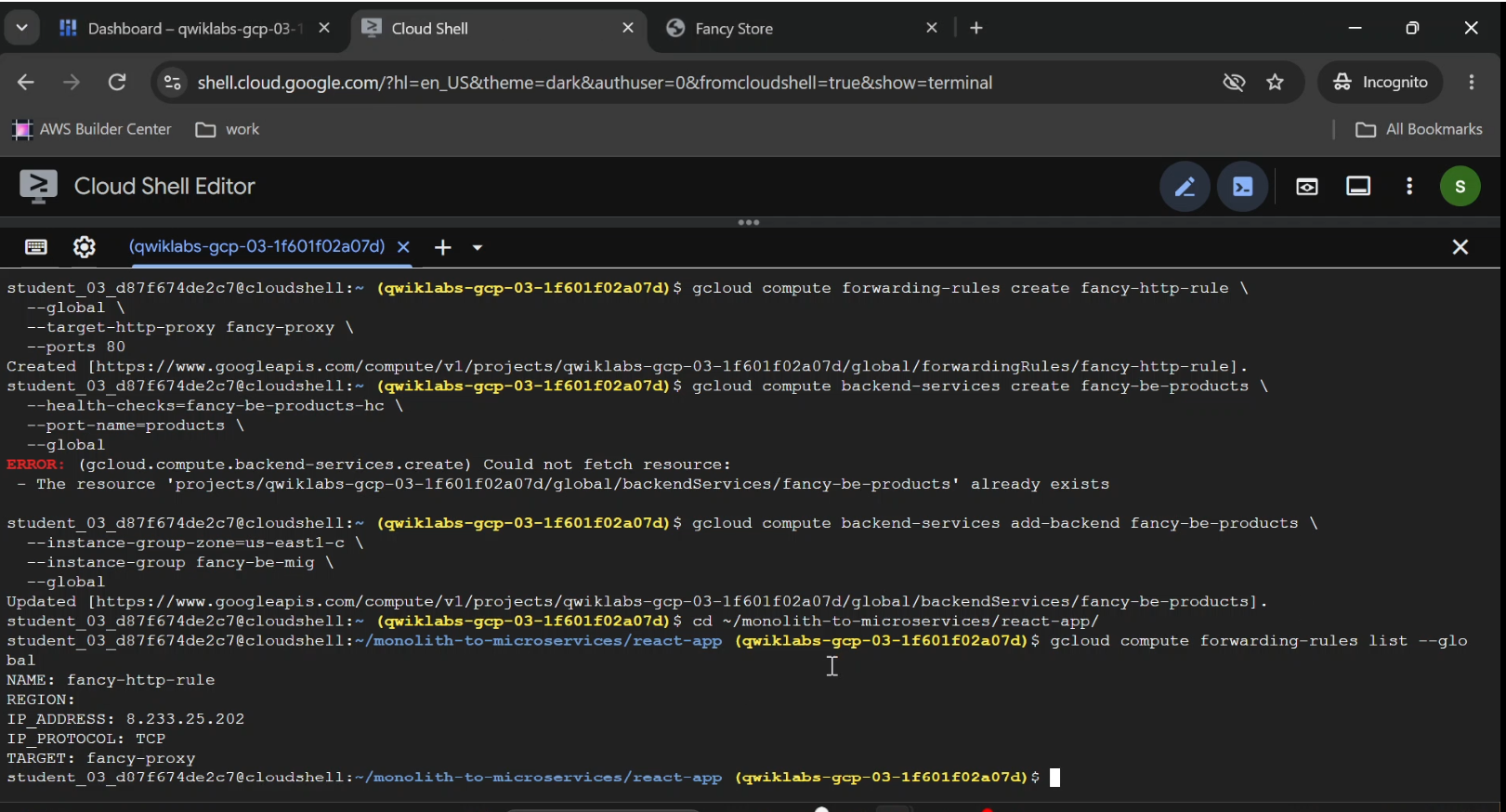
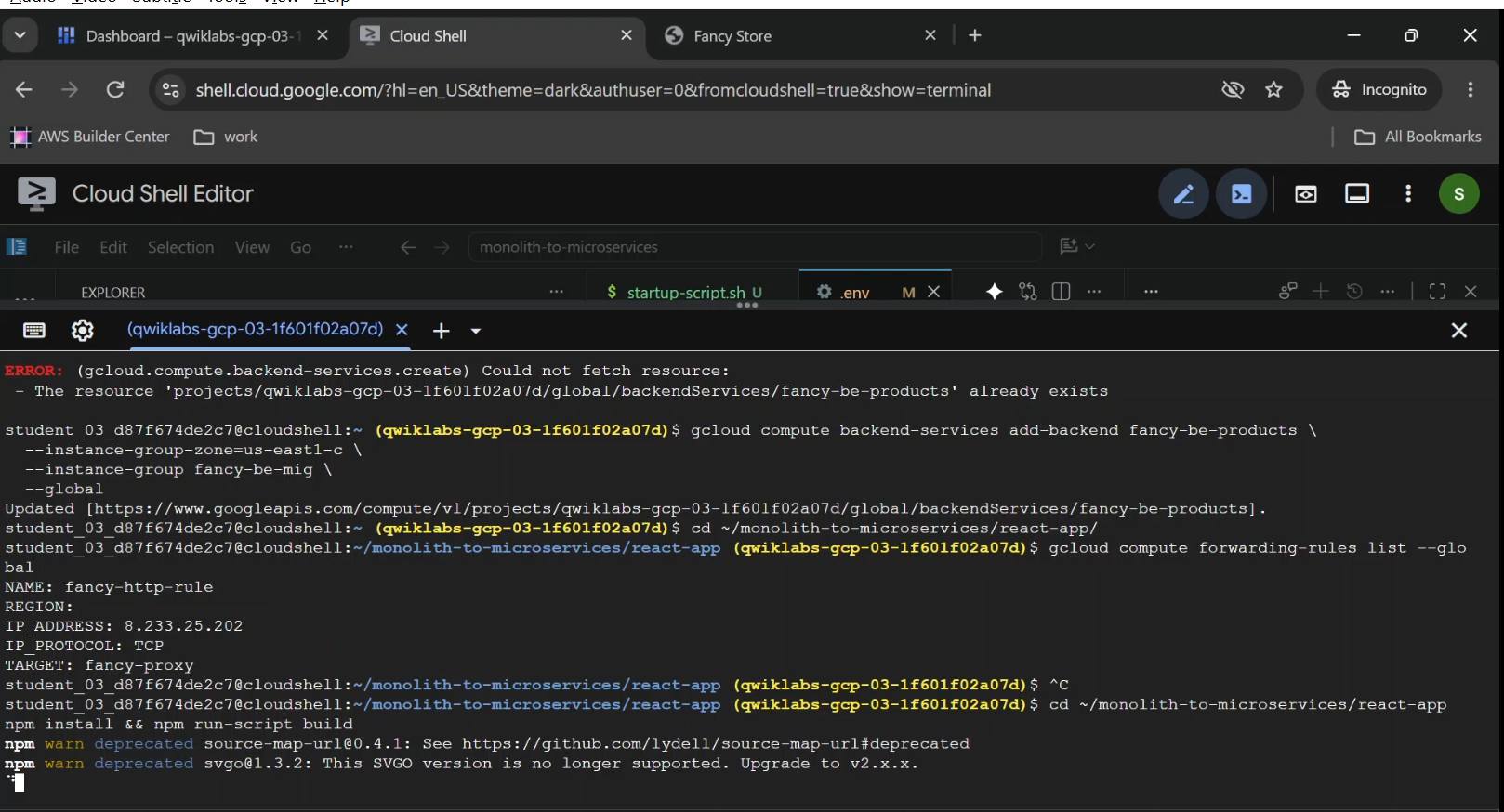
Retrieve the forwarding rule's IP:
gcloud compute forwarding-rules list --global
Copy the IP associated with fancy-http-rule.
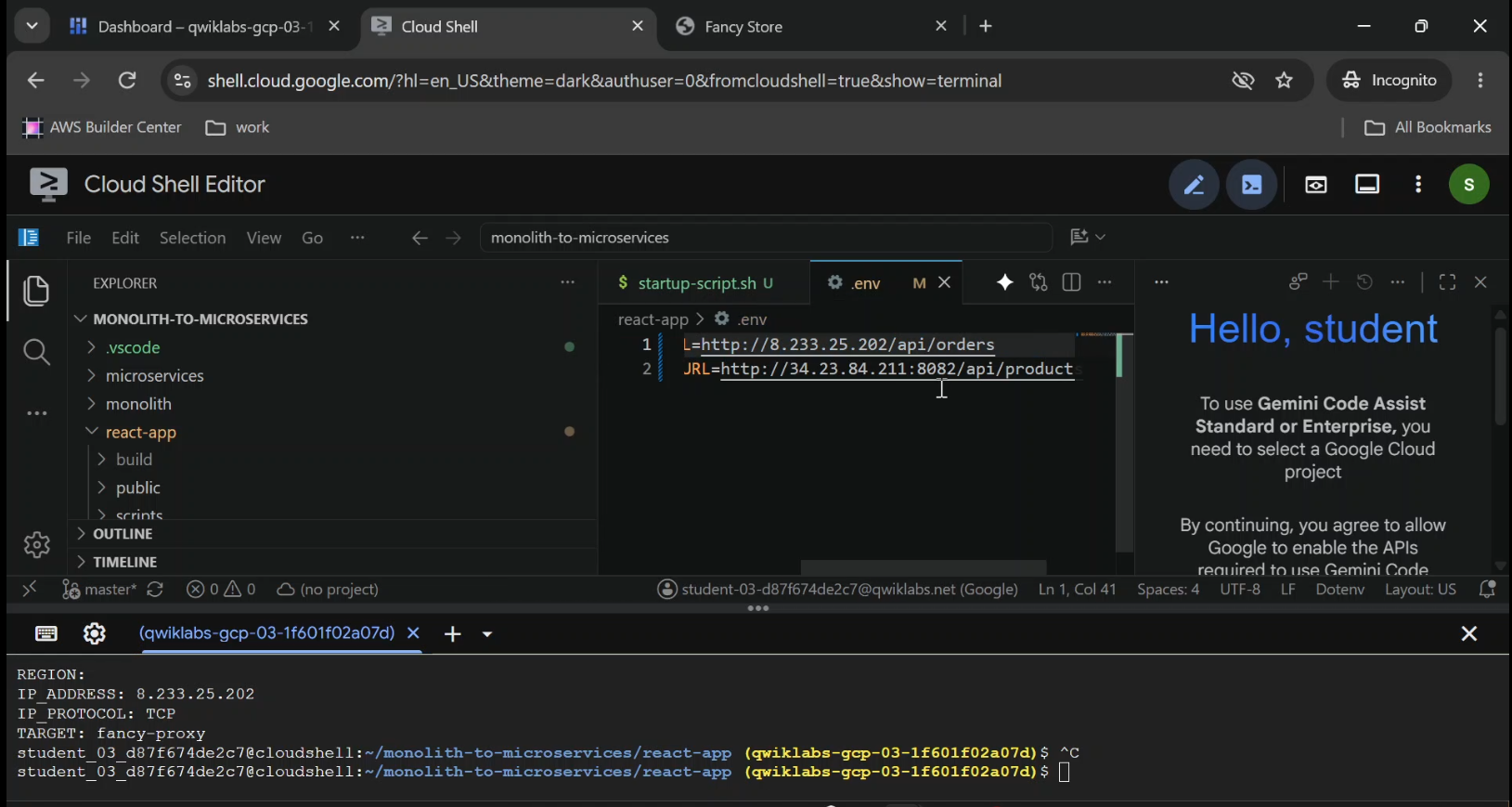
Next, open the React application's .env file and update the API URLs:
REACT_APP_ORDERS_URL=http://LB_IP/api/orders
REACT_APP_PRODUCTS_URL=http://LB_IP/api/products
Replace LB_IP with the actual load balancer address.
Notice that ports 8081 and 8082 have disappeared from the public URLs.
The load balancer receives the request on port 80 and routes it to the appropriate service and backend port.
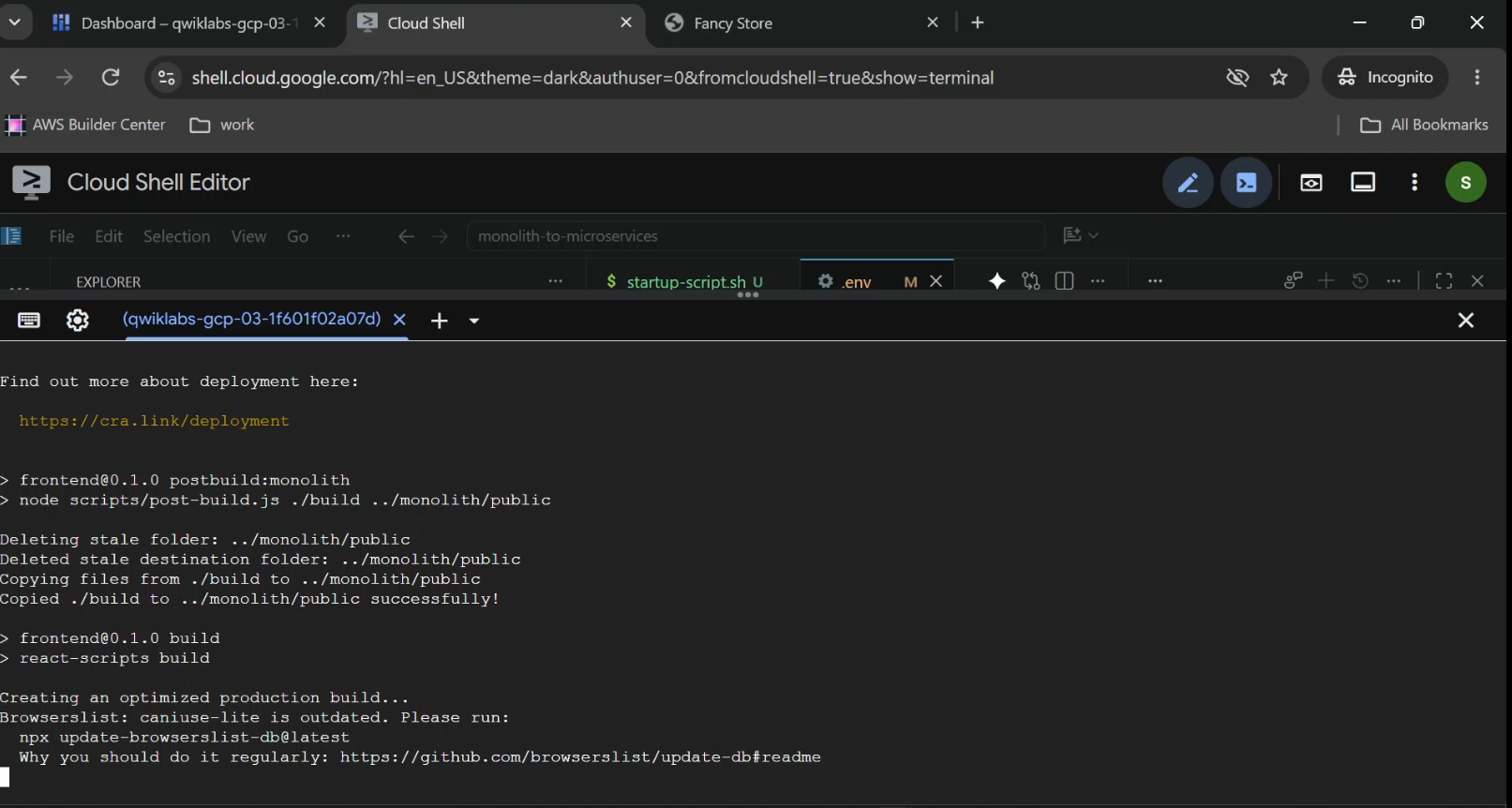
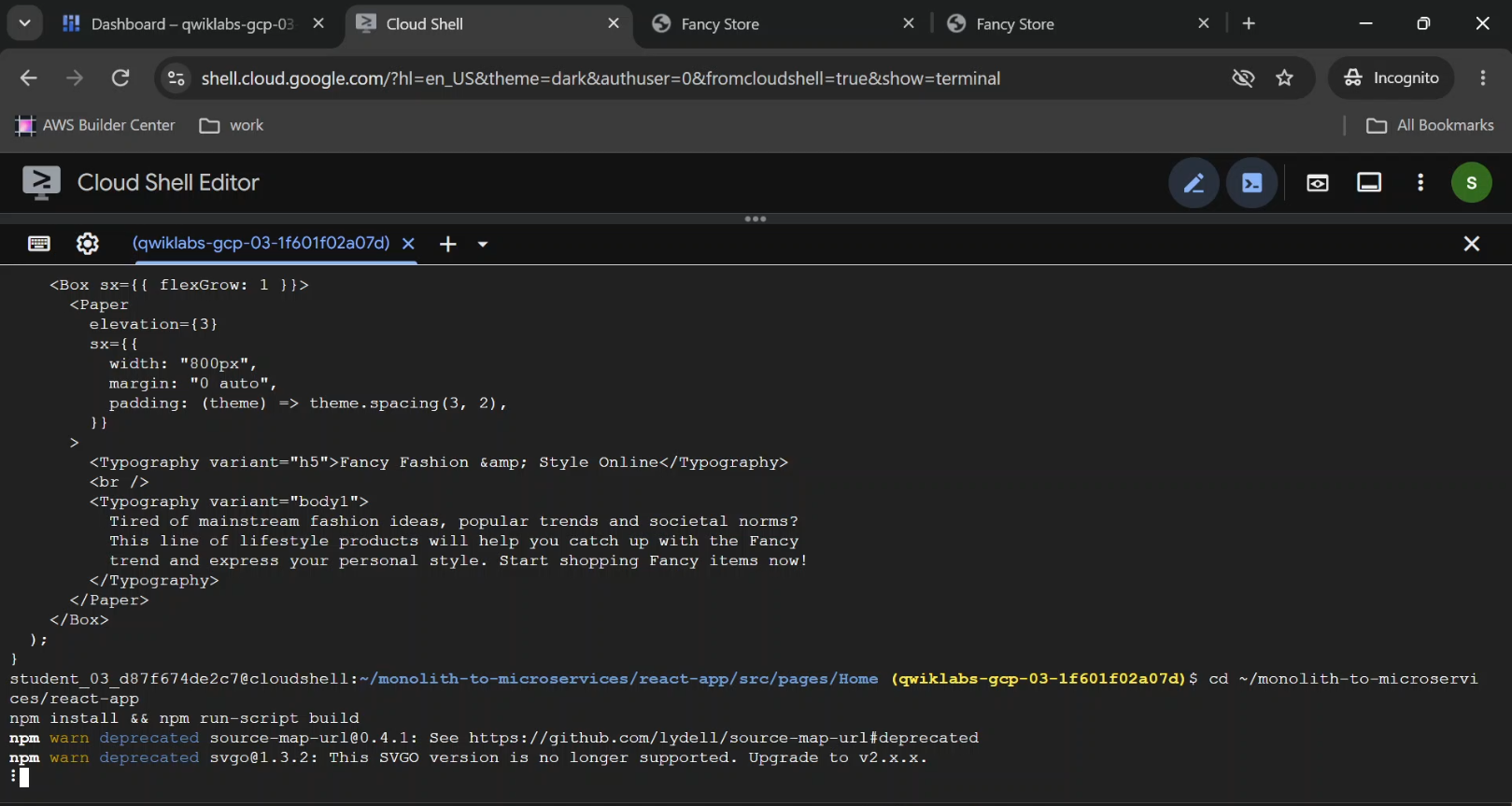
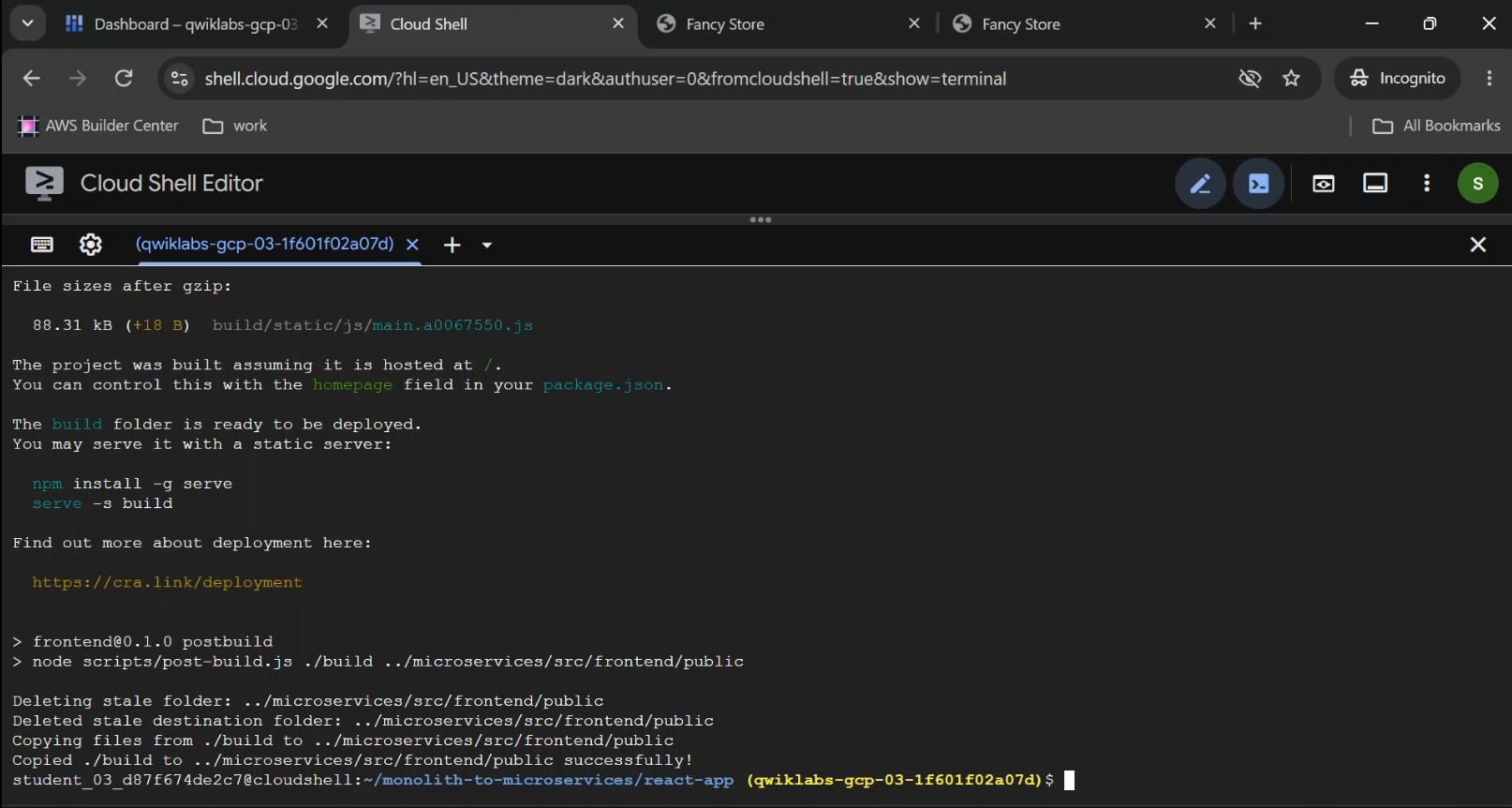
Rebuild the React application:
cd ~/monolith-to-microservices/react-app

npm install
npm run-script build
Then upload the updated code:
cd ~

rm -rf monolith-to-microservices/*/node_modules

gcloud storage cp -r \
  monolith-to-microservices \
  "gs://${BUCKET}/"
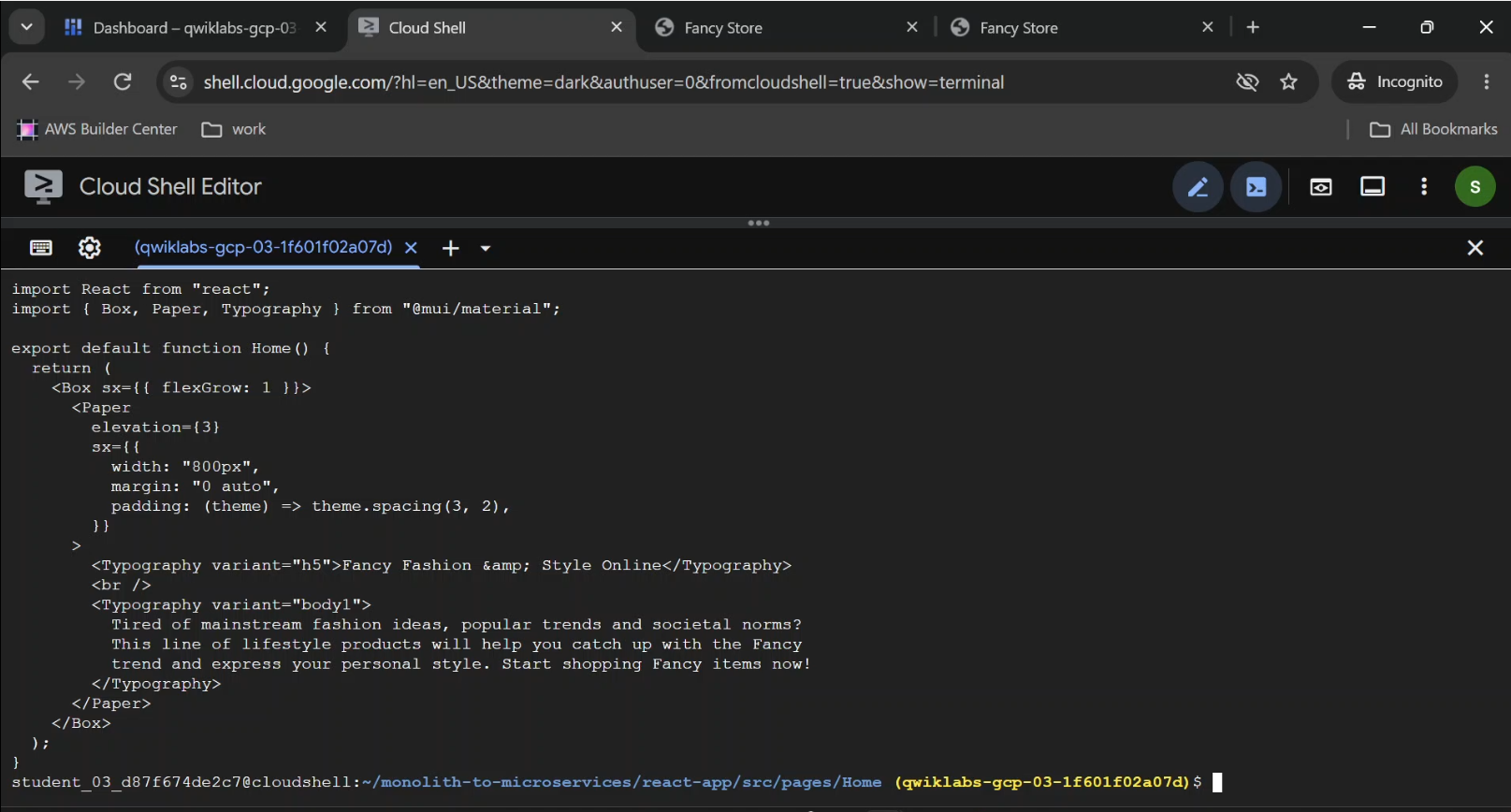
Replace the Frontend Instances
The existing VMs are still running their previously downloaded application code.
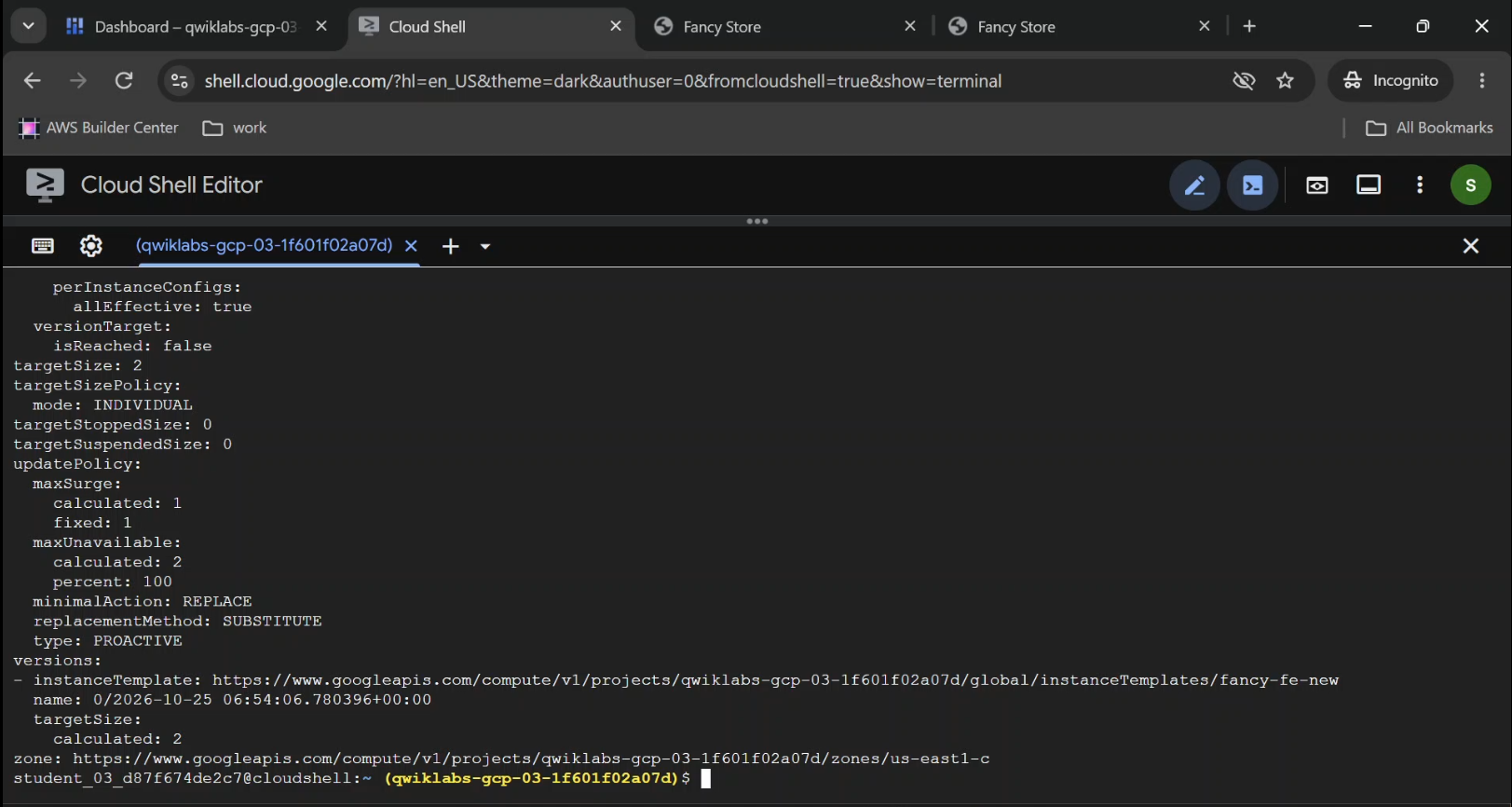
To get the new code onto the managed instances, use a rolling replacement.
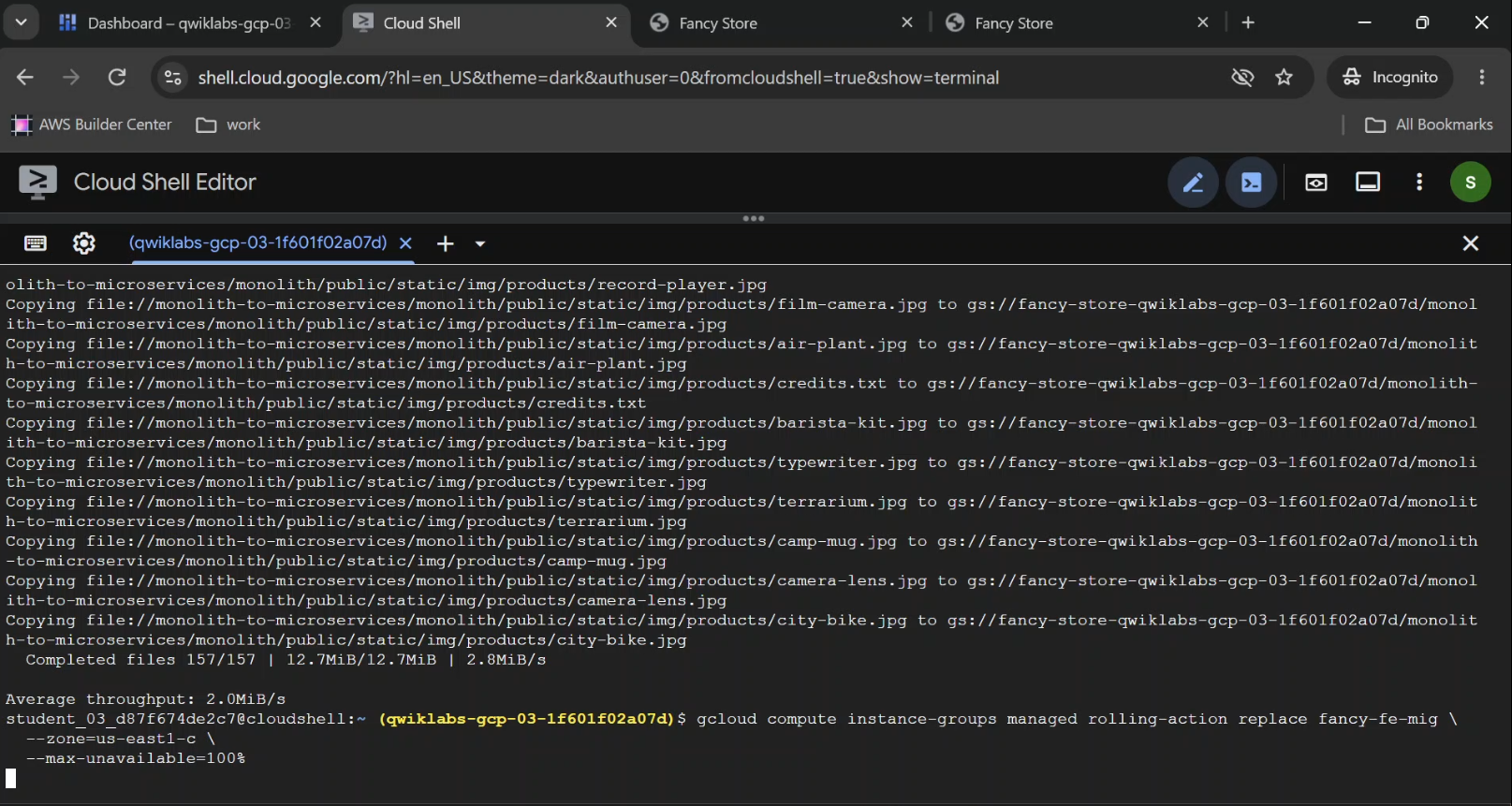
The original training lab uses:
gcloud compute instance-groups managed rolling-action replace fancy-fe-mig \
  --zone="$ZONE" \
  --max-unavailable=100%
This permits every instance to become unavailable during the operation.
Do not copy that setting blindly into production. It prioritizes lab speed over service availability.
For a more availability-conscious replacement, consider:
gcloud compute instance-groups managed rolling-action replace fancy-fe-mig \
  --zone="$ZONE" \
  --max-unavailable=1
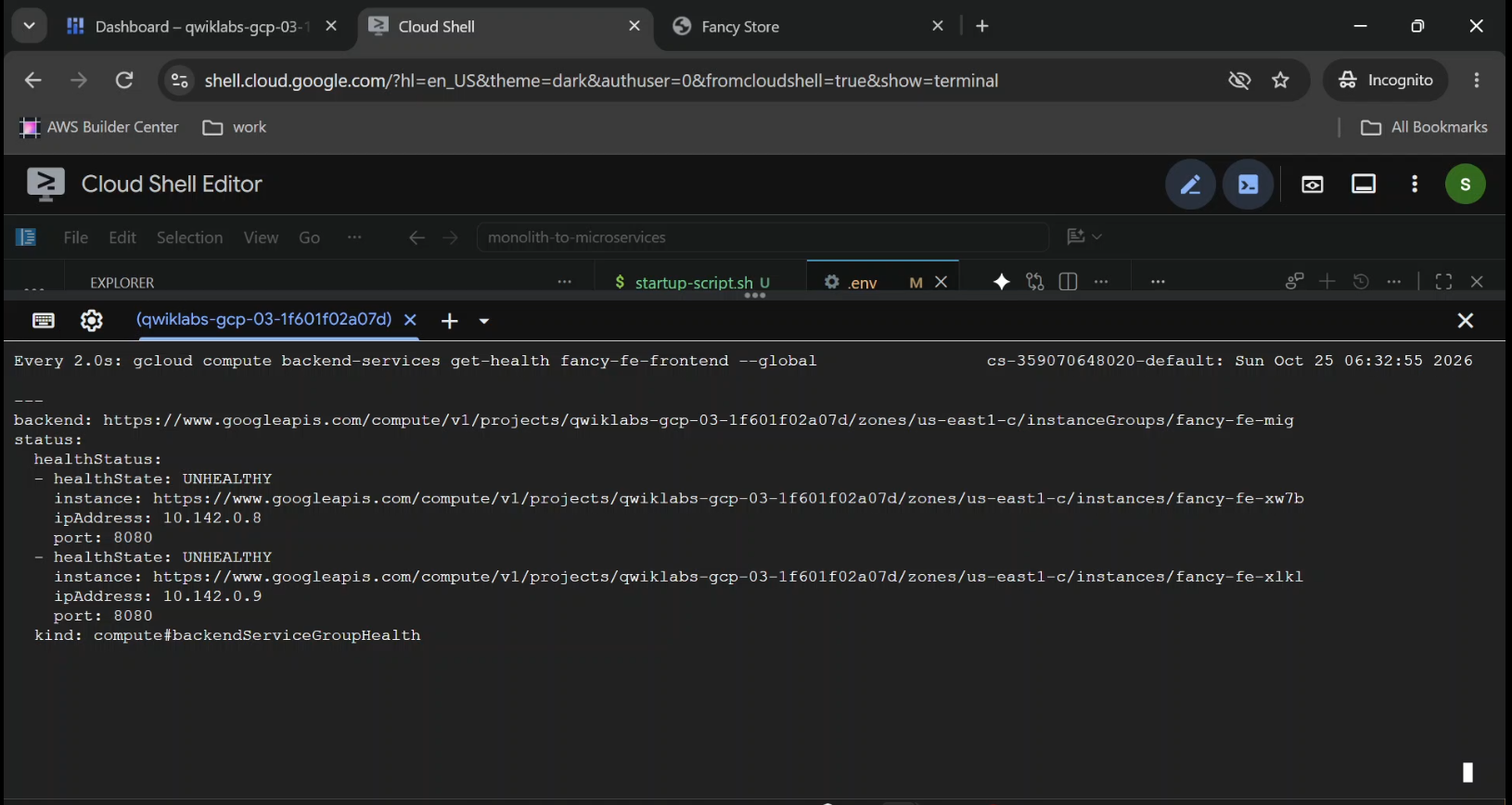
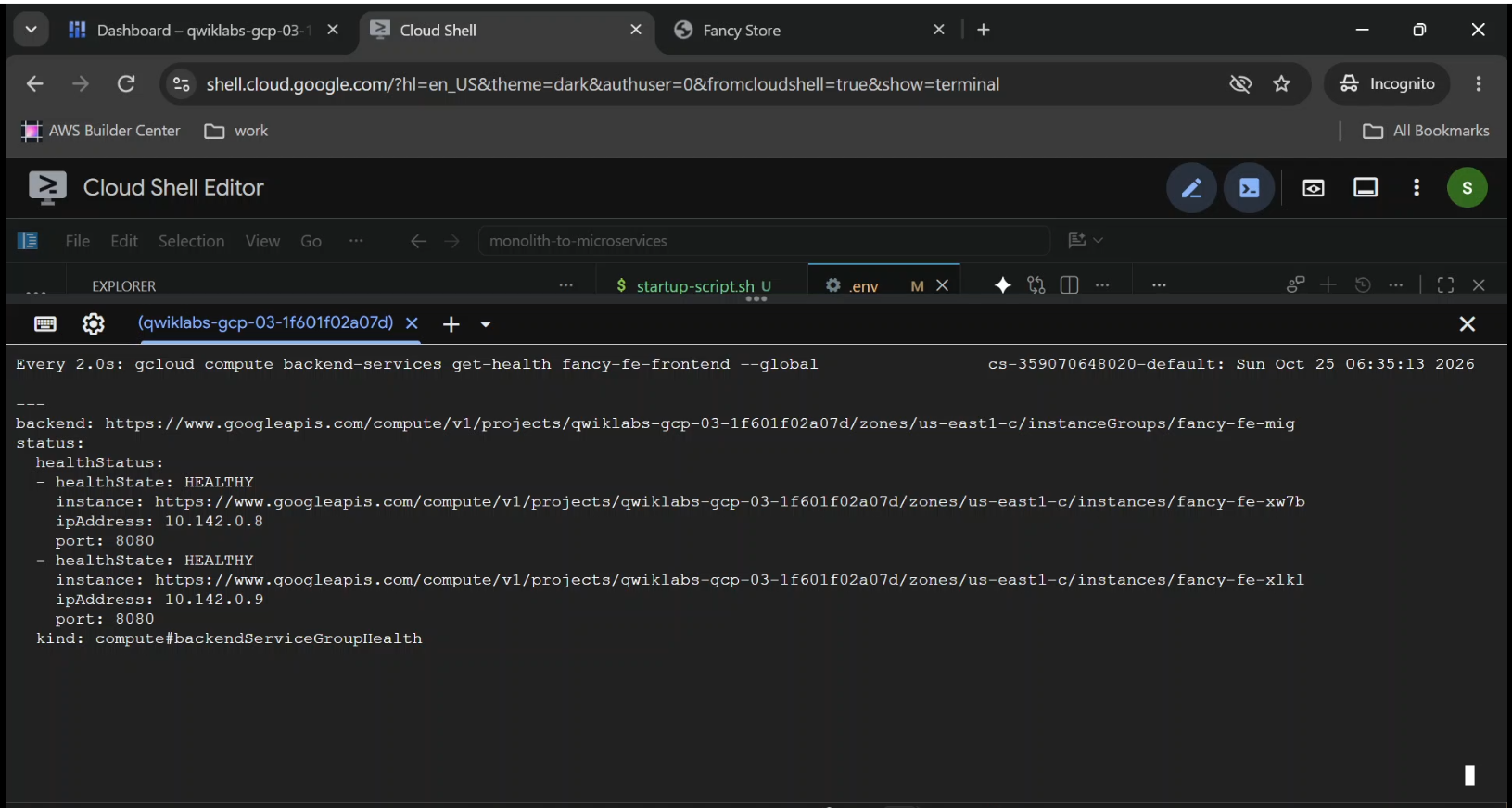
The appropriate replacement policy depends on capacity, surge settings, health checks, and availability requirements.
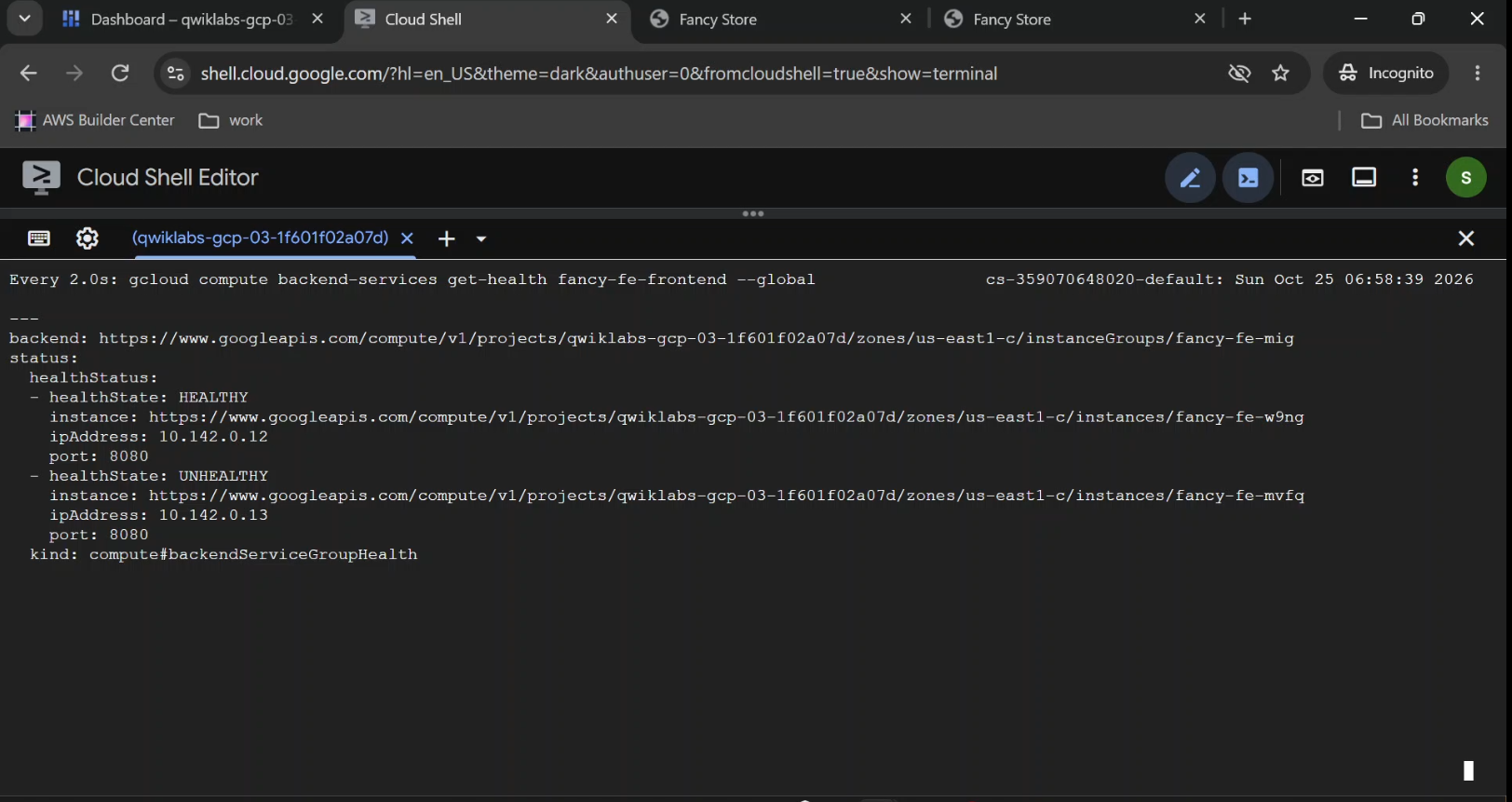
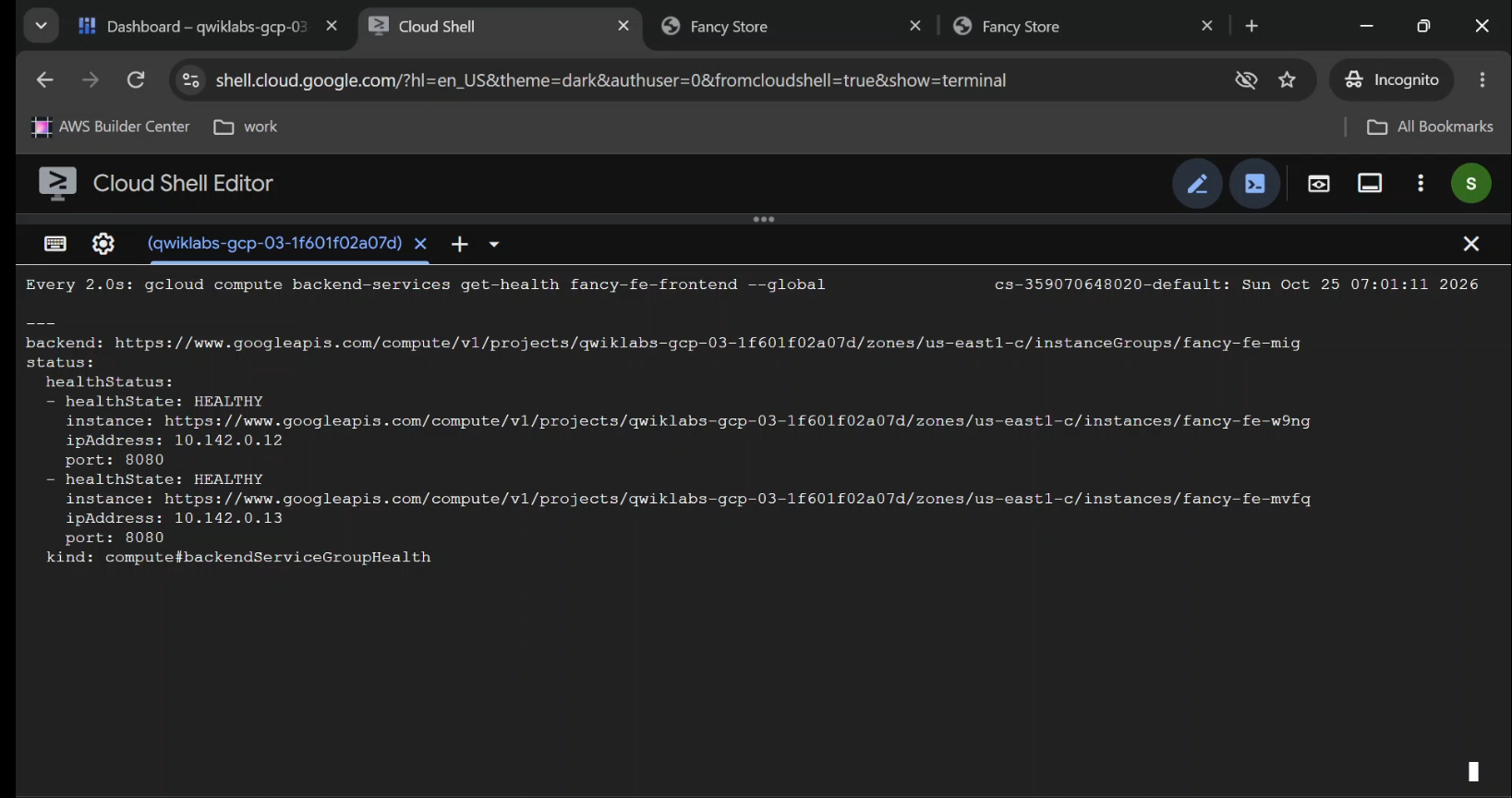
Verify Backend Health
Run:
gcloud compute backend-services get-health fancy-fe-frontend \
  --global
Look for instances reporting:
healthState: HEALTHY
Also verify the Orders and Products backend services if you encounter API errors.
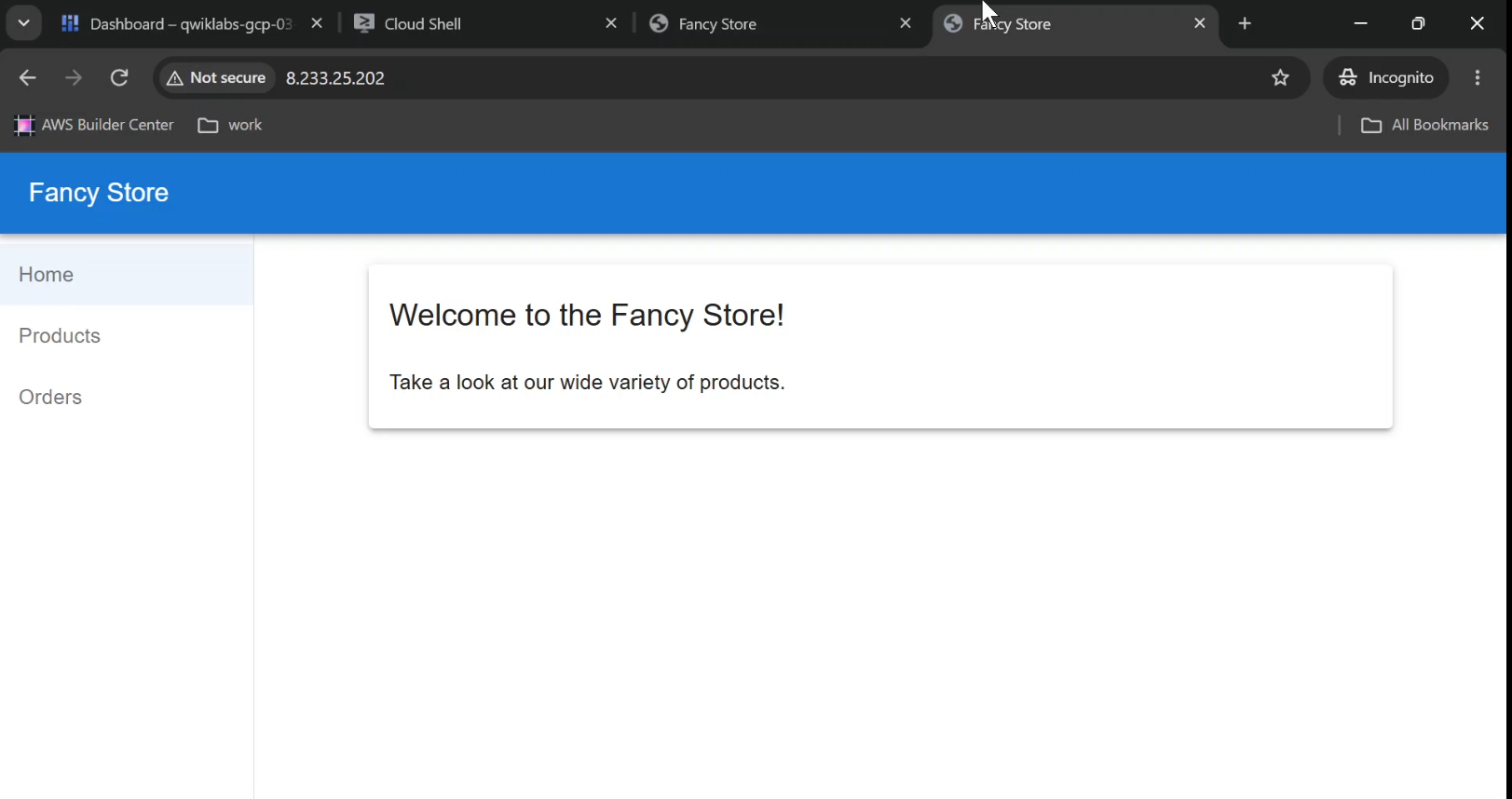
Once the instances are healthy, open:
http://LB_IP
The Fancy Store application should now be accessible through the load balancer.
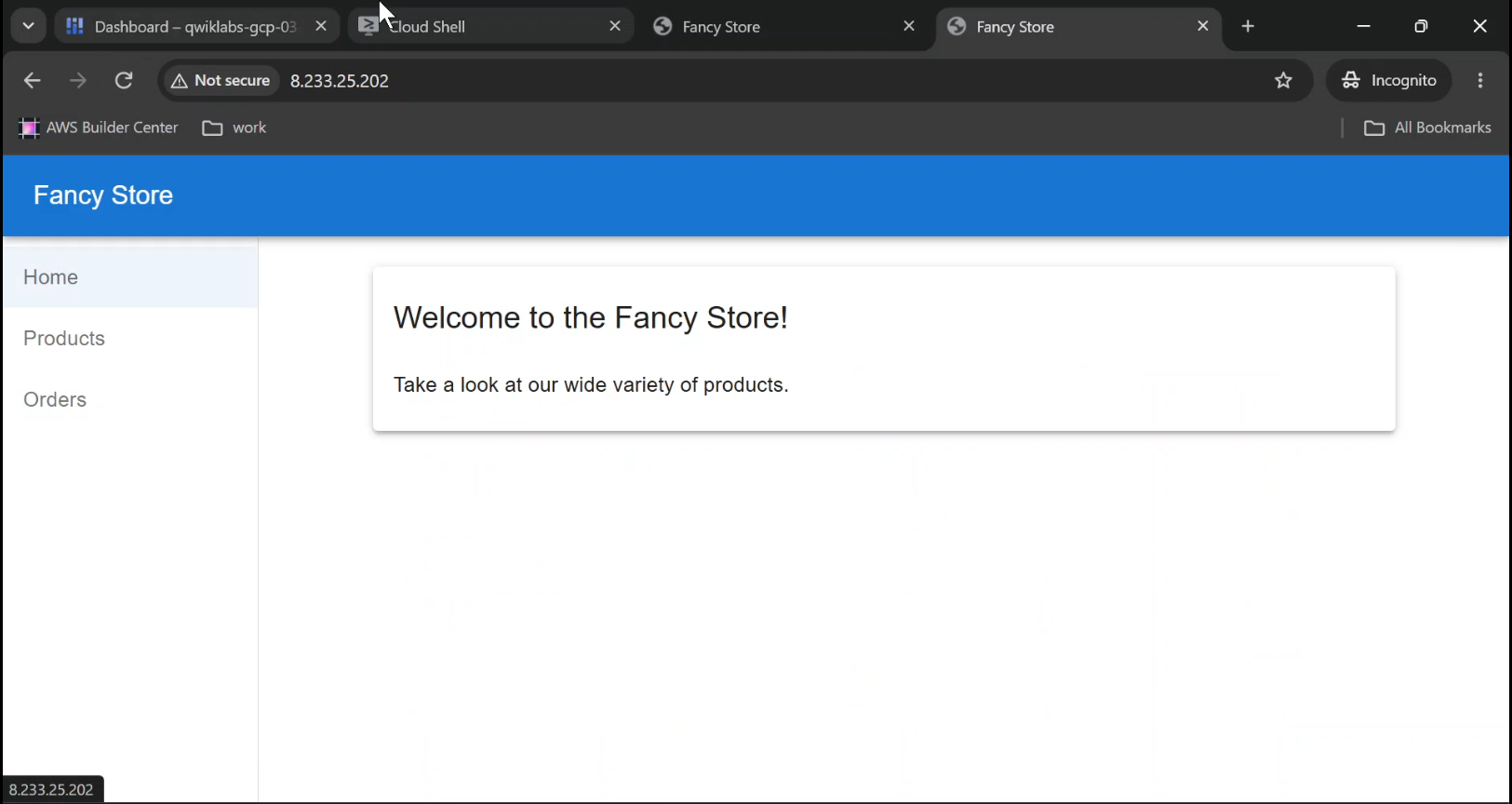
- Captured Browser displaying Fancy Store at the load balancer's public IP.
- Shows Product listings or Orders functionality.
- Caption: "Fancy Store successfully served through a Google Cloud HTTP Load Balancer."
Step 11: Enable Autoscaling
Our managed instance groups currently maintain two instances each.
But traffic doesn't remain constant.
Some periods are quiet.
Others can be unexpectedly busy.
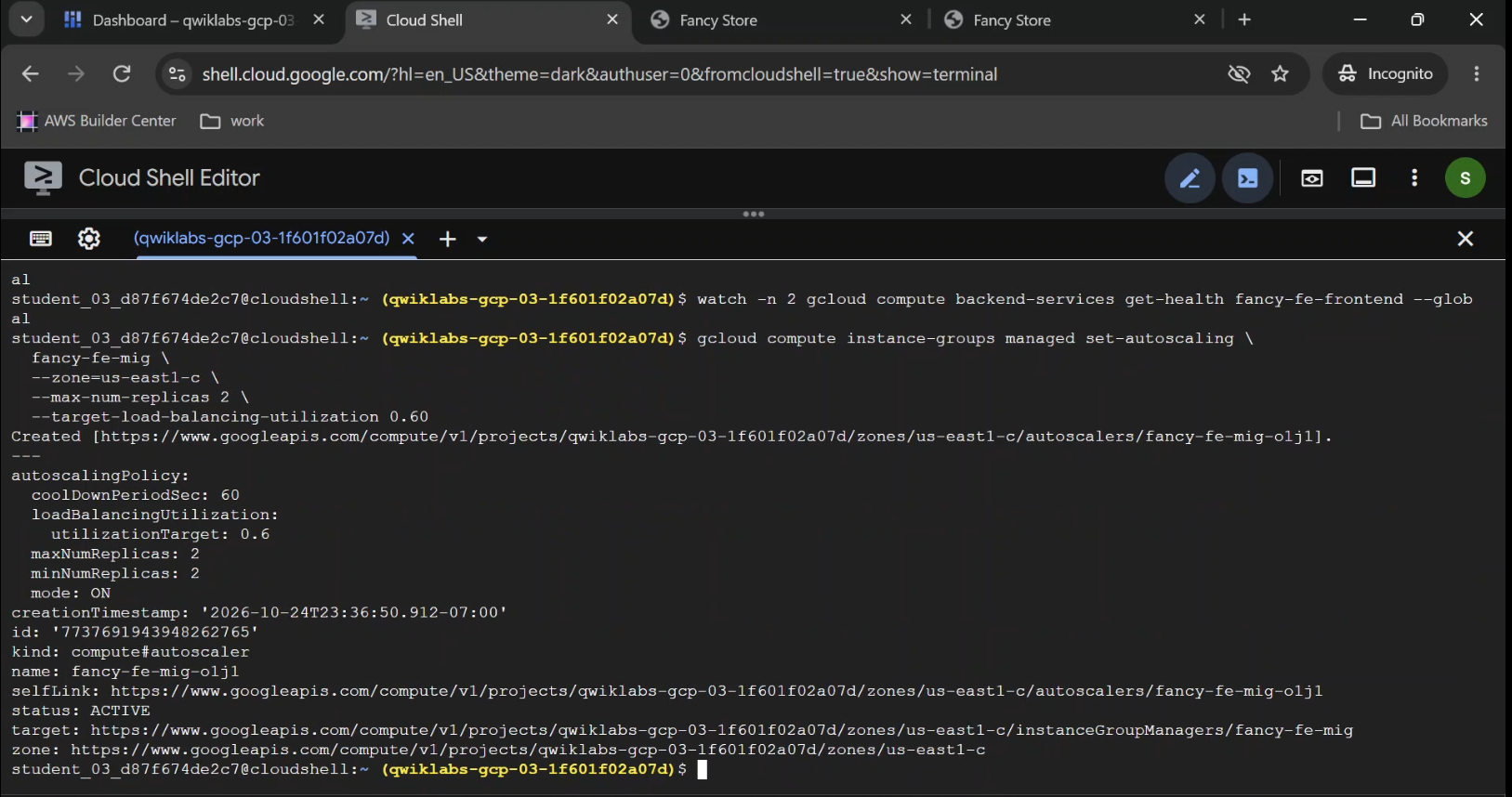
Autoscaling lets an instance group adjust its capacity based on configured signals.
For this lab, we'll use load-balancing utilization.
Configure frontend autoscaling:
gcloud compute instance-groups managed set-autoscaling fancy-fe-mig \
  --zone="$ZONE" \
  --max-num-replicas=2 \
  --target-load-balancing-utilization=0.60
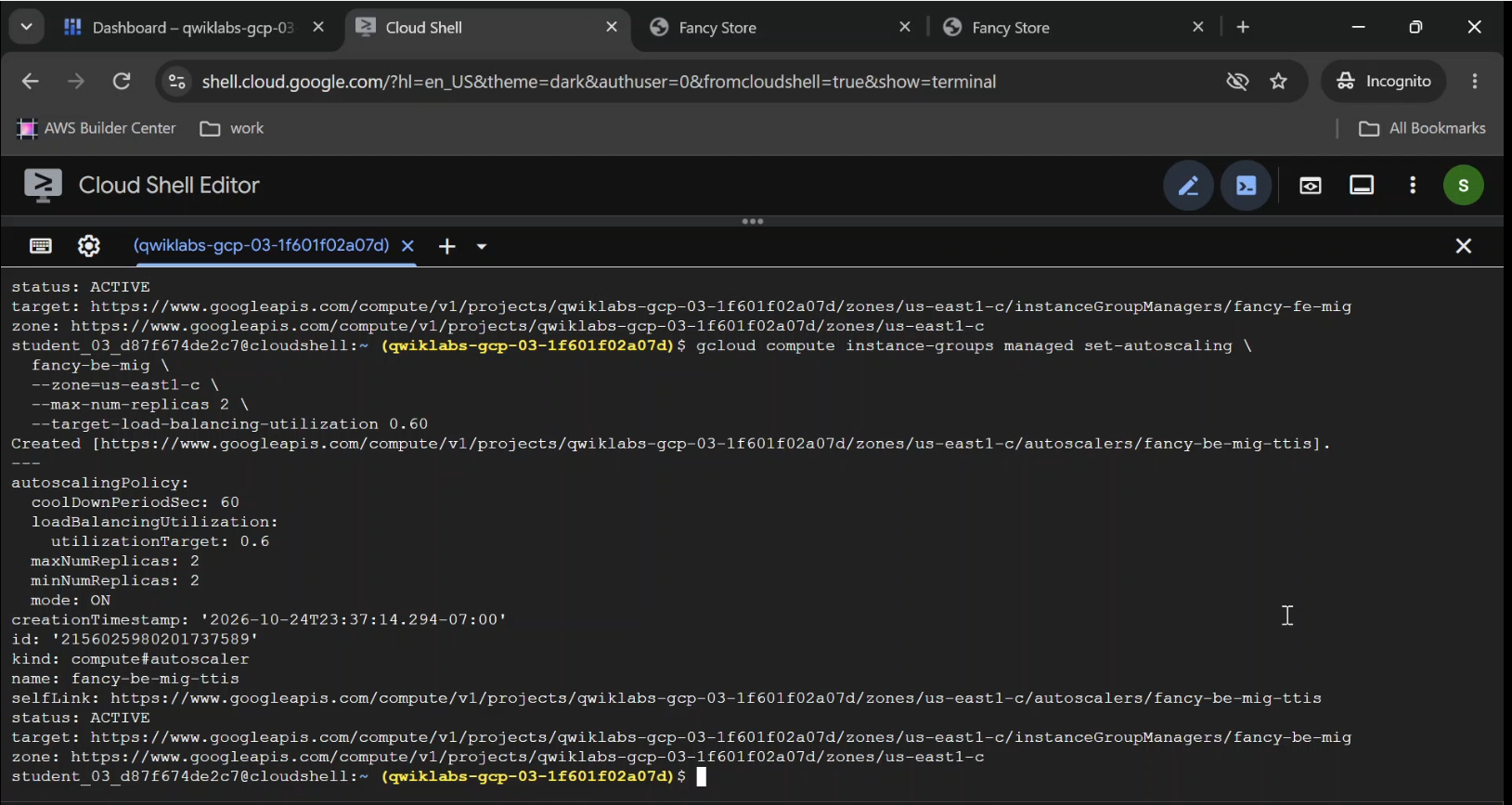
Configure backend autoscaling:
gcloud compute instance-groups managed set-autoscaling fancy-be-mig \
  --zone="$ZONE" \
  --max-num-replicas=2 \
  --target-load-balancing-utilization=0.60
The target tells the autoscaler to aim for a specified fraction of the backend's configured serving capacity.
An Important Limitation in This Lab
The groups start with two instances, and these commands set a maximum of two replicas.
That means the autoscaler cannot increase the group beyond its current two-instance size.
The lab demonstrates how to configure autoscaling, but not meaningful scale-out beyond two VMs.
For an actual scale-out exercise, you could increase the maximum replica count to four, provided your project's quotas and budget allow it.
Autoscaling isn't a promise of unlimited capacity. It's an automation policy operating within limits you define.
Step 12: Enable Cloud CDN
Adding compute capacity is one way to handle traffic.
Another is to reduce how often requests need to reach the application servers.
That's where a Content Delivery Network (CDN) becomes valuable.
Cloud CDN can cache eligible responses at Google's distributed edge infrastructure.
When content is available in cache, the CDN can serve it without repeatedly asking the origin server.
Enable Cloud CDN for the frontend backend service:
gcloud compute backend-services update fancy-fe-frontend \
  --enable-cdn \
  --global
What Does CDN Caching Actually Improve?
Consider a website with static assets such as JavaScript bundles, stylesheets, images, and fonts.
Those resources may be requested repeatedly by visitors in different geographic locations.
Caching eligible content closer to users can reduce origin requests and improve response times.
But enabling CDN doesn't mean every response will automatically be cached.
Cache headers, cache modes, response properties, and other policies determine which content is eligible.
For an e-commerce application, personalized or sensitive data should not be accidentally cached and shared between users.
Cloud Ops takeaway: Scaling isn't always about adding servers. Sometimes it's about making fewer requests reach those servers in the first place.
Step 13: Update the Website Without Manually Rebuilding Every VM
A running website doesn't stay unchanged forever.
Developers release fixes.
Marketing teams request new content.
Applications need new dependencies and configuration.
Managed instance groups provide a repeatable way to roll out infrastructure changes.
Update the Instance Machine Type
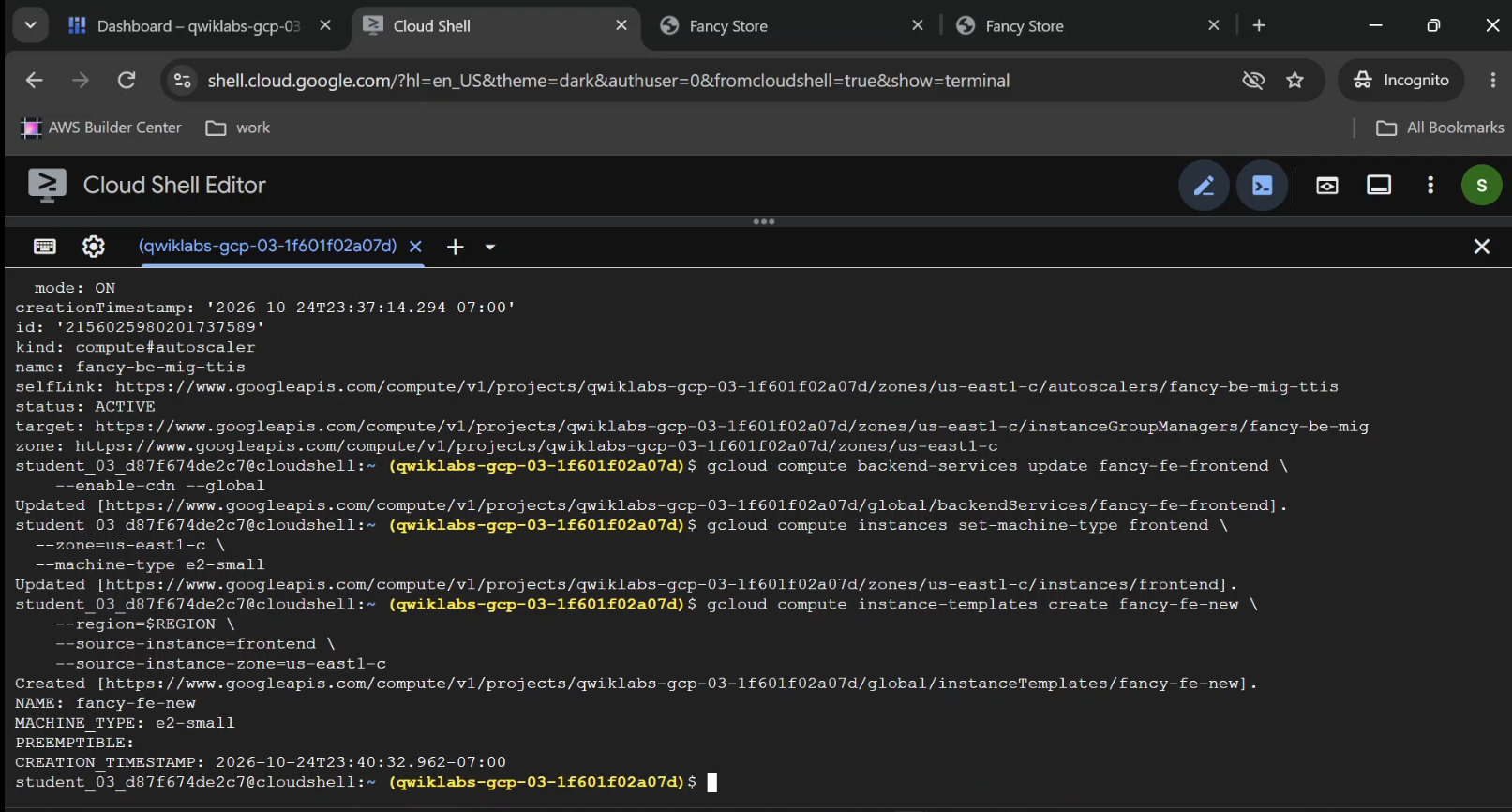
The source lab demonstrates creating another instance template with a changed machine type.
It uses:
gcloud compute instances set-machine-type frontend \
  --zone="$ZONE" \
  --machine-type=e2-small
The original frontend instance was stopped earlier.
Important correction: e2-small is smaller than e2-standard-2, not larger.
e2-standard-2 provides 2 vCPUs and 8 GB of memory, while e2-small is a shared-core machine with 2 GB of memory.
This example demonstrates changing machine size, but it isn't a performance upgrade.
Ensure the application can operate within the smaller resource allocation.
Create an updated instance template:
gcloud compute instance-templates create fancy-fe-new \
  --source-instance=frontend \
  --source-instance-zone="$ZONE"
Then roll it out:
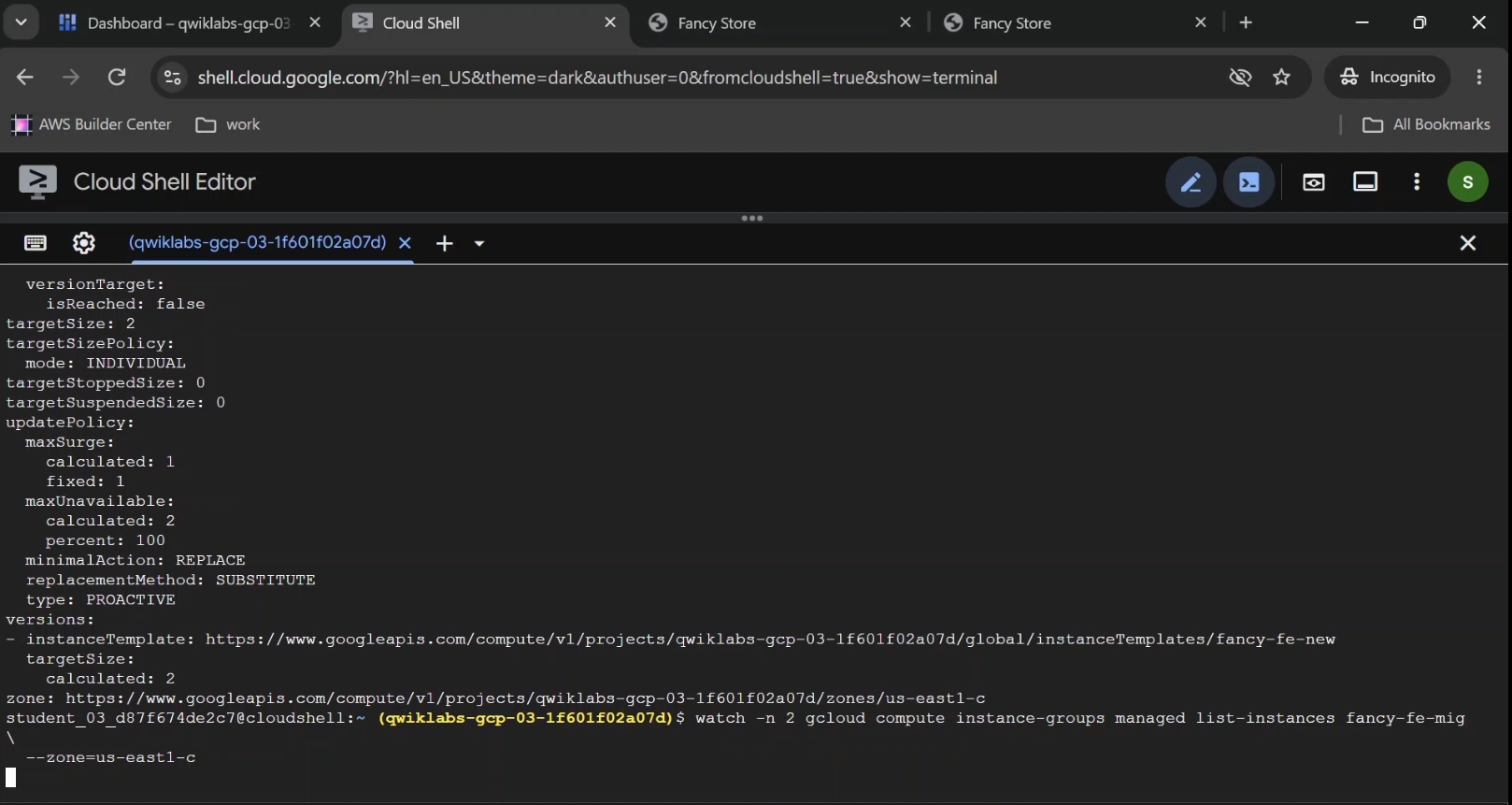
gcloud compute instance-groups managed rolling-action start-update fancy-fe-mig \
  --zone="$ZONE" \
  --version=template=fancy-fe-new
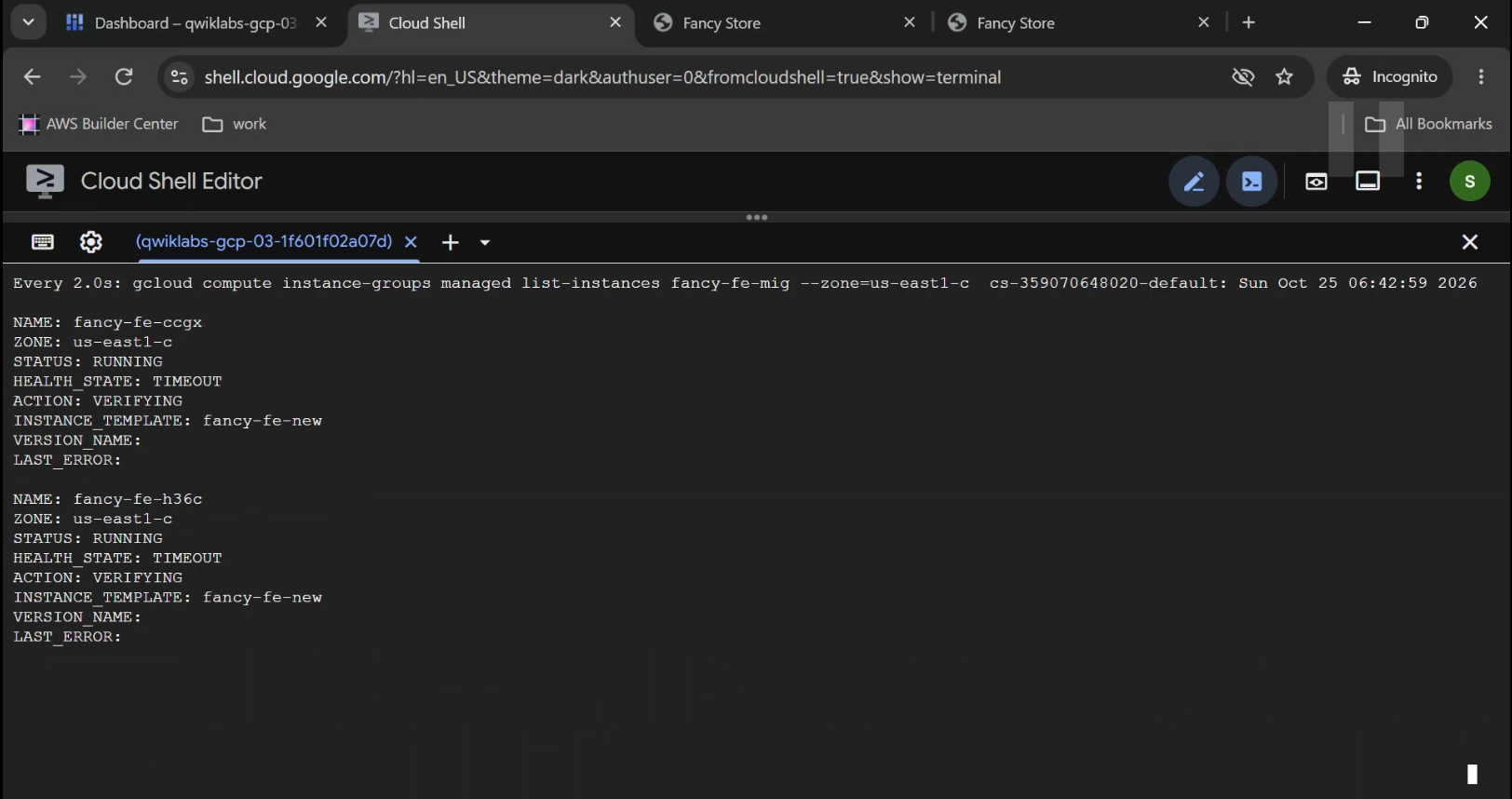
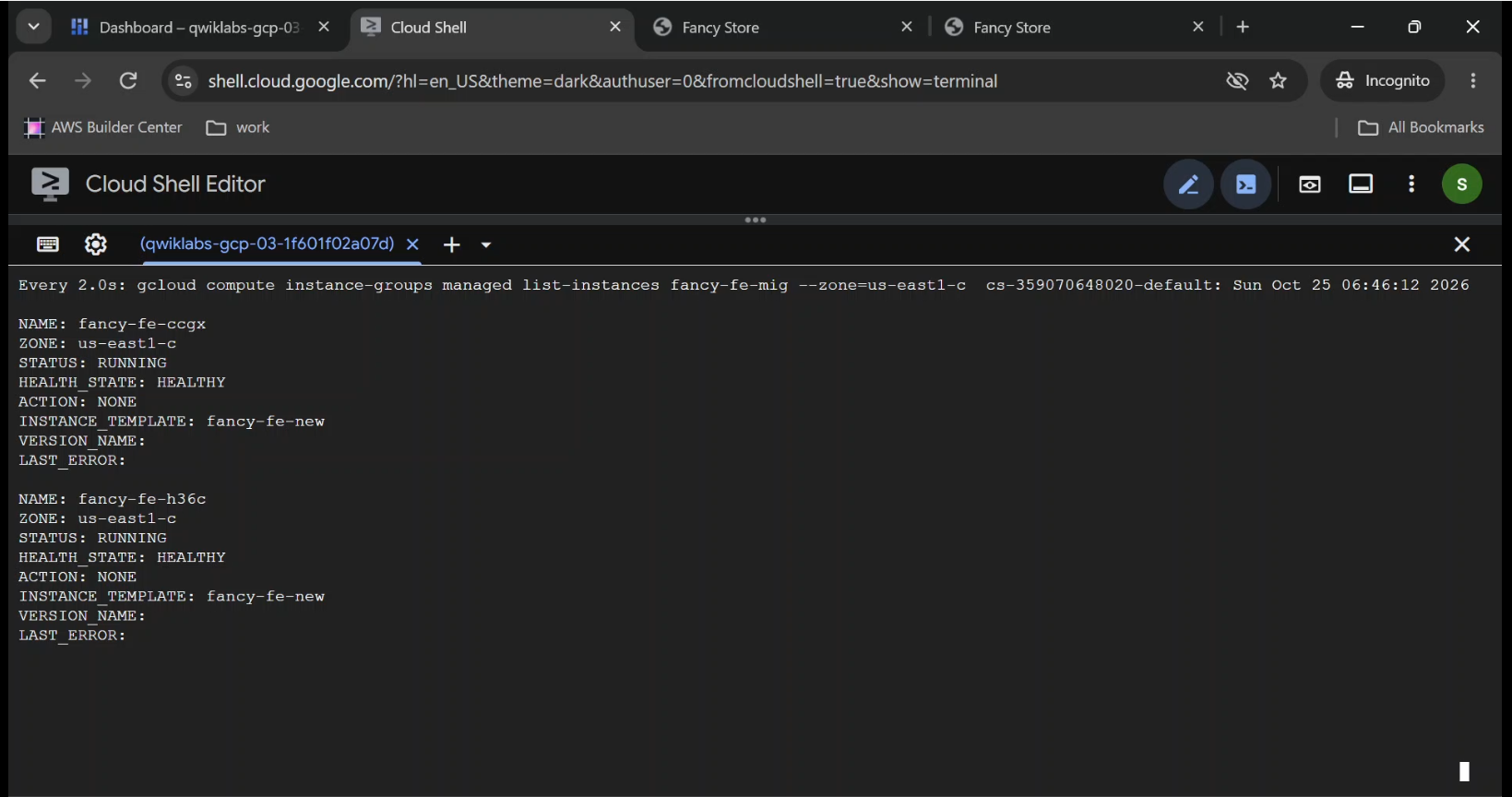
Verify the update:
gcloud compute instance-groups managed list-instances fancy-fe-mig \
  --zone="$ZONE"
Inspect an updated VM:
gcloud compute instances describe VM_NAME \
  --zone="$ZONE" \
  --format="value(machineType)"
Replace VM_NAME with an instance name from the managed group.
Change the Homepage Content
The Fancy Store repository includes an alternative homepage file.
Navigate to:
cd ~/monolith-to-microservices/react-app/src/pages/Home
Replace the current homepage component:
mv index.js.new index.js
Verify the file:
cat index.js
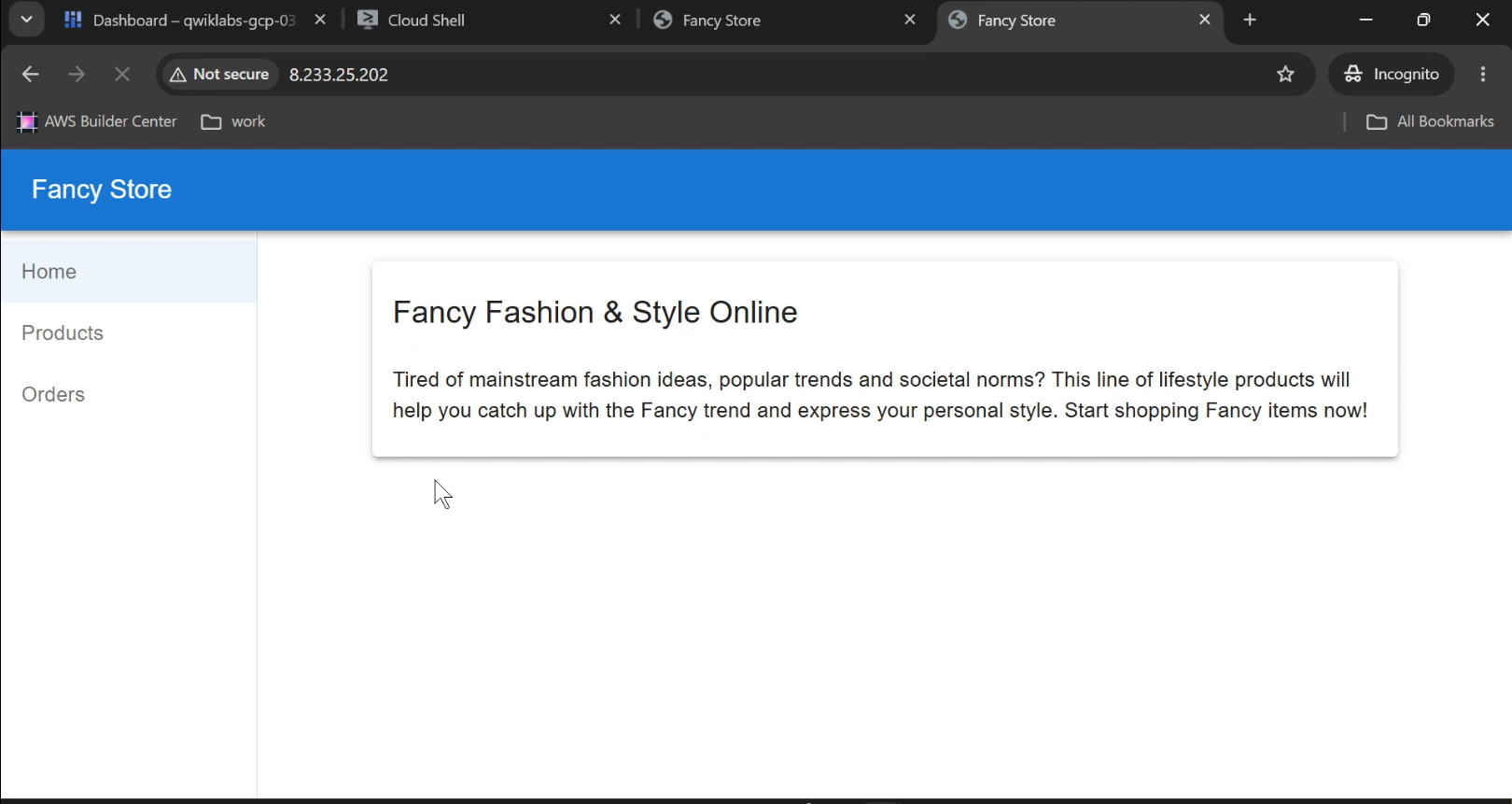
The new homepage introduces updated text welcoming visitors to Fancy Store and describing its products.
Rebuild the application:
cd ~/monolith-to-microservices/react-app

npm install
npm run-script build
Upload the updated code:
cd ~

rm -rf monolith-to-microservices/*/node_modules

gcloud storage cp -r \
  monolith-to-microservices \
  "gs://${BUCKET}/"
Because this sample retrieves application files when an instance starts, the frontend instances must be replaced to pick up the updated build.
gcloud compute instance-groups managed rolling-action replace fancy-fe-mig \
  --zone="$ZONE" \
  --max-unavailable=1
After the replacement completes and the health checks pass, reload the website using the load balancer IP.
You should see the updated homepage.
The Production Lesson
Updating a website should be a controlled process.
Instead of manually SSHing into every VM, changing files, and hoping the application stays healthy, you can deploy from known configurations and replace instances systematically.
For production releases, use versioned artifacts, appropriate rolling-update limits, health verification, and a rollback strategy.
Step 14: Simulate a Failure and Test Autohealing
Now comes the most revealing part of the exercise.
We created health checks.
We configured autohealing.
But does the infrastructure actually recover when an application stops responding?
Let's test it.
Perform this exercise only in your own isolated lab environment, not on a production service.
First, identify a frontend managed instance:
gcloud compute instance-groups managed list-instances fancy-fe-mig \
  --zone="$ZONE"
Copy one of the returned instance names.
SSH into that VM:
gcloud compute ssh INSTANCE_NAME --zone="$ZONE"
Replace INSTANCE_NAME with the actual VM name.
Inside the VM, deliberately stop the managed Node.js application:
sudo supervisorctl stop nodeapp
sudo killall node
Then exit:
exit
This interrupts the application process.
The health checks should eventually detect the problem if the service stays unavailable.
After the configured detection and recovery conditions are met, the managed instance group can replace the unhealthy VM.
Monitor the group:
gcloud compute instance-groups managed list-instances fancy-fe-mig \
  --zone="$ZONE"
You can also inspect Compute Engine operations and look for repair-related activity.
The process isn't instantaneous. Startup delays, health-check intervals, repair limits, and other factors affect recovery time.
What Should You Observe?
The expected outcome is that the affected instance becomes unhealthy and the group initiates recovery.
Eventually, a replacement instance should start the application and return to a healthy state.
If the process restarts successfully before the MIG decides to repair the VM, you may see application-level recovery instead of VM replacement.
That's still a valuable observation.
It shows why process supervision and VM autohealing should be understood as separate layers.
A recovery mechanism is only useful when you've verified the failure condition it can detect and the action it will take.
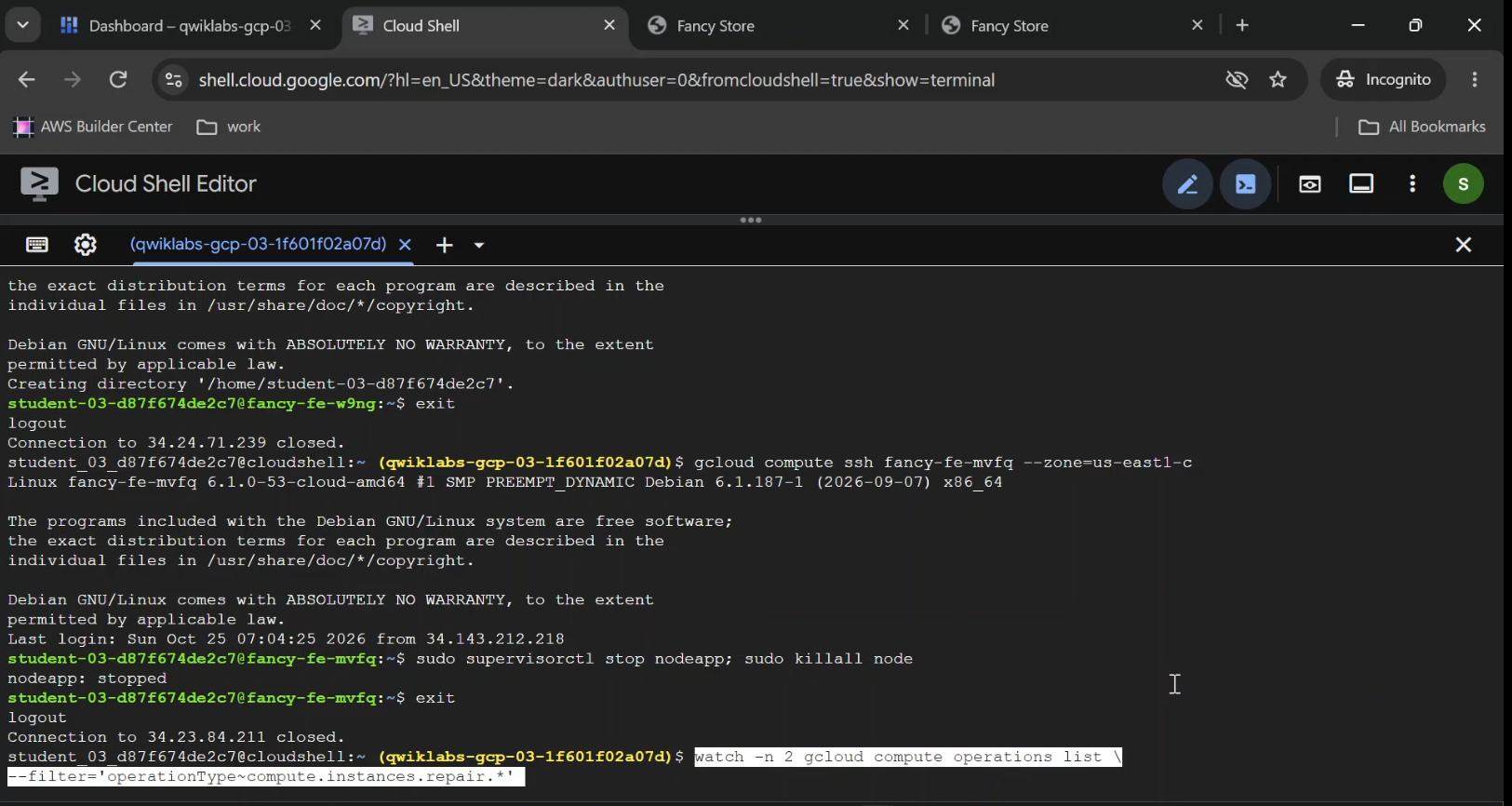
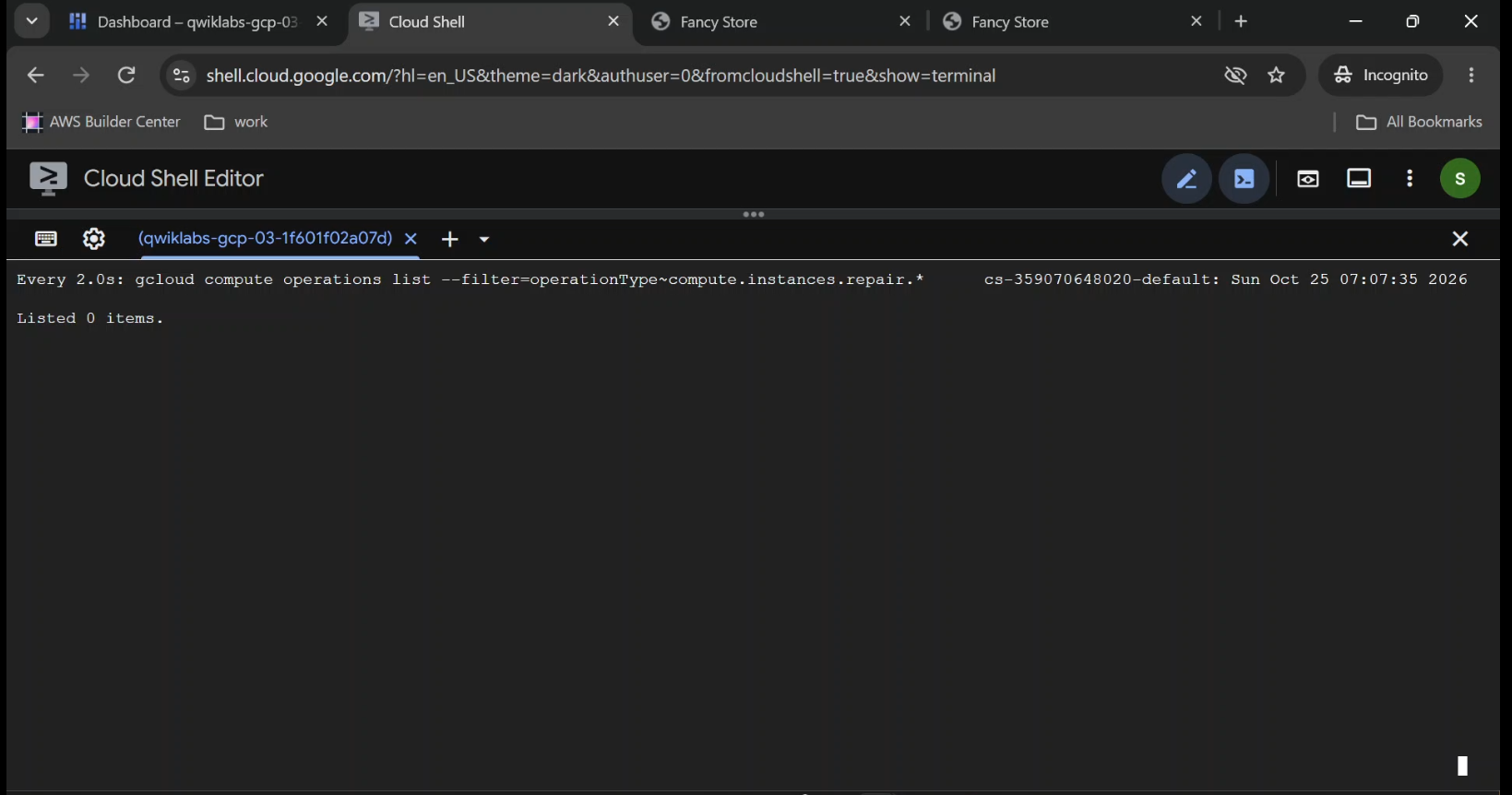
- Captured Compute Engine → Instance groups →
fancy-fe-mig→ Instances, or the relevant repair operation. - Shows Instance status, replacement activity, or the successfully restored healthy state.
- Caption: "Testing automatic recovery of an unhealthy Compute Engine VM using managed instance group autohealing."
- Alt text: Google Cloud managed instance group recovering from an intentionally stopped application process.
What This Lab Teaches About Cloud Architecture
We started with a relatively simple goal: host a website.
But the deployment demonstrates several important Cloud Operations principles.
1. Compute Resources Should Be Reproducible
If a VM disappears, you shouldn't need to remember every manual configuration step.
Instance templates and startup scripts reduce dependence on individual machines.
2. Application Health Matters More Than VM Status
A server can be running while the service it hosts is unavailable.
Health checks help infrastructure respond to application-level failures.
3. More Instances Aren't Enough Without Traffic Management
Multiple VMs provide potential capacity.
A load balancer determines how incoming requests are directed to those instances.
4. Autoscaling Requires Sensible Limits
Autoscaling policies must account for utilization targets, maximum capacity, minimum capacity, quotas, and cost.
A policy with a maximum of two instances can't scale beyond two.
5. Updates Are Infrastructure Operations
Changing a React component is a development task.
Delivering that change across a fleet of VMs without unnecessary disruption is an operations task.
Both matter.
6. Availability Is Not the Same as Disaster Recovery
Managed instance groups can recreate failed VMs.
They don't automatically protect application databases, user uploads, or other stateful data.
Durable external storage, backups, and recovery planning remain necessary.
Also, this lab's zonal managed instance groups don't provide the same resilience as a carefully designed multi-zone or regional deployment.
Five Mistakes to Avoid When Deploying Web Apps on Compute Engine
Mistake 1: Assuming RUNNING means HEALTHY
Verify that the application responds on the correct port and path.
Mistake 2: Exposing backend ports to everyone
Broad firewall rules may simplify a demonstration, but production access should be limited to the traffic sources that actually need it.
Mistake 3: Allowing all instances to be unavailable during an update
A --max-unavailable=100% configuration can interrupt service.
Choose rollout settings deliberately.
Mistake 4: Treating startup scripts as an unlimited deployment strategy
Startup scripts are useful for bootstrapping. Production deployments also benefit from tested images, versioned releases, dependency pinning, and controlled access to secrets.
Mistake 5: Forgetting ongoing infrastructure costs
Deleting one VM doesn't necessarily delete its load balancer, static addresses, storage bucket, templates, or other resources.
Always review remaining resources after completing a lab.
Frequently Asked Questions
Can I host a website on Google Cloud Compute Engine?
Yes. Compute Engine provides Linux and Windows virtual machines that can host web servers, applications, and related services. You manage the VM operating system, software, networking, and security configuration.
What is the difference between Compute Engine and Cloud Run?
Compute Engine provides VM-level control. Cloud Run provides a managed platform for running containerized applications without directly administering the underlying virtual machines. The right choice depends on your application's architecture and operational needs.
What is a Managed Instance Group in Google Cloud?
A managed instance group is a collection of VMs managed from a common instance configuration. It can support autohealing, autoscaling, and rolling updates.
Why does my load balancer show UNHEALTHY instances?
Possible reasons include an incorrect health-check port or path, application startup errors, missing firewall permissions, unavailable dependencies, or a service that isn't listening on the expected interface.
Does Google Cloud Load Balancing automatically scale my application?
No. Load balancing distributes traffic. Autoscaling is a separately configured policy that adjusts the number of managed VM instances based on supported metrics.
Is Cloud CDN useful for a dynamic web application?
Yes, particularly for eligible static assets. But dynamic or personalized responses require careful cache-policy configuration to avoid incorrect or unsafe caching.
Can I deploy updates without downtime?
Managed instance groups support controlled rolling updates that can reduce disruption, but the outcome depends on application readiness, capacity, health checks, rollout settings, and architecture. Zero downtime should be verified rather than assumed.
Clean Up Your Google Cloud Resources
After completing the exercise, review the resources created in the project.
These can include:
- Frontend and backend managed instance groups.
- Instance templates and standalone VMs.
- Load balancer components and health checks.
- Firewall rules.
- The Cloud Storage bucket and application files.
- Cloud CDN configuration and autoscaling policies.
If you're following an official temporary training lab, use its cleanup process.
In a personal project, delete resources you no longer need, including any retained dependencies that continue to generate charges.
Avoid deleting shared project resources or networks used by other workloads.
Final Thoughts: A Working Website Is Only the Beginning
At the beginning of this tutorial, Fancy Store was a sample application running from Cloud Shell.
Then we moved it into Compute Engine.
We configured startup automation, connected frontend and backend services, created instance templates, and deployed managed instance groups.
We added health checks, a load balancer, autoscaling policies, and Cloud CDN.
We updated the application and tested how the infrastructure responds to a simulated failure.
Each step introduced a new operational responsibility.
And that's the central lesson.
Deploying an application answers one question: Can it run?
Operating an application answers a harder question: Can it keep running when conditions change?
Understanding that distinction is what makes hands-on cloud labs valuable.
The commands matter.
But the architecture, the failure modes, and the decisions behind those commands matter even more.
Further Reading
- The Basics of Google Cloud Compute — Google Cloud Skills
- Fancy Store Sample Application — GitHub
- Compute Engine Documentation
- Creating Instance Templates
- Managed Instance Group Autohealing
- Cloud Load Balancing Documentation
- Rolling Updates for Managed Instance Groups
- Cloud CDN Documentation
- Google Cloud Ops Agent
Open to Cloud Ops Remote and technical writing projects.
Comments
Join the discussionNo comments yet. Be the first to comment.
Google Cloud Hands-On Labs-The Basics of Google Cloud Compute
https://www.skills.google/course_templates/754/ Google Cloud Hands-On Labs – The Basics of Google Cloud Compute Learn Google Cloud computing through practical, step-by-step tutorials based on the official Google Cloud Skills Boost course, The Basics of Google Cloud Compute. This series documents hands-on experience with Google Compute Engine, covering virtual machine creation, regions and zones, machine types, persistent disks, Linux server administration, NGINX web server deployment, and hosting scalable web applications. Follow the learning journey through four essential labs: 1. Create a Virtual Machine – Launch Compute Engine VMs using the Google Cloud console and gcloud CLI, configure networking, and deploy NGINX. 2. Creating a Persistent Disk – Create, attach, and manage persistent storage for virtual machines. 3. Host a Web App on Google Cloud Using Compute Engine – Deploy and scale a web application on Google Cloud infrastructure. 4. The Basics of Google Cloud Compute: Challenge Lab – Apply the skills learned through independent, practical cloud infrastructure tasks. Each tutorial includes clear explanations, commands, screenshots, troubleshooting guidance, and real-world Cloud Ops insights. The goal: Go beyond completing labs to understand how cloud infrastructure works, build practical Google Cloud skills, and prepare for the Google Cloud Compute skill badge. Open to Cloud Ops Remote and technical writing projects.