
How to Create and Attach a Persistent Disk in Google Cloud: Step-by-Step Guide
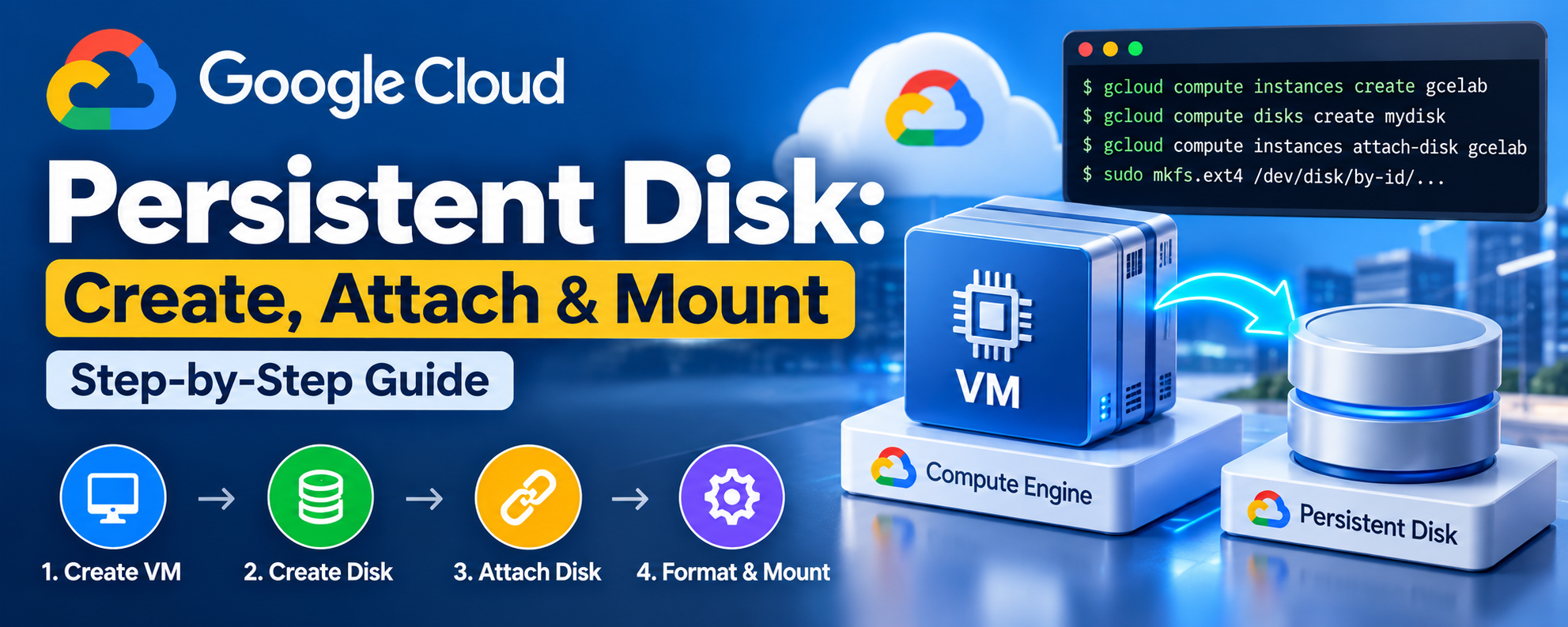
Your VM Can Disappear. Your Data Doesn't Have To: Google Cloud Persistent Disk Explained
A practical guide to creating, attaching, formatting, and mounting persistent storage on Google Compute Engine.
Imagine you've deployed a Linux server in Google Cloud. Your application is running. Your configuration is complete. Your data is growing.
Then something changes.
You need to replace the virtual machine, migrate a workload, or rebuild an environment.
The server itself might be disposable. The data usually isn't.
That's why understanding persistent storage is one of the most useful foundational skills in cloud operations.
A good cloud architecture separates what runs your application from what stores its important data.
In this hands-on tutorial, we'll create a Compute Engine VM, provision a 200 GB Persistent Disk, attach it to the VM, format it, and configure it to mount automatically after a restart.
We'll also cover the detail many beginners miss: how to control whether Google Cloud deletes an attached disk when you delete its VM.
What Is a Persistent Disk in Google Cloud?
A Google Cloud Persistent Disk is durable block storage that can be attached to a Compute Engine virtual machine.
Think of it like adding another hard drive to a computer.
Your operating system runs on one disk. Your application data can live on another.
In Google Cloud, these storage volumes are network-attached rather than traditional physical drives installed inside your VM's host machine.
A Persistent Disk can be detached from one compatible VM and attached to another, subject to attachment restrictions and location requirements.
This separation makes it useful for infrastructure maintenance, application migrations, database storage, and other workloads that require durable block storage.
But remember: persistent does not mean indestructible, automatically backed up, or guaranteed to survive every deletion action.
You still need sensible deletion policies, backups, and recovery plans.
Boot Disk vs. Additional Persistent Disk
| Feature | Boot Disk | Additional Persistent Disk |
|---|---|---|
| Main purpose | Operating system | Application or workload data |
| Required to start VM | Yes | No |
| Can use ext4 | Yes | Yes |
| Can be detached and reused | Under supported conditions | Yes |
| Deletion behavior | Controlled by auto-delete setting | Controlled by auto-delete setting |
A separate data disk gives you more flexibility when rebuilding or replacing compute resources.
For this exercise, we'll keep the operating system and application storage separate.
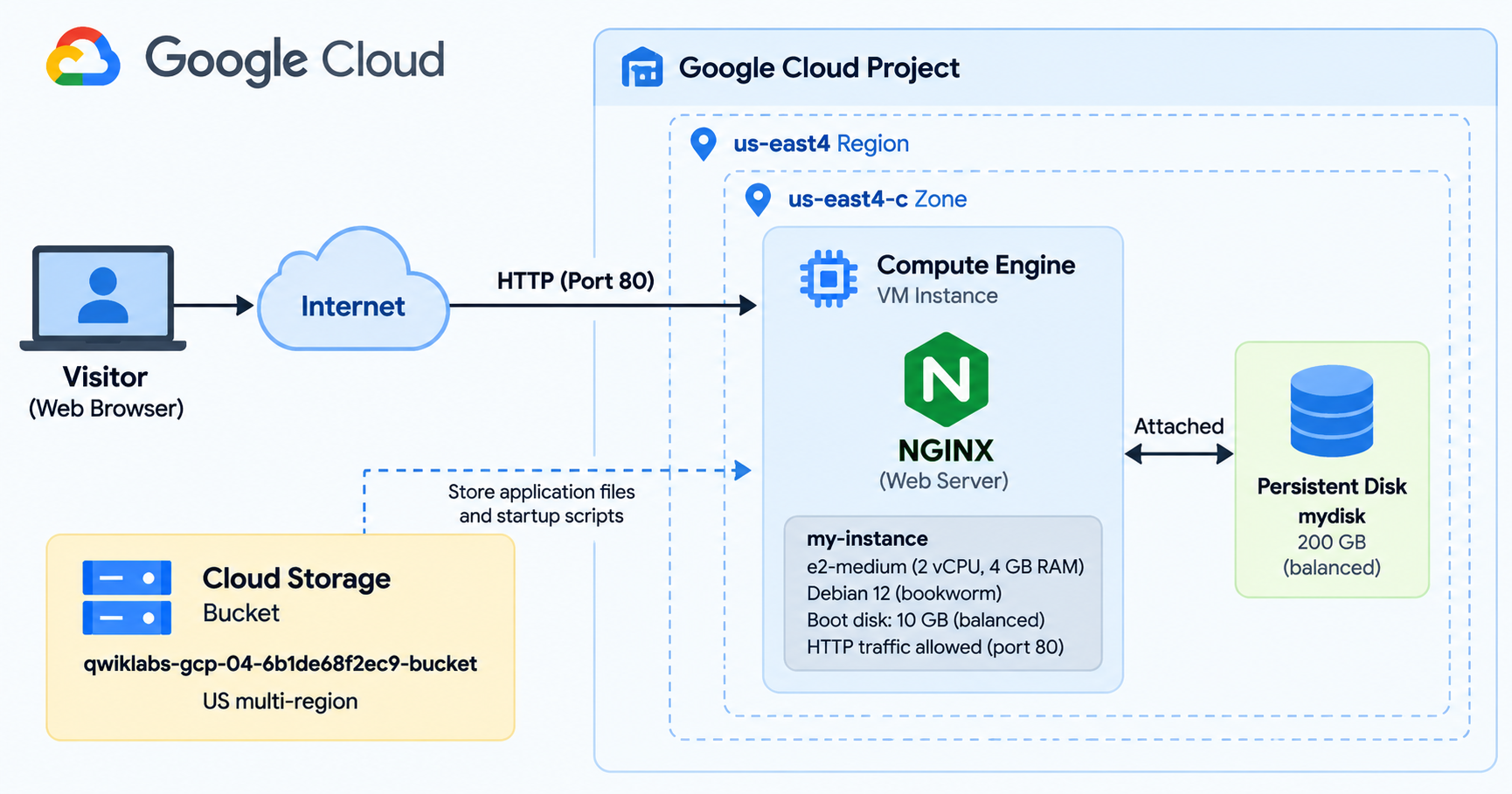
What We'll Build
Our architecture is deliberately simple.
Google Cloud Project
→ Compute Engine instance: gcelab
→ Machine type: e2-standard-2
→ Operating system: Debian 12
→ Boot disk: 10 GB
→ Additional Persistent Disk: mydisk, 200 GB, pd-standard
→ Linux mount point: /mnt/mydisk
When finished, the Linux operating system will recognize the additional volume as usable storage.
Before You Start
You'll need access to a Google Cloud project with billing or lab credits configured, permission to create Compute Engine resources, and access to Cloud Shell.
Basic familiarity with Linux commands is helpful, especially ls, sudo, mount, and nano.
The commands below follow Google's The Basics of Google Cloud Compute lab, with a few improvements for clarity and operational safety.
Important: A 200 GB Persistent Disk and an e2-standard-2 VM can generate charges outside a managed training lab. Confirm the cost before provisioning resources in a personal or production project.
Step 1: Activate Google Cloud Shell
The first step is connecting to Google Cloud's command-line environment.
Open the Google Cloud Console.
Select your project, then click Activate Cloud Shell in the top navigation.
Cloud Shell provides a browser-based terminal with Google Cloud CLI tools already installed.
That means you can manage VMs, disks, networks, and other resources without installing the CLI on your local machine.
If prompted, authorize Cloud Shell to access your Google Cloud resources.
Once connected, verify the authenticated account:
gcloud auth list
You'll see the accounts available to the CLI and an indication of which account is active.
Next, confirm the project:
gcloud config get-value project
Make sure the displayed project matches the one assigned to your lab.
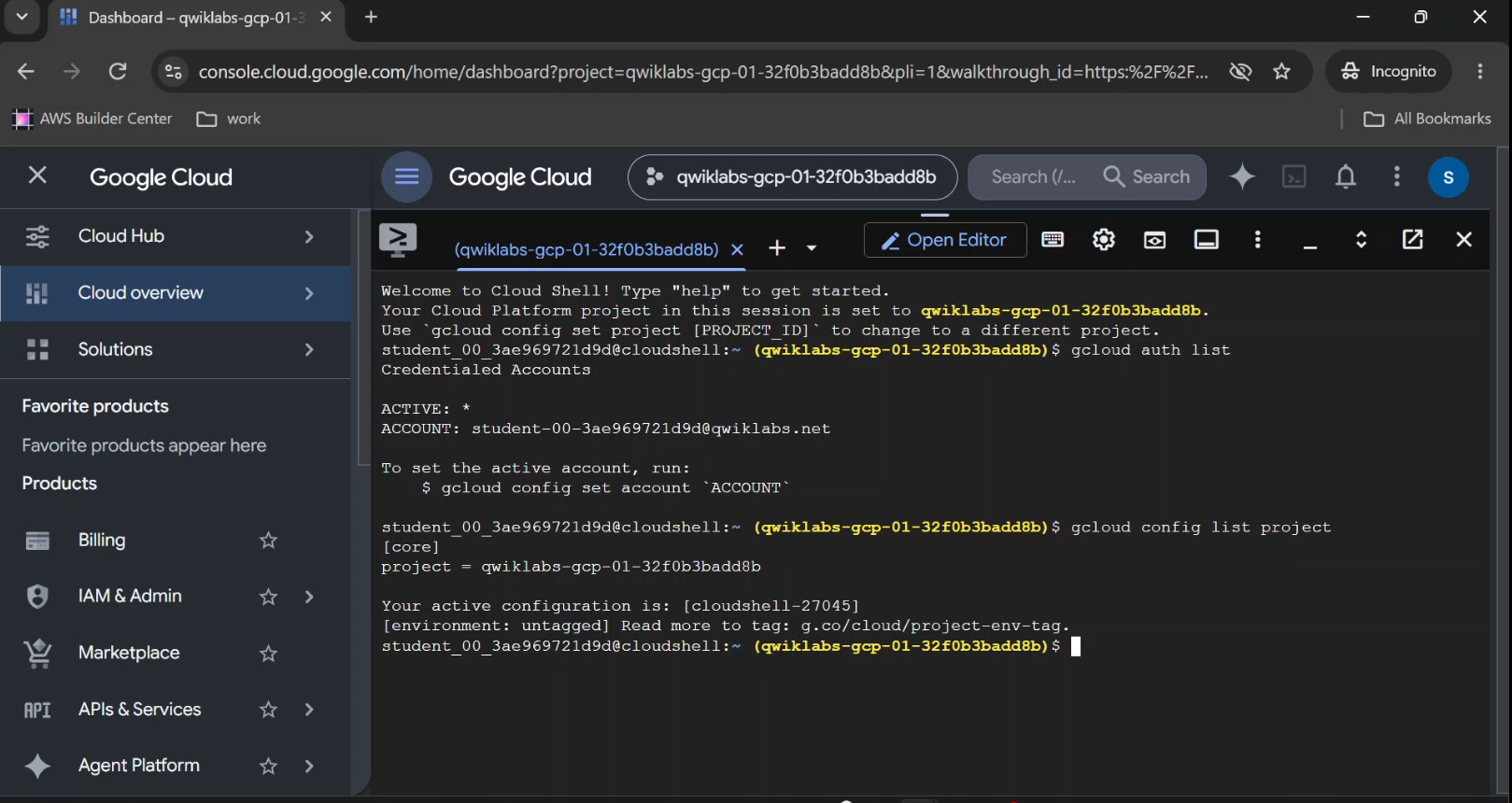
- Captured: Google Cloud Console with Cloud Shell open.
- Shows: The
gcloud auth listoutput and project verification command. - Caption: "Verifying Google Cloud authentication and the active project in Cloud Shell."
Configure the Region and Zone
Google Cloud infrastructure is organized into regions and zones.
A region is a geographic area. A zone is a deployment location within a region.
For this exercise, the VM and the new zonal Persistent Disk must be created in the same zone.
Set the variables using the region and zone assigned to your lab:
export REGION="YOUR_REGION"
export ZONE="YOUR_ZONE"
For example, a valid pair is us-central1 and us-central1-a.
Then configure the CLI:
gcloud config set compute/region "$REGION"

gcloud config set compute/zone "$ZONE"
These settings reduce the need to repeatedly enter location information.
Cloud Ops takeaway: Many deployment failures begin with inconsistent project, region, or zone configuration. Verify the environment before troubleshooting the infrastructure.
Step 2: Create a Compute Engine Virtual Machine
Now we'll create the server that will use our Persistent Disk.
Run this command in Cloud Shell:
gcloud compute instances create gcelab \
  --zone="$ZONE" \
  --machine-type=e2-standard-2 \
  --image-family=debian-12 \
  --image-project=debian-cloud \
  --boot-disk-size=10GB
Let's break it down.
gcelabis the virtual machine name.--zonespecifies where the VM runs.--machine-type=e2-standard-2selects an E2 machine with 2 vCPUs and 8 GB of memory.--image-family=debian-12selects a Debian 12 operating system image.--image-project=debian-cloudidentifies the source of the public image.--boot-disk-size=10GBspecifies the OS disk capacity.
Once the command succeeds, Google Cloud returns details about the VM, including its name, machine type, IP addresses, and status.
You should see a status similar to:
NAME     MACHINE_TYPE    STATUS
gcelab   e2-standard-2   RUNNING
You now have a running Linux virtual machine.
But it only has the storage required for its operating system.
We need another disk for our data.
- Verify: Compute Engine → VM instances.
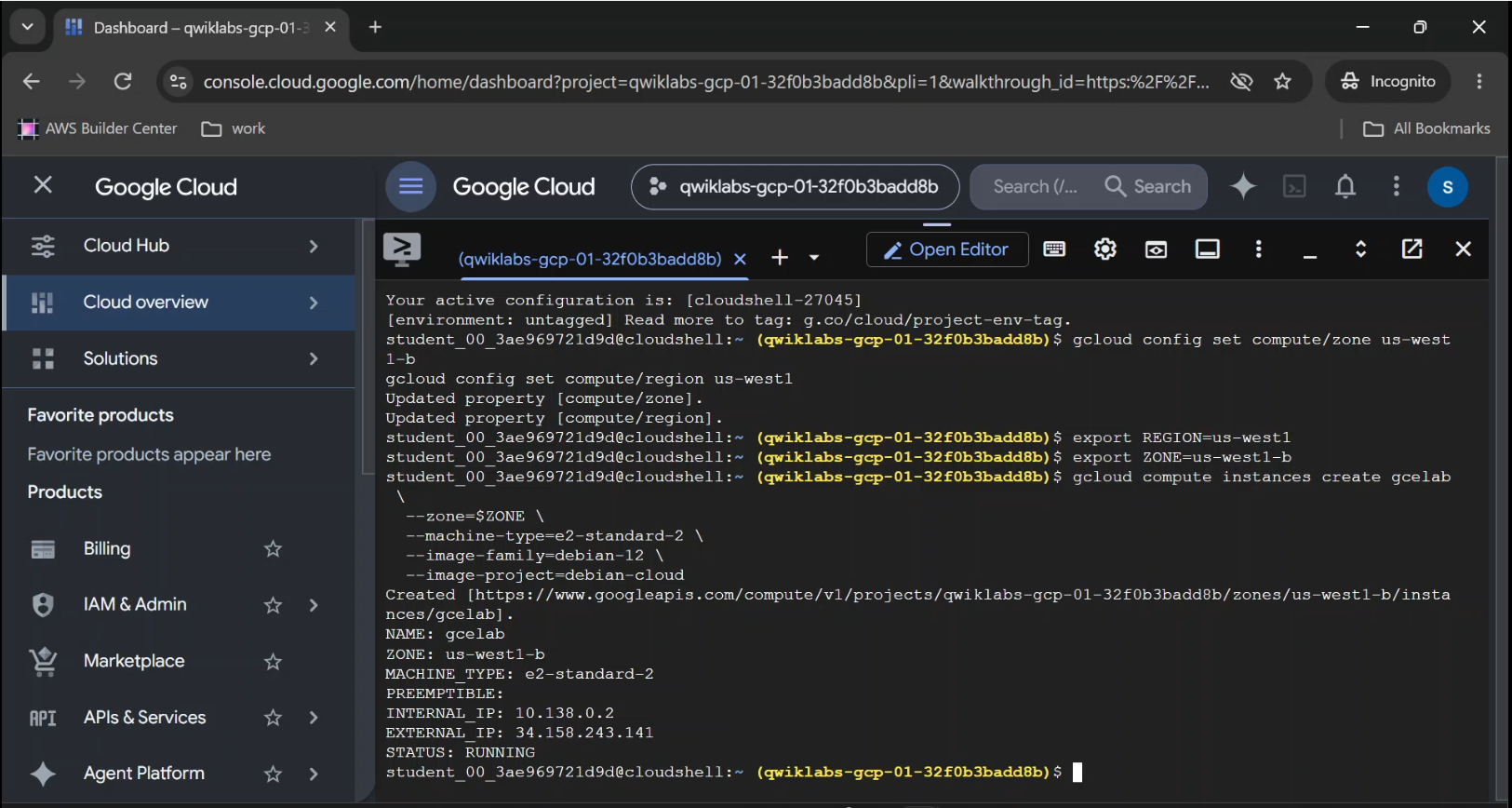
- Show:
gcelab, its machine type, zone, and Running status. - Caption: "Successfully creating a Debian 12 Compute Engine VM using gcloud CLI."
Step 3: Create a 200 GB Persistent Disk
Here's an important distinction:
Creating a disk and attaching a disk are two separate operations.
You can provision storage without immediately connecting it to a virtual machine.
That's useful when planning storage independently from compute.
In Cloud Shell, create a new disk named mydisk:
gcloud compute disks create mydisk \
  --size=200GB \
  --type=pd-standard \
  --zone="$ZONE"
The command provisions a new Standard Persistent Disk.
The flags specify its name, capacity, storage type, and location.
After successful creation, you should see details resembling:
NAME    SIZE_GB  TYPE         STATUS
mydisk  200      pd-standard  READY
The new disk exists.
However, it isn't attached to the VM, and it doesn't yet contain a filesystem.
Why Choose pd-standard?
For this tutorial, pd-standard keeps the setup aligned with the training lab.
Standard Persistent Disk is a capacity-oriented, HDD-backed storage option.
Google Cloud also provides other Persistent Disk types, including Balanced (pd-balanced) and SSD (pd-ssd), along with newer Hyperdisk options for supported workloads.
The right choice depends on the workload's performance, latency, capacity, and cost requirements.
For learning disk creation and mounting, Standard Persistent Disk is sufficient.
Verify: Compute Engine → Storage → Disks.
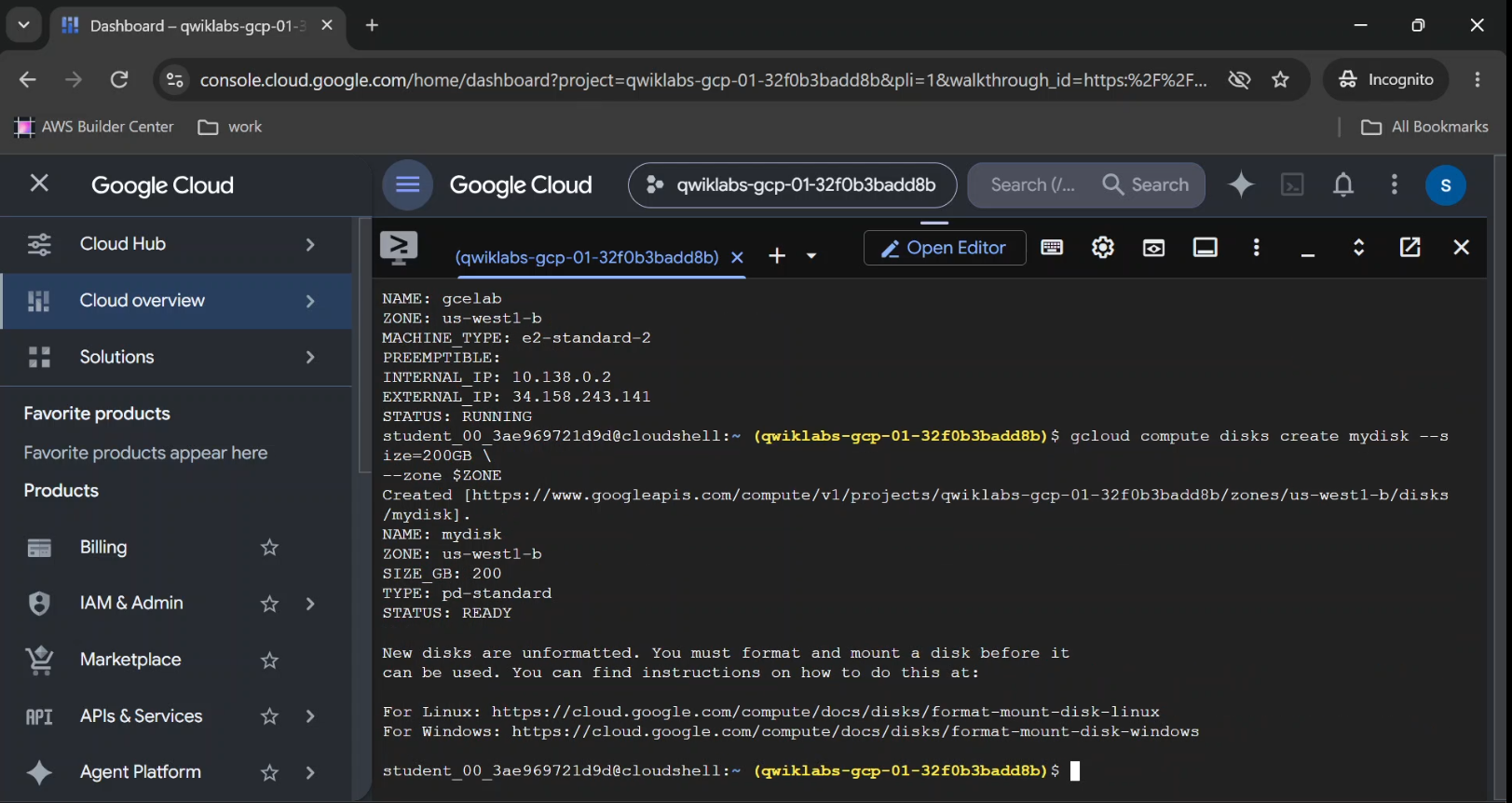
Show:
mydisk, 200 GB capacity,pd-standardtype, and zone.Caption: "A new 200 GB Standard Persistent Disk created in Google Cloud.
Step 4: Attach the Disk to the Running VM
Now comes the step that connects storage to compute.
We already have two independent resources:
The virtual machine, gcelab.
The disk, mydisk.
Let's connect them.
Run:
gcloud compute instances attach-disk gcelab \
  --disk=mydisk \
  --device-name=mydisk \
  --zone="$ZONE"
This tells Google Cloud to attach the existing Persistent Disk to our running virtual machine.
We explicitly set the device name to mydisk so the disk is easier to identify inside Linux.
When the operation succeeds, the CLI displays an update confirmation.
The important distinction: Attaching a disk makes the block device available to the operating system. It doesn't automatically make the filesystem ready to use.
That part comes next.
Verify: Compute Engine → VM instances →
gcelab→ Storage.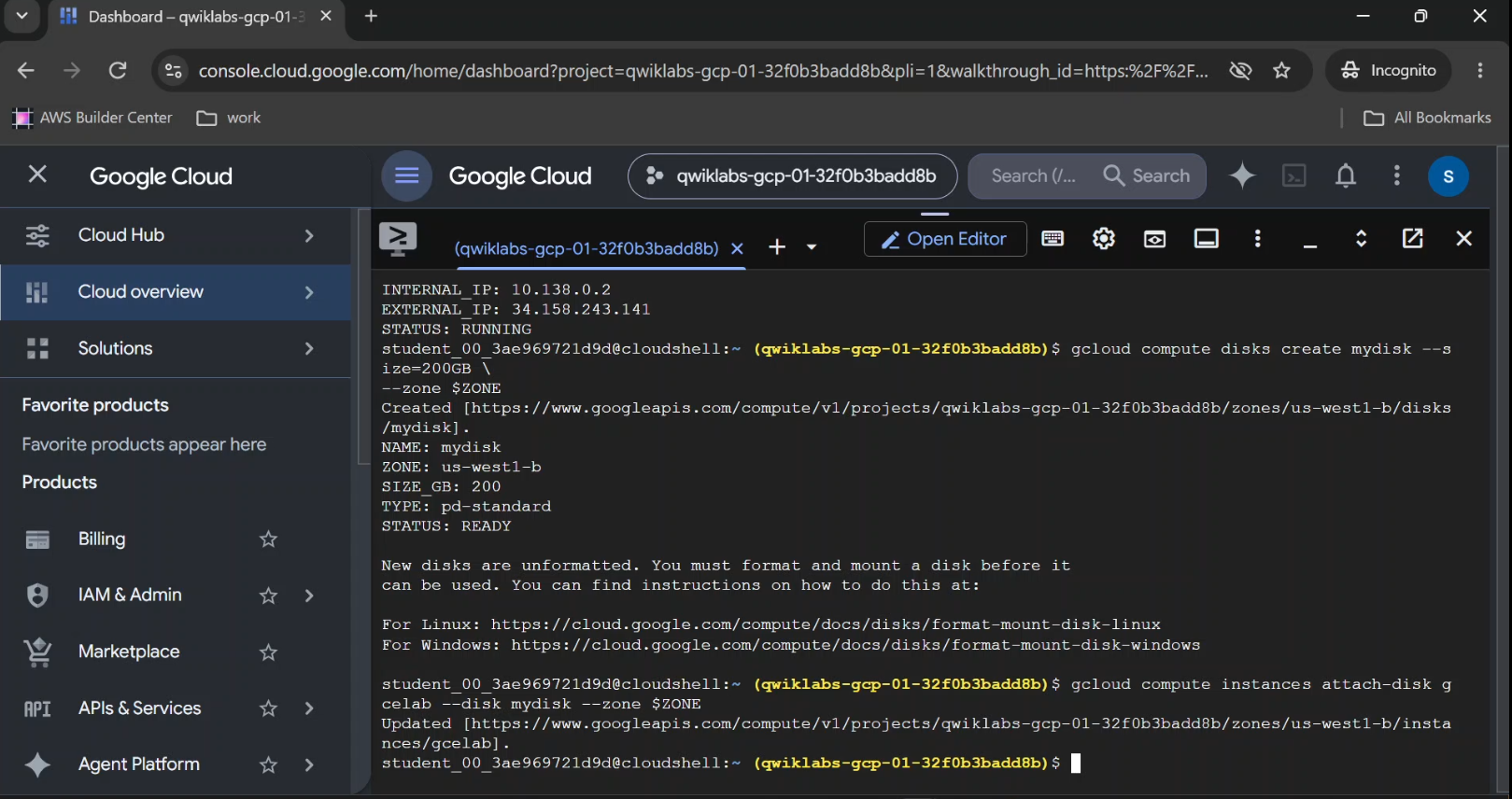
Show: Both the boot disk and attached
mydiskin the VM configuration.Caption: "Attaching a new Persistent Disk to an existing Compute Engine instance."
Step 5: Connect to Linux and Identify the Disk
The cloud-side configuration is complete.
Now we need to work inside the virtual machine.
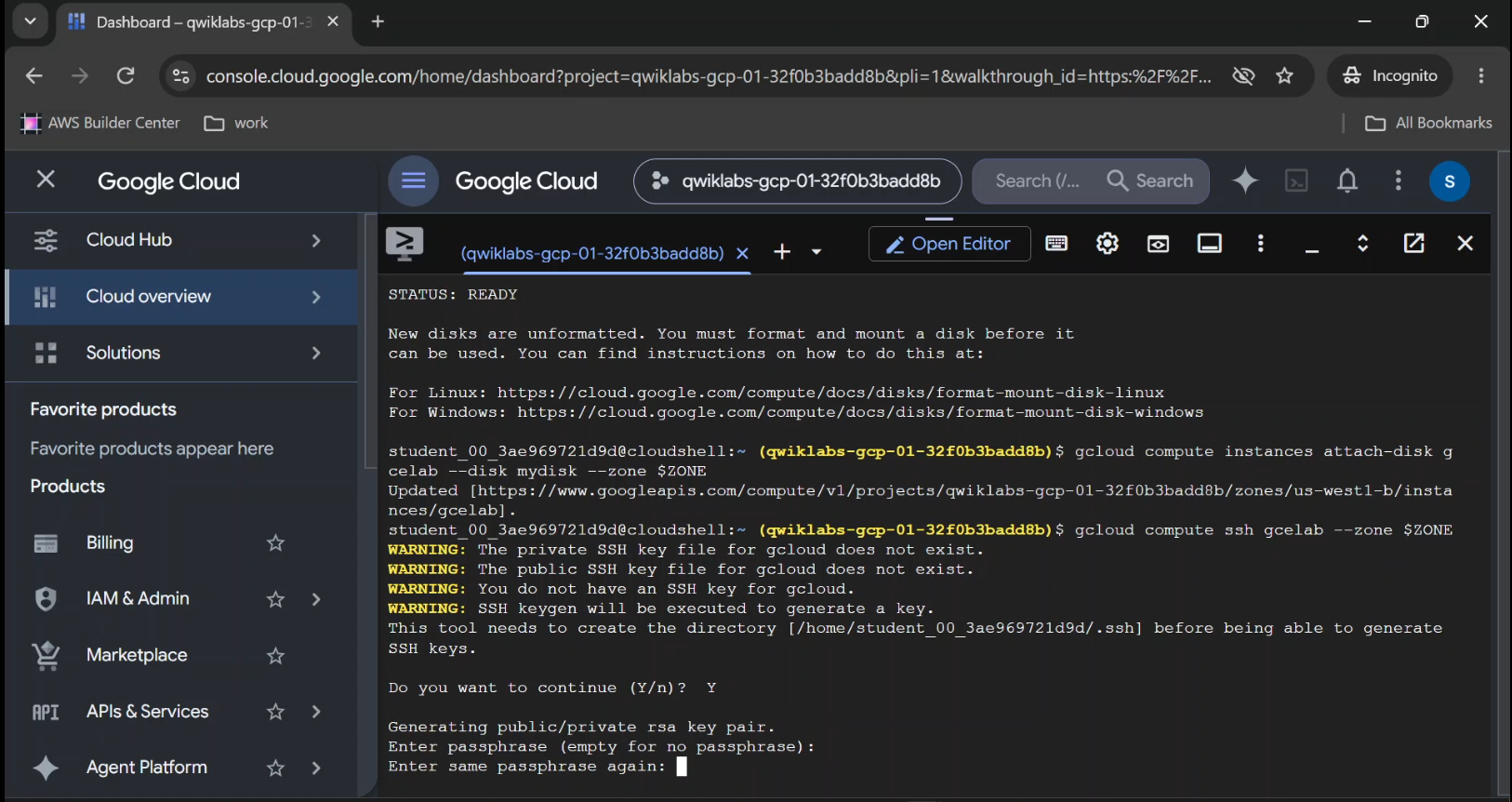
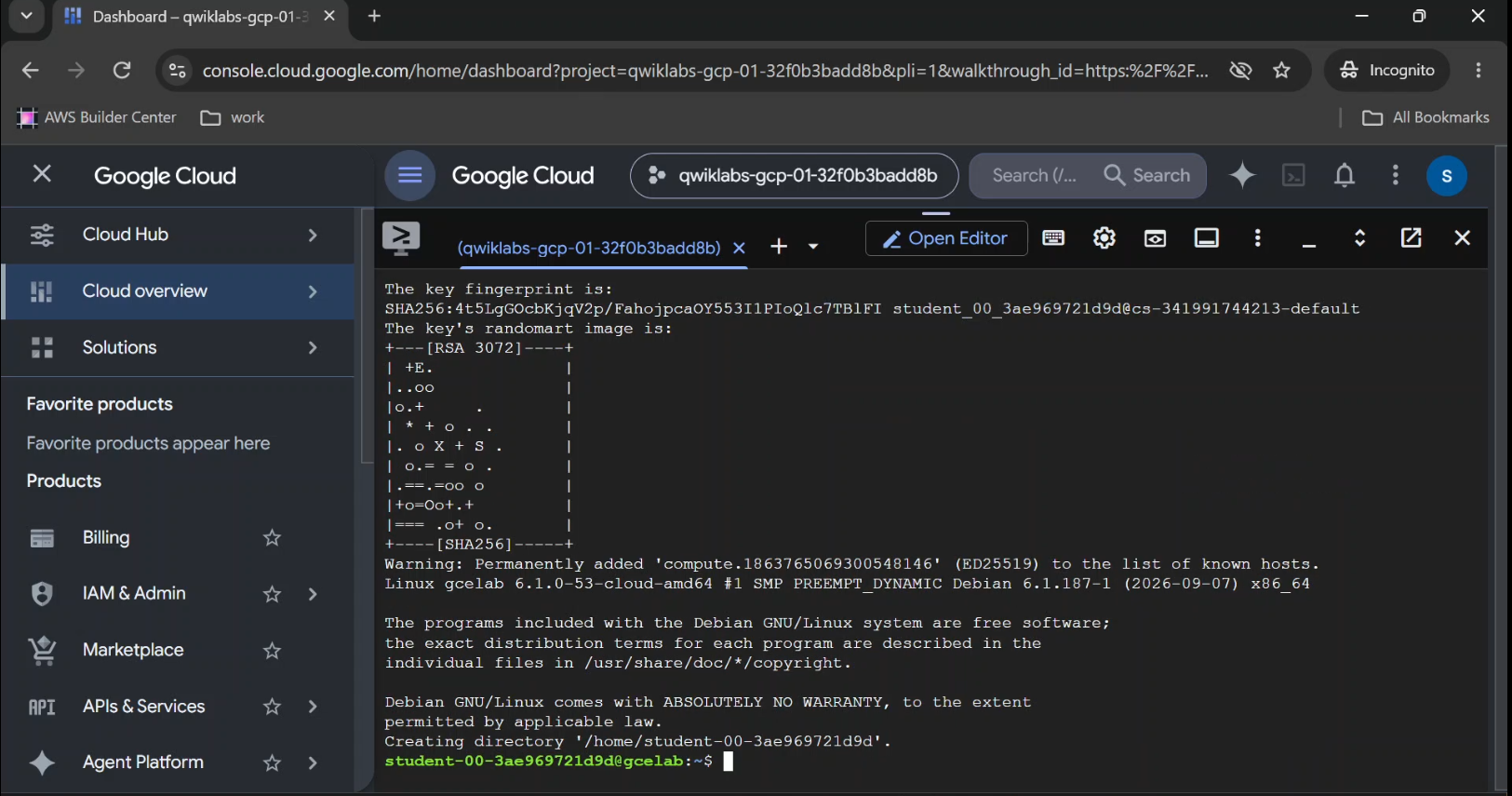
From Cloud Shell, connect over SSH:
gcloud compute ssh gcelab --zone="$ZONE"
On your first connection, the CLI might ask permission to generate SSH keys.
Follow the interactive prompts. In a managed lab, follow the lab's instructions for any passphrase prompt.
Once connected, you're working inside the Debian VM rather than Cloud Shell.
That distinction matters because formatting and mounting commands must run against the disk visible to the VM's operating system.
Find the Attached Block Device
Run:
ls -l /dev/disk/by-id/google-*
Google Cloud uses device symlinks to identify disks.
Because we attached our disk using the custom device name mydisk, look for an entry similar to:
google-mydisk -> ../../sdb
The underlying Linux device might appear as /dev/sdb or another name depending on the instance and storage interface.
Use the persistent device symlink rather than assuming that the disk is always named /dev/sdb.
You can also inspect available block devices:
lsblk -f
This displays block devices and their filesystems.
Before proceeding, confirm that google-mydisk points to the newly created empty data disk, not the boot disk.
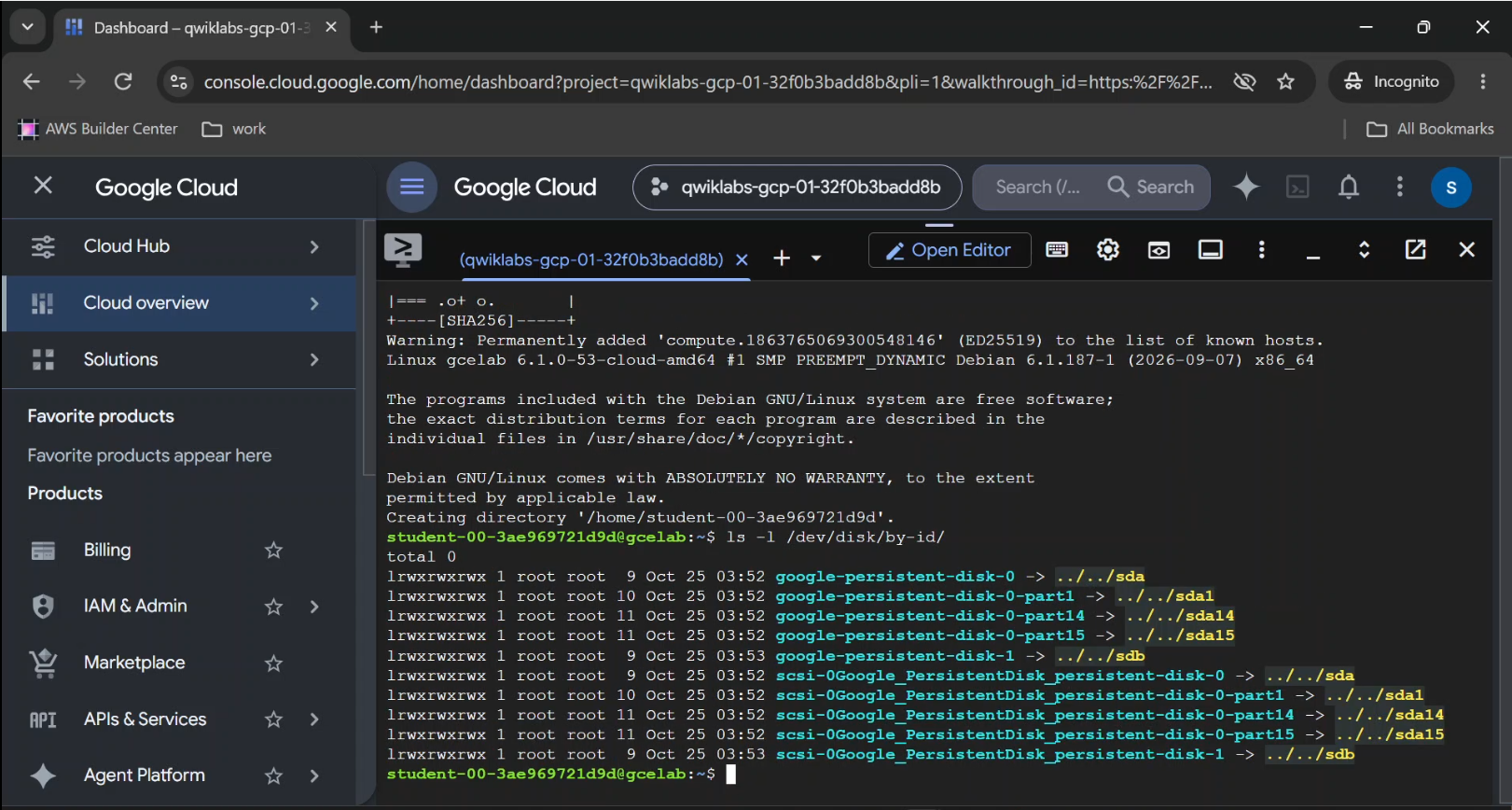
- Captured: SSH terminal inside
gcelab. - Shows: The
ls -l /dev/disk/by-id/google-*output andlsblk -fresults. - Highlights: The additional disk's symlink.
- Caption: "Identifying the attached Google Cloud Persistent Disk inside Linux."
- Alt text: Linux terminal showing the attached Persistent Disk device path.
Step 6: Format the Persistent Disk with ext4
A newly created blank disk is not automatically a usable Linux filesystem.
We need to create one.
Linux supports multiple filesystem types. In this exercise, we'll use ext4, a widely used filesystem for Linux servers.
Run:
sudo mkfs.ext4 -F /dev/disk/by-id/google-mydisk
The mkfs.ext4 command creates a filesystem on the specified block device.
The output should display filesystem creation operations, including inode tables and filesystem metadata.
Critical warning: Formatting destroys existing data on the target disk. Run this command only on the new blank mydisk volume after verifying its identity. Never run it on the VM's boot disk or on an existing disk whose data you intend to preserve.
After formatting, the disk is ready to be mounted.
This step illustrates something important about cloud infrastructure:
Provisioning a resource is not necessarily the same as configuring that resource for application use.
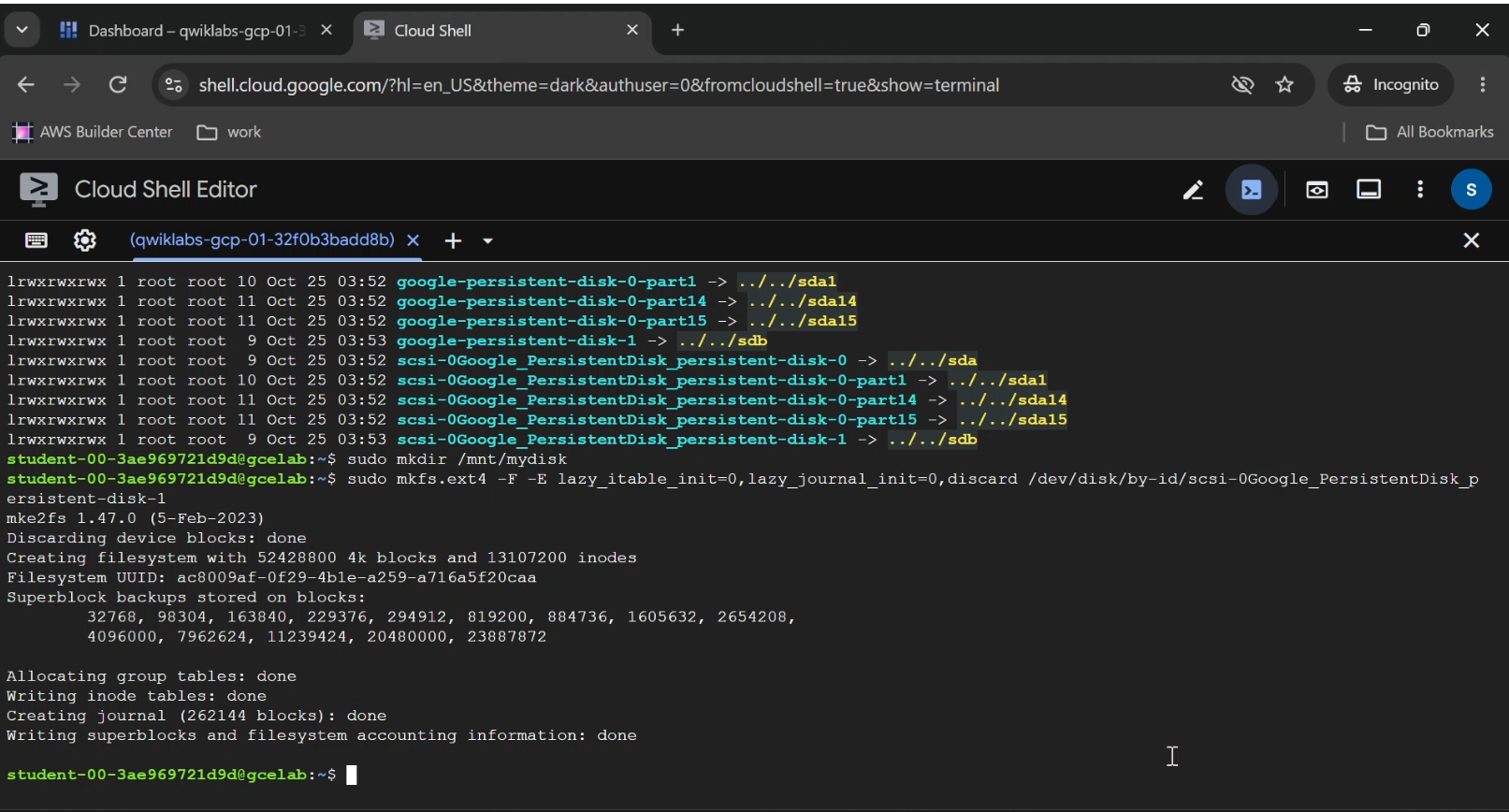
- Captured: SSH terminal after successful
mkfs.ext4. - Shows: The filesystem creation command and successful output.
- Caption: "Formatting a Google Cloud Persistent Disk with the ext4 filesystem.
Step 7: Mount the Disk and Make It Usable
Formatting prepares the storage.
Mounting makes it accessible through the Linux directory structure.
We'll mount our disk at:
/mnt/mydisk
First, create the directory:
sudo mkdir -p /mnt/mydisk
Then mount the new filesystem:
sudo mount -o discard,defaults \
  /dev/disk/by-id/google-mydisk \
  /mnt/mydisk
The disk is now mounted at /mnt/mydisk.
The discard option enables filesystem discard requests, while defaults applies standard mount options.
Verify the Available Storage
Run:
df -hT /mnt/mydisk
You should see the mounted filesystem, type ext4, and available storage.
Its reported usable capacity may be slightly below 200 GB because of filesystem overhead and reserved space.
Let's test writing data.
sudo touch /mnt/mydisk/test-file.txt

sudo ls -l /mnt/mydisk/
If the test file appears, the filesystem is accessible.
We've now moved from an unattached cloud storage resource to a working Linux volume.
Step 8: Automatically Mount the Disk After Restart
There's one final configuration step.
Right now, the disk is mounted.
But a manual mount operation doesn't, by itself, guarantee that the filesystem will be remounted after the VM restarts.
In production infrastructure, requiring manual intervention after every reboot isn't an acceptable operational pattern.
Linux uses /etc/fstab to define filesystems that should be mounted automatically.
Find the Filesystem UUID
Run:
sudo blkid /dev/disk/by-id/google-mydisk
The output includes a filesystem UUID and its type.
A UUID is a persistent identifier for the filesystem.
Using it avoids relying on a potentially changing Linux device name.
Back Up and Edit fstab
First, create a backup:
sudo cp /etc/fstab /etc/fstab.backup
Open the configuration file:
sudo nano /etc/fstab
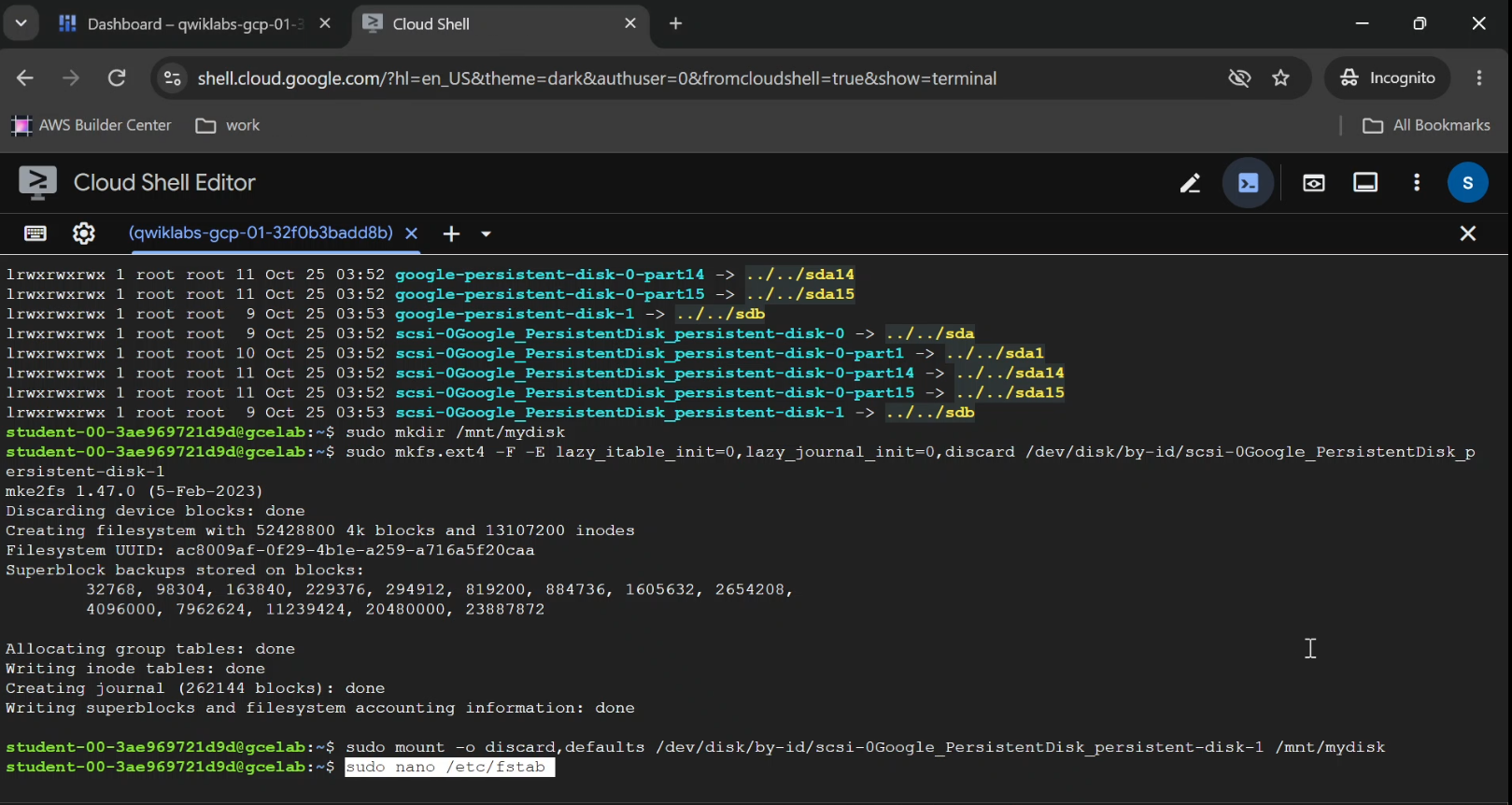
Add a new line using the actual UUID shown by blkid:
UUID=YOUR_DISK_UUID /mnt/mydisk ext4 discard,defaults,nofail 0 2
Replace YOUR_DISK_UUID with the real filesystem UUID.
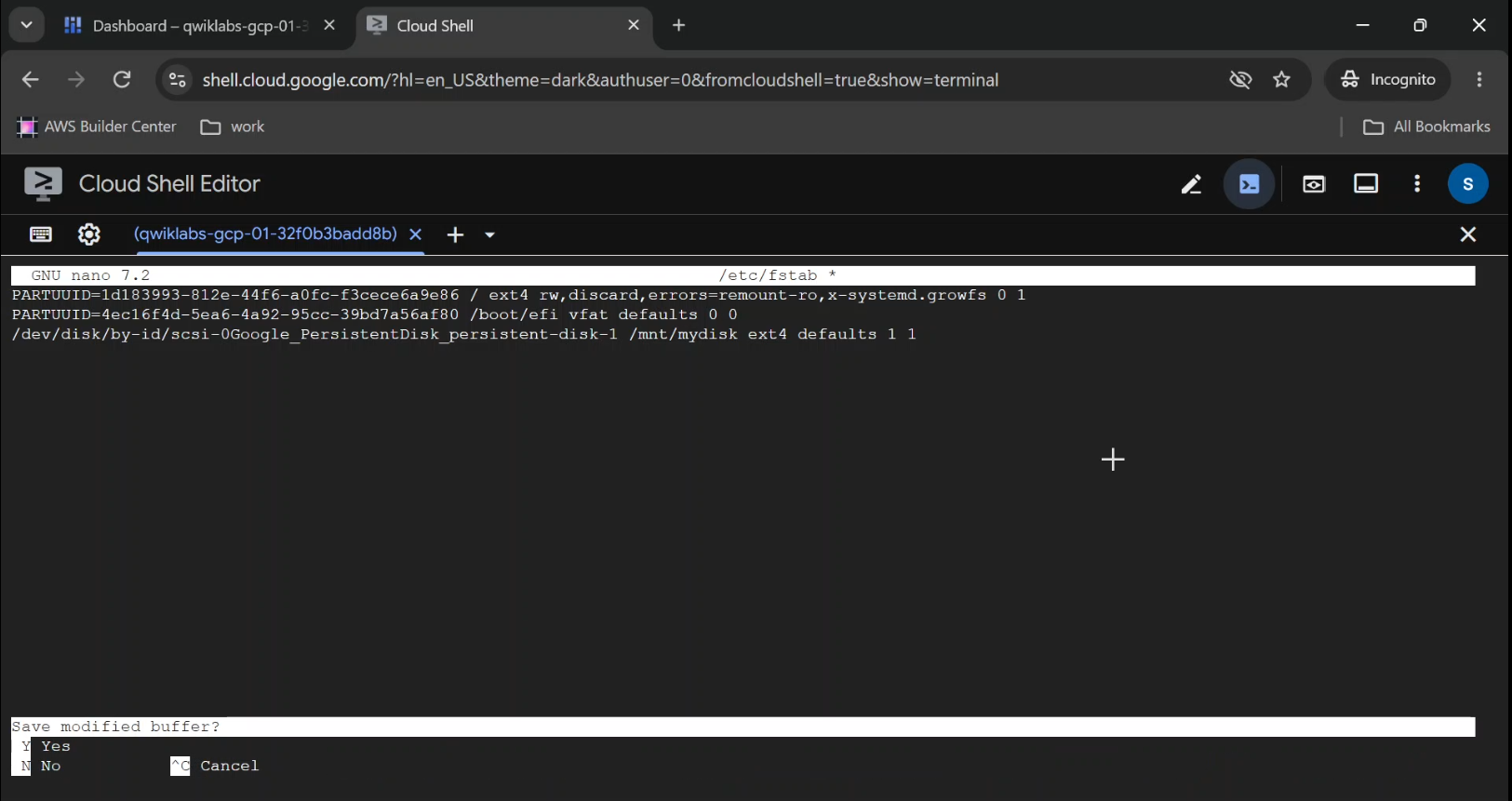
The options mean:
discard: Allows filesystem discard requests.defaults: Uses standard filesystem mount settings.nofail: Allows the system to continue booting if this nonessential volume is unavailable.0: Disables the older dump backup mechanism for this entry.2: Sets the filesystem check order after the root filesystem, where applicable.
Save the file using Ctrl + O, press Enter, and exit using Ctrl + X.
Verify the Configuration
For this isolated lab, where no application is actively using the disk, test the entry:
sudo umount /mnt/mydisk

sudo mount -a

df -hT /mnt/mydisk
Confirm that the filesystem mounts successfully.
You can also verify that your test file survived:
sudo ls -l /mnt/mydisk/
The real benefit becomes visible after a VM restart: Linux can mount the filesystem again automatically.
For an additional test, reboot the VM during a safe maintenance window, reconnect through SSH, and run:
df -hT /mnt/mydisk
If the filesystem is mounted, your persistent mount configuration is functioning.
The Cloud Ops Lesson: Disk Persistence Is Not the Same as Disk Retention
Here's where the exercise becomes more valuable than simply running commands.
Persistent Disks are independent storage resources.
But an attached disk can still be configured to delete automatically when its VM is deleted.
That behavior is controlled by its auto-delete setting.
To preserve mydisk when deleting the VM, exit SSH to return to Cloud Shell:
exit
Then set its deletion policy:
gcloud compute instances set-disk-auto-delete gcelab \
  --disk=mydisk \
  --no-auto-delete \
  --zone="$ZONE"
You can inspect the instance's attached disk configuration:
gcloud compute instances describe gcelab \
  --zone="$ZONE" \
  --format="yaml(disks)"
Another way to explicitly preserve data disks during VM deletion is:
gcloud compute instances delete gcelab \
  --keep-disks=data \
  --zone="$ZONE"
Only run that deletion command if you intend to delete the VM.
The --keep-disks=data option preserves attached data disks while deleting the instance. The fate of boot storage follows the applicable deletion behavior.
Why this matters: One careless deletion policy can turn an ordinary server replacement into a data recovery incident.
Persistent storage is useful. Verified retention settings and backups make it safer.
Persistent Disk vs. Local SSD vs. Hyperdisk
Google Cloud gives infrastructure teams multiple storage options.
They serve different workload requirements.
| Storage | Primary strength | Best suited for |
|---|---|---|
| Standard Persistent Disk | Durable, capacity-oriented storage | General-purpose capacity workloads |
| SSD Persistent Disk | Higher-performance durable block storage | I/O-sensitive applications |
| Hyperdisk | Configurable performance and durable storage | Modern, demanding workloads on supported VM families |
| Local SSD | Very fast temporary local storage | Caches, scratch data, and temporary high-performance workloads |
Local SSD storage is physically closer to the compute host and is designed for workloads that can tolerate temporary data loss.
Persistent Disk and Hyperdisk are durable network-attached block storage offerings.
Google Cloud increasingly recommends Hyperdisk for supported machine series, particularly when performance requirements justify it.
The lesson isn't that one storage type is universally better.
The right storage choice is the one that matches the application's durability, performance, recovery, and cost requirements.
Common Persistent Disk Problems and How to Fix Them
Even a straightforward disk attachment task can fail when one part of the environment is misconfigured.
Problem 1: The Disk Won't Attach
One common cause is a mismatch between the VM zone and disk zone.
Check where your resources exist:
gcloud compute instances list

gcloud compute disks list
For the zonal disk used in this tutorial, ensure the instance and disk are located in the same zone.
Also check IAM permissions and whether the disk is already attached in an incompatible mode.
Problem 2: Linux Doesn't Show the Disk
Start by checking:
lsblk

ls -l /dev/disk/by-id/google-*
If you don't see the expected device, confirm in Google Cloud that the disk attachment operation succeeded.
Don't assume /dev/sdb always represents your new disk.
Problem 3: The Filesystem Won't Mount
Possible causes include an incorrect device path, missing filesystem, invalid mount options, or an incorrect /etc/fstab entry.
Check:
lsblk -f

sudo blkid
Verify the filesystem type and UUID before editing the mount configuration.
Never attempt to fix an unknown disk by formatting it without first determining whether it contains valuable data.
Problem 4: Permission Denied When Writing Files
A newly formatted Linux filesystem is commonly owned by root.
If an application needs access, configure appropriate ownership and permissions for its service account.
Avoid granting unrestricted write permissions to every user simply to bypass an access problem.
Problem 5: The VM Works, but Storage Costs Continue
Deleting or stopping a VM doesn't necessarily eliminate storage charges.
Detached Persistent Disks can continue accruing charges until you delete them.
That's intentional: keeping storage available has a cost, even when no VM is actively using it.
An effective Cloud Ops workflow should include periodic checks for unused disks.
Bonus: How Persistent Disks Help During Infrastructure Migration
Imagine an application needs to move to a VM in another zone or region.
You can't simply assume that a zonal Persistent Disk can be attached to a VM anywhere.
Storage location matters.
One migration approach is to prepare the workload for a consistent snapshot, create a disk snapshot, create a replacement disk in the target location, and attach it to a compatible VM.
A simplified workflow looks like this:
- Quiesce application writes or otherwise establish a consistent backup point.
- Create a snapshot of the source disk.
- Create a new disk from the snapshot in the destination zone.
- Create or prepare the destination VM.
- Attach and mount the restored disk.
- Verify filesystem integrity and application behavior before directing production traffic to the new VM.
This isn't a complete production migration runbook. Applications with active databases may require application-consistent snapshots, coordinated recovery procedures, and planned downtime or replication.
But the principle is useful: keeping compute and storage logically separate makes infrastructure changes easier to reason about.
Clean Up Resources When You're Finished
In a managed training lab, follow the lab platform's cleanup instructions.
In a personal Google Cloud project, review your resources to avoid unnecessary charges.
If you've finished the exercise and no longer need the data, you can remove the VM and then delete any retained data disk.
For example, to delete the VM while explicitly keeping its data disks:
gcloud compute instances delete gcelab \
  --keep-disks=data \
  --zone="$ZONE"
After confirming the data is no longer required, delete the retained disk:
gcloud compute disks delete mydisk --zone="$ZONE"
Disk deletion is destructive. Make sure you've backed up anything important first.
Cloud cost management isn't just about choosing smaller virtual machines.
It's also about knowing which resources are still consuming money after the original workload disappears.
Frequently Asked Questions
Does a Google Cloud Persistent Disk survive VM deletion?
It can, but preservation depends on its auto-delete configuration or the deletion command's disk retention options. A Persistent Disk isn't automatically guaranteed to remain after every VM deletion.
Can I attach a Persistent Disk to a running VM?
Yes. Google Compute Engine supports attaching compatible non-boot Persistent Disks to running VMs, subject to resource and attachment restrictions.
Do I need to format a Persistent Disk every time I attach it?
No. Format only a newly created blank disk or one you deliberately intend to overwrite. Reformatting an existing filesystem can destroy its data.
Why should I use a UUID in fstab?
Linux device names can change. A filesystem UUID gives the operating system a more stable identifier for mounting the intended filesystem.
Is Persistent Disk the same as Google Cloud Storage?
No. Persistent Disk provides block storage for compute workloads. Cloud Storage is an object storage service accessed through its APIs and compatible tools. They solve different storage problems.
Does Persistent Disk replace backups?
No. Persistent storage provides durability, but it doesn't eliminate risks such as accidental deletion, data corruption, software errors, or compromised credentials. Use appropriate snapshots and backup policies.
Final Thoughts: Build Infrastructure That Can Be Replaced
We began with a simple virtual machine.
Then we created a separate 200 GB storage volume.
We attached it, identified its Linux device, formatted it with ext4, mounted it, and configured persistent mounting.
Along the way, we learned why resource location, filesystem identifiers, disk deletion rules, and operational verification matter.
But the bigger lesson is about infrastructure design.
Your compute layer should be replaceable. Your data layer should be deliberate.
The more clearly you understand the relationship between VMs and storage, the easier it becomes to troubleshoot, migrate, automate, and operate cloud workloads.
That's what makes an entry-level storage lab worth learning.
Not the number of commands you memorize.
The operational decisions you understand after running them.
Further Reading
- The Basics of Google Cloud Compute — Google Cloud Skills
- Create and attach Persistent Disks — Google Cloud Documentation
- Format and mount disks on Linux
- Choose a Google Cloud disk type
- Control Persistent Disk deletion behavior
- Google Cloud CLI documentation
Open to Cloud Ops Remote and technical writing projects.
Comments
Join the discussionNo comments yet. Be the first to comment.
Google Cloud Hands-On Labs-The Basics of Google Cloud Compute
https://www.skills.google/course_templates/754/ Google Cloud Hands-On Labs – The Basics of Google Cloud Compute Learn Google Cloud computing through practical, step-by-step tutorials based on the official Google Cloud Skills Boost course, The Basics of Google Cloud Compute. This series documents hands-on experience with Google Compute Engine, covering virtual machine creation, regions and zones, machine types, persistent disks, Linux server administration, NGINX web server deployment, and hosting scalable web applications. Follow the learning journey through four essential labs: 1. Create a Virtual Machine – Launch Compute Engine VMs using the Google Cloud console and gcloud CLI, configure networking, and deploy NGINX. 2. Creating a Persistent Disk – Create, attach, and manage persistent storage for virtual machines. 3. Host a Web App on Google Cloud Using Compute Engine – Deploy and scale a web application on Google Cloud infrastructure. 4. The Basics of Google Cloud Compute: Challenge Lab – Apply the skills learned through independent, practical cloud infrastructure tasks. Each tutorial includes clear explanations, commands, screenshots, troubleshooting guidance, and real-world Cloud Ops insights. The goal: Go beyond completing labs to understand how cloud infrastructure works, build practical Google Cloud skills, and prepare for the Google Cloud Compute skill badge. Open to Cloud Ops Remote and technical writing projects.